TekMatix Help Blog
Search Help Categories
Use the search bar below to look for help articles you need.
How to Switch On Project Management in Tekmatix (Early Access)
Quick answer: Project Management is coming to Tekmatix: spaces, folders, lists, tasks and subtasks with due dates, assignees and statuses, in the same place as your clients, bookings and payments. Switch on Project Management in Settings > Labs and it will appear in your menu as it rolls out to your account.
What it does
Your projects will live in the same place as your clients, bookings and payments, so there's one less app to pay for and keep in sync.
Switching it on in Labs puts your account in line for early access. Once it reaches your account, Project Management appears in your left menu.
Why you'll love it
Made for business owners and teams juggling projects.
- One less subscription
- Projects linked to the rest of your business
- Early access before everyone else
Step 1: Switch it on
This is an early access feature. You can switch it on now in Labs, before it's automatically rolled out to every account. While you're in Labs, have a look around. There are other new features you can switch on early too.
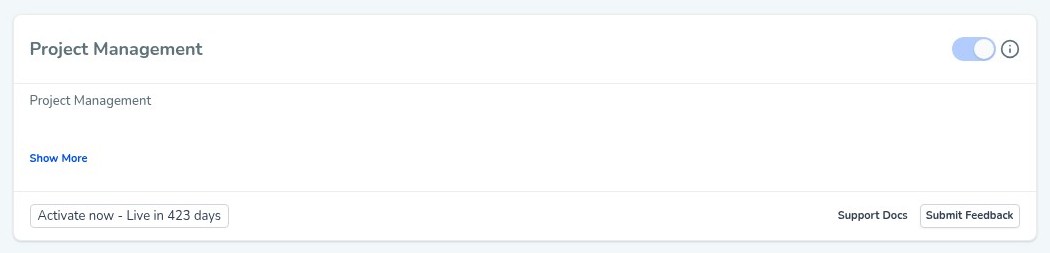
Good to know: when you switch this one on, Tekmatix asks you to confirm, because once it's on it can't be switched off again. That's fine, because it's being rolled out to every account automatically anyway. Switching it on now just gets you in early.
Step 2: Set it up, step by step
Or just tell your AI
Use Ask AI inside Tekmatix, or your own AI (Claude, ChatGPT or GrokBot) connected to your account. It shows you what it will do before it does it.
- It appears in your menu as it rolls out to your account, so timing may vary.
- AI usage is pay as you go.
- Because it's early access, you may see small improvements to the screens as it rolls out to every account.
You stay in control. Your AI shows you what it will do and asks before it creates, changes, deletes or sends anything.
Frequently asked questions
I switched it on. Why can't I see Project Management?
It's being rolled out gradually. Switching it on in Labs gets you in line, and it will appear in your left menu as it reaches your account.
Can I switch it off again?
No. Once it's on, it stays on. It's being rolled out to every account anyway.
What should I use in the meantime?
Tasks and Opportunities in Tekmatix handle to-dos and client work today.
Want to see what else is new? Read all the new features in Tekmatix and how to use Meeting Rooms.
Want a hand setting it up?
Already a Tekmatix customer? Jump on one of our free daily training calls and a Tekspert will switch it on and walk you through it, live.
Book a free training callNot on Tekmatix yet? Tekmatix is the all-in-one business platform you run by talking to AI. One subscription, unlimited users, and real human Teksperts 24/7.
See how Tekmatix worksSarah x
Warning: you may get addicted to your productivity.