
TekMatix Blog & Help Articles
Use the search bar below to look for help articles you need.
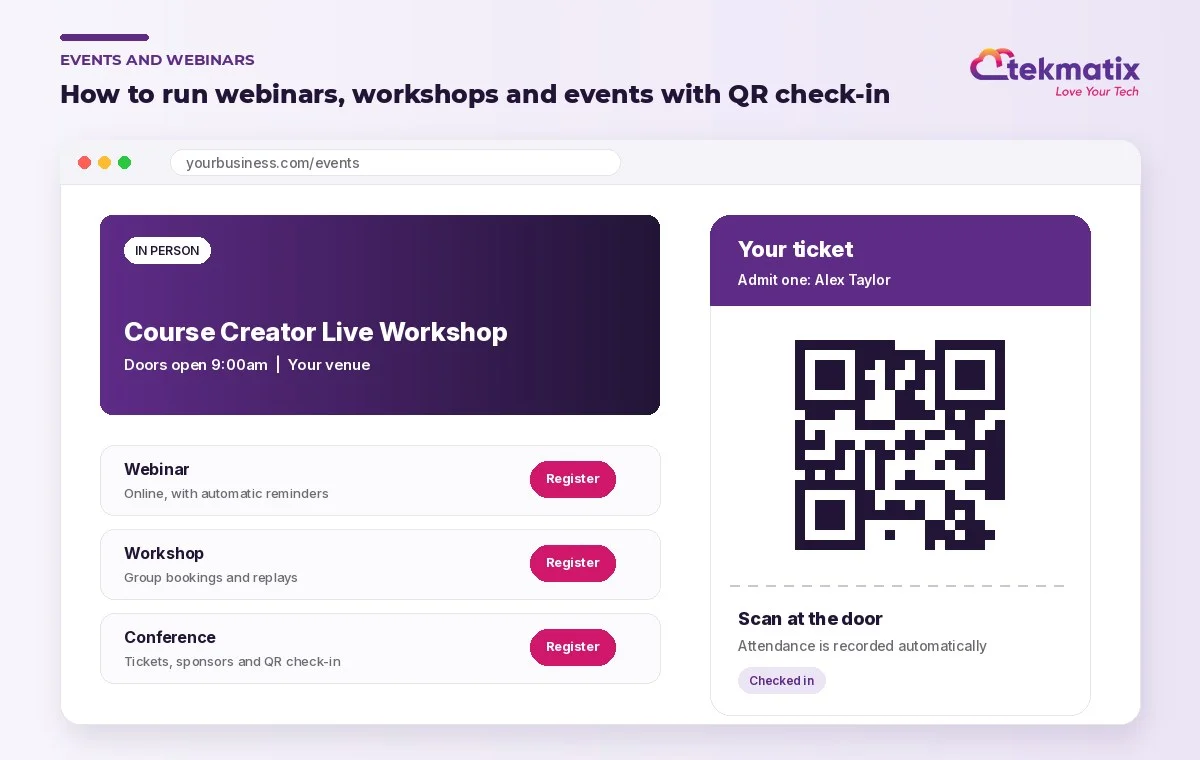
How to Show All Your Events on One Page of Your Website with Tekmatix
You've just set up your next workshop. Tickets are ready, the venue is booked, and now you have to go back into your website, duplicate a section, retype the date, swap the image, update the button link, and remember to delete last month's event that already happened. Every. Single. Time.
In Tekmatix you don't have to do that any more. Events now has its own elements in the funnel and website builder, so one page can list all of your published events automatically. Add a new event and it appears. When an event ends, it drops off. Visitors can view the details and buy tickets without ever leaving your site.
What is new
- One element, three pages: search "Events" in the builder's Quick Add, drop it on a page and choose Convert this page. The builder adds a matching set of pages for you: Events List, Event Details and Event Schedule.
- Live, upcoming or past: show any mix of live, upcoming and past events, every event or only the ones you pick, with an optional featured event. New lists start with Live and Upcoming, so an event leaves the page once it ends.
- Your layout, your colours: choose Grid, List, Featured, Alternating or Overlay. Set your own fonts, text and button colours, and show or hide the image, date, venue, summary and button.
- Sorted the way visitors want: you set the default order. Visitors can switch between soonest first, latest first and recently added, and page through longer lists.
- Details and tickets without leaving your site: "View details" opens the event's own page on the same site. "Get tickets" opens checkout over the page, where buyers pick tickets, apply a coupon and pay without opening a new tab.
What AI should I use?
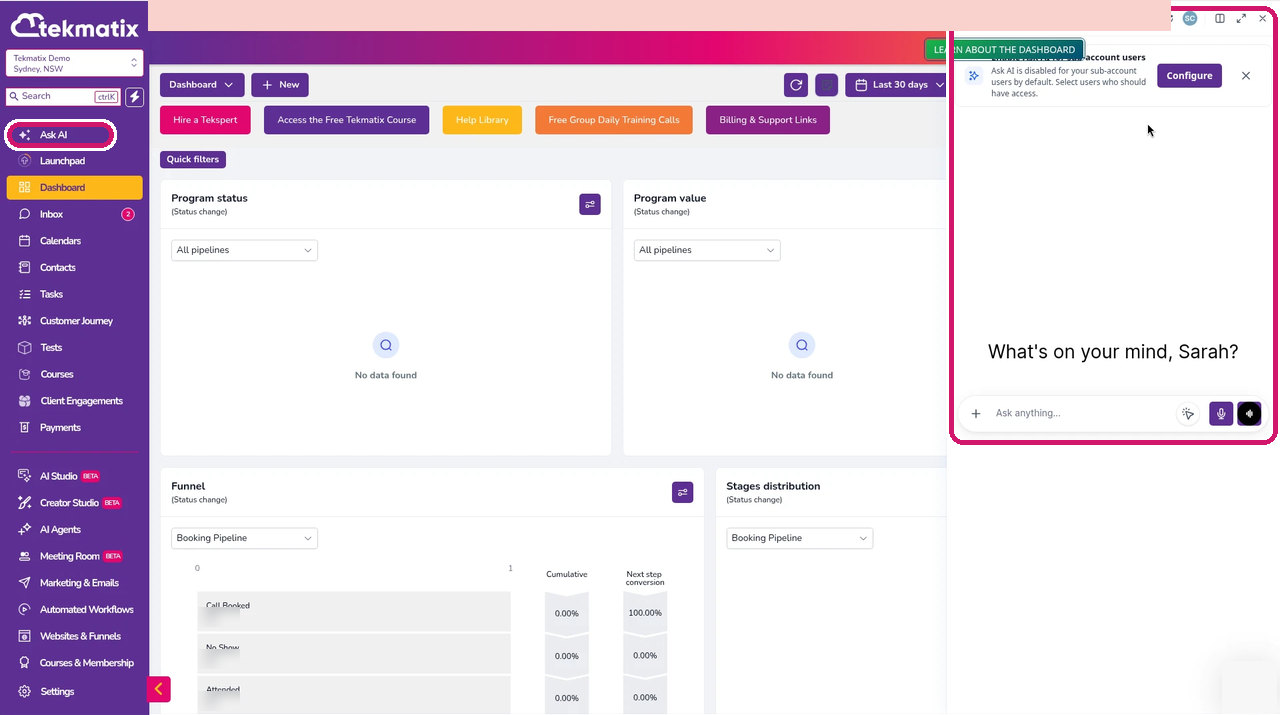
The prompts below work in Ask AI (the AI assistant built into your Tekmatix dashboard), GrokBot, Claude, ChatGPT or any other AI you have connected to your Tekmatix account. If you don't already pay for an outside AI and don't want another subscription, start with Ask AI for planning and writing your event copy. Adding the Events element is done in the funnel and website builder, so for the build itself either follow the steps below or use an AI you've connected to your Tekmatix account with browser control (such as GrokBot, Claude or ChatGPT). Your AI shows you what it will do and you approve it before anything is published.
*Tekmatix AI usage applies as a billable consumable. You can find out more about pricing on our public page: tekmatix.com/pricing.
How to add an events page to your website or funnel
- Make sure your events are set up and published in the Events area of your Tekmatix account. Only published events show on the page.
- Open the website or funnel you want to add your events to, and open the page you want to use (or create a new page called "Events").
- In the builder, open Quick Add and search Events.
- Drag the Events element onto the page.
- Choose Convert this page. The builder creates your matching Events List, Event Details and Event Schedule pages.
- Choose which events to show: Live, Upcoming, Past, or a mix. Show every event or pick specific ones, and choose a featured event if you want one to stand out at the top.
- Pick a layout: Grid, List, Featured, Alternating or Overlay.
- Style it to match your brand. Set your fonts, text colours and button colours, and turn the image, date, venue, summary and button on or off.
- Set the default sort order (for example soonest first).
- Preview the page. Click View details to check the event page opens on your own site, and click Get tickets to check the checkout opens over the page.
- Publish your website or funnel, then add the Events page to your site menu so visitors can find it.
From now on, every time you publish a new event it appears on the page automatically. No more editing your website by hand.
Prompts you can copy
Prompt to copy into Ask AI, GrokBot, Claude or ChatGPT (plan your events page)
Taking everything you know about me and access to all of the data and systems you already have, log into my Tekmatix account and look at all of my events, plus my websites and funnels. Tell me which events are published, which are upcoming and which have ended, and which website or funnel my events page should live on. Then recommend the best layout (Grid, List, Featured, Alternating or Overlay), which event should be featured, and the default sort order, based on my brand and audience.
Prompt to copy into Ask AI, GrokBot, Claude or ChatGPT (tidy up your event listings)
Taking everything you know about me and access to all of the data and systems you already have, log into my Tekmatix account and review every upcoming event. For each one, check it has a clear title, a short summary that sells the outcome, a date, a venue or online link, an image and tickets set up. Give me a list of anything missing, and write a punchy two-sentence summary in my brand voice and Australian English for any event that doesn't have one.
Prompt to copy into GrokBot, Claude or ChatGPT (build the page with browser control)
Taking everything you know about me and access to all of the data and systems you already have, log into my Tekmatix account and open my [website or funnel name]. Create a new page called "Events", add the Events element from Quick Add and choose Convert this page. Show Live and Upcoming events, use the Grid layout, feature [event name], sort soonest first, and use my brand fonts and button colours. Add the page to my site menu. Show me a preview before you save, and do not publish until I approve.
*Tekmatix AI usage applies as a billable consumable. You can find out more about pricing on our public page: tekmatix.com/pricing.
Good to know
- Only published events appear on the page. Drafts stay hidden until you publish them.
- New lists start with Live and Upcoming, so an event disappears from the page once it ends. Turn on Past if you want to keep a showcase of previous events.
- Checkout opens over the page, so buyers can pick tickets, apply a coupon and pay without opening a new tab or leaving your site.
- The Event Details and Event Schedule pages are created for you when you choose Convert this page, so each event gets its own page on your site automatically.
- Remember to publish your website or funnel after adding the element, and add the page to your menu.
Ideas for using it
- Workshop calendar: one "What's On" page for all your live workshops, so past attendees always know where to find the next one.
- Webinar hub: list upcoming webinars and keep past ones visible as a showcase of what you teach.
- Retreats and conferences: use the Featured layout to spotlight your big flagship event, with smaller events listed underneath.
- Classes and courses with start dates: show intakes in a List layout sorted soonest first so people can book the next available date.
- Funnel add-on: drop an events list onto a thank-you page so new buyers can book their next live session straight away.
Want a hand setting it up?
- Free live training calls, Monday to Friday: jump on one of our free daily training calls and set it up alongside a Tekmatix expert. Book a free training call
Love Your Tech.

Copyright © 2026 TekMatix. All rights reserved | [email protected]