
TekMatix Blog & Help Articles
Use the search bar below to look for help articles you need.

How To Use Typeform Integration in Tekmatix Workflows
How To Use Typeform Integration in Tekmatix Workflows
Why This Matters
Collecting form submissions and manually processing them can be slow and error-prone. Tekmatix’s Typeform Integration allows you to react to Typeform entries instantly and perform automated tasks within workflows. This streamlines onboarding, feedback collection, and CRM updates, saving time and ensuring consistency.
By using this integration, teams can automatically route leads, create tasks, update contacts, and notify internal stakeholders without leaving Tekmatix.
Key Benefits
Instant Routing: Start workflows immediately when a Typeform submission is received
Form Operations at Scale: Create or duplicate forms automatically for each client/project
Response Utilization: Search previous submissions to personalize follow-ups and enrich CRM data
Reduced Context Switching: Perform common form tasks directly in Tekmatix Workflows
Predictable Billing: Premium executions are billed per run, with optional sub-account rebilling
Triggers & Actions Overview

Step-by-Step Guide: Setting Up Typeform Integration
Step 1: Connect Typeform
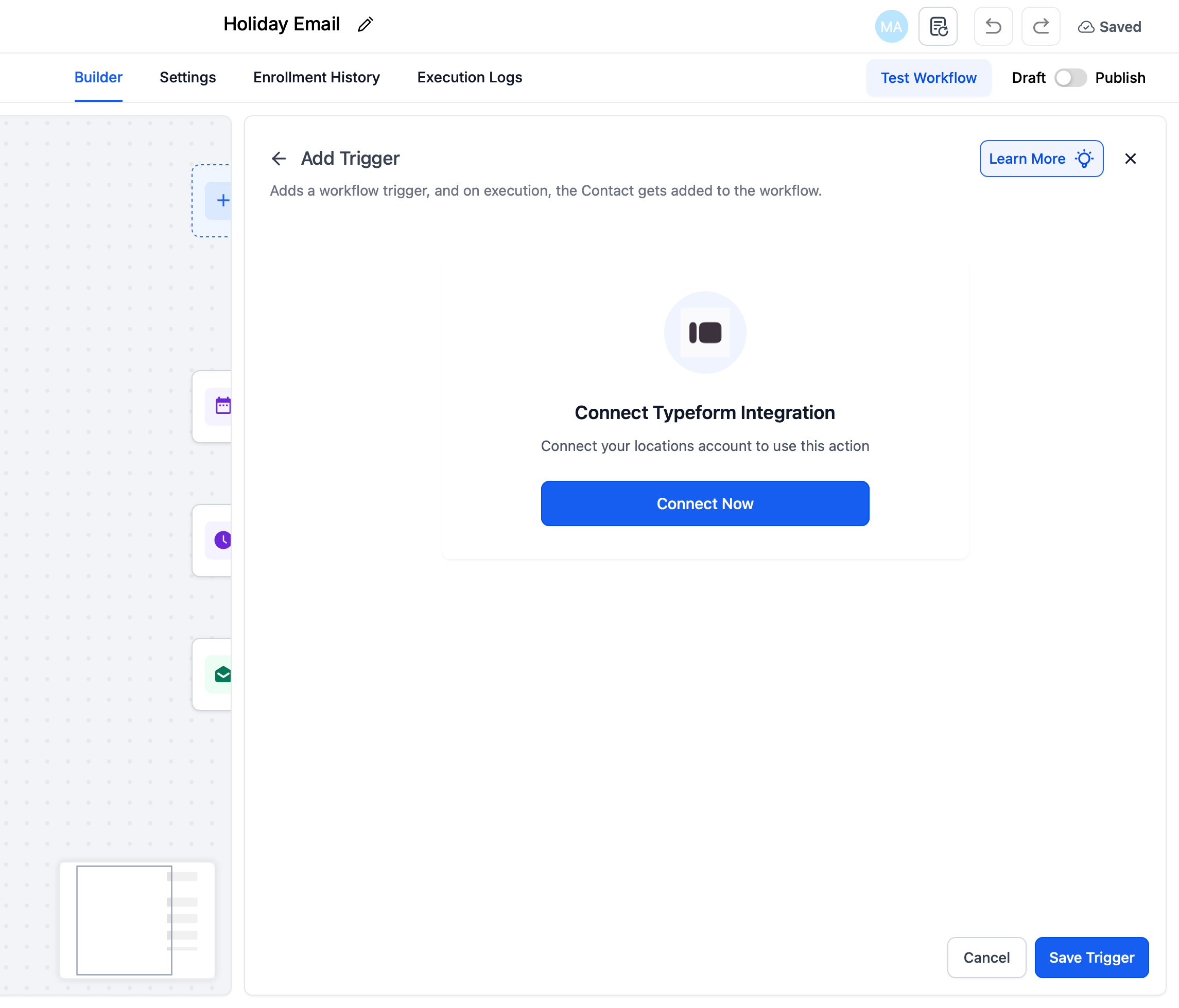
Option A – From Trigger/Action step:
Go to Automated Workflows → Open/Create Workflow
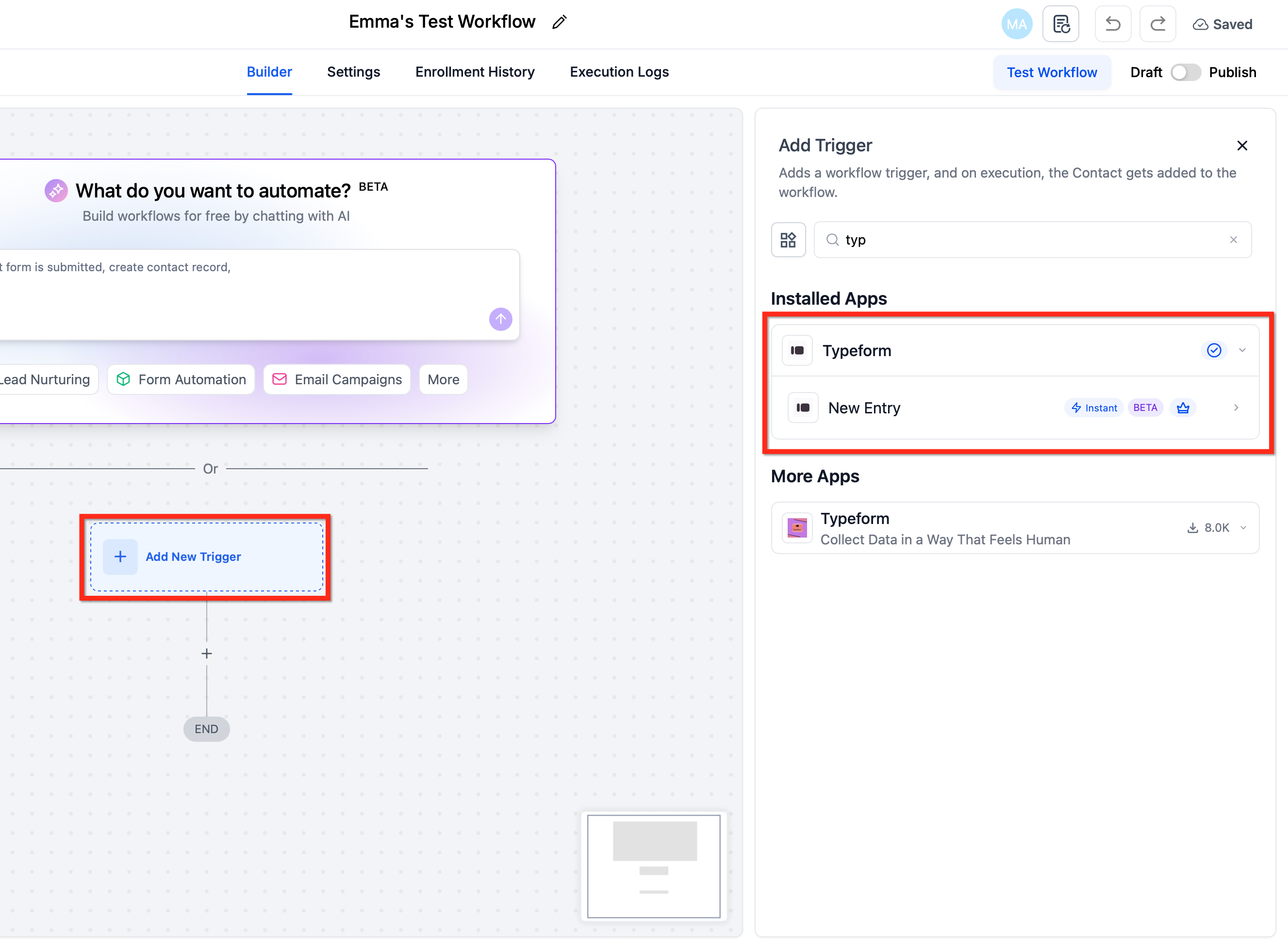
Click + Add Trigger → search Typeform (or + Add Action)
Select New Entry (Instant) trigger or a Typeform action
Click Connect Now, sign in to Typeform, and authorize Tekmatix
How to Configure:
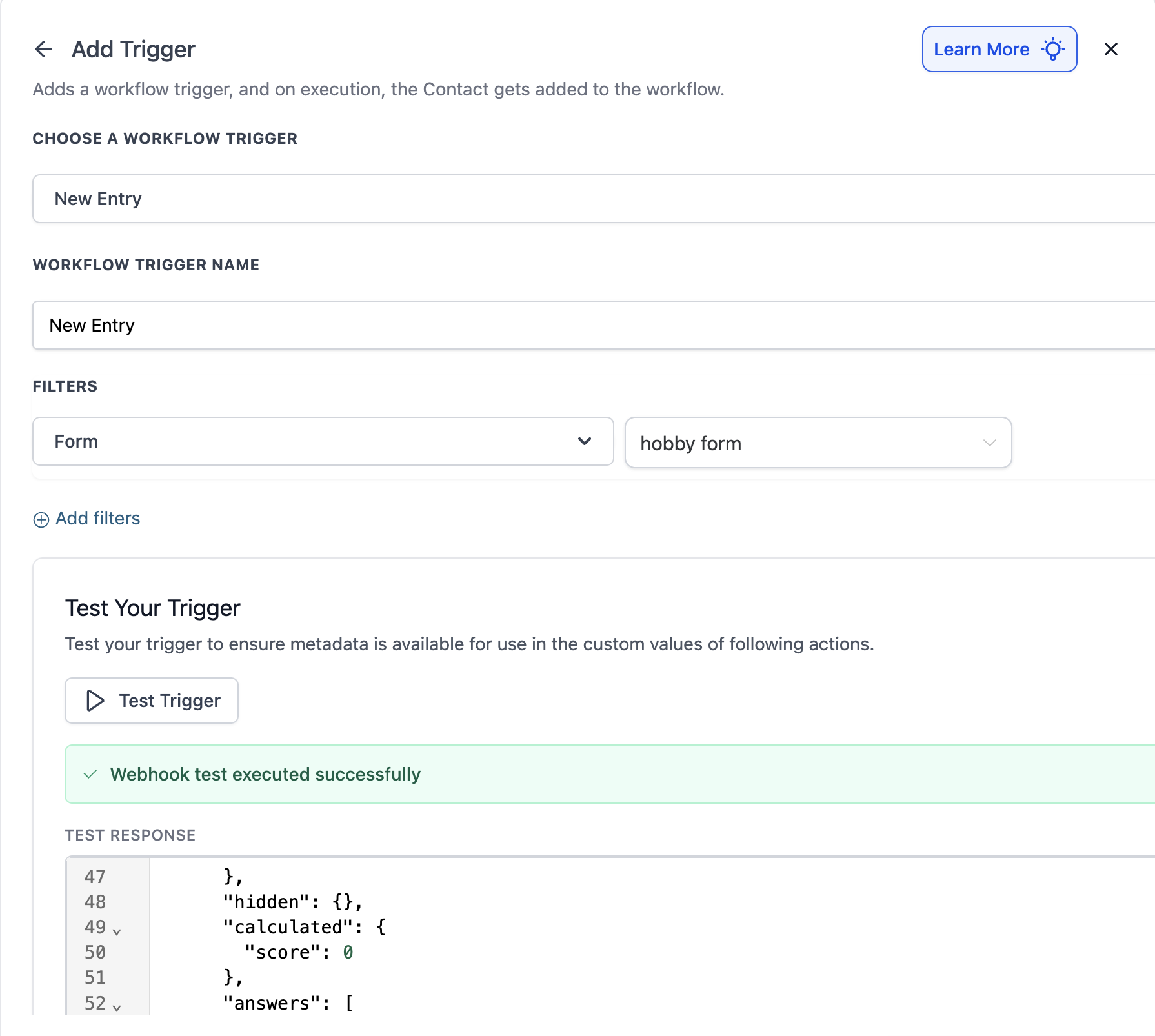
Click on Test Your Trigger > Fetch Trigger Data -> Webhook starts waiting for a new sample payload -> User does a quick form submission -> New sample payload is detected by Test Trigger.
Once the payload is detected, select it and save the trigger. After saving, you can choose the questions by their titles in the output and map the corresponding answers directly.
Option B – From Settings → Integrations:
Go to Settings → Integrations → Typeform
Complete the OAuth connection for your sub-account

Step 2: Configure the Trigger
Click Test Your Trigger → Fetch Trigger Data
Submit a sample Typeform entry
Confirm that a sample payload is received
Map form questions by their titles to workflow fields
Step 3: Build Your First Workflow
Open Automated Workflows → Create Workflow (or edit existing)
Add New Entry (Instant) trigger → select the desired form
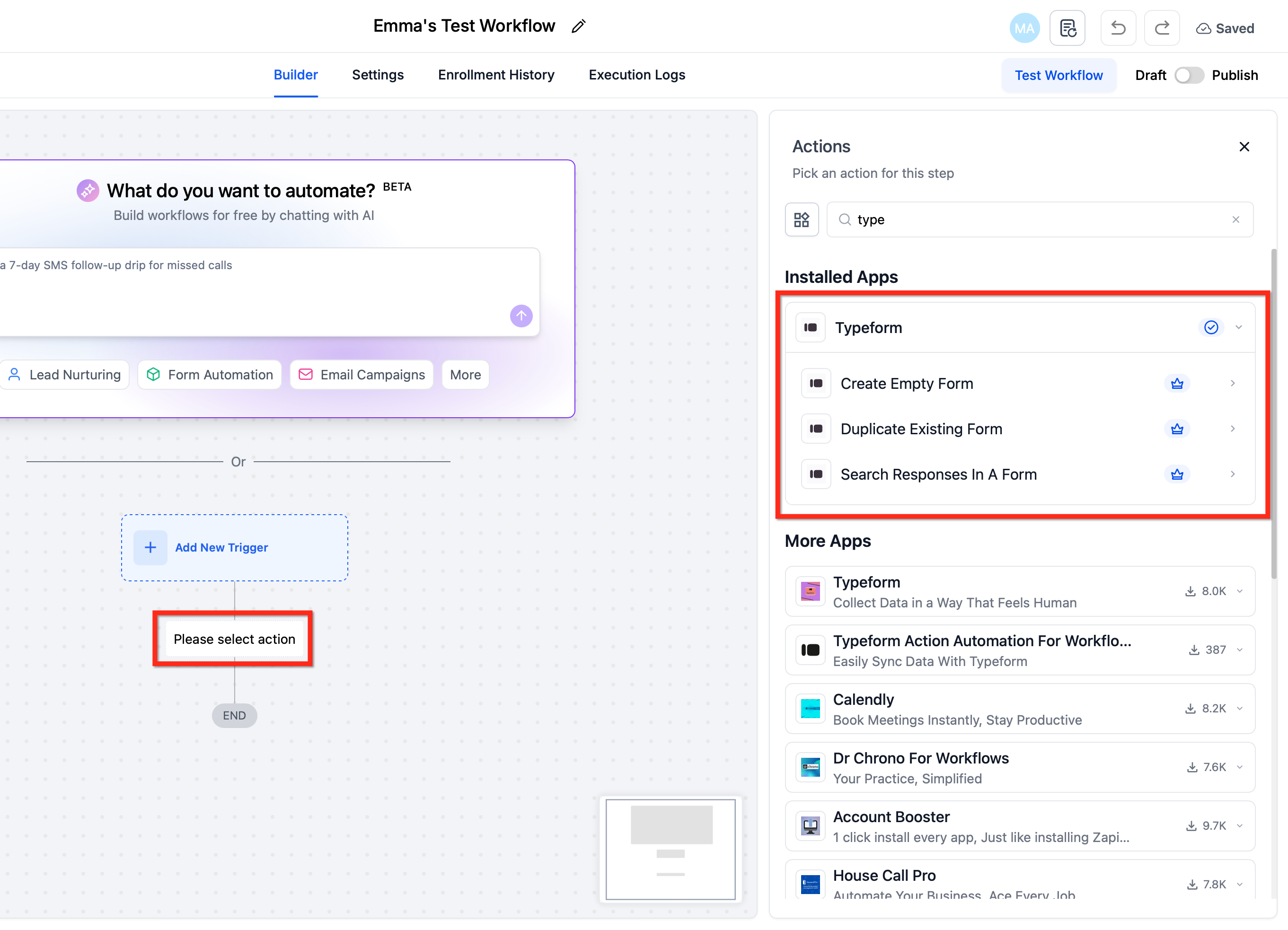
Add Typeform Actions such as Create/Update Contact and map fields
Add follow-up actions (e.g., Send Email, Notify User, Create Opportunity)
Publish and test by submitting the Typeform once → verify entries in Execution Logs
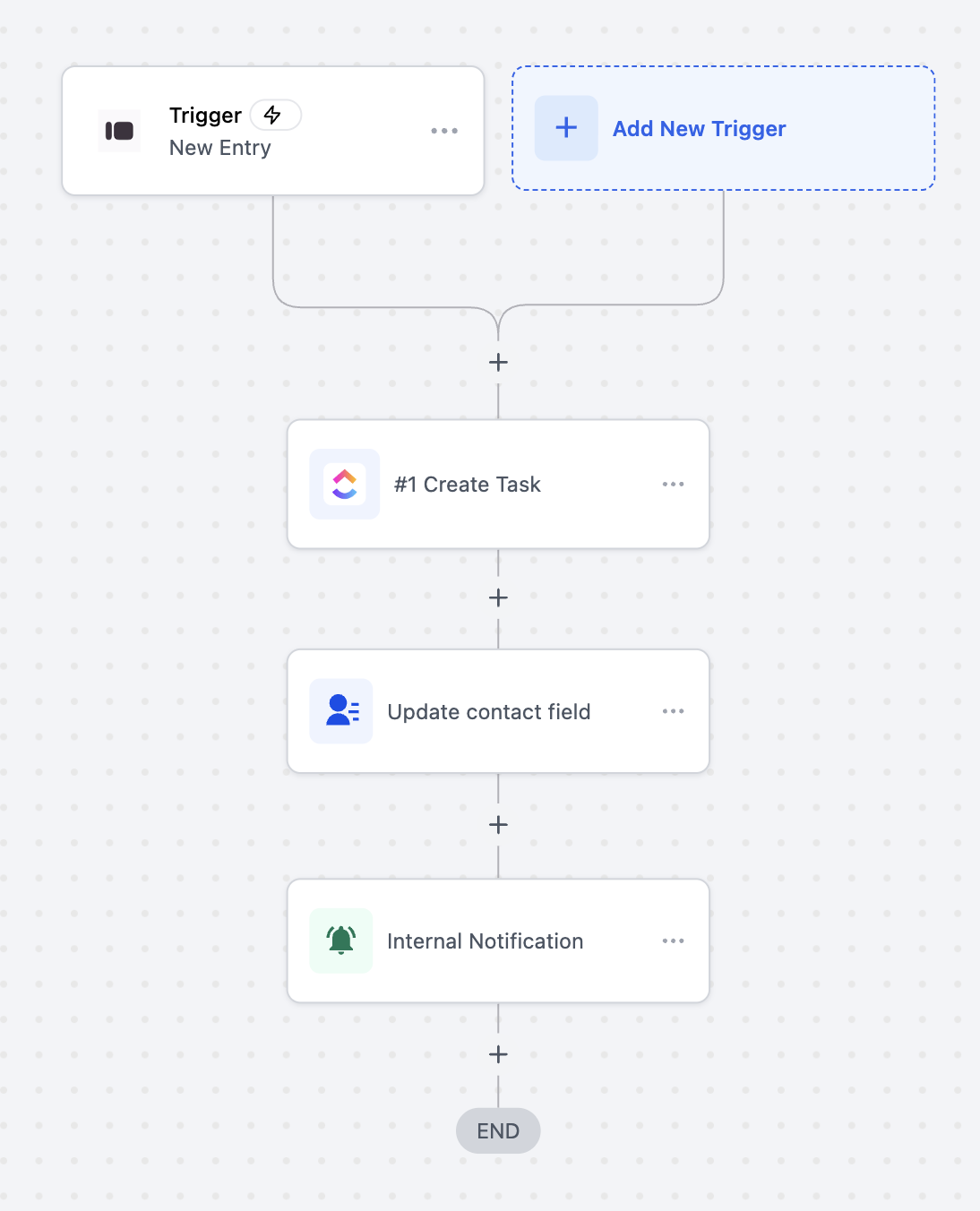
Sample Scenario: Automating Client Onboarding
Goal: Automatically create tasks, update contact info, and notify the team when a client fills out the onboarding Typeform
Workflow Setup:
Trigger: Typeform → New Entry (Instant)
Filter: Form Name = “Client Onboarding Form”
Actions:
Create task in ClickUp
Update contact field in Tekmatix
Send internal notification
Example:
A new client submits the “Client Onboarding Form.” Instantly:
ClickUp task is created with client details
Contact field in Tekmatix is updated
Internal team receives a notification to start onboarding
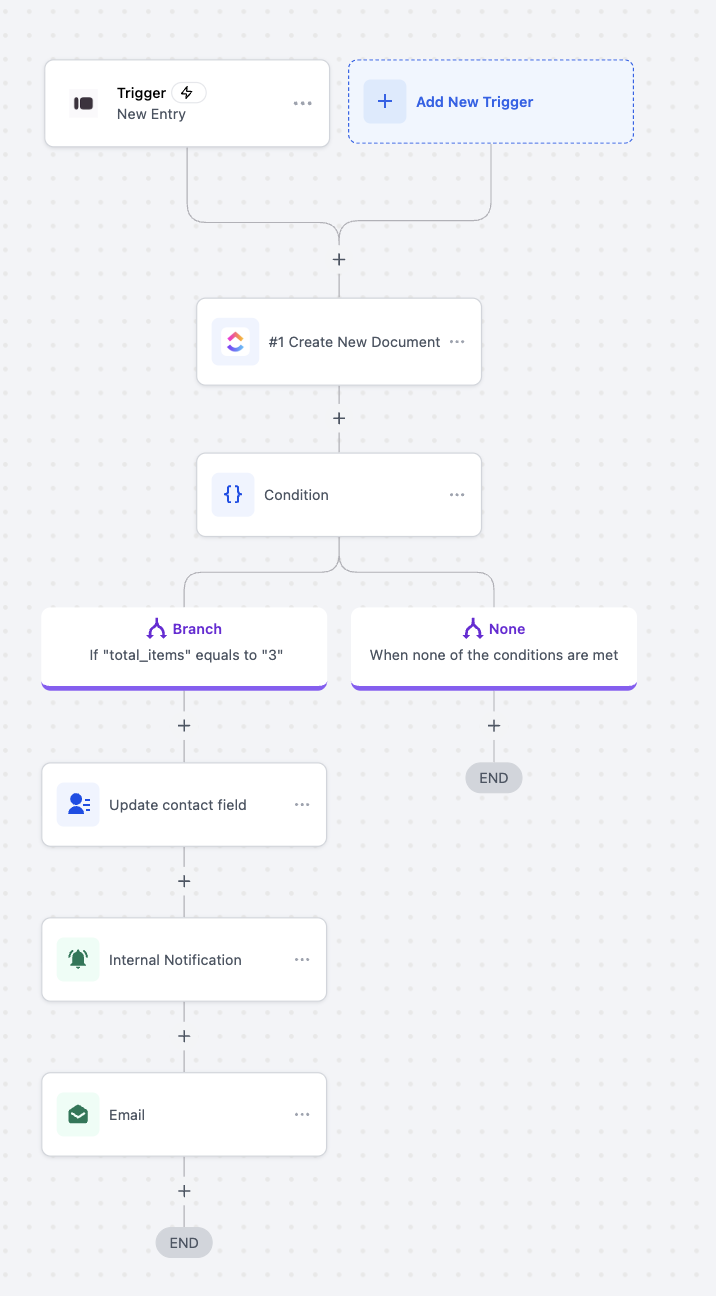
Additional Use Case: Conditional Follow-Ups
Scenario: Create documents and send notifications based on submitted order quantity
Trigger: Typeform → New Entry (Instant)
Actions:
Create new document (ClickUp)
Condition: total_items = 3 → update contact, send notification & email
Else → end workflow
Outcome:
Only orders with exactly three items trigger follow-ups; other entries are processed differently automatically
Frequently Asked Questions
Q: Do I need a paid Typeform plan?
A: No, integration works with free or paid accounts; Typeform plan limits still apply
Q: Can all users access this integration?
A: Yes, any account with workflows and integrations access
Q: Where do new/duplicated forms appear?
A: In the connected Typeform workspace tied to the OAuth account
Q: Can I edit questions from a workflow?
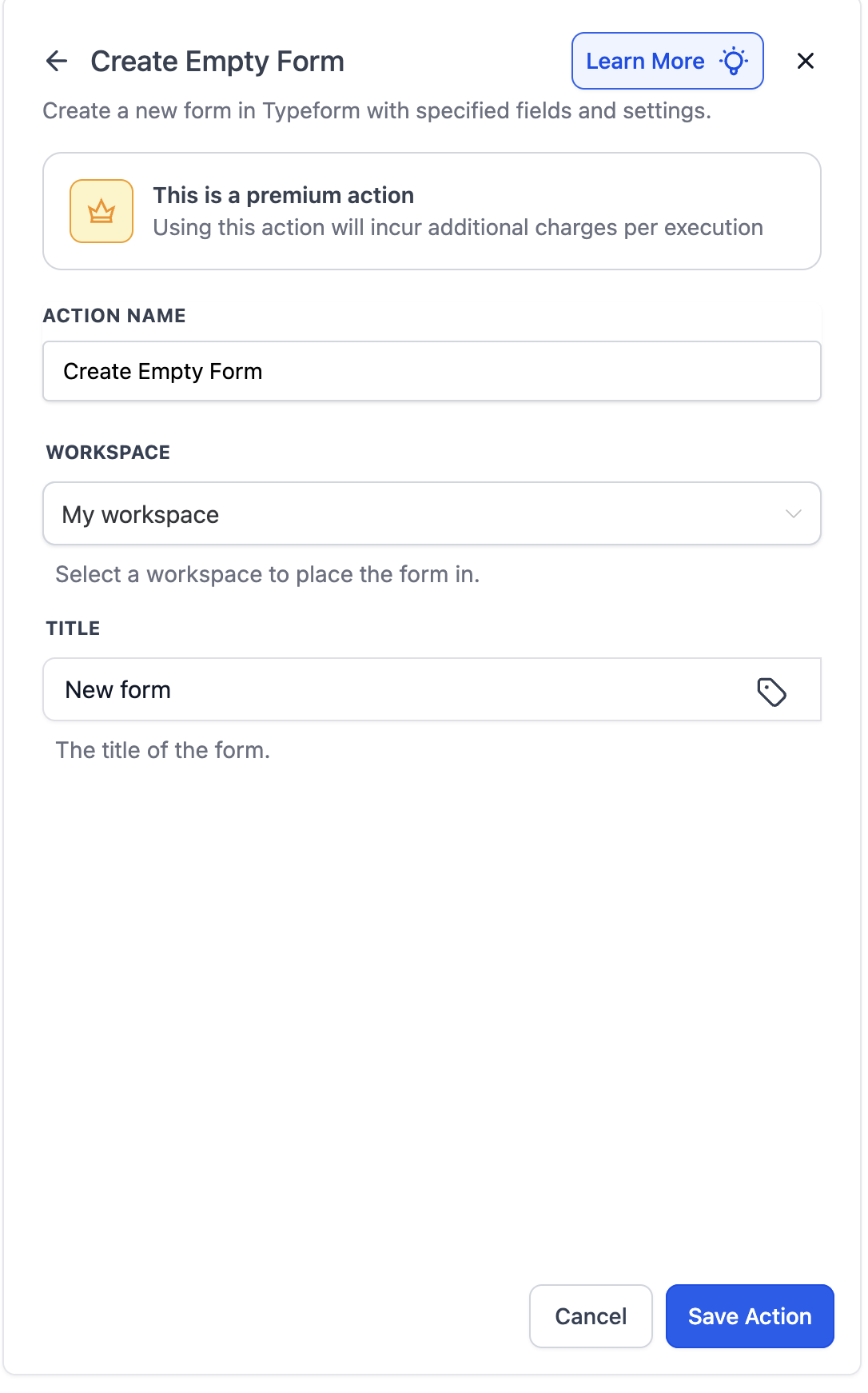
A: Not currently; only Create Empty Form, Duplicate Existing Form, and Search Responses are supported
Q: How do I troubleshoot errors?
A: Check Execution Logs; reconnect Typeform if authorization expires

Copyright © 2026 TekMatix. All rights reserved | [email protected]