
TekMatix Blog & Help Articles
Use the search bar below to look for help articles you need.

How To Enable the “Other” Option in Tekmatix Forms & Surveys for Richer Responses
How To Enable the “Other” Option in Tekmatix Forms & Surveys for Richer Responses
Gathering meaningful feedback is essential for understanding your audience. With Tekmatix Forms & Surveys, you can enable the “Other” option for radio buttons, allowing respondents to submit custom answers instead of being limited to predefined choices.
This guide shows you how to add the feature, manage responses, and provides a real-world scenario to illustrate how it can improve your data collection.
Why the “Other” Option Matters
Adding an “Other” option isn’t just a nice-to-have—it directly enhances the quality of your data:
More Flexibility: Capture unique perspectives beyond standard answer choices.
Better Data Insights: Gain richer, more individualized feedback for smarter decisions.
Effortless Tracking: Custom responses appear in submission reports and exports.
Improved User Experience: Show respondents you value every voice, even out-of-the-box ideas.
With this feature, every response counts, giving you deeper insights into your audience.
Sample Scenario
Your marketing team is surveying small business owners about which social media tools they use. While you provide common options like Facebook, Instagram, and LinkedIn, some respondents use niche platforms.
How Tekmatix Helps:
Enable the “Other” option for your radio button question.
Respondents can type in platforms not listed, such as TikTok, Clubhouse, or Pinterest.
All responses, including custom text, appear in the submissions dashboard.
Export the data to CSV for reporting, ensuring no insights are lost.
Outcome: You capture a complete picture of your audience, rather than only standard responses.
Step-By-Step Guide
Step 1: Navigate to Your Form or Survey
Go to Websites & Funnels in the left-side navigation bar.
Select Forms or Surveys from the top menu.
Find your form or survey, click the three dots icon, then select Edit.

Step 2: Add a Radio Button
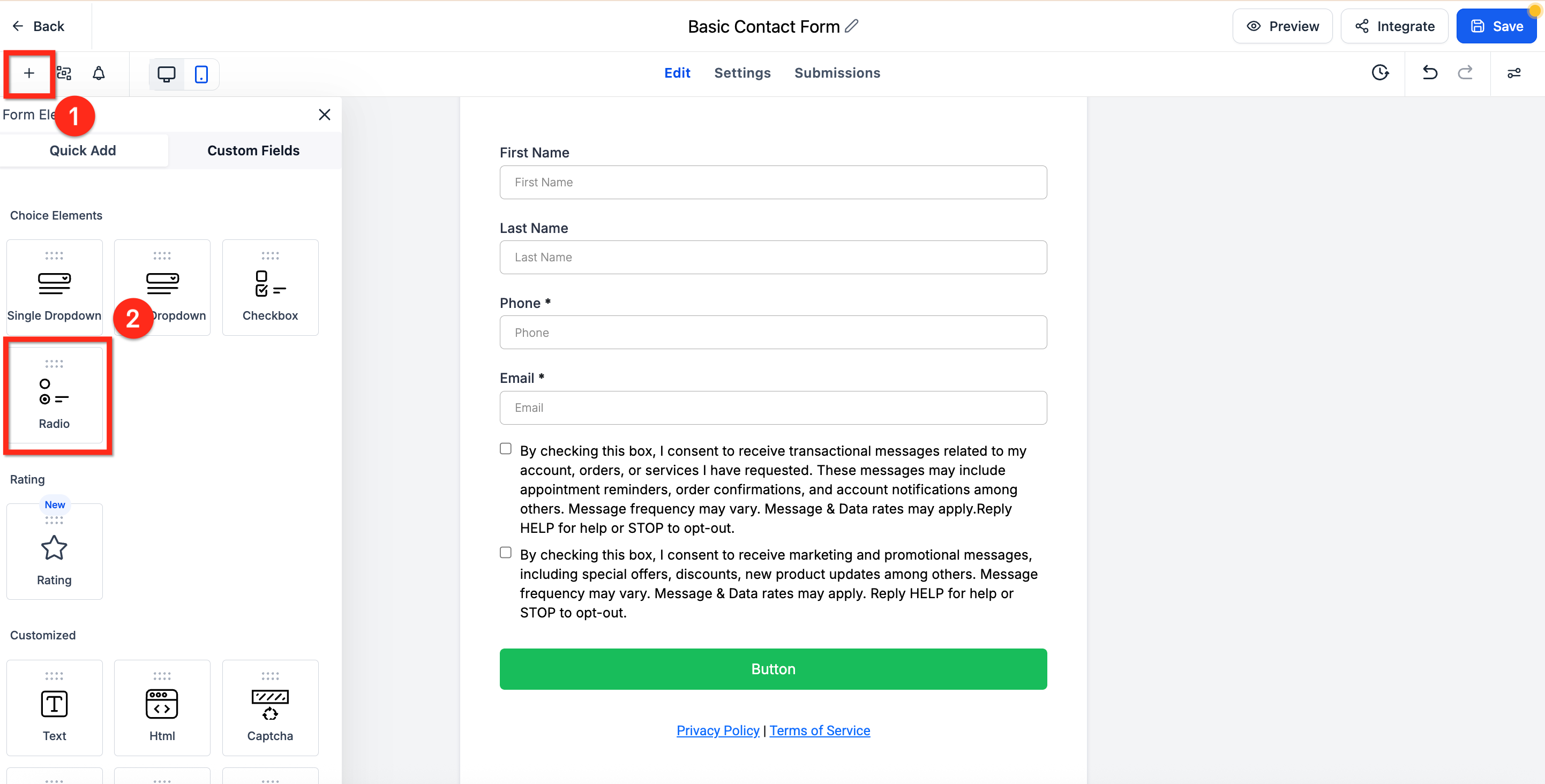
Open the Element panel by clicking the plus (+) icon in the upper-right corner.
Scroll to the Radio element.
Drag it into your form or survey where needed.
Step 3: Open Options
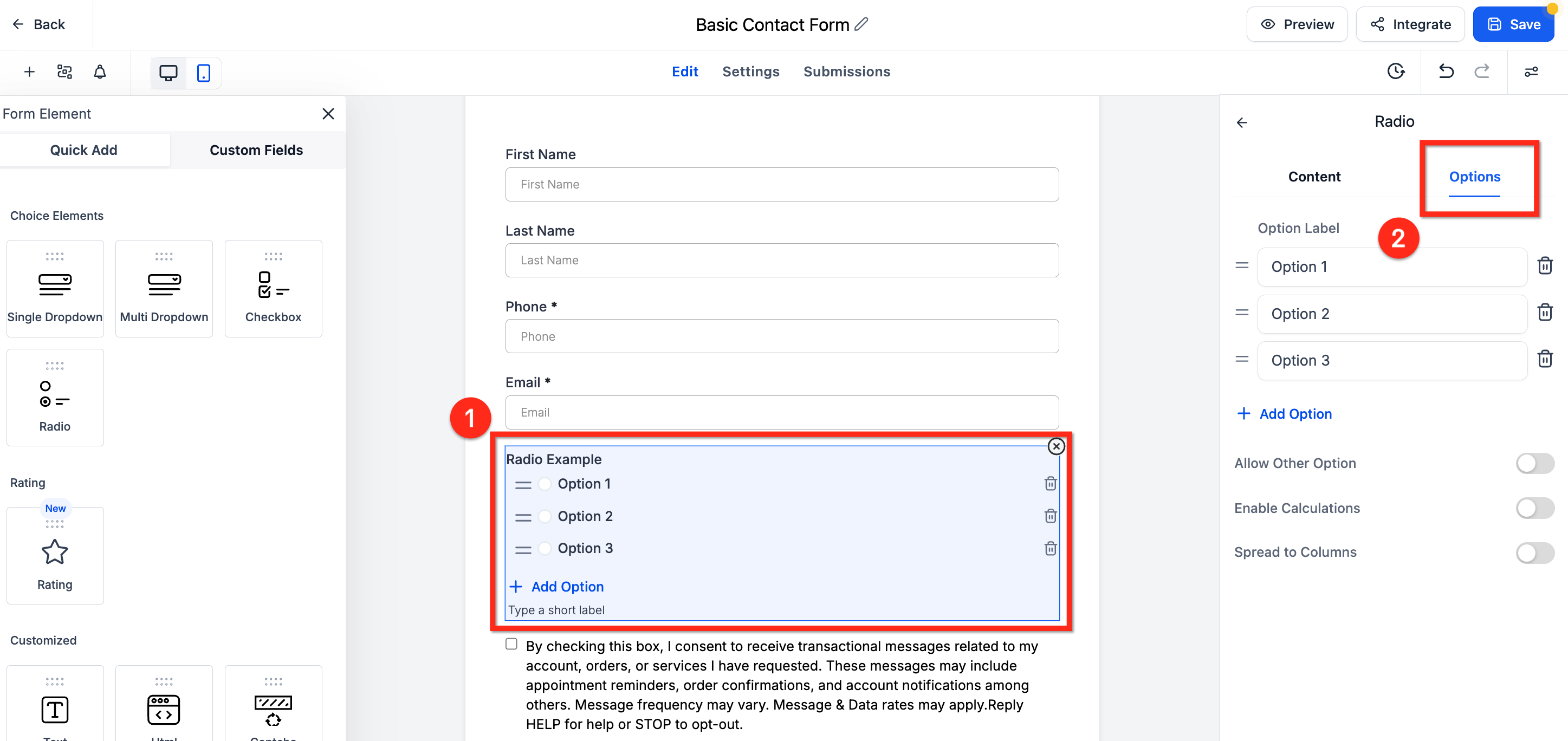
Click the Radio element to open its settings panel on the right.
Go to the Options tab at the top of this panel.
Step 4: Enable “Other” Option
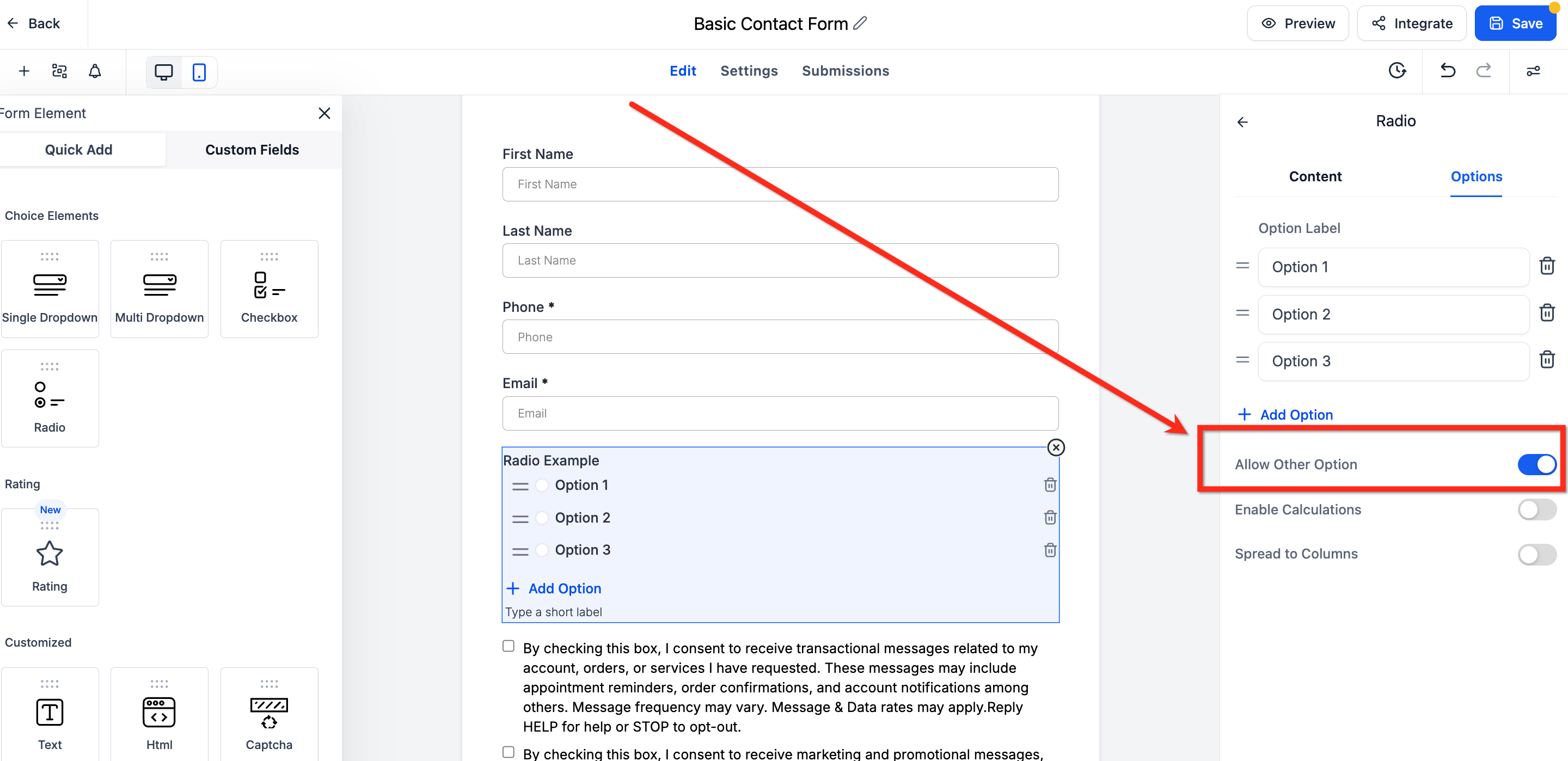
Toggle Allow Other Options to active.
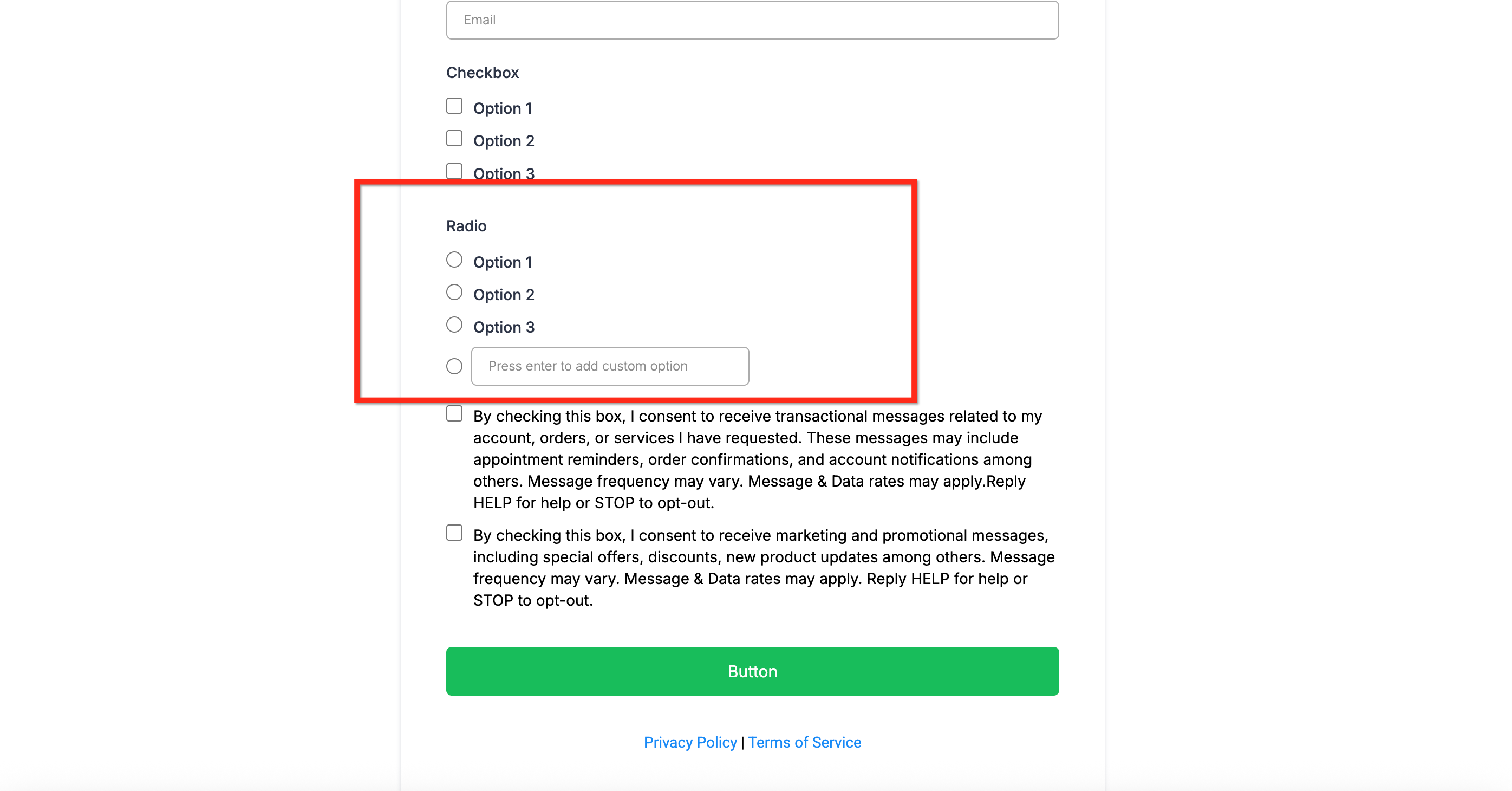
The “Other” option won’t show in the builder but will appear in the preview for users to type custom responses.
Step 5: Review & Save
Preview your form or survey to confirm the “Other” field appears correctly.
Save your changes.
Where Custom Responses Are Stored
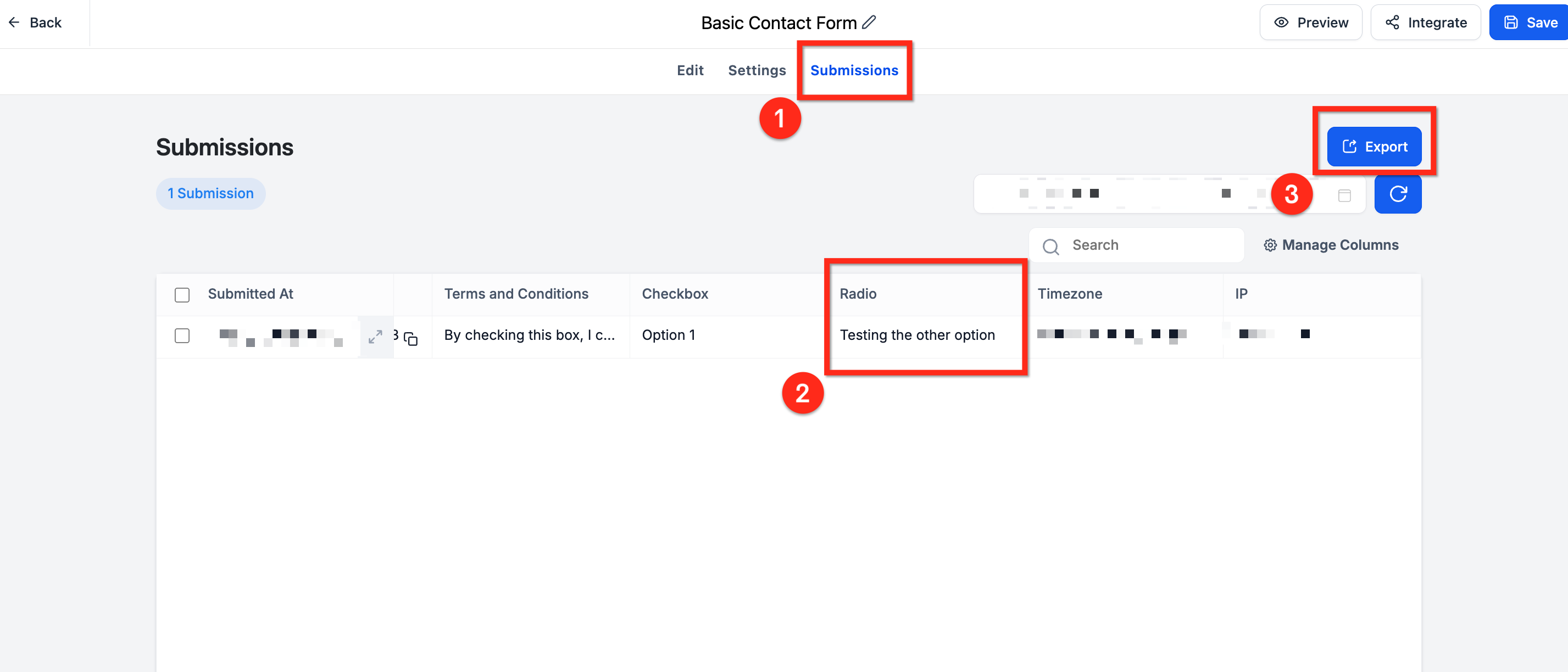
Go to Forms › Submissions (or Surveys › Submissions) for your edited asset.
The write-in answers appear in the same column as the radio field name.
Exporting to CSV includes the custom text for reporting or analysis.
Frequently Asked Questions
Q: Can I enable the “Other” option for dropdown or checkbox fields?
No, currently it is only available for radio buttons.
Q: Can I disable the “Other” option after enabling it?
Yes, simply toggle it off in the form editor.
Q: Is there a character limit for custom responses?
No, respondents can type as much as needed.
Q: Does this work for embedded forms in Funnels or Websites?
Yes, the “Other” option works in forms embedded on Funnels, Websites, or via external embed code.

Copyright © 2026 TekMatix. All rights reserved | [email protected]