
TekMatix Blog & Help Articles
Use the search bar below to look for help articles you need.
How to Edit Service Bookings Without Canceling in Tekmatix
Managing service appointments in Tekmatix just became much more flexible.
You can now edit both paid and unpaid service bookings without cancelling the appointment and creating a new booking from scratch.
When a customer changes their mind, adds another service, requests a different staff member, updates an add-on or provides a coupon after booking, your team can make those changes directly inside the existing appointment.
The booking, order and payment information will remain connected and update automatically.
This has been one of the most requested improvements to Tekmatix Services, and it gives service-based businesses a much easier way to manage real-world booking changes.
What Is New?
The updated booking editor gives you much more control over existing service appointments.
You can now:
Edit paid service bookings
Edit unpaid service bookings
Add services to an existing appointment
Remove services from a booking
Add, update or remove add-ons
Change the assigned staff member
Apply a coupon after the booking has been created
Update or remove an existing coupon
Change appointment details without recreating the booking
This means your team can respond to customer requests without losing the original appointment history or creating unnecessary duplicate records.
Edit Complete Service Bookings
Previously, changing important parts of a service appointment could require cancelling the original booking and starting again.
That process could create extra work for your team and confusion for customers.
It could also make order and payment records harder to follow, especially when the original booking had already been paid.
With the updated booking editor, you can make changes while keeping the existing appointment intact.
For example, a customer may initially book a standard consultation and later decide to add an additional service.
Instead of cancelling the appointment, refunding or recharging the customer manually, and creating a new booking, your team can simply edit the existing appointment and add the new service.
The updated total and payment status will be calculated automatically.
Automatic Payment Reconciliation
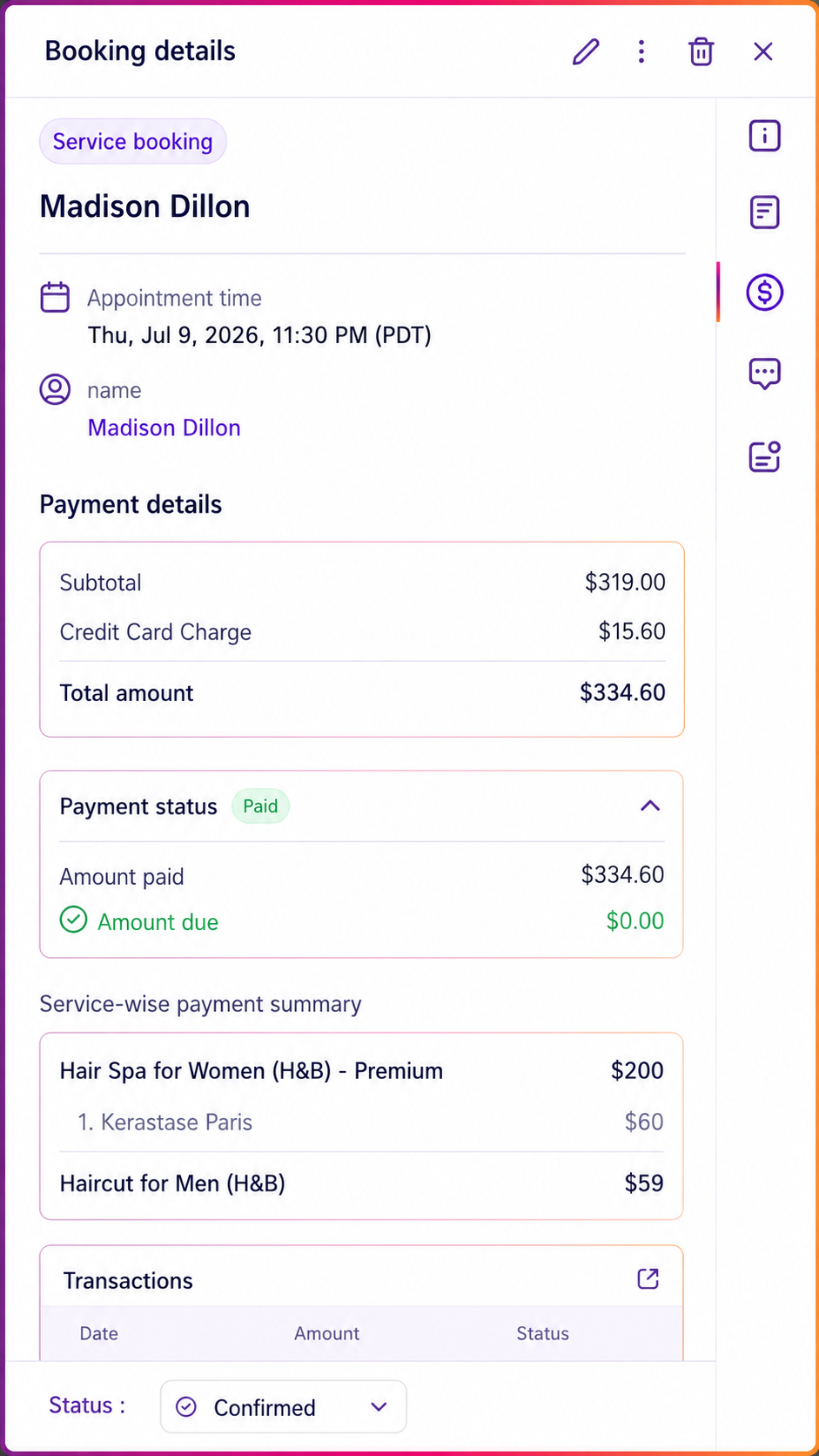
Whenever a service booking is edited, Tekmatix automatically recalculates the total amount due.
The appointment will then display the latest payment status.
This may include:
Additional payment required
Fully paid
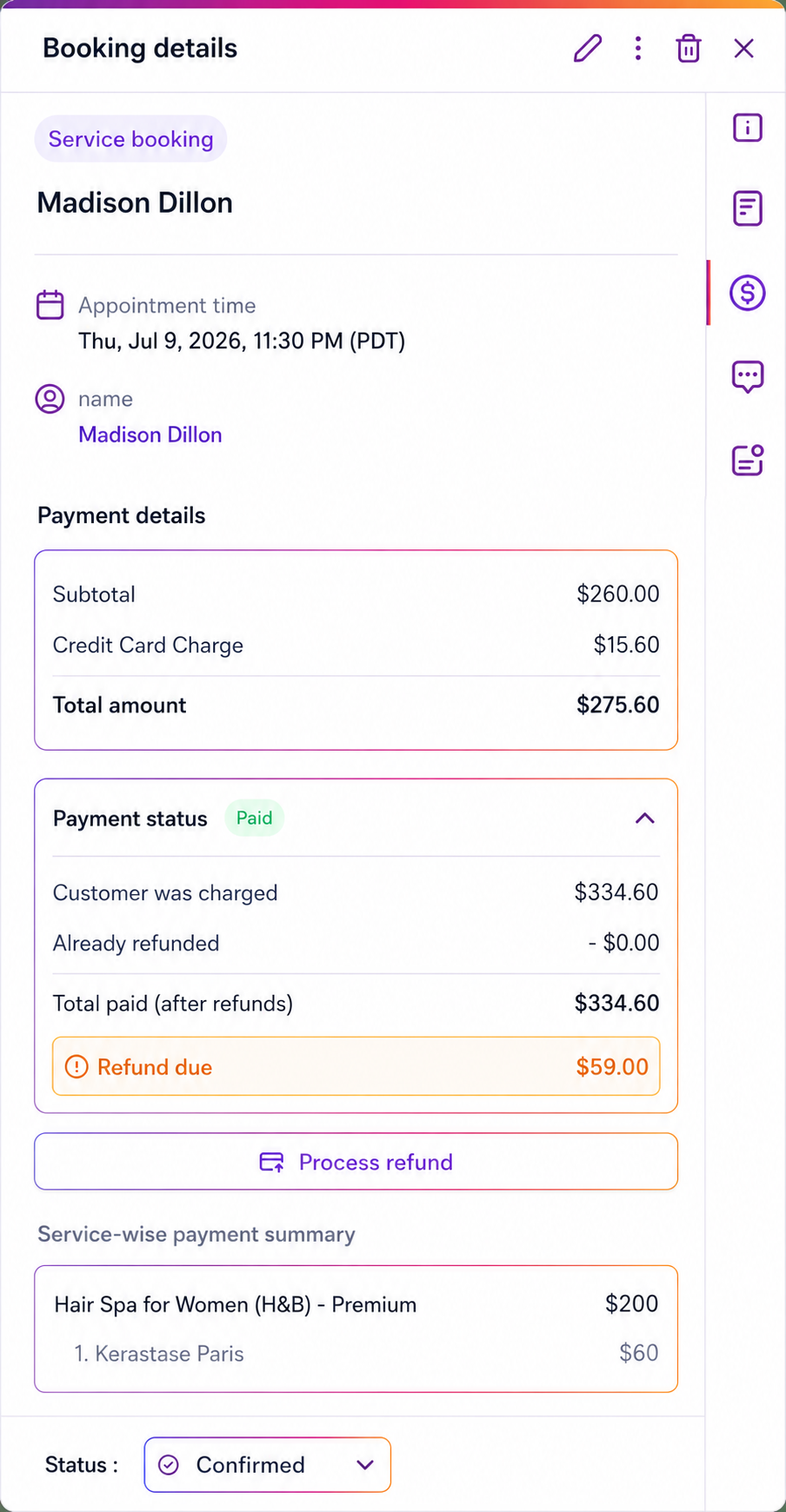
Refund due
This gives your team a clear view of what needs to happen next.
Additional Payment Required
If the edited booking now costs more than the amount already paid, the appointment will show that an additional payment is required.
This could happen when:
A new service is added
A higher-priced service replaces the original service
An add-on is included
A discount or coupon is removed
Your team can then collect the outstanding balance based on the updated booking total.
Fully Paid
If the customer has already paid the correct amount for the updated booking, the appointment will display as fully paid.
No additional payment action is required.
Refund Due
If the edited booking costs less than the amount the customer originally paid, Tekmatix will show that a refund is due.
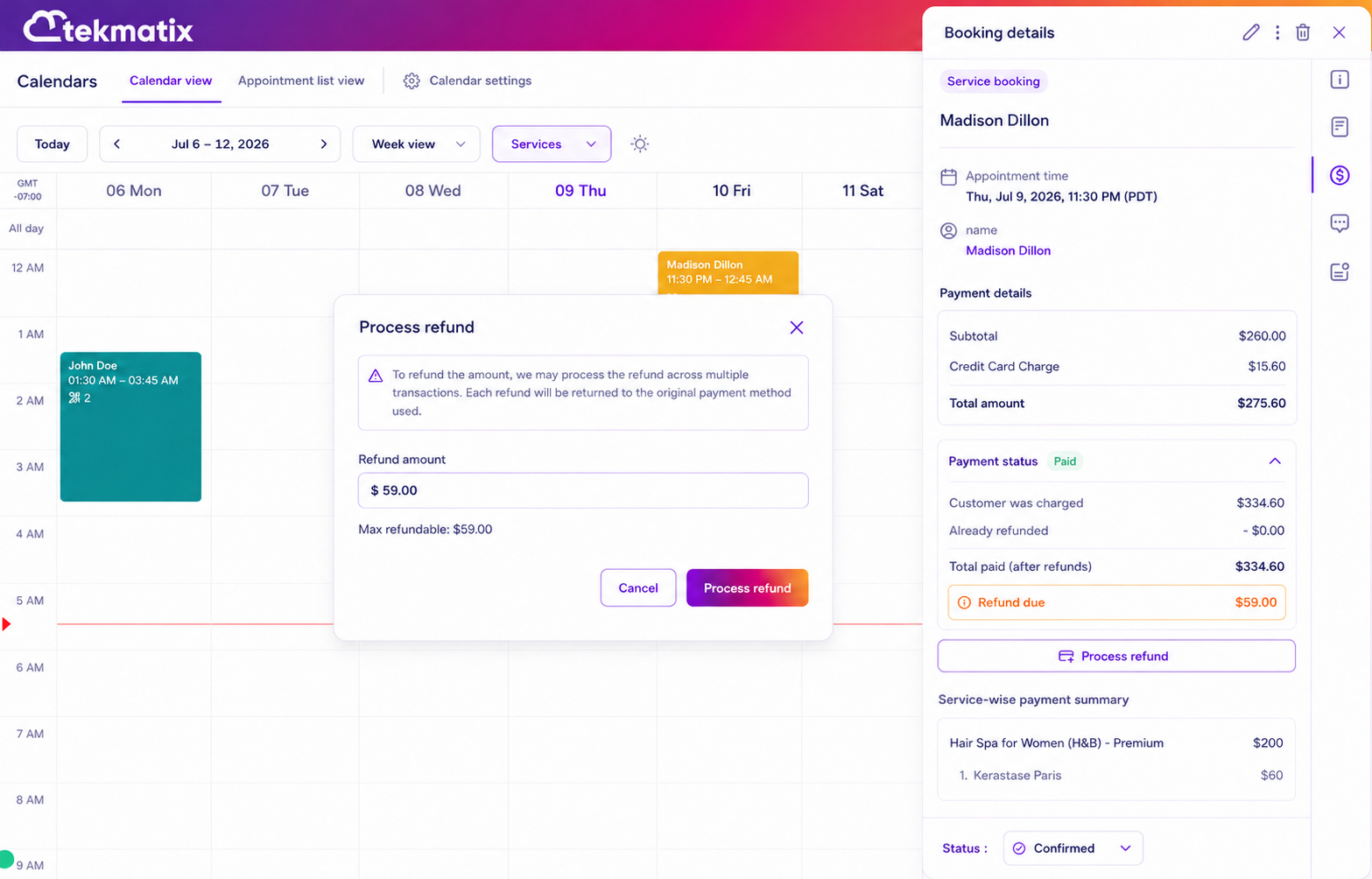
You can process the refund directly from the appointment window, making it easier to settle the difference without leaving the booking.
This could happen when:
A service is removed
A lower-priced service is selected
An add-on is removed
A coupon is applied after payment
The booking total is otherwise reduced
Process Refunds From the Appointment
When an edit results in a refund, you can now initiate that refund directly from the appointment modal.
This helps your team handle booking changes and payment adjustments from the same place.
There is no need to manually search for the related payment or move between multiple areas of the platform.
Once the refund is submitted, the appointment will reflect that the refund is being processed.
Editing During Refund Processing
If a refund has been initiated but has not yet been completed, editing will be temporarily disabled.
This protects the integrity of the booking and payment records while the refund is in progress.
During this period, you can still reschedule the appointment when needed.
Once the refund has been completed, the booking can be edited again.
This prevents conflicting changes from being made while money is actively being returned to the customer.
Smarter Order Management
Every service booking remains connected to its associated order.
When you edit a booking, Tekmatix updates the existing order rather than creating a new one.
This helps keep your records organised and makes the full booking history easier to understand.
The existing order will continue to reflect:
The services included
Selected add-ons
Applied coupons
The updated booking total
Payments already received
Outstanding amounts
Refunds due or processed
Keeping one order throughout the booking lifecycle reduces duplicate records and makes reconciliation much simpler.
It also gives your team a cleaner view of what happened from the original booking through to the final appointment.
Mobile App Support
Support for editing service bookings through the Tekmatix mobile app is complete and scheduled to roll out during the week of 20 July.
Once available, your team will be able to manage these booking changes while away from a computer.
This will be particularly useful for businesses where staff manage appointments while travelling, working on-site or moving between locations.
How to Edit a Service Booking
To update an existing service appointment:
Step 1: Open the Booking
Open the existing service booking you want to change.
Step 2: Select Edit
Click Edit to open the booking editor.
Step 3: Make the Required Changes
Update any relevant booking details.
You can:
Add or remove services
Modify add-ons
Change the assigned staff member
Apply, update or remove coupons
Update other appointment information
Step 4: Save the Booking
Save your changes.
Tekmatix will automatically recalculate the booking total and update the linked order.
Step 5: Review the Payment Status
Check whether the booking is now:
Fully paid
Awaiting an additional payment
Eligible for a refund
When a refund is due, you can process it directly from the appointment modal.
Practical Examples
A Customer Adds Another Service
A customer books a consultation and later asks to include an additional strategy session.
Your team opens the existing appointment, adds the second service and saves the changes.
Tekmatix recalculates the total and shows the additional amount the customer needs to pay.
The original booking and order remain intact.
A Customer Removes an Add-On
A customer books a service with an optional add-on but later decides they no longer need it.
Your team removes the add-on from the existing appointment.
Tekmatix updates the order and calculates whether a refund is due.
The refund can then be initiated from the appointment.
A Coupon Is Applied After Booking
A customer completes their booking but later provides a valid promotional coupon.
Your team edits the appointment and applies the coupon.
The total is recalculated, and the system shows the amount that should be refunded.
A Different Staff Member Is Assigned
A customer requests another staff member, or the original team member becomes unavailable.
You can change the assigned staff member without cancelling the appointment or altering the linked order.
A Service Is Replaced
A customer decides that another service is more suitable.
Your team removes the original service and adds the replacement.
The booking total, payment status and order details update automatically.
Why This Update Matters
Service appointments rarely remain completely unchanged.
Customers reschedule, upgrade, remove extras, change staff preferences and apply discounts after booking.
Your booking system needs to support those changes without forcing your team to rebuild appointments every time.
This update helps you:
Avoid cancelling and recreating bookings
Accommodate customer requests more easily
Keep payments and appointment details synchronised
Maintain one order throughout the booking lifecycle
Reduce duplicate records
Improve payment reconciliation
Save administrative time
Give customers a more flexible booking experience
It also reduces the risk of human error.
When staff manually cancel, rebuild, refund and recharge appointments, there are more opportunities for information to become disconnected.
By keeping the booking, order and payment records linked, Tekmatix gives your team a clearer and more reliable process.
A More Flexible Booking Experience
The ability to edit paid and unpaid service bookings gives service-based businesses far more control over appointment management.
Your customers get the flexibility to change their booking, while your team gets a simpler way to manage the operational and financial details behind those changes.
Instead of starting again, you can update the existing appointment, review the recalculated payment status and take the appropriate next step.
Open your Service Bookings area in Tekmatix and select an existing appointment to begin using the updated booking editor.

Copyright © 2026 TekMatix. All rights reserved | [email protected]