
TekMatix Blog & Help Articles
Use the search bar below to look for help articles you need.

How To Customize the Add Contact Modal in Tekmatix for Faster, Cleaner CRM Data
How To Customize the Add Contact Modal in Tekmatix for Faster, Cleaner CRM Data
Maintaining accurate, high-quality CRM data is essential for any growing business. With Tekmatix’s upgraded Add Contact modal, admins can now fully customize contact creation forms, including which fields appear, which are required, and the field order streamlining data entry and ensuring consistency across your team.
This guide will walk you through setting up and using the upgraded Add Contact modal, plus a practical scenario showing how it can improve your CRM workflow.
Why This Upgrade Matters
Inconsistent contact data leads to duplicate entries, missing details, and workflow inefficiencies. The Add Contact Modal Upgrade solves these challenges by:
Reducing data entry errors with required fields.
Ensuring clean, relevant information by showing only needed fields.
Supporting custom fields for unique business requirements.
Standardizing the contact creation process across desktop and mobile.
Saving time with “Save & Add Another” for rapid entries.
Sample Scenario
Scenario:
Your sales team manually enters new leads into Tekmatix, but different reps capture inconsistent information. Some miss the “Contact Type,” while others forget to tag the lead source.
Solution:
Admin sets up the Add Contact modal with required fields for Contact Type, Lead Source, and Email.
Only the relevant fields are shown to reps, preventing clutter and confusion.
Reps use Save & Add Another during trade shows to quickly enter multiple contacts without skipping critical information.
Result: Cleaner data, fewer duplicates, and faster onboarding for leads into your CRM.
Step-By-Step Guide: Setting Up the Add Contact Modal
Step 1: Launch the Add Contact Sidebar
Go to Contacts → Smart Lists → + Add Contact in your Tekmatix account.
The upgraded slide-out modal appears, replacing the classic pop-up.
Note: If you don’t see the upgraded modal, ask an admin to enable it via Agency Settings → Labs.


Step 2: Customize the Form (Admins Only)
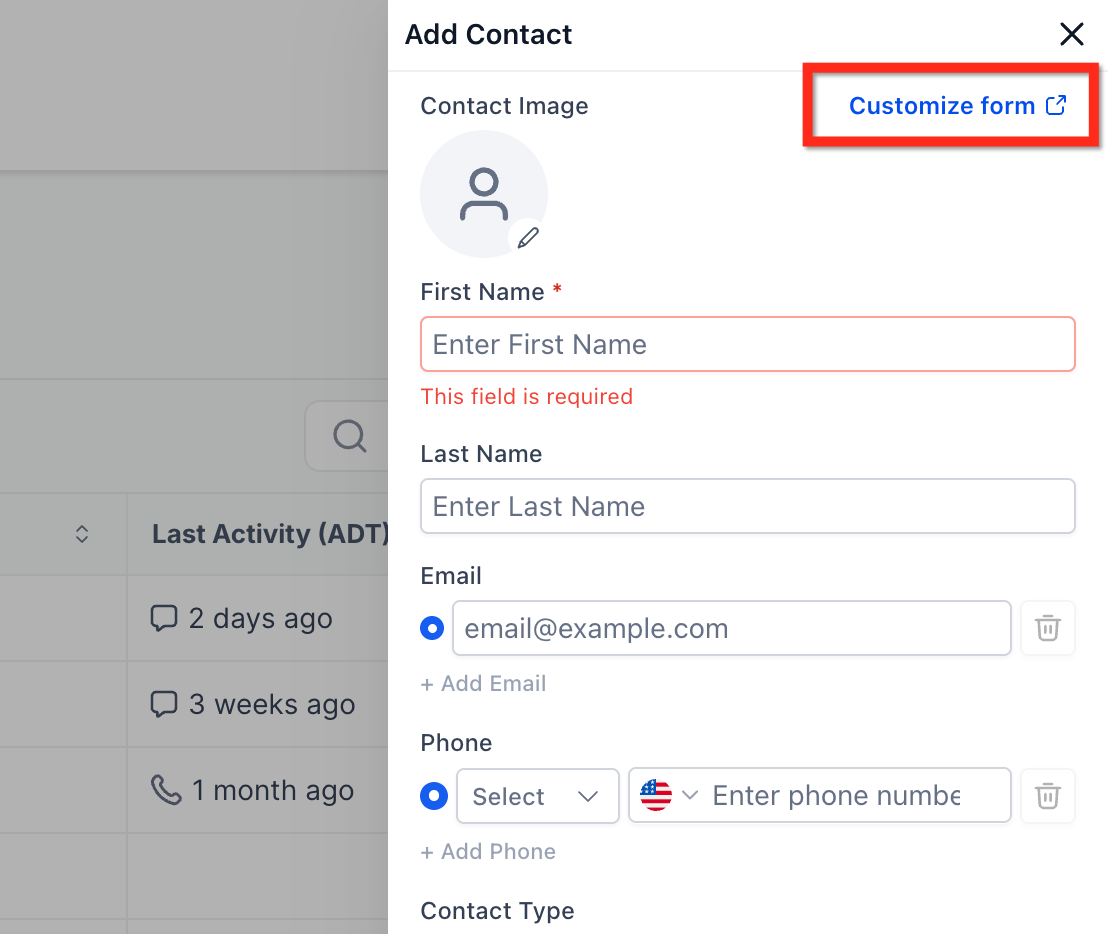
Click Customize Form.
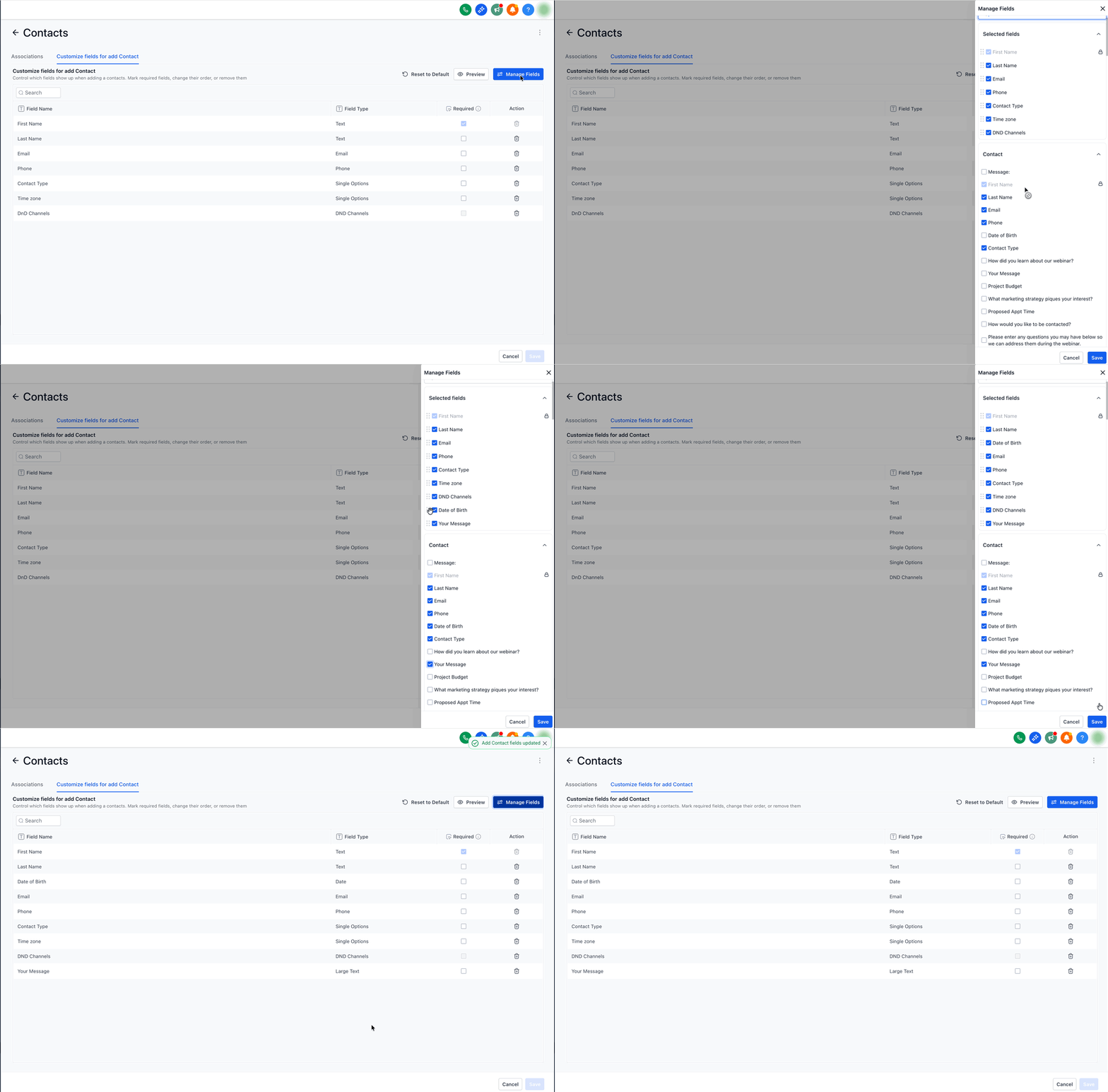
Add or remove standard fields and custom contact-level fields.
Drag fields to reorder based on your workflow priorities.
Step 3: Set Required Fields
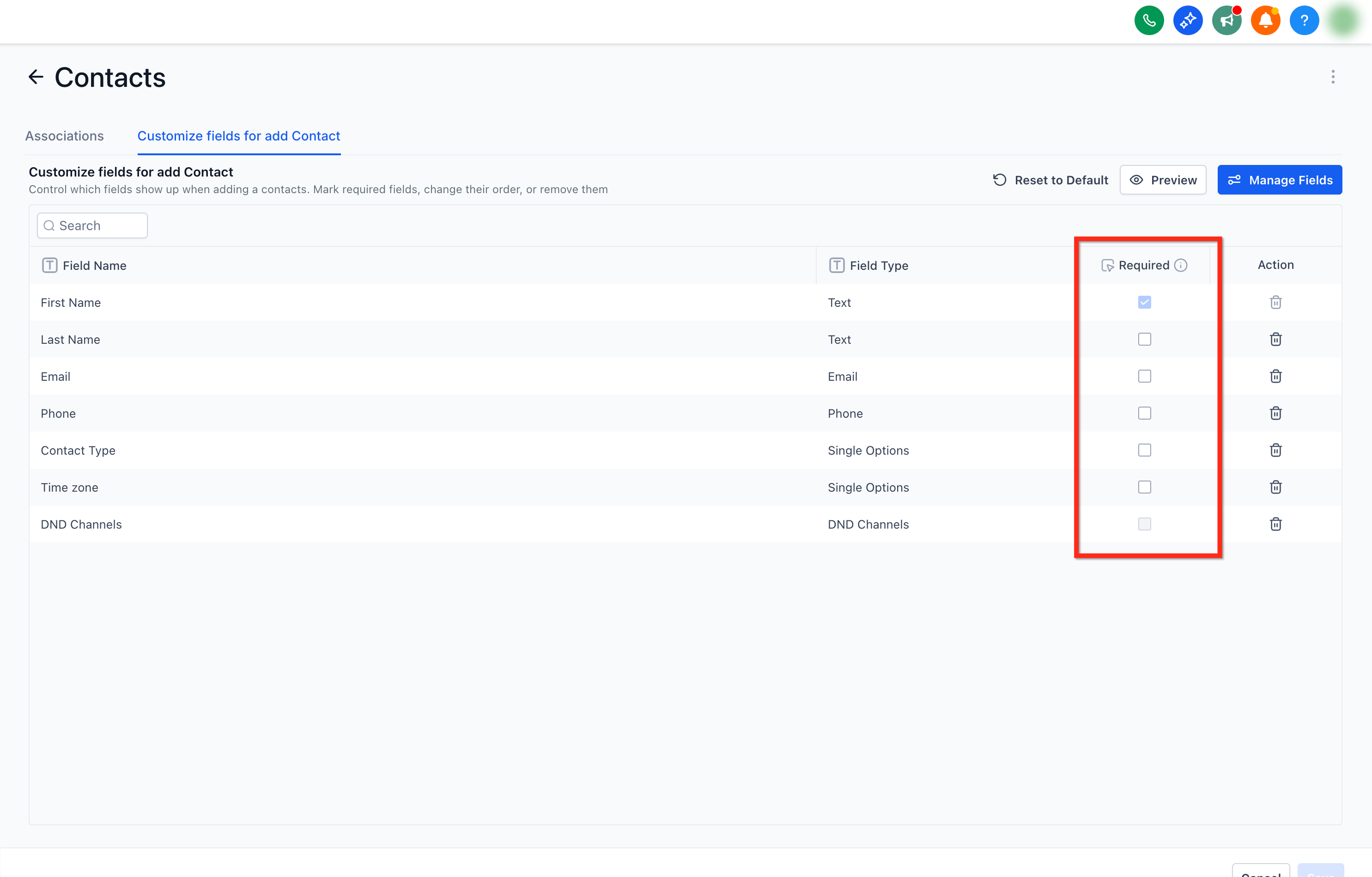
Toggle Required for any fields that must be completed before saving.
Example: Email, Contact Type, Lead Source.
Step 4: Preview & Save
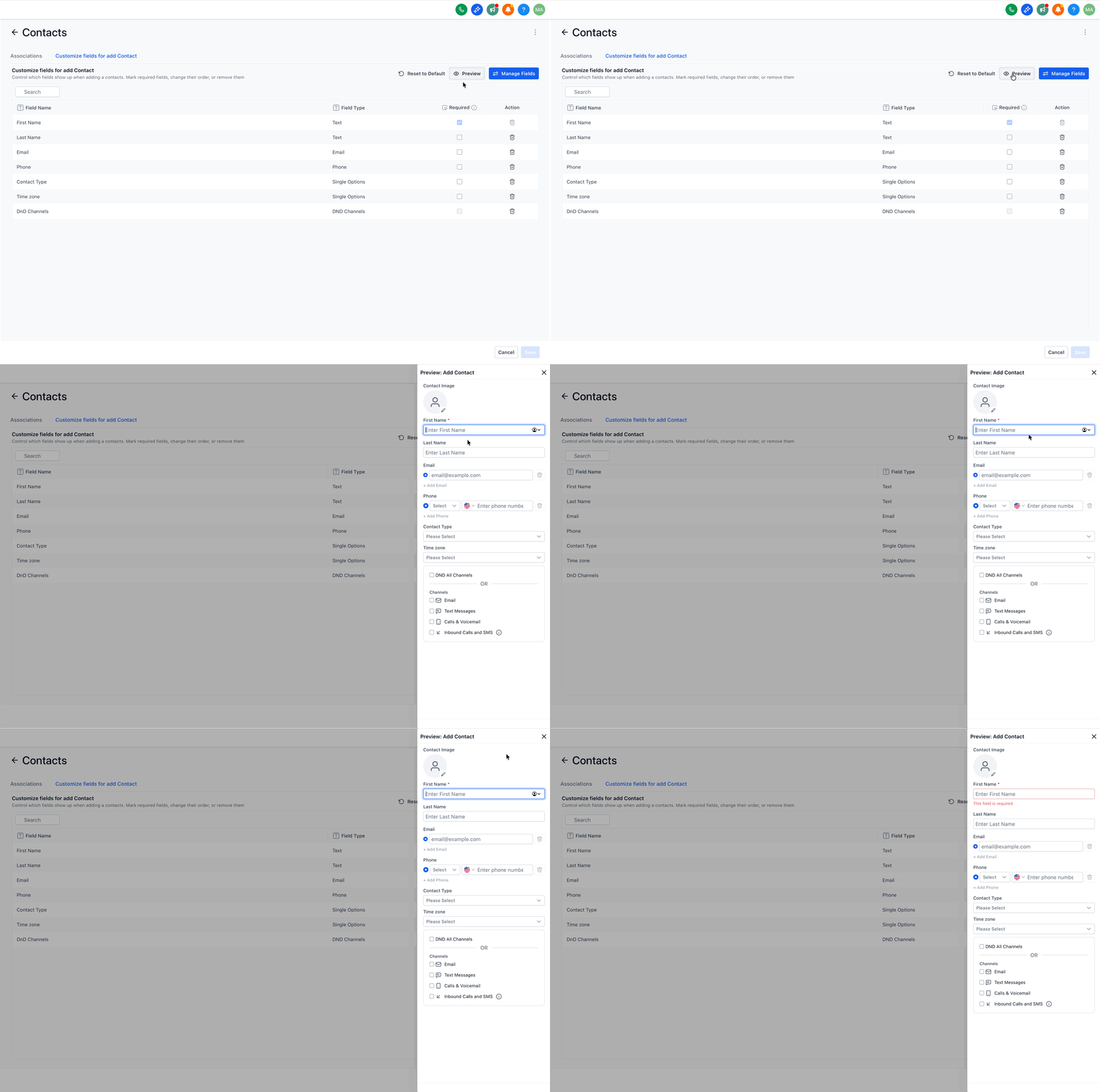
Click Preview to check the layout and required fields.
Save the layout to apply it to all users.
Step 5: (Optional) Automate Next Steps
Use Workflows triggered by Contact Created to:
Assign contact owners automatically
Send welcome messages
Tag contacts by source or campaign
Accessing and Using the Add Contact Modal (For All Users)
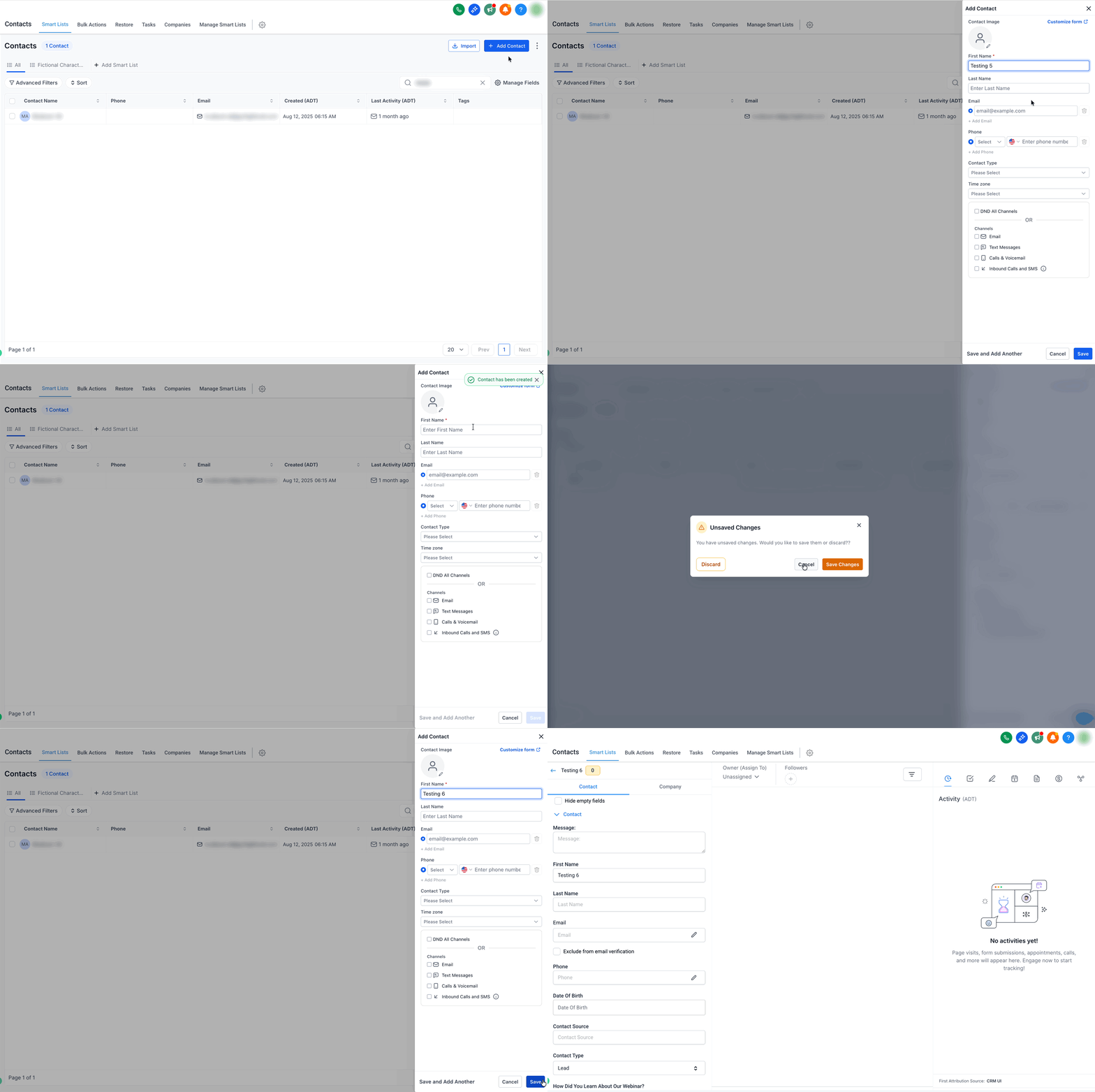
Navigate to Contacts → Smart Lists → + Add Contact.
Complete the required fields in the slide-out modal.
Choose an action:
Save: Create the contact.
Save & Add Another: Rapid back-to-back entries.
Cancel: Exit without saving.
Tip: If you attempt to close without saving, the modal prompts you to confirm unsaved changes.
Managing Duplicates & Data Quality
Configure deduplication preferences: Settings → Business Profile → Contact Deduplication Preferences (match by Email or Phone).
CSV imports auto-merge by email/phone; duplicates cannot be created via CSV.
Merge up to 10 contacts manually and select a master record if duplicates appear.
Frequently Asked Questions
Q: Who can customize the Add Contact layout?
Admin-level users in the sub-account.
Q: Can I include custom fields?
Yes, any contact-level custom field can be added, reordered, and made required.
Q: Do required fields apply to CSV imports or API creates?
No, required rules apply only to manual modal entries.
Q: Will users see layout changes immediately?
Yes, new sessions reflect changes. Existing users may need to refresh.
Q: How does “Save & Add Another” work?
Creates the contact and reopens a blank form for the next entry.

Copyright © 2026 TekMatix. All rights reserved | [email protected]