
TekMatix Help Blog
Search Help Categories
Use the search bar below to look for help articles you need.
Creating Interactive Quizzes: A Step-by-Step 101 Guide
Creating Interactive Quizzes: A Step-by-Step 101 Guide
Quizzes are a versatile tool that can enhance engagement, gather valuable insights, and even help segment audiences based on their responses. Whether you’re an educator, fitness trainer, or marketer, quizzes can serve multiple purposes, from assessing knowledge to offering personalized recommendations. In this guide, we’ll explore how to use the Quiz Builder effectively to create and manage quizzes that meet your goals.
How to Use Quiz Builder
Step 1: Accessing Quiz Builder
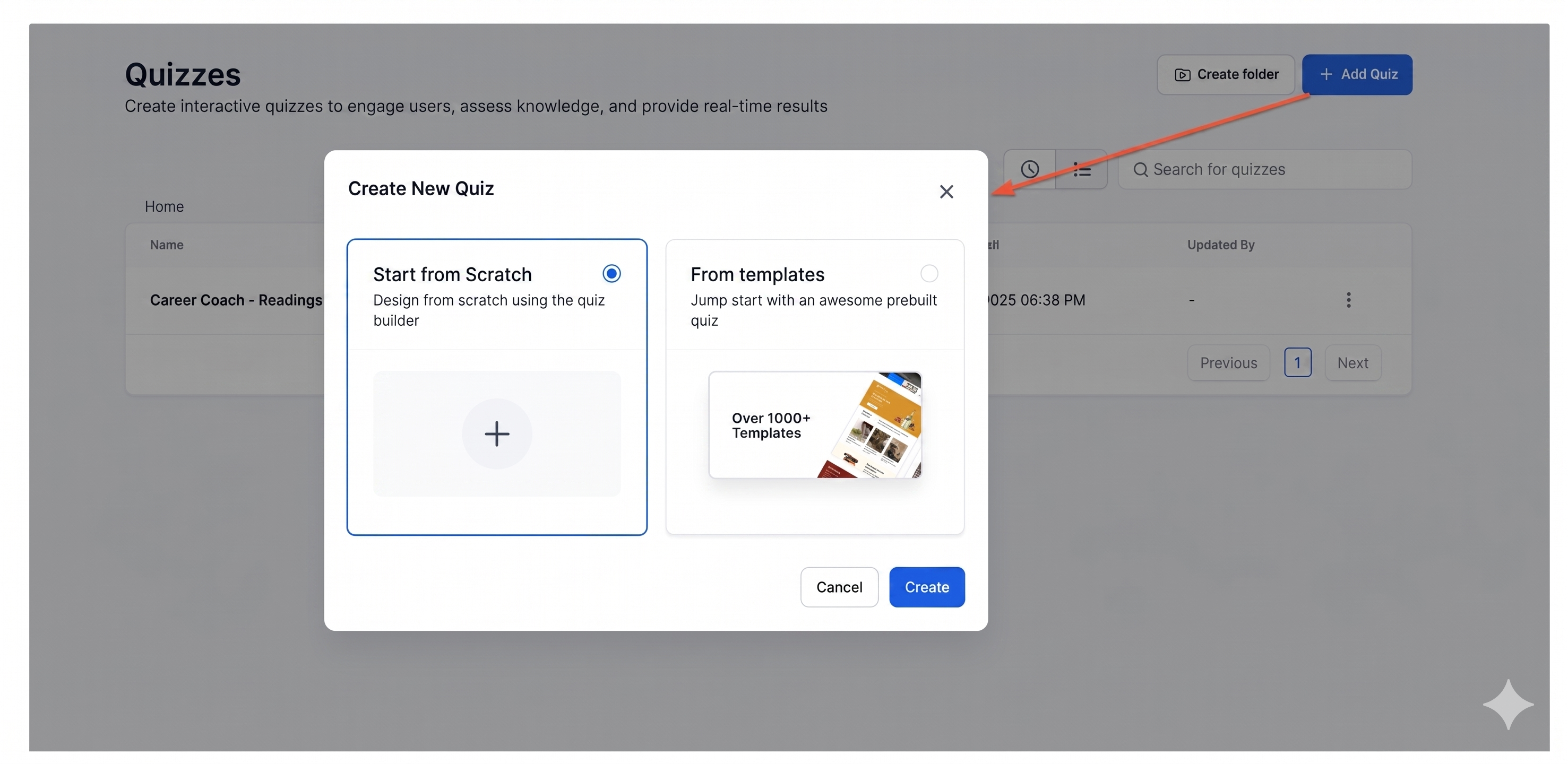
Go to Sites > Quizzes in the dashboard.
Click Add Quiz and choose to create from scratch or from pre-built Templates.
Step 2: Designing Your Quiz
1. Add Questions
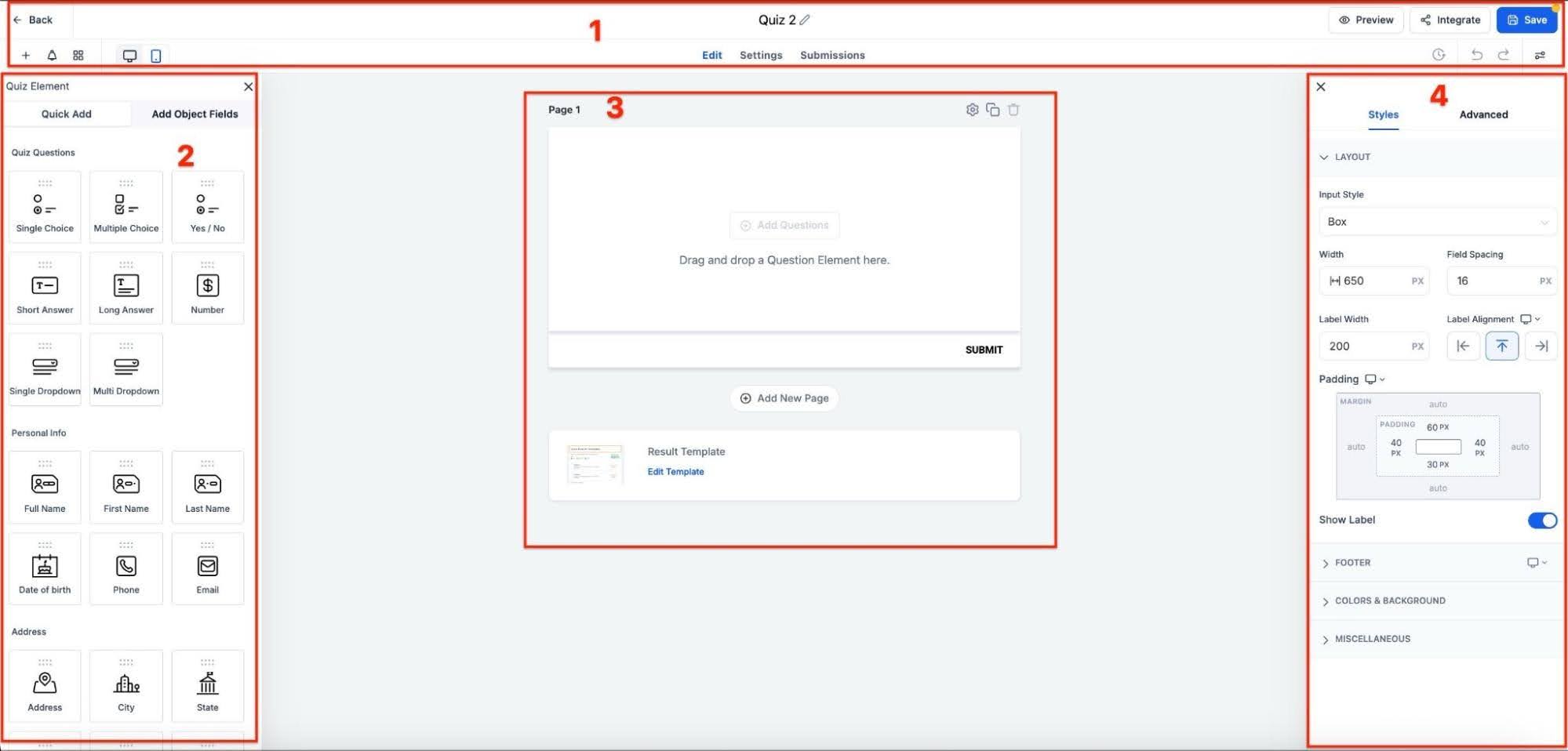
Use the sidebar to drag question types onto your quiz slides.
Choose from single-choice, multiple-choice, short-answer, and other formats based on your quiz needs.
2. Set Up Scoring
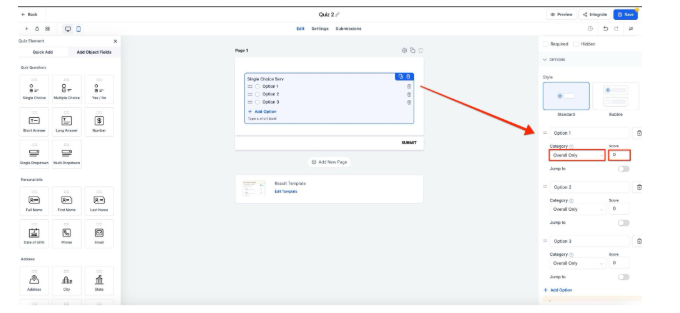
For each question, assign scores based on answers, which can contribute to an overall score or category-specific score.
3. Customize Question Flow with Branching
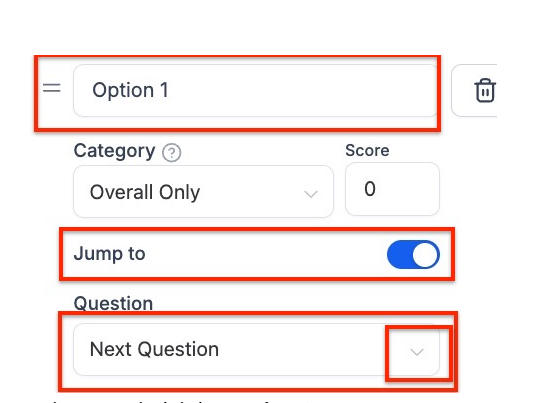
Use branching to skip or direct users to specific questions based on their previous answers, making the quiz more personalized.
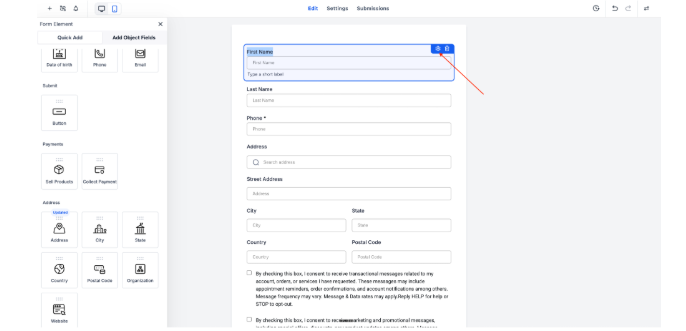
4. Element-Level Label Alignment for Quizzes
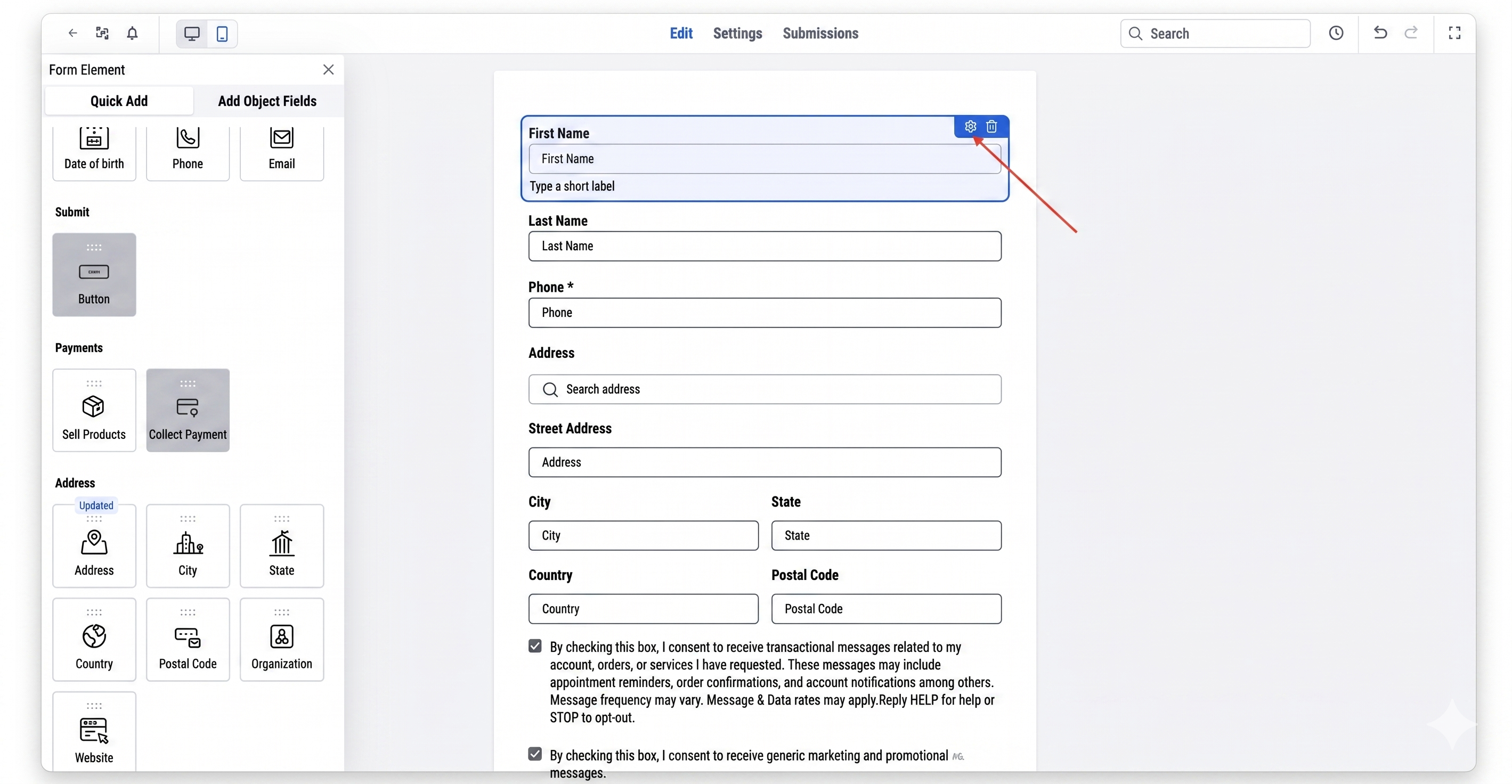
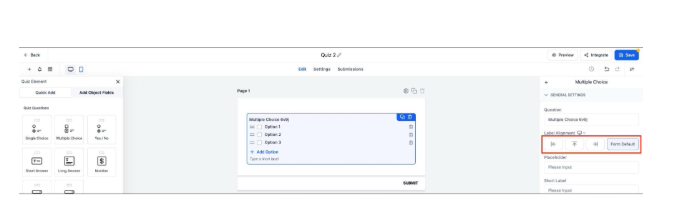
Element-Level Label Alignment allows users to set label positioning in quizzes, providing more precise layout control. To apply, select a field within a Single Column layout, choose the desired label alignment—Left, Right, Top, or Form Default and save the changes.
5. Add a New Page and Clone, Delete, or Edit the Page Setting
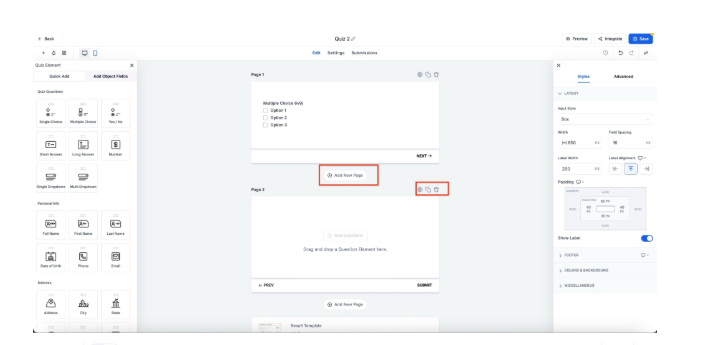
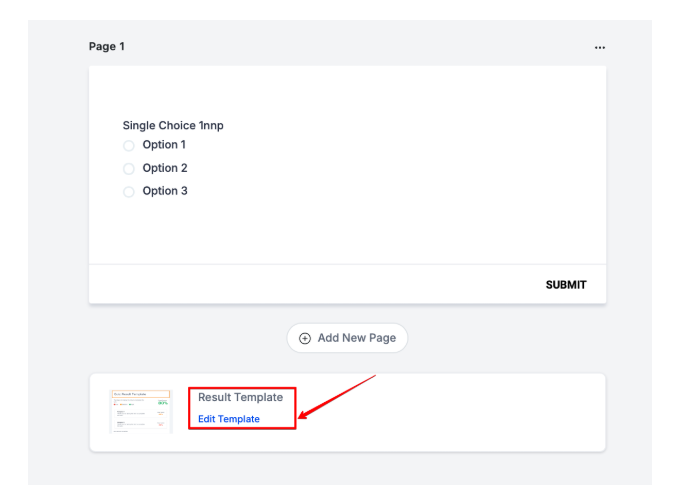
You can add additional pages within the quiz builder. You can then modify it settings: the name of the page and its positioning. You can also clone the page or delete the additional page. The side-tray settings icon allows you to adjust page settings smoothly without losing context, especially on smaller screens.
Step 3: Customizing the Result Page
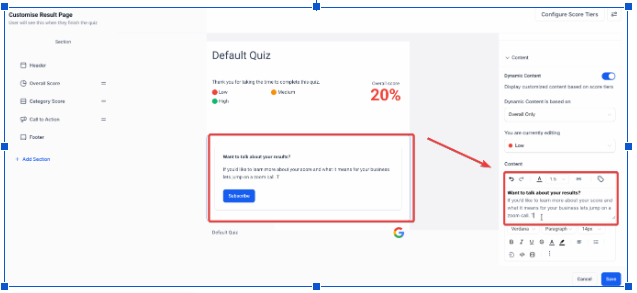
1. Edit the Results Template
Scroll to the last slide and click Edit Template to customize the result page layout, colors, and content
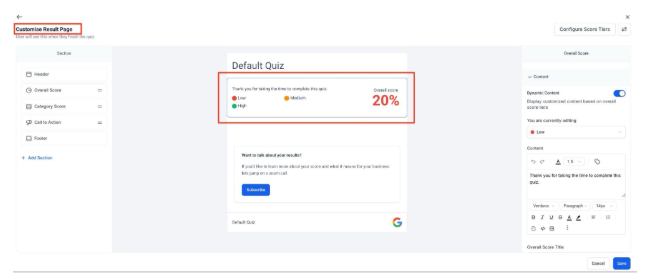
Use score-based tiers (low, medium, high) to show tailored results, colors, and messages to participants.
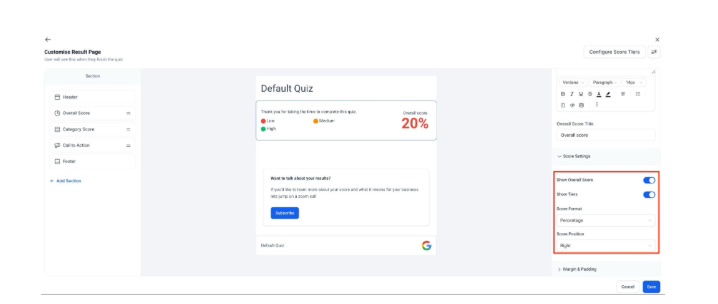
Quiz results can be displayed in:
Percentage
Actual Score Out of
2. Add Dynamic Elements
Include a call-to-action, such as scheduling a consultation, enrolling in a program, or sharing their results, to boost engagement.
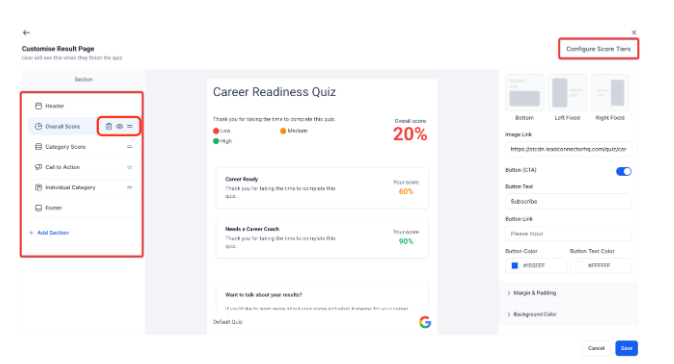
Score Tier Control
The Quiz Results page managed, making it easier to organize sections and standardize scoring.
How to use:
To use these features, access the Quiz Builder, navigate the left-side Section Visibility panel to reorder, add, hide, or delete sections.
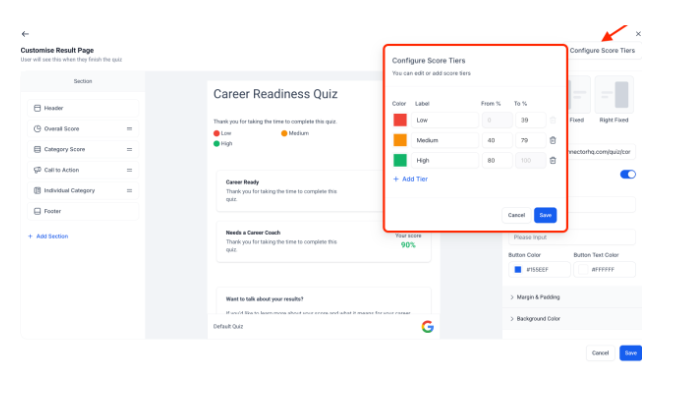
Configure global score tiers within a 0–100 range.
Zero Vertical Padding Support for Quizzes
Quizzes support true zero padding on the top and bottom, allowing complete control over vertical spacing. This helps create cleaner, more precise designs without unnecessary whitespace, ideal for achieving pixel-perfect alignment and modern layouts.
How to apply zero padding:
1- Open the quiz builder.
2- Go to Styles → Layout → Padding.
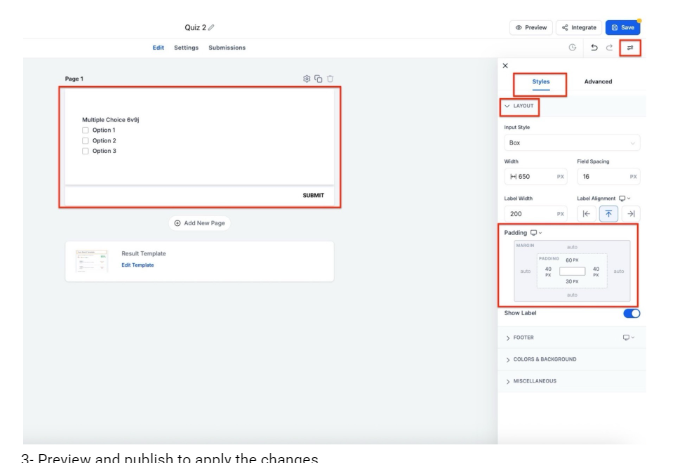
3- Preview and publish to apply the changes.
Step 4: Sharing the Quiz
Embed or Share Link
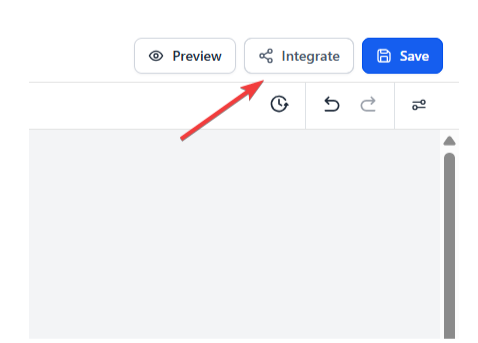
To share, click Integrate in the top-right corner.
Copy the embed code for integration on your website or use a direct link to share the quiz.
Benefits of Using Quiz Builder
Nurture Leads: Use quizzes to engage potential customers and direct them to relevant products or services.
Enhanced Learning Experience: Quizzes make learning more interactive, which can help learners retain information better.
Comprehensive Analytics: Track quiz performance to gather insights into participant preferences and knowledge.
Improved Engagement: Quizzes with branching and score-based results create a personalized experience that keeps users engaged.
Increased Interactivity: Offering dynamic questions and personalized results encourages users to participate fully, driving higher completion rates.
Pro Tips
Encourage Participation: Design your quiz to be short and to the point, focusing on the most relevant questions to keep participants engaged.
Segment Audiences: Use quiz results to segment your audience into targeted groups based on their preferences or answers, which can be used in follow-up communication strategies.
Personalize Results: Customize the result page to match your brand, adding actionable insights based on participants’ scores to encourage further engagement.
