TekMatix Help Blog
Search Help Categories
Use the search bar below to look for help articles you need.
How To Grow Your Community Using Community Affiliates in Tekmatix Using GoKollab
How To Grow Your Community Using Community Affiliates in GoKollab
Why This Matters
Growing a paid community doesn’t always require bigger ad budgets.
Your most valuable growth channel is often your existing members the ones who already trust your community and talk about it organically. Community Affiliates in GoKollab allows you to turn that word-of-mouth momentum into a structured referral program, rewarding members for bringing in new, paying members while keeping full control over commissions and payouts.
This creates:
Authentic, trust-based growth
Lower acquisition costs
Stronger member loyalty
Predictable referral-driven revenue
What Is Community Affiliates in GoKollab?
Community Affiliates enables an internal referral program for GoKollab communities.
When enabled:
Paid members receive a personal invite link
When someone joins using that link and pays for membership, the referrer earns a commission
The commission amount is based on a percentage set by the community owner
This aligns incentives so your community grows through genuine member advocacy—not aggressive selling.
Community Affiliates is designed to be simple to set up while giving community owners full visibility and control over commissions and payouts.
Key Benefits of Community Affiliates
1. Word-of-Mouth Growth
Referrals from trusted members convert better than ads because they come from real experiences.
2. Lower Acquisition Costs
Instead of upfront ad spend, you only pay commissions after a successful paid signup.
3. Increased Member Loyalty
Members feel rewarded for contributing to the growth of the community they believe in.
4. Full Owner Control
You decide:
Commission percentage
When payouts happen
How payouts are processed
5. Clear Referral Attribution
Each member has a unique invite link, ensuring commissions are attributed accurately.
How Member Referral Commissions Work
Clear rules help avoid confusion and disputes.
A commission is created only when:
A new member joins using a referral link
The invitee completes a paid membership
The commission percentage is defined by the community owner
Earnings accumulate until the owner processes payouts
Auto-Generated Referral Links for Members
Referral links are created automatically to make participation easy.
What Members Can Do:
Access their unique invite link
Share it via:
Social media
Email
Direct messages
Best Practice for Owners:
Announce the affiliate program with:
A pinned community post
An onboarding or welcome email
This helps drive early awareness and adoption.
Commission Settings & Payout Ownership
Community owners retain full control of the affiliate program.
Commission Percentage
Set a global commission percentage that applies to all paid referrals
Payout Management
Payouts are handled directly by you, not GoKollab
Choose your preferred method (e.g., bank transfer)
Process payouts on your own schedule
Payout Status Updates
Owners manually mark payouts as:
Completed – payout sent successfully
Pending – not yet processed
Failed – payment issue occurred
Members see these updates in real time on their dashboards.
How To Set the Commission Percentage (For Community Owners)
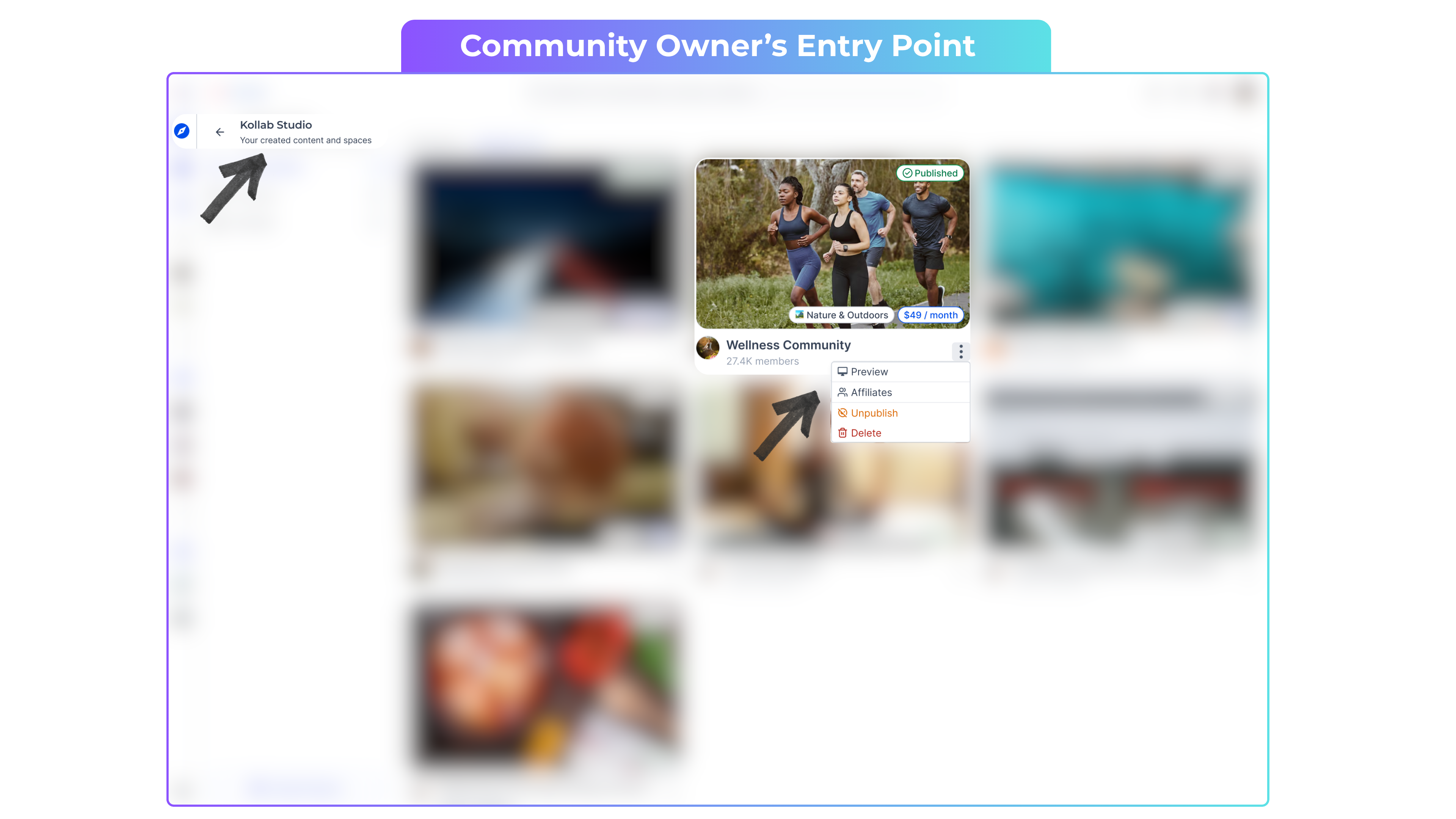
Go to Kollab Studio
Locate your community
Click the kebab menu (three dots) next to the community
Select Affiliates
In the top-right corner, set your Commission %
Click Save

Understanding the Affiliate Dashboard (Owners)
Key Metrics You’ll See:
Revenue from Affiliates – Membership revenue generated from referrals
Total Payouts – Commissions you’ve already paid
Referral Table Fields:
Invitee Name – The new member
Referred By – The existing member who shared the link
Joining Status
Invited → Not yet paid
Joined → Membership paid
Total Payouts – Amount already paid
Pending Payouts – Amount still owed
Payout Status Definitions:
Completed – Paid successfully
Pending – Awaiting payment
Failed – Payment did not go through
Actions You Can Take:
Click ✔ to mark a payout as Completed
Click ✖ to mark it as Failed
The referrer’s dashboard updates automatically.
Getting Member Bank Details for Payouts
To retrieve payout details:
Go to the Referral Activity.
Click Download CSV (top right)
Use the file to process payouts via your chosen method

Access for Referrers (Community Members)
Members have full visibility into their referral performance.
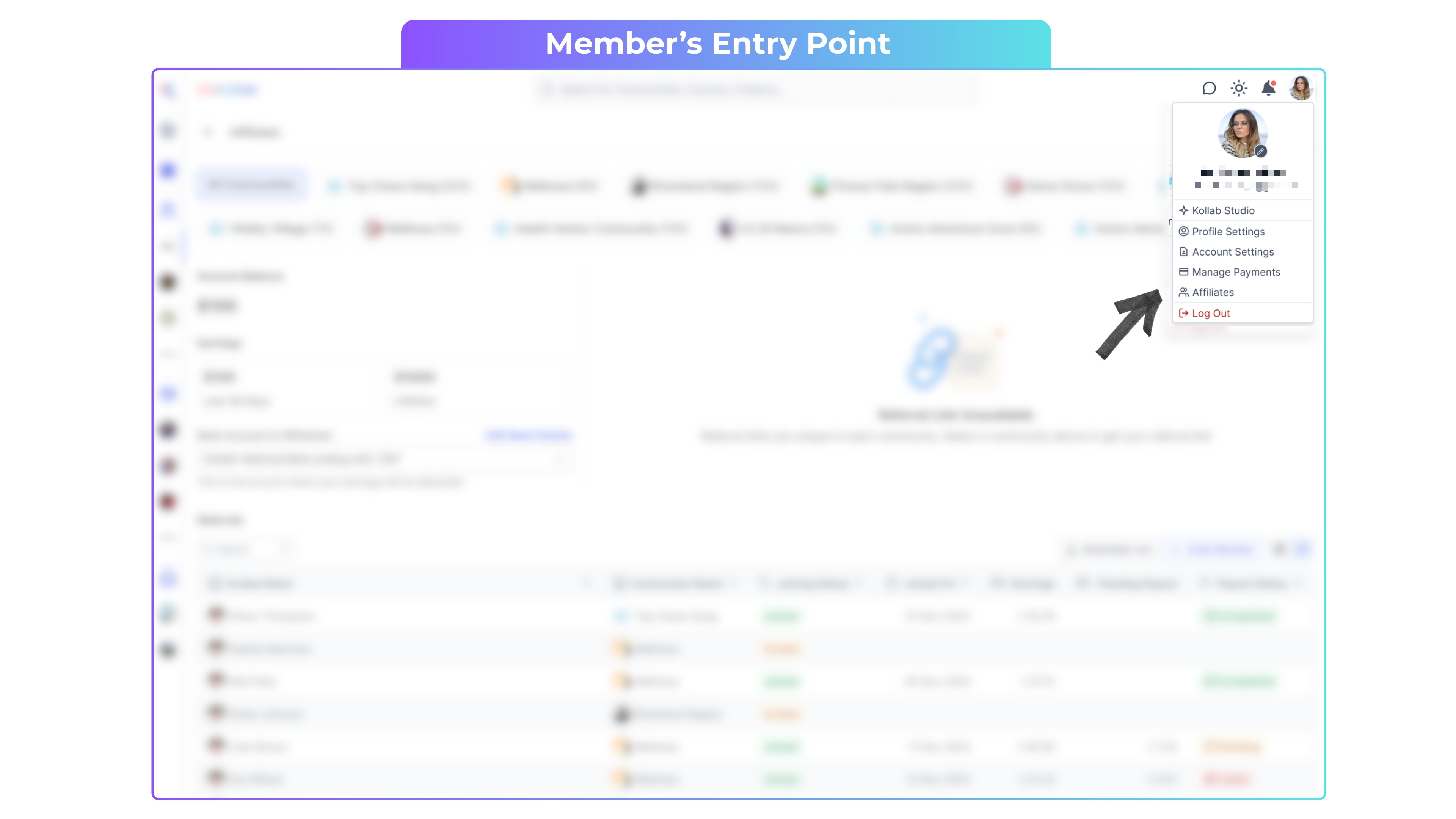
How Members Access Their Affiliate Dashboard:
Click their Profile Icon (top right)
Select Affiliates
View only communities that offer commissions

What Members See:
Account Balance – Pending earnings
Earnings – Total payouts already received
Important: Members must enter their bank details to receive payouts.
Referral Table Fields (Members):
Invitee Name
Joined Status (Invited or Joined)
Earnings per referral
Pending payouts

Sample Scenario: Turning Members Into Growth Partners
Scenario
You run a paid Tekmatix community at $49/month and want to grow without increasing ad spend.
Setup:
Enable Community Affiliates
Set commission to 20% per referral
Each member earns $9.80 for every successful signup
What Happens:
A member shares their referral link on LinkedIn
A colleague joins and pays for membership
The referrer earns a commission
You review referrals weekly and process payouts monthly
Result:
Your community grows through trusted recommendations, members feel rewarded, and you only pay when revenue is generated.
Frequently Asked Questions
Who receives referral links?
Paid members of the community.
When is a commission created?
After an invitee joins using a referral link and completes payment.
Where do owners set the commission percentage?
GoKollab Studio → Community menu (three dots) → Affiliates.
Who handles payouts?
Community owners manage payouts directly.
Can members see payout status updates?
Yes. Status updates appear in their Affiliate dashboard.
How do owners get bank details?
Download the CSV from the referrals table.
