
TekMatix Help Blog
Search Help Categories
Use the search bar below to look for help articles you need.
How to Use Meeting Rooms in Tekmatix (and Cancel Your Zoom Subscription)
Quick answer: Meeting Rooms is video calling built right into Tekmatix. Switch it on in Settings > Labs, create your own reusable meeting link, and use it for client calls, team meetings, workshops, webinars and live sessions in your community. It records, transcribes and summarises your meetings, it's connected to your booking calendars, and it's part of the subscription you already pay for. That's one more subscription you can cancel.
What is Meeting Rooms?
Meeting Rooms is Tekmatix's own video conferencing. Instead of paying for Zoom and copying links between apps, you run your meetings from the same place as your contacts, calendars, courses and community.
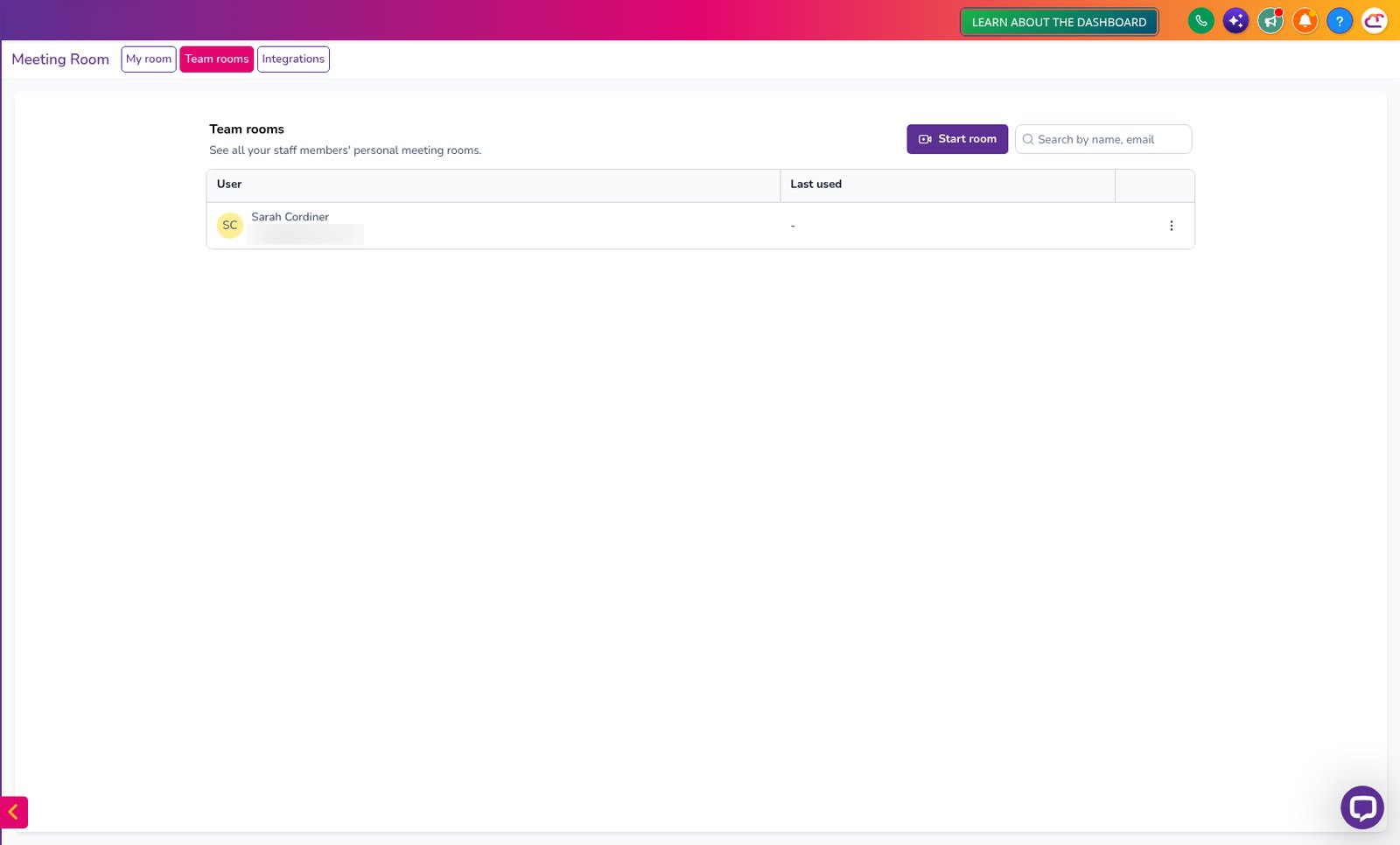
Inside Meeting Rooms you'll find three areas:
My room: your personal room with a permanent link you can use again and again.
Team rooms: every team member's personal room in one list, so you can jump into theirs.
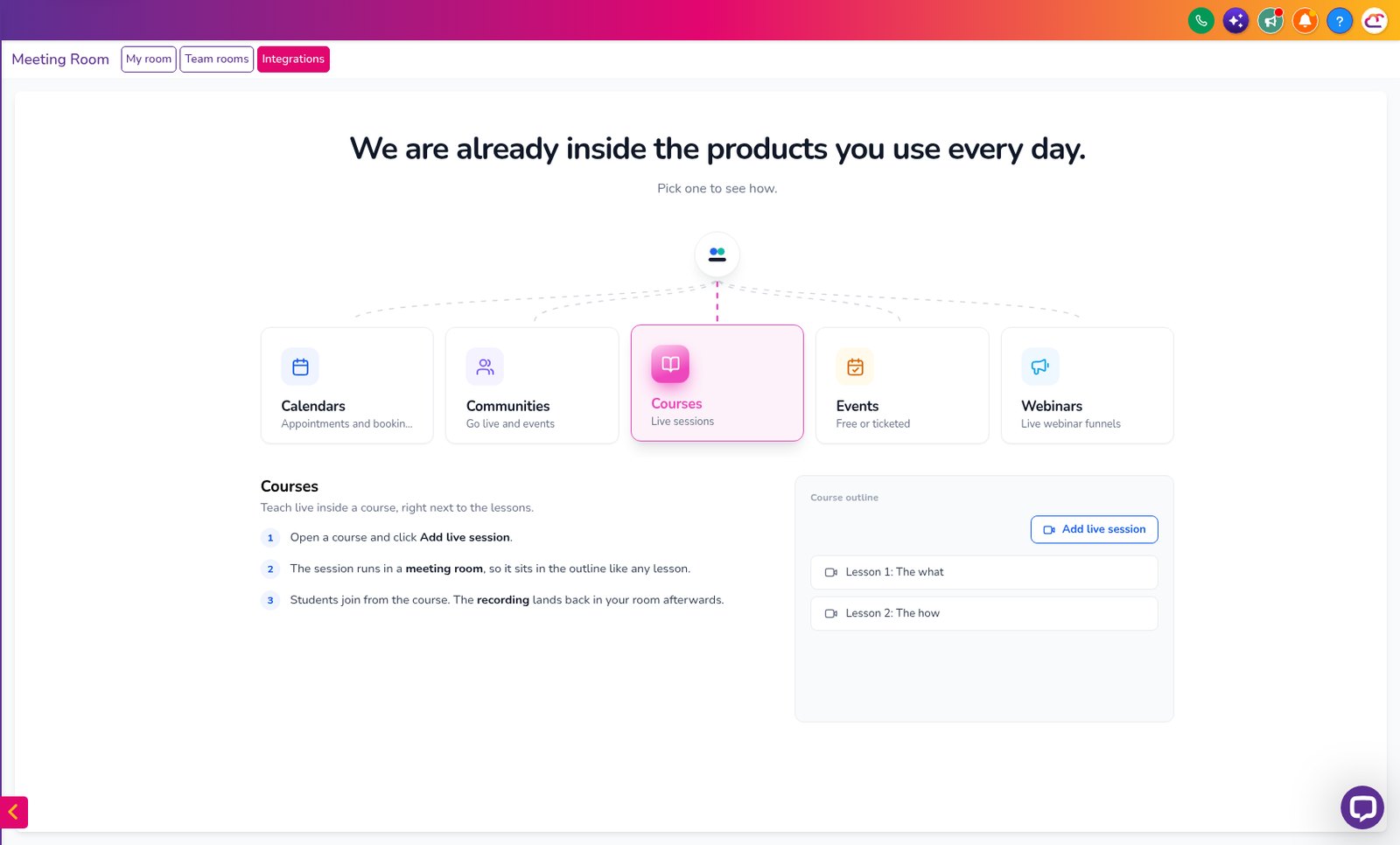
Integrations: where Meeting Rooms connects to your calendars, communities, courses, events and webinars.
Why it's a complete replacement for Zoom
What you need | Zoom | Tekmatix Meeting Rooms |
|---|---|---|
Another monthly subscription | Yes, per licence | No, it's in your Tekmatix plan |
Extra hosts on your team | Each needs a paid licence | Unlimited team users and seats on your plan |
Your own reusable meeting link | Yes | Yes |
Screen share, chat, reactions, raise hand | Yes | Yes |
Waiting room, passcode, co-hosts | Yes | Yes |
Breakout rooms | Yes | Yes, up to 100 per session |
Recording, transcripts and AI summaries | Depends on your plan | Included |
Connected to your booking calendar and CRM | Needs an integration | Built in |
Live sessions inside your course and community | Separate link | Built in |
So you get the meeting tool, and you get it already connected to the rest of your business. One less login, one less bill, one less thing that doesn't talk to anything else.
Step 1: Switch on Meeting Rooms in Labs
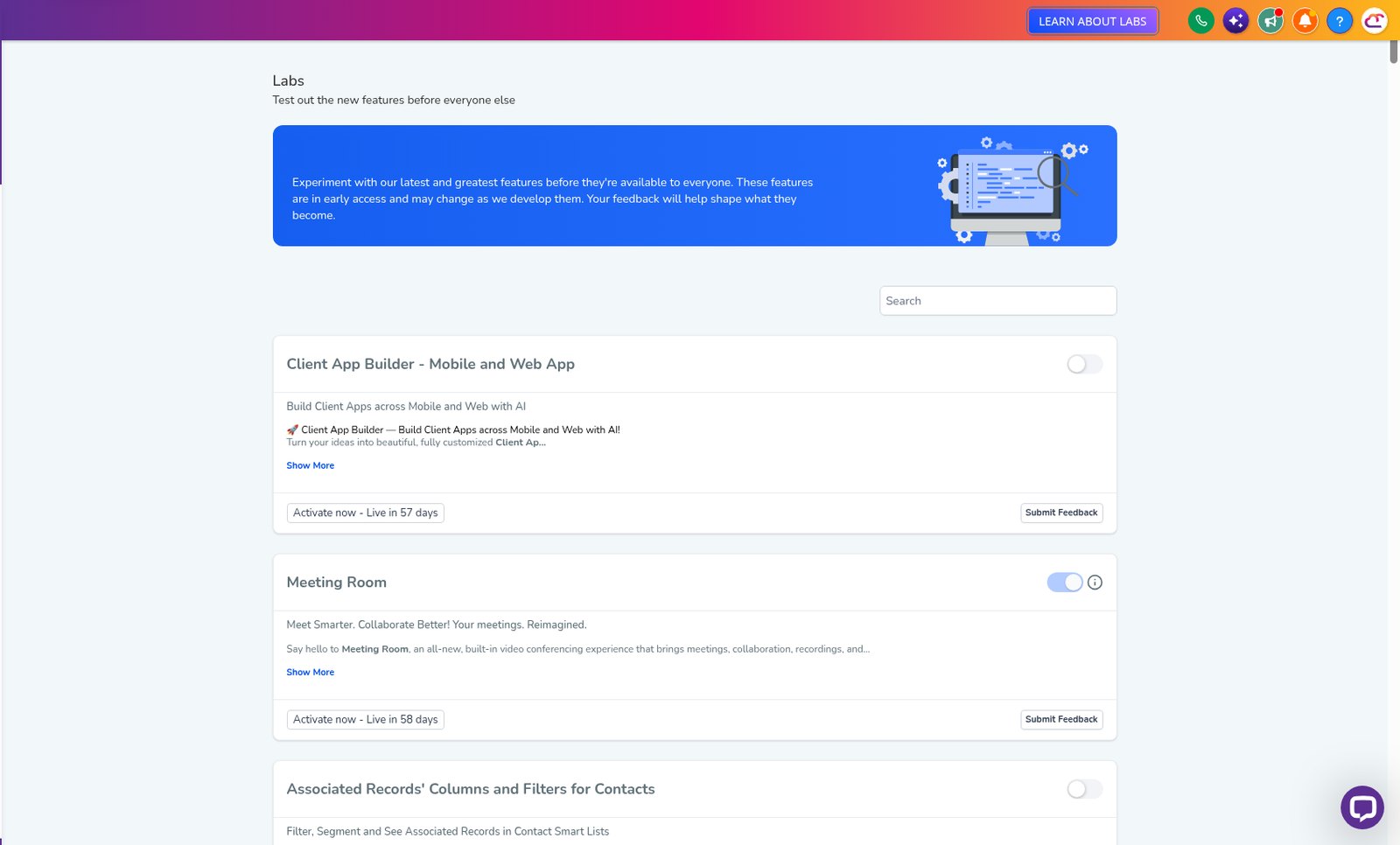
This is an early access feature. You can switch it on now in Labs, before it's automatically rolled out to every account. While you're in Labs, have a look around. There are other new features you can switch on early too.
1
Log in to your Tekmatix account.
2
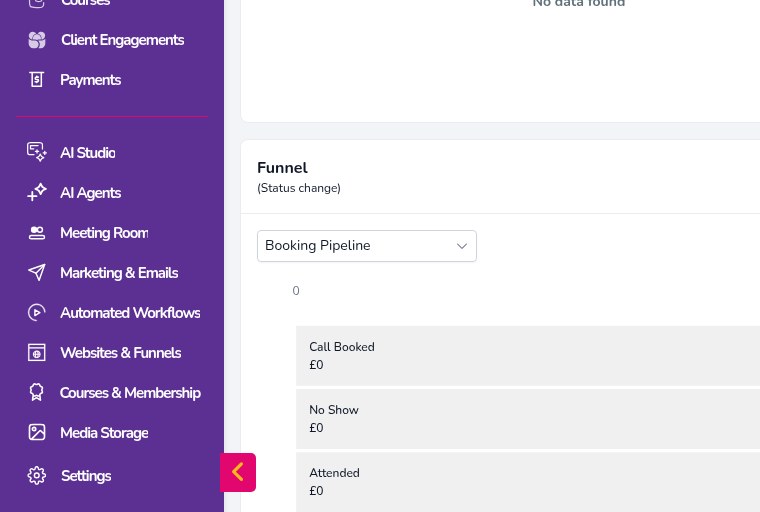
Click Settings at the bottom of the left menu.
3
Click Labs.
4
Find Meeting Room and switch it on.
5
Refresh the page so the new feature shows up.
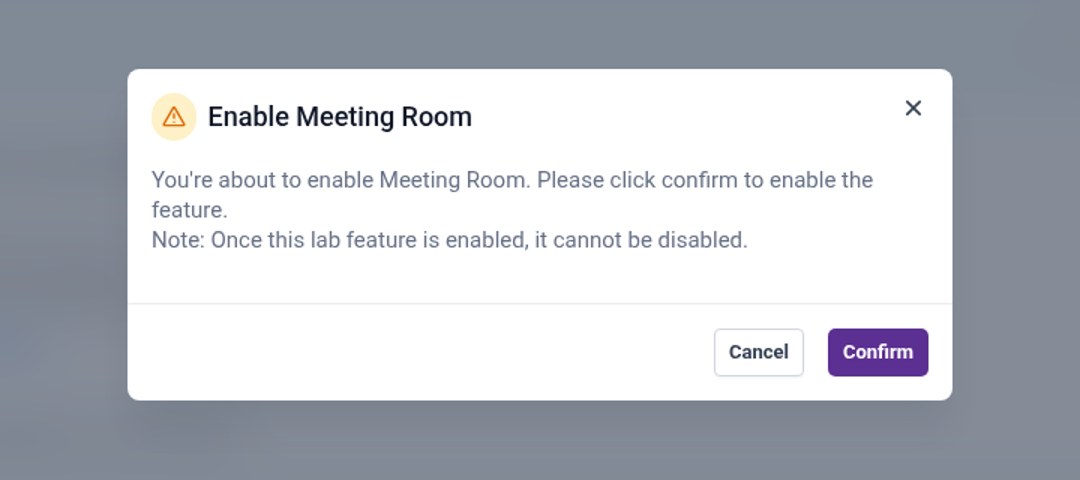
You'll see a box asking you to confirm. Once it's on, it stays on, and that's fine: Meeting Room arrives in every Tekmatix account automatically in about two months anyway. Switching it on now just means you get it first.
Step 2: Create your personal meeting room
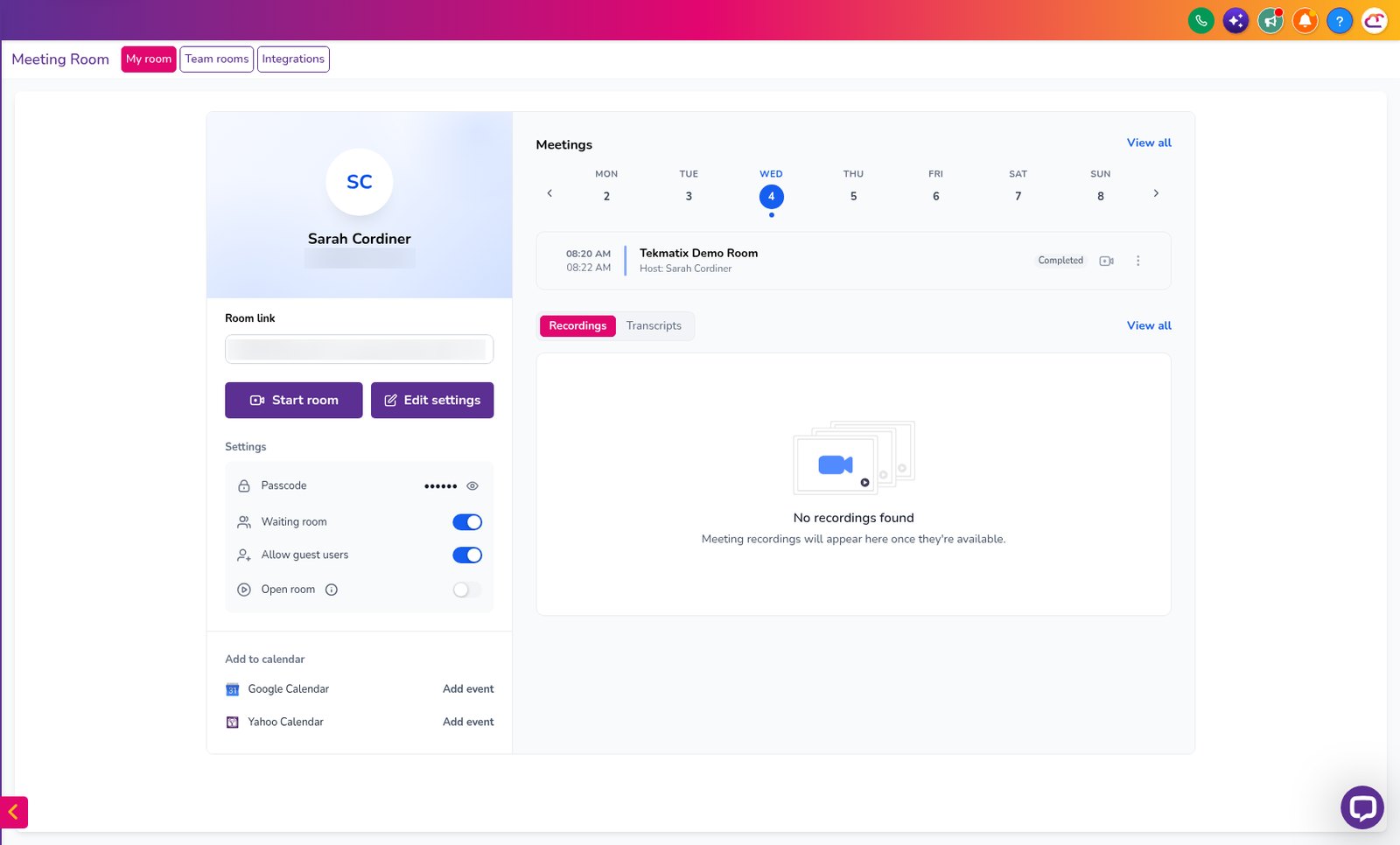
Your personal room is your permanent link. Set it up once and use it for every call.
1
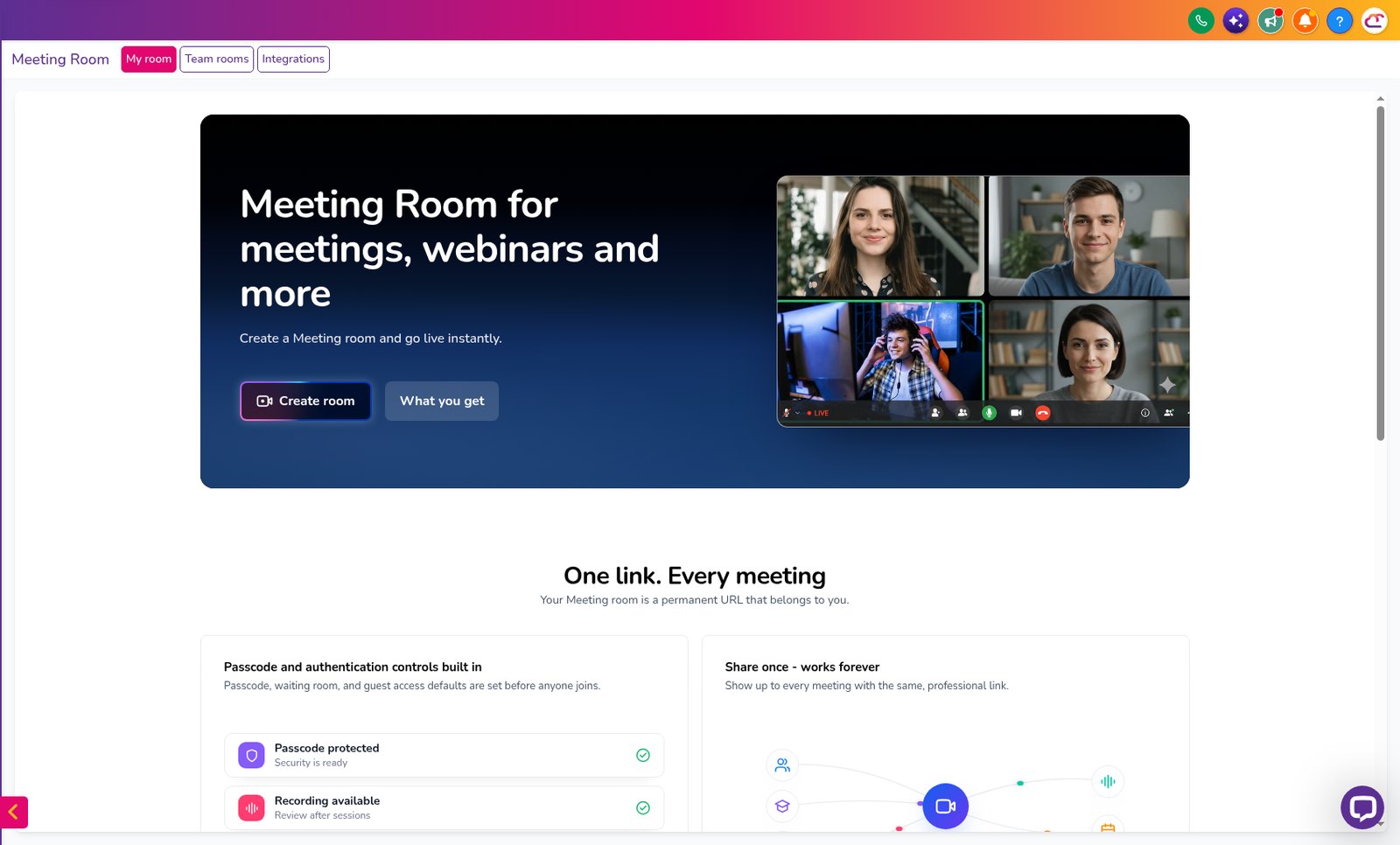
Open Meeting Room and click My room.
2
Click Create room.
3
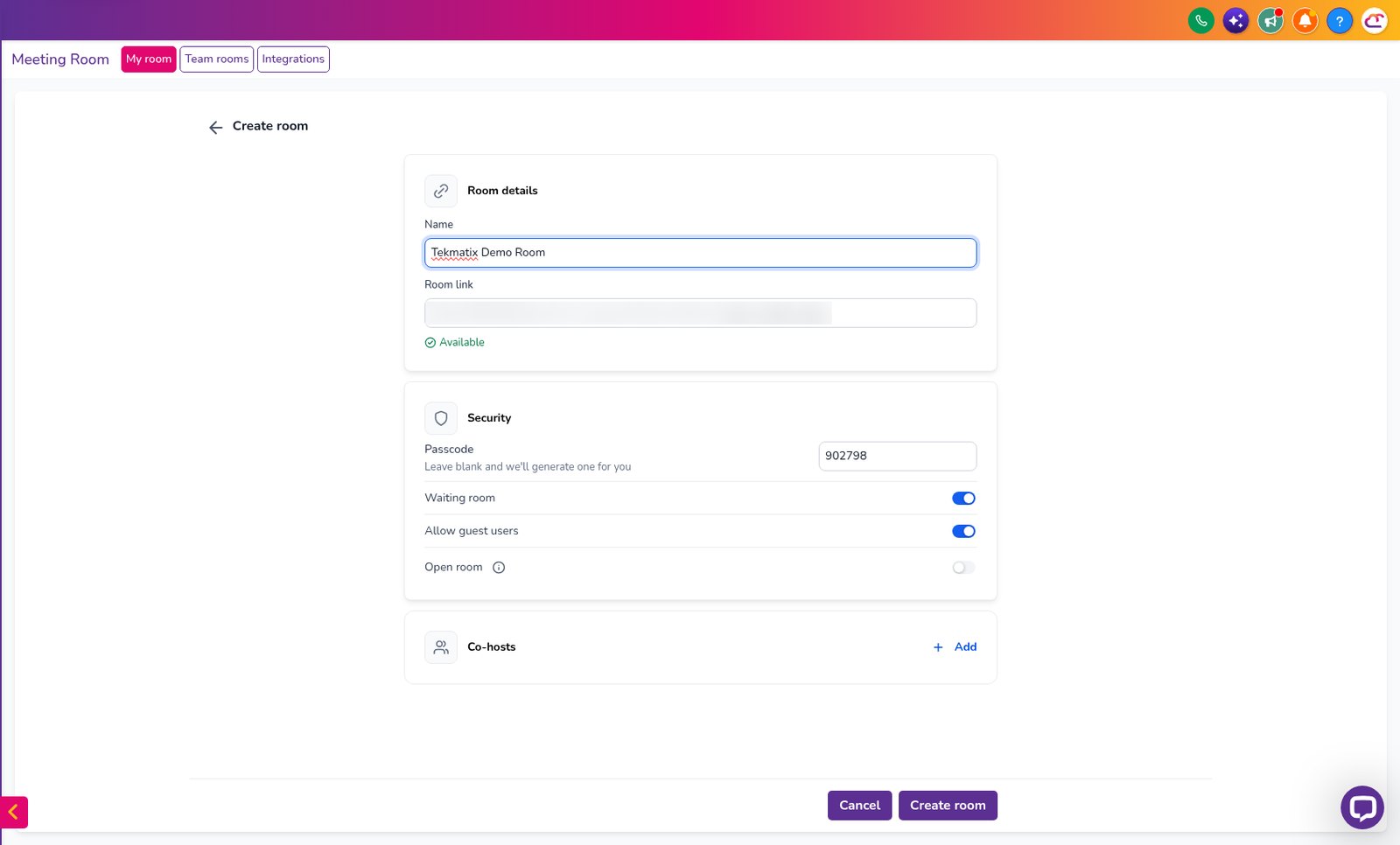
Under Room details, type a name and choose your room link, for example your business name.
4
Under Security, choose your settings: a passcode, a waiting room, whether guests can join without a login, and when the room is available.
5
If someone helps you run calls, add them under Co-hosts.
6
Click Save changes. Your room is ready.
Our tip for client calls
Switch on Allow guest users so clients can join from their browser without a login.
Switch on the waiting room if you run back-to-back calls, so the next person can't walk in early.
Step 3: Start an instant meeting
1
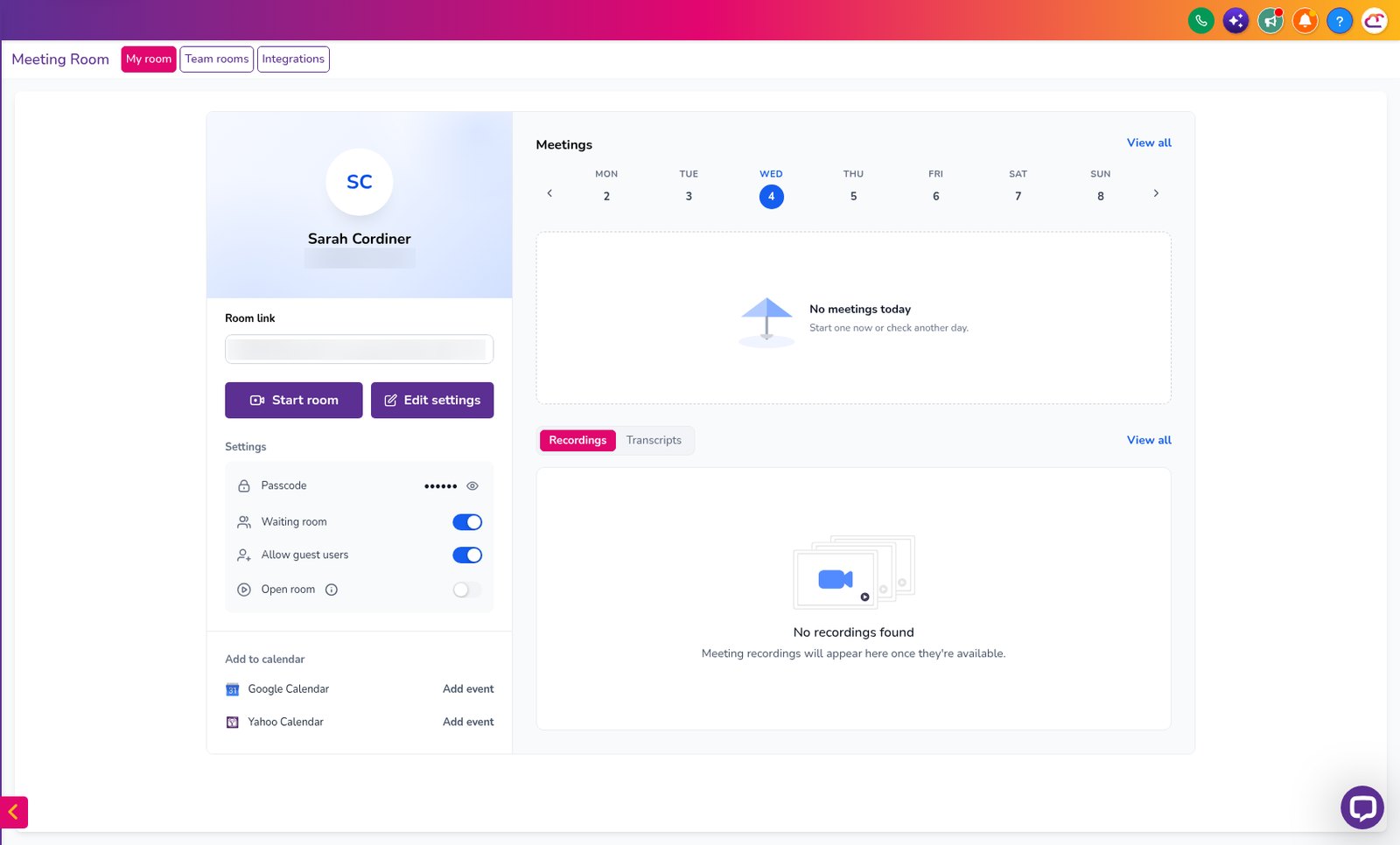
Go to Meeting Room > My room.
2
Click Start room.
3
Check your microphone, speaker and camera.
4
Click Start now.
5
Copy your room link and send it to the people you're meeting.
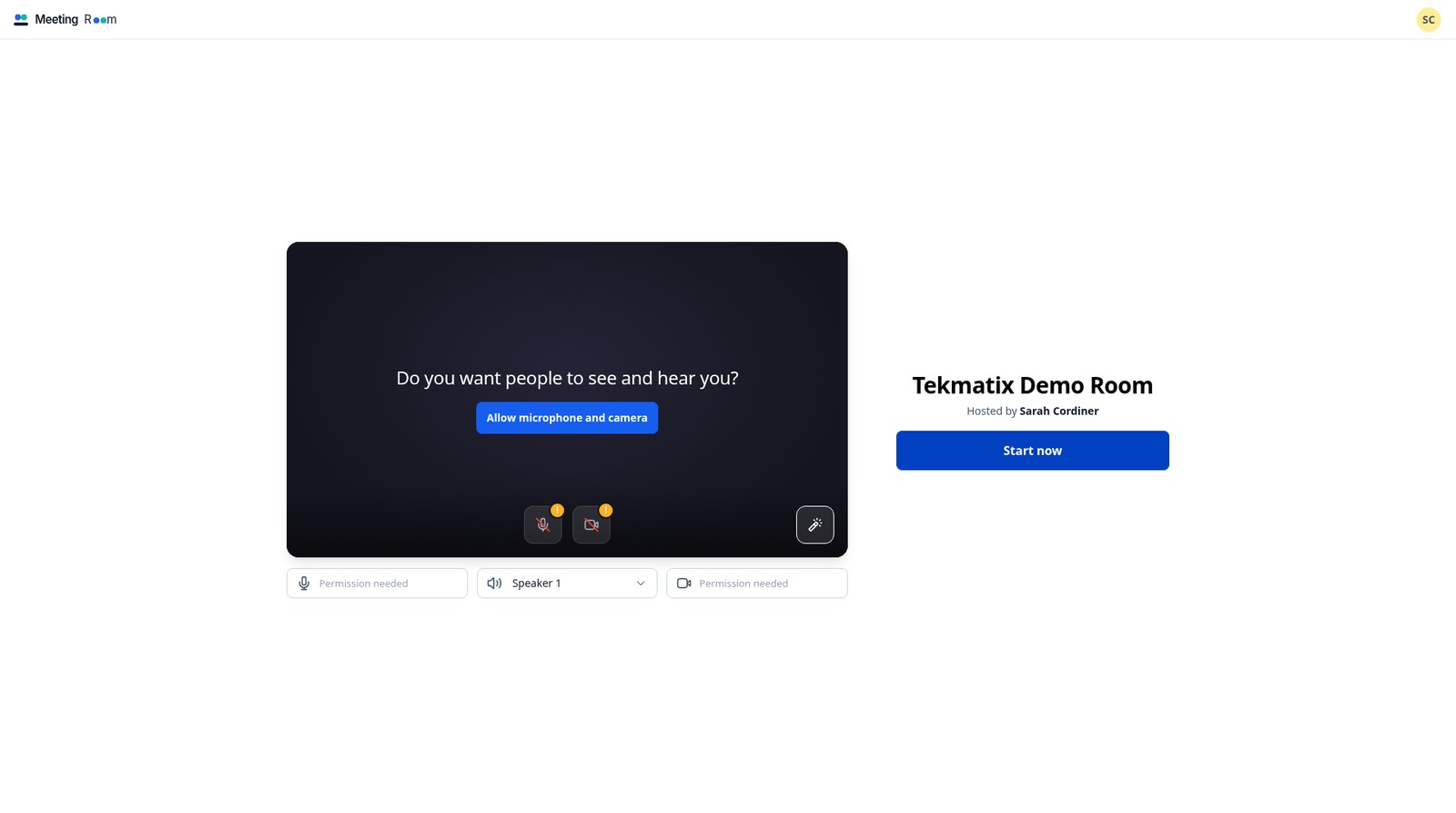
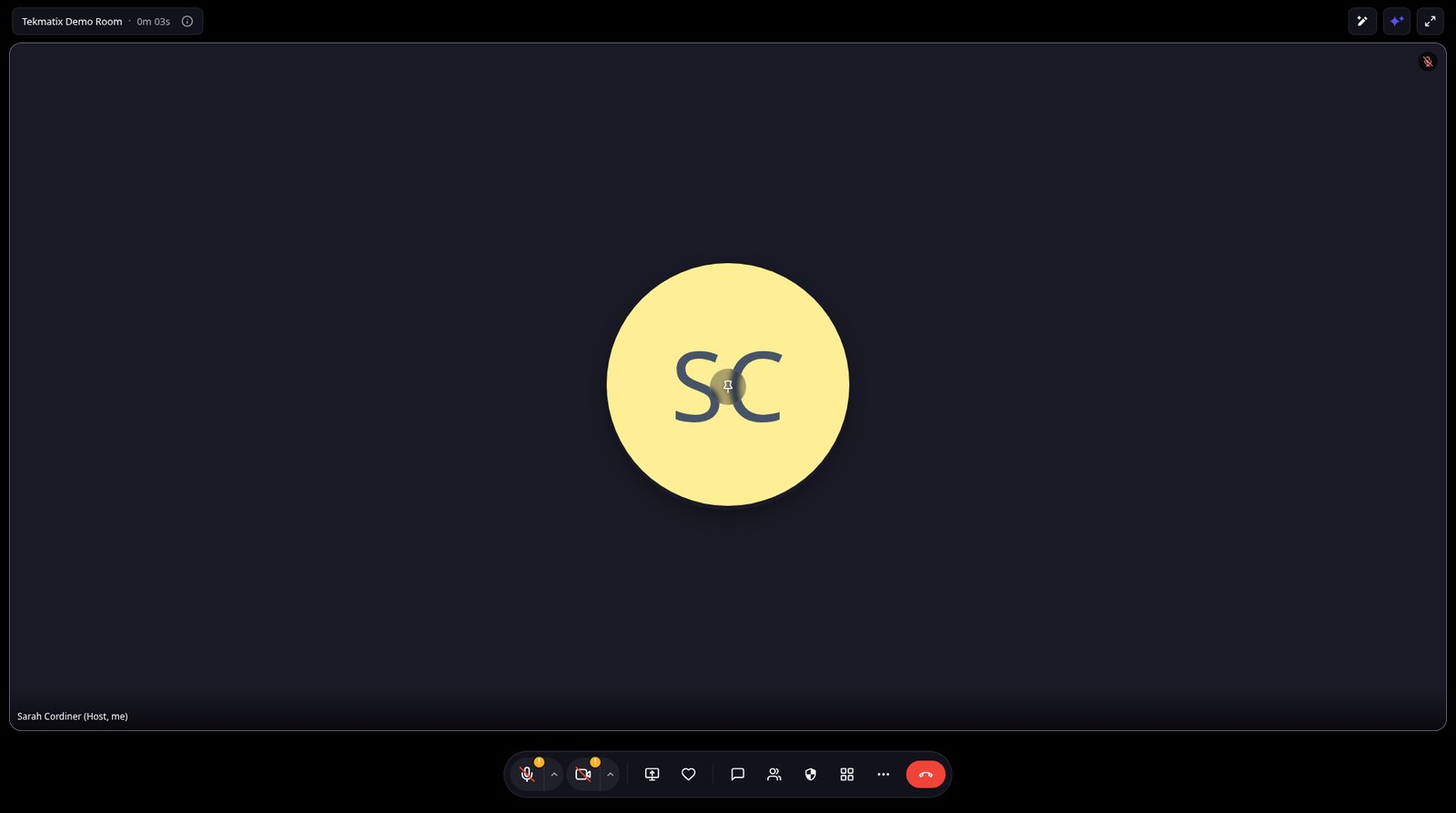
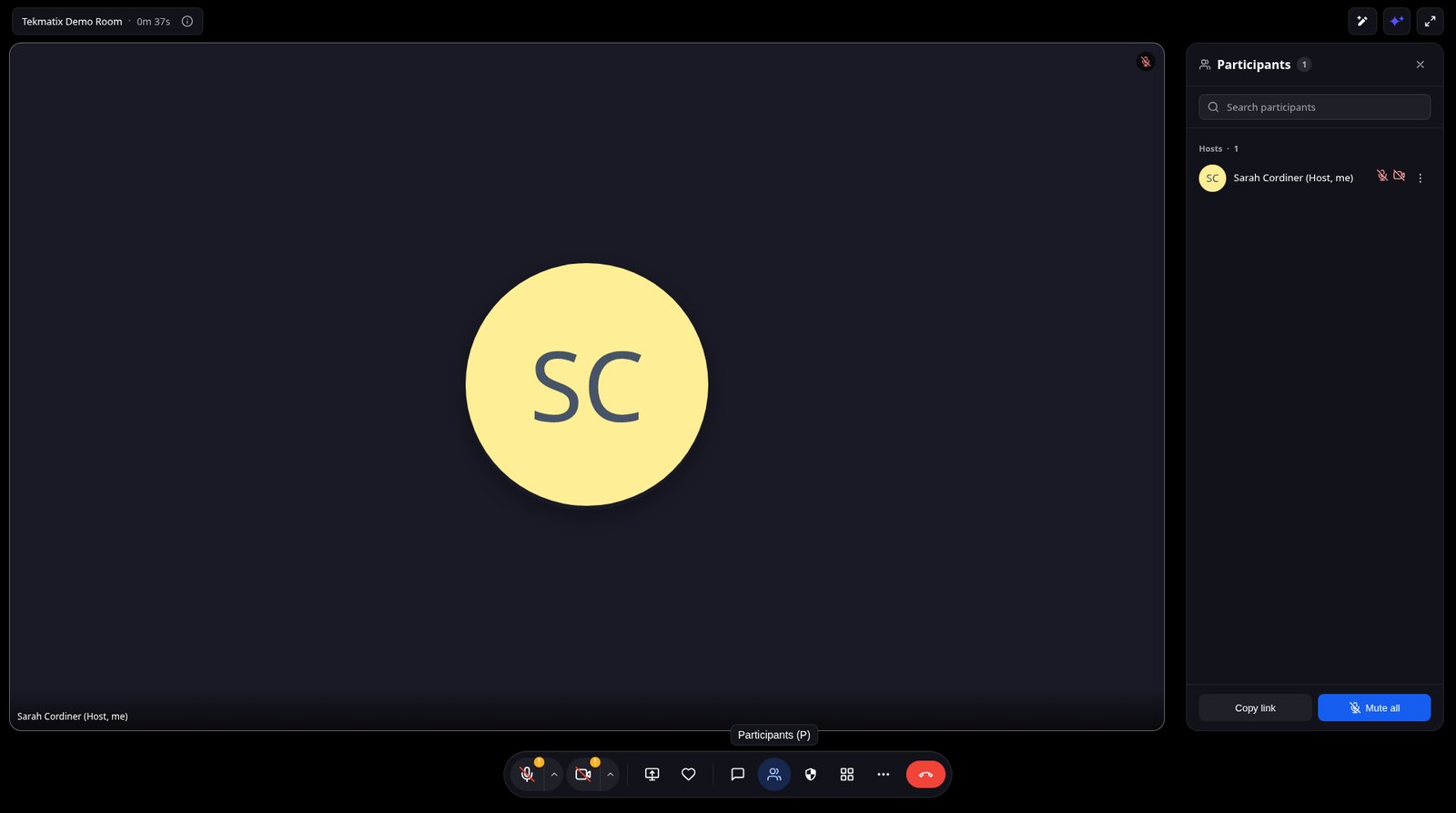
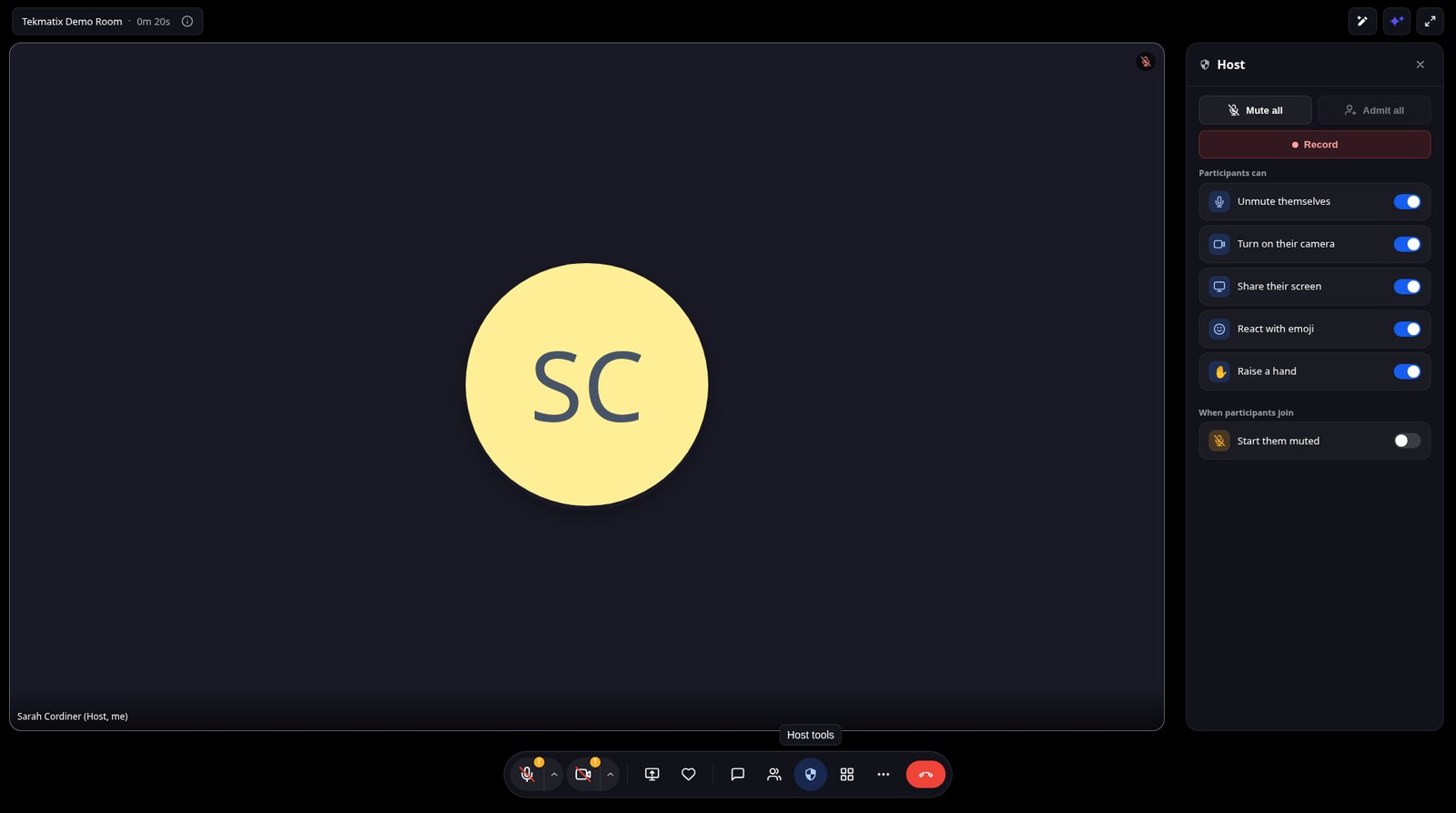
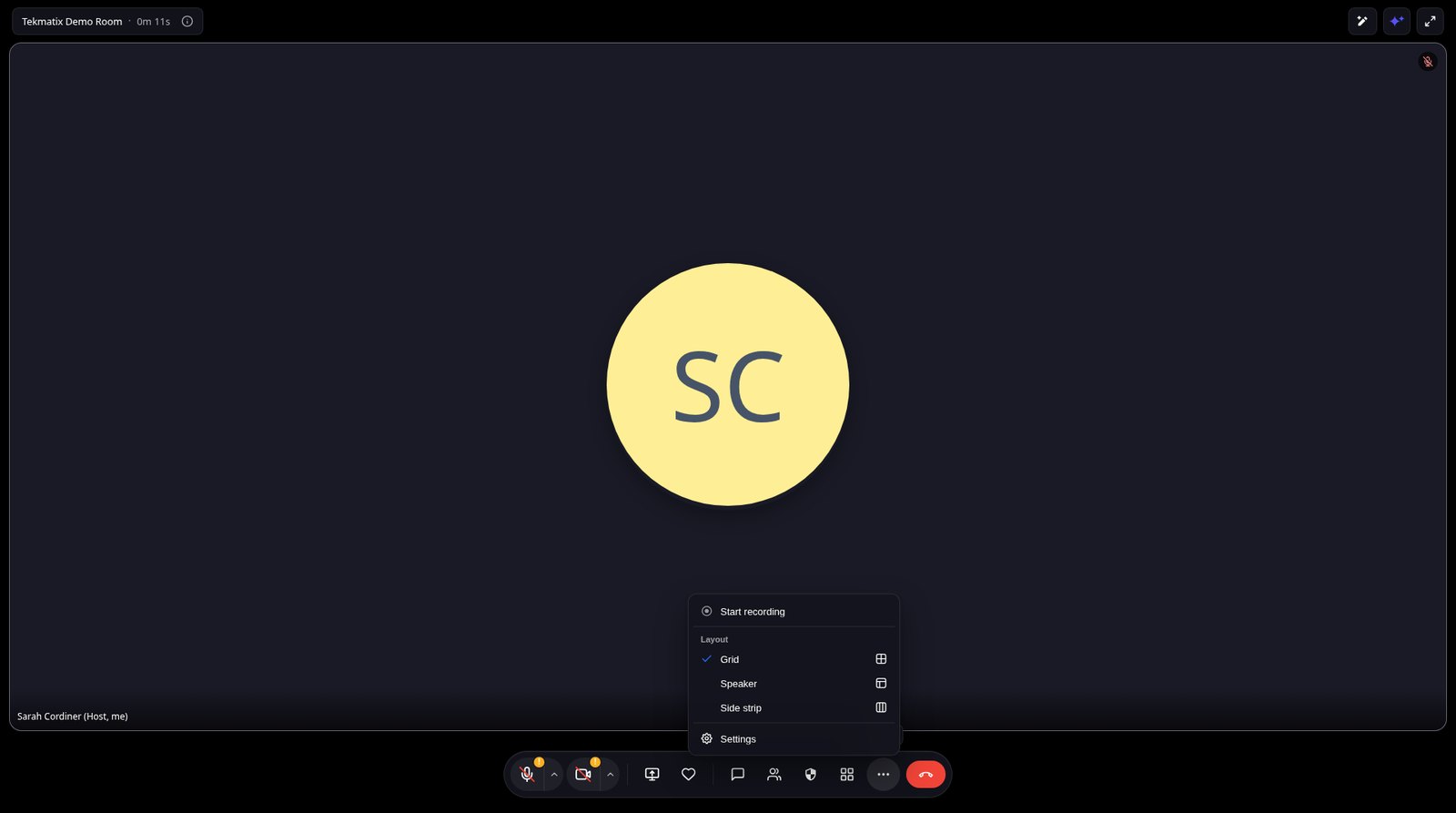
While you're in the meeting you can share your screen, chat, use reactions and raise hand, change the layout, and switch on picture-in-picture so you can still see everyone when you change browser tabs. You can also set your background, lighting and noise cancellation.
Step 4: Use it for your booking calendar meetings
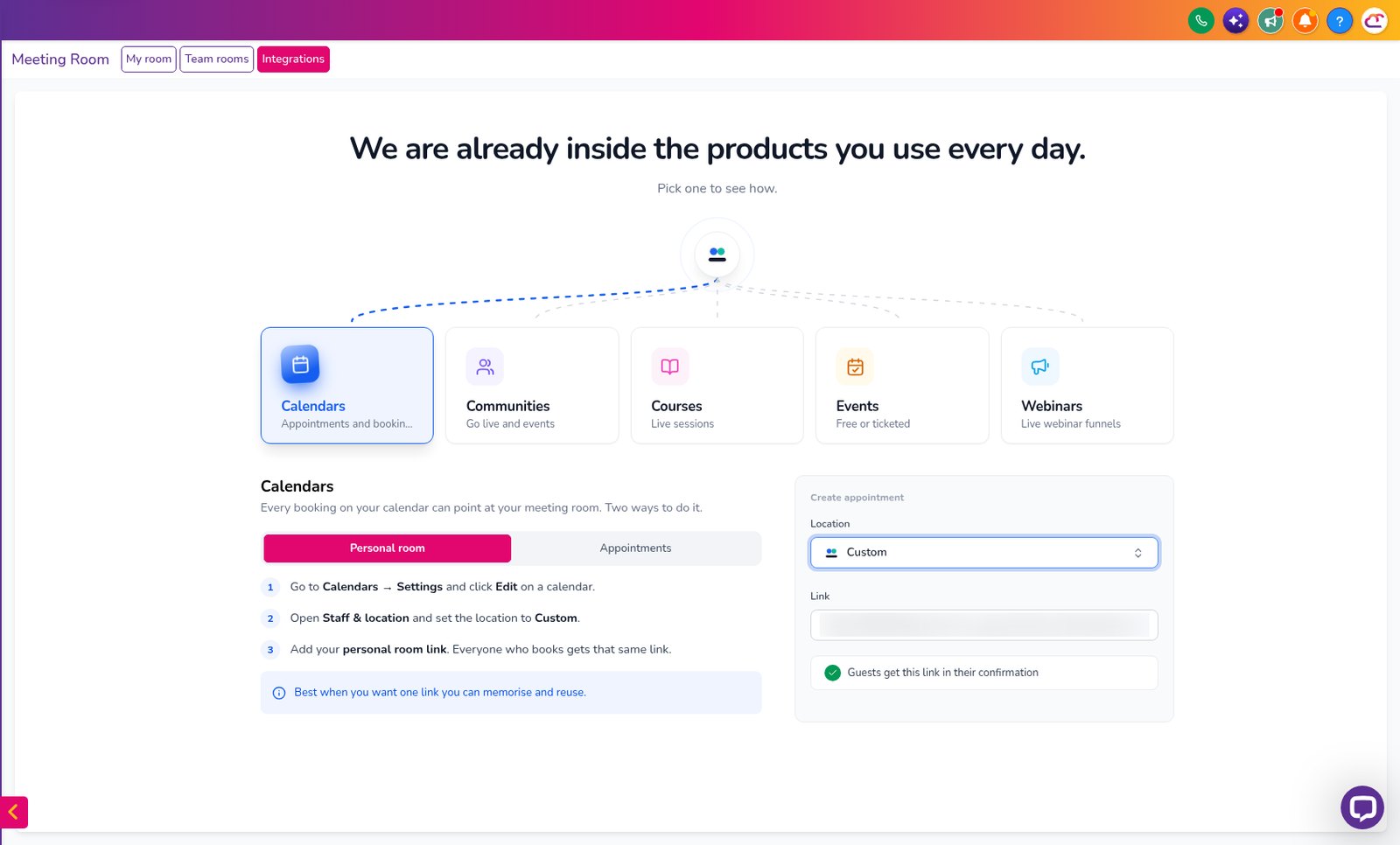
This is where it gets really handy. When someone books a call with you, Tekmatix can add the meeting link for you, so nobody has to send links around.
There are two ways to do it, and Meeting Room > Integrations > Calendars walks you through both:
Personal room: one link for every booking. Great for group calls and drop-in office hours.
Appointments: a separate room link for each appointment. Great for private client sessions.
To use your personal room on a calendar:
1
Go to Calendars > Settings and click Edit on the calendar you want, for example your Discovery Calls calendar.
2
Open Staff & location and set the location to Custom.
3
Paste your personal room link.
4
Save. Everyone who books gets that link in their confirmation.
Step 5: Record, transcribe and get an AI summary
1
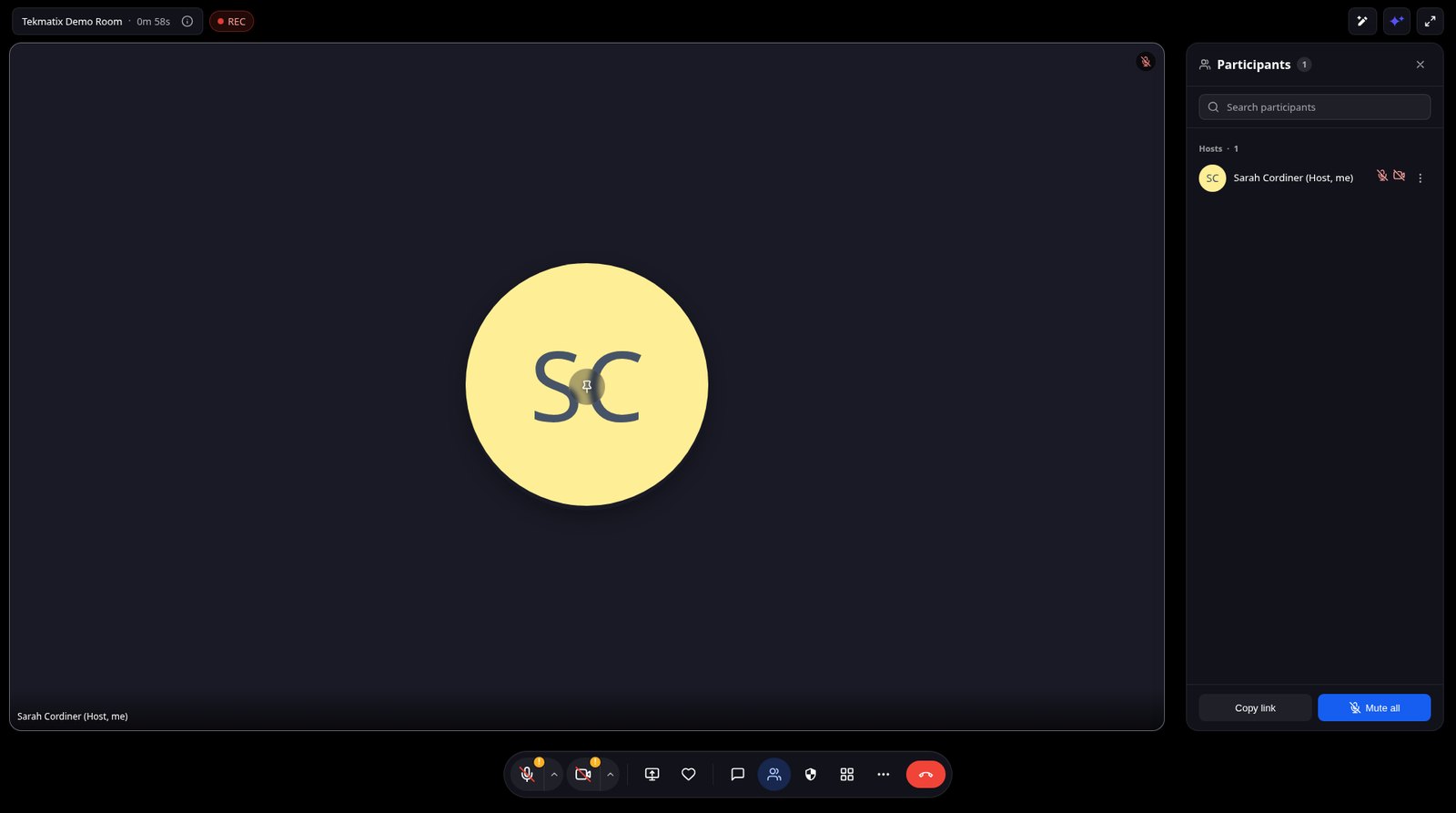
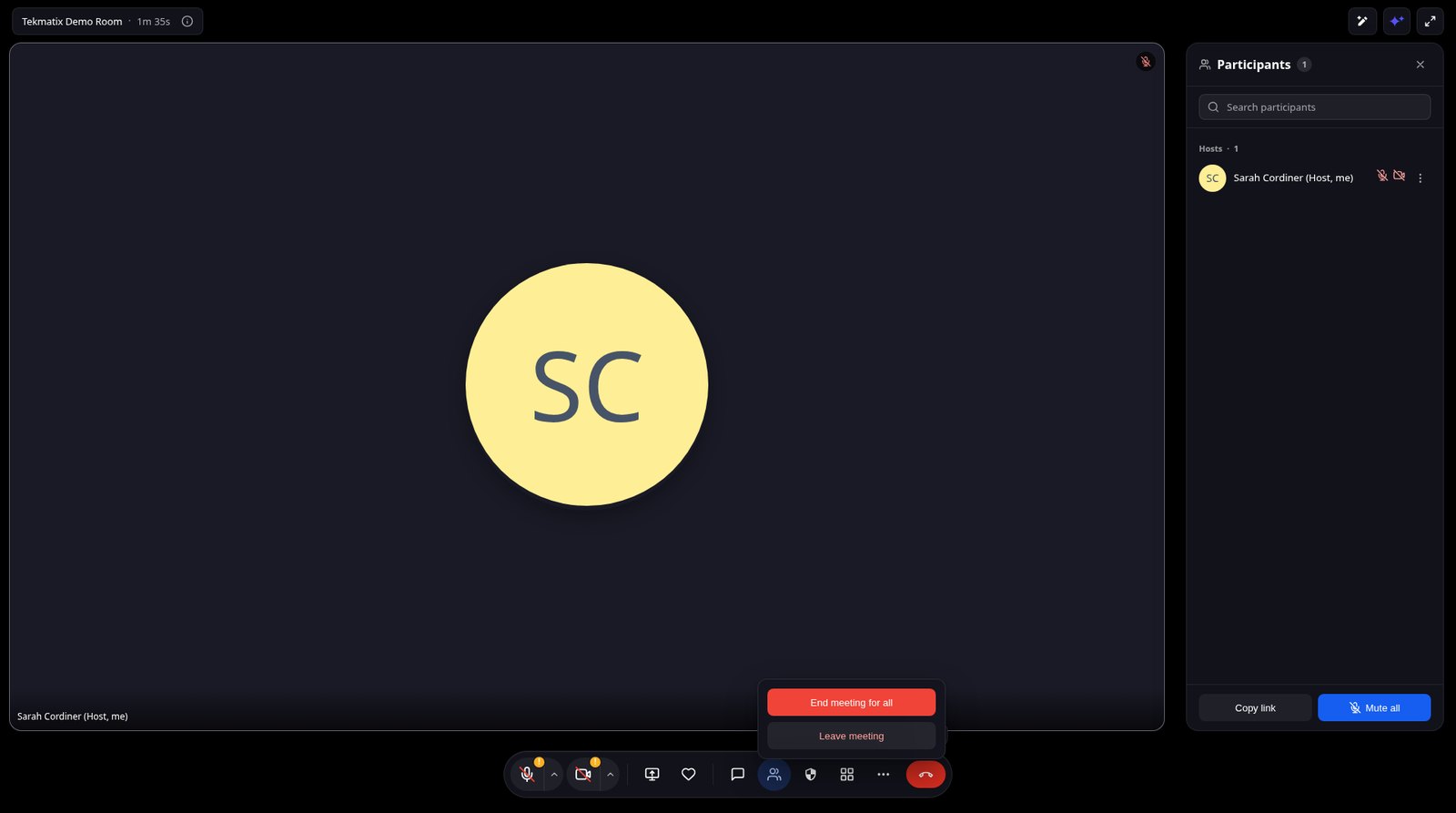
In your meeting, click More (the three dots) and start recording. A red REC badge shows at the top.
2
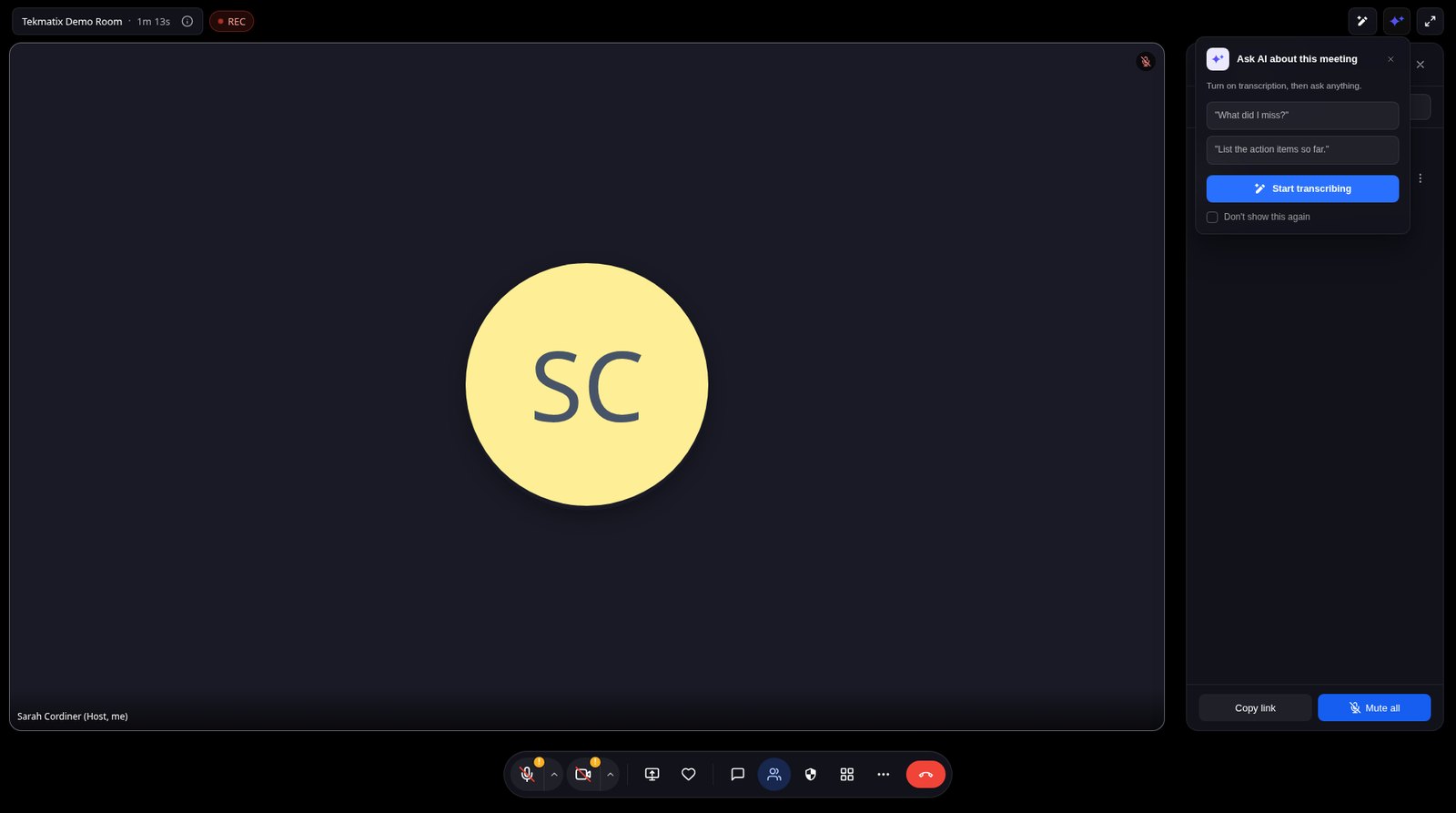
Click Start transcribing too, and choose the language. If people speak more than one language, choose Mixed Languages.
3
Ask the AI about the meeting while it's happening, such as 'What did I miss?' or 'List the action items so far.'
4
When you finish, open My room to find your meeting, recording and speaker-labelled transcript, plus your AI summary with key decisions and action items.
Don't forget
Recording on its own doesn't create a transcript. Start live transcription as well if you want the transcript and the AI summary.
Step 6: Run workshops and training with breakout rooms
Running a workshop or group coaching session? Split people into small groups, then bring everyone back.
1
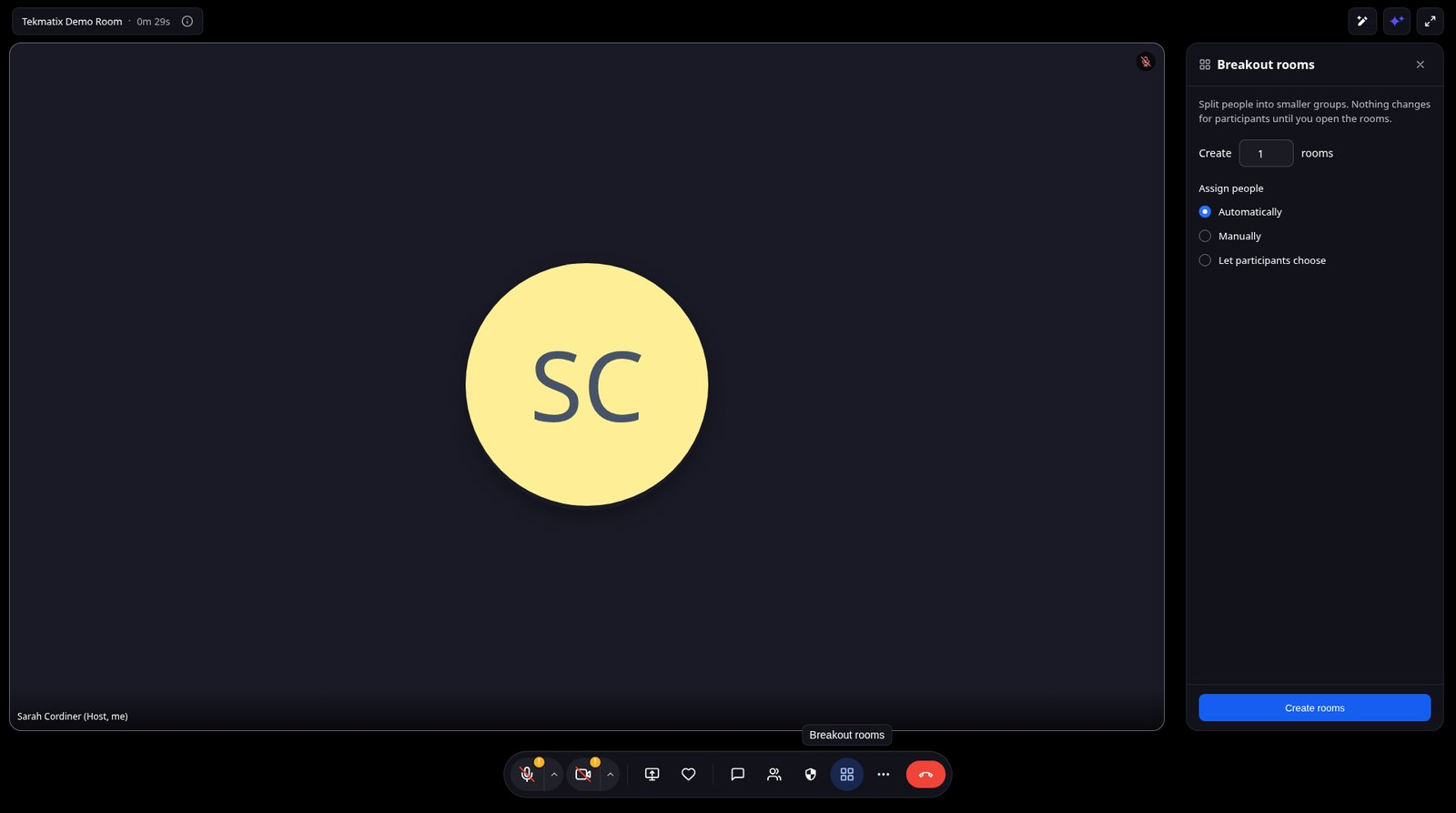
In your meeting, click Breakout Rooms in the toolbar.
2
Choose how many rooms you want (up to 100) and how to assign people: automatically, manually, or let people choose.
3
Click Create rooms, check who's in each room, then set your Options, such as a timer and countdown.
4
Click Open all rooms. Use Broadcast to send a message to every room.
5
Click Close all rooms to bring everyone back.
Step 7: Go live inside your community and learning portal
If you run courses, memberships or a community, you no longer need to send members off to another app for live sessions. They stay inside your Tekmatix learning portal.
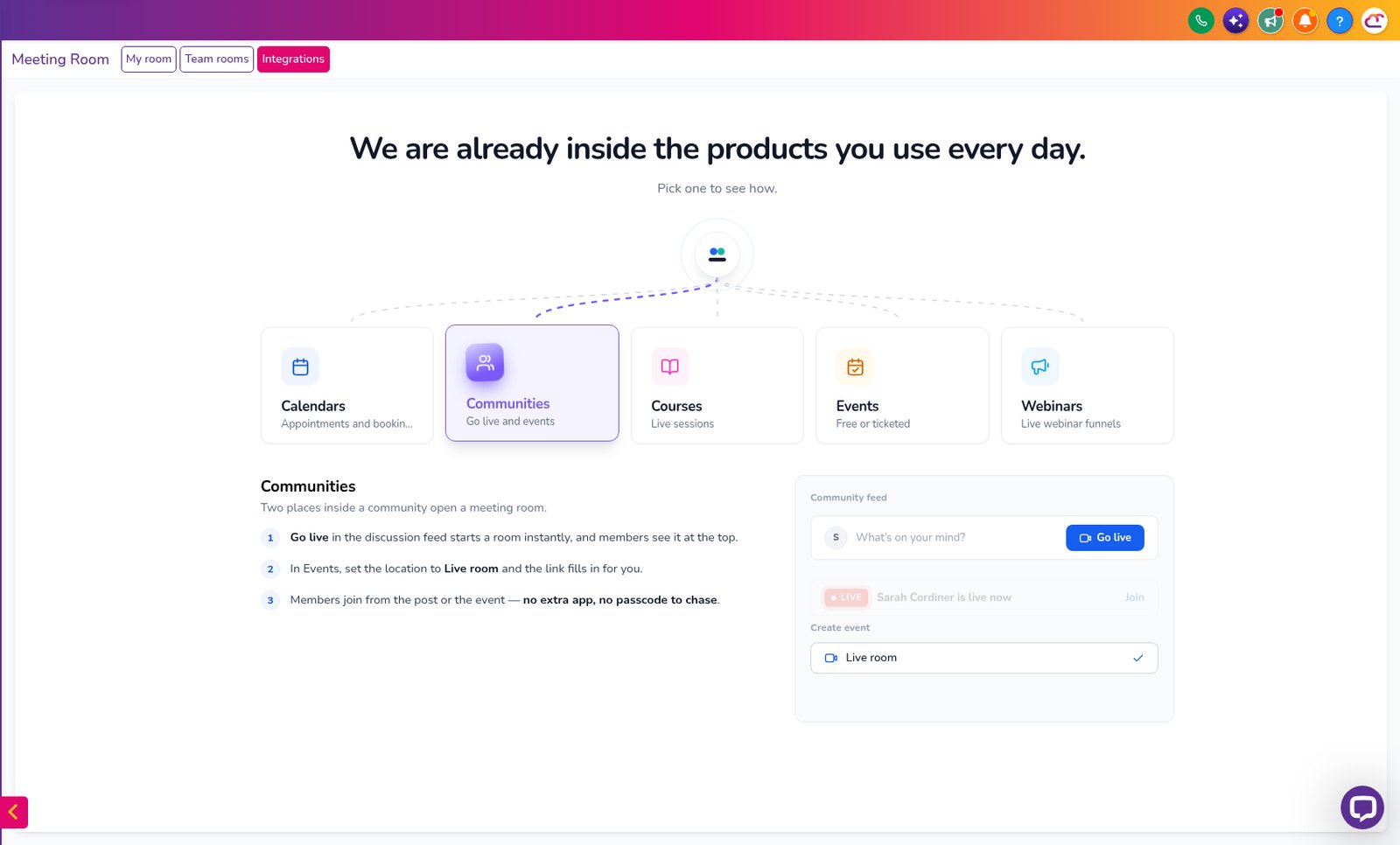
Live in your community: open your group, click Go Live, add a title and description, choose the channel, and pick Meeting Room as the video source. Members can join, chat and react, and you can keep the replay as a post.
Community events: when you create an event in your community, choose the live room as the location, so members join right from the event page.
Courses: add live meeting sessions to your courses for Q&As, coaching calls and cohort workshops.
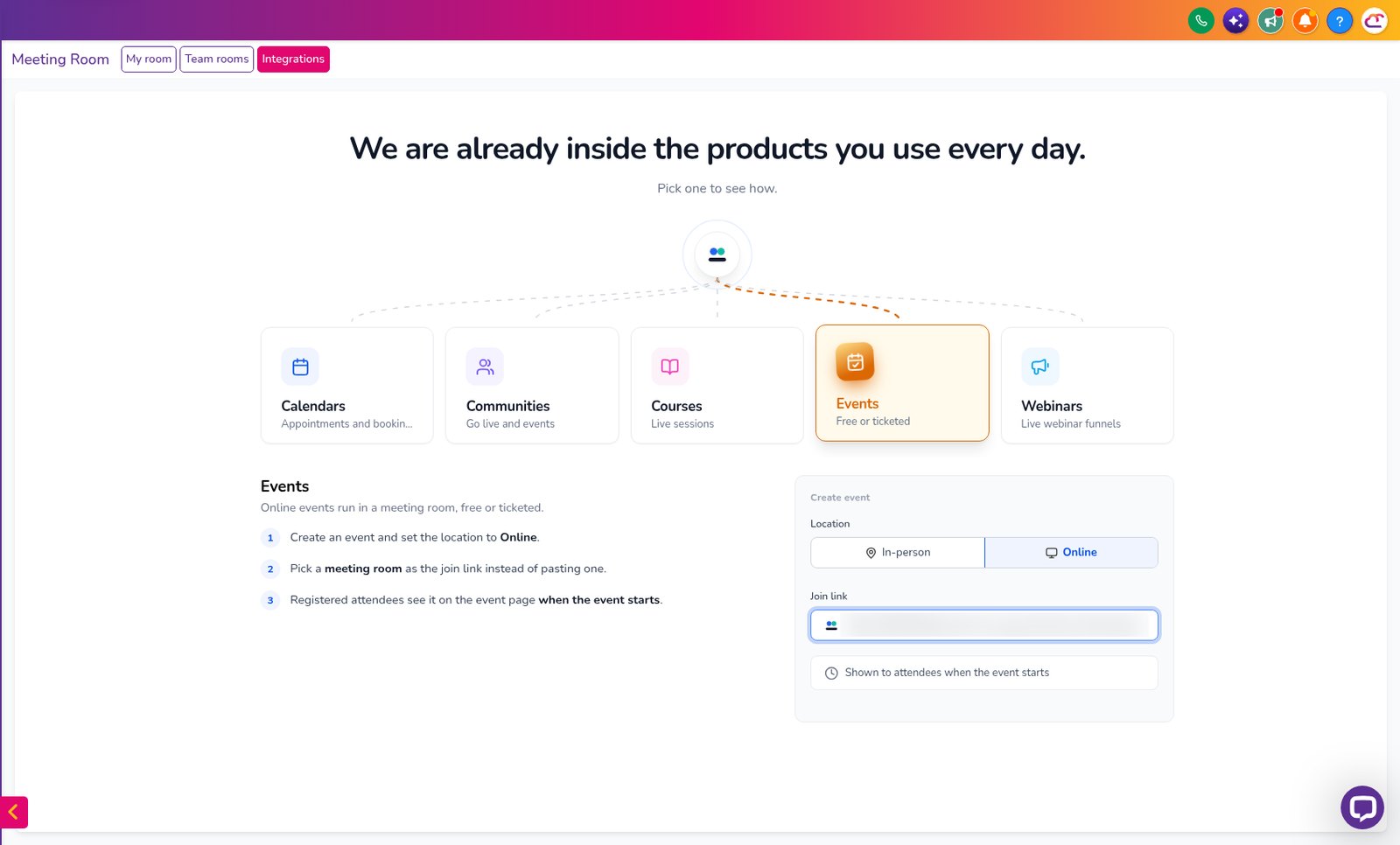
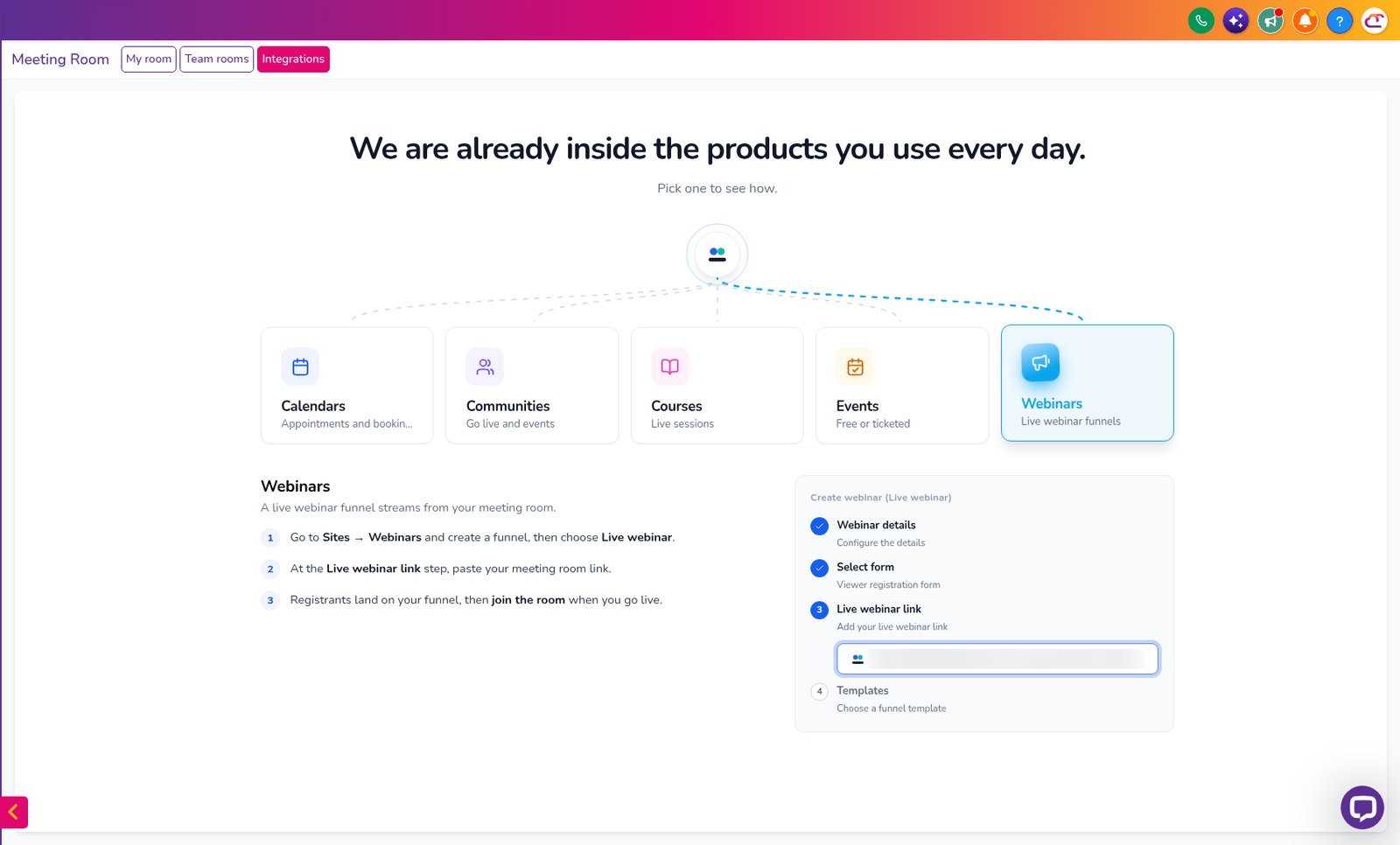
Events and webinars: use Meeting Room as the online location for your events, and connect it to your live webinars.
Let your AI do the busy work around your meetings
Tell your AI what you want done and it takes care of the admin around your calls. Use Ask AI inside Tekmatix, or your own AI (Claude, ChatGPT or GrokBot) connected to your account. It shows you what it will do before it does it.
Copy and paste this prompt
"Find everyone booked into my Discovery Calls calendar this week and send each of them a friendly reminder email the day before their call, with their meeting link. Show me the email before you send it."
Copy and paste this prompt
"Create a task for me for each action item from today's client meeting, due this Friday, and add a note to the client's contact record with the key decisions."
Copy and paste this prompt
"Draft a community post inviting members to our live Q&A next Tuesday at 7pm Brisbane time, and remind them they can join right inside the community. Show me before you post."
Tips for a smooth first meeting
Do a quick practice call with a team member first, so you know where everything is.
Recordings can take a few minutes to process after the meeting ends.
Set your room link to something short and easy to say out loud.
Add your room link to your email signature.
Good to know
Meeting Rooms is in early access, so you may see small improvements to the screens as it rolls out to every account.
Guests can only join without a login when Allow guest users is switched on.
Custom background uploads are for logged-in users.
You stay in control. Your AI shows you what it will do and asks before it creates, changes, deletes or sends anything.
Frequently asked questions
What is Meeting Rooms in Tekmatix?
It's video conferencing built into your Tekmatix account. You can hold client calls, team meetings, training, workshops and live community sessions, with recordings, transcripts and AI meeting summaries, without a separate video tool.
Can Meeting Rooms replace Zoom?
For most business owners, yes. You get your own reusable meeting link, instant meetings, screen sharing, chat, waiting rooms, passcodes, co-hosts, breakout rooms, recordings and transcripts, and it's connected to your calendars, courses and communities.
Does it cost extra?
No. Meeting Rooms is part of your Tekmatix subscription, and you have unlimited team users and seats on your plan, so there's no extra licence for each person who hosts.
How do I turn Meeting Rooms on?
Go to Settings, then Labs, and switch on Meeting Room. It's in early access now, before it's automatically rolled out to every account.
Do my clients need a Tekmatix login to join?
No. Turn on guest access in your room's security settings and anyone with the link can join from their browser.
Does recording a meeting give me a transcript automatically?
Not on its own. Start live transcription during the meeting as well as recording, so you get the speaker-labelled transcript and the AI summary afterwards.
Can I use it for my course or community?
Yes. You can go live in a community group, use it as the location for a community event, and add live sessions to your courses, all from inside Tekmatix.
Ready to cancel Zoom?
Already a Tekmatix customer? Jump on one of our free daily training calls and a Tekspert will switch it on and walk you through it, live.
Not on Tekmatix yet? Tekmatix is the all-in-one business platform you run by talking to AI. One subscription, unlimited users, and real human Teksperts 24/7.
Sarah x
Warning: you may get addicted to your productivity.