
TekMatix Help Articles

Afilliates / Appointment
How To Quickly Duplicate Form & Survey Elements Using Tekmatix Element & Slide Cloning
How To Quickly Duplicate Form & Survey Elements Using Tekmatix Element & Slide Cloning
Why This Feature Matters
Creating complex forms, surveys, or quizzes can be time-consuming—especially when multiple questions or sections share similar layouts and styling. Tekmatix Element & Slide Cloning lets you instantly duplicate elements or entire slides, saving time, maintaining consistency, and reducing errors.
This feature is essential for:
Efficiency: Reuse well-configured elements instead of building from scratch
Consistency: Keep styles, spacing, and formatting uniform across forms or surveys
Accuracy: Preserve validation rules, required fields, and content
Scalability: Quickly create multi-step surveys or large forms without repetitive work
Using cloning ensures your forms and surveys look professional and your data collection remains reliable.
What You Can Clone
Element Cloning duplicates individual components:
Text boxes, labels, or placeholders
Images with alignment and size
Choice fields and helper text
Validation and required toggles
Slide Cloning duplicates entire slides (available in Surveys & Quizzes only):
Layout and visual blocks
Multiple elements with preserved styling
Question formats for multi-step surveys
Note: Slide cloning is not available in Forms.
Step-by-Step: Cloning Elements
Open your Form, Survey, or Quiz in the builder
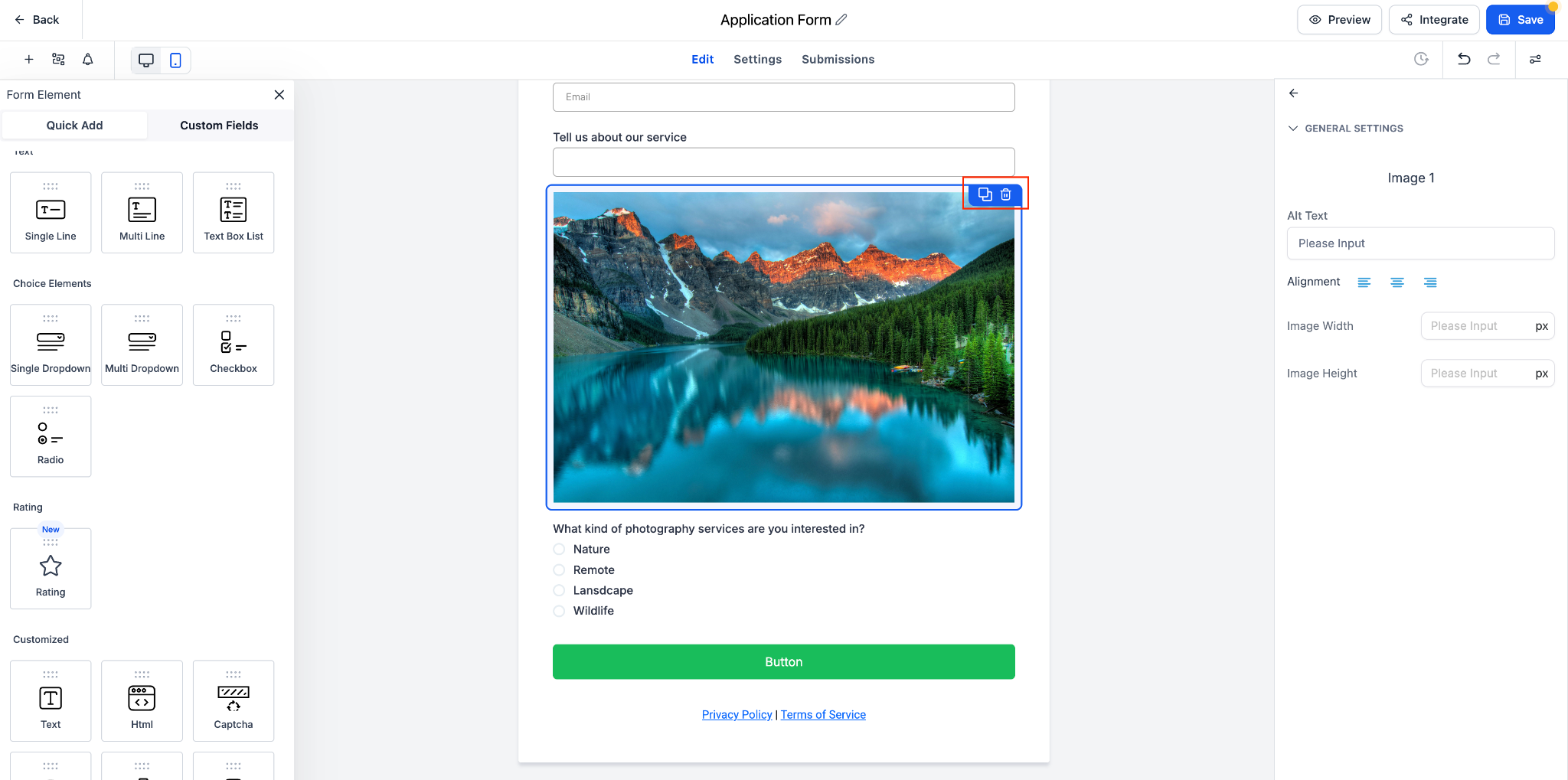
Hover over the element you want to duplicate
Click the Clone icon (two-rectangle icon)
The duplicate appears directly below the original
Click the cloned element to make edits—changes won’t affect the original
Step-by-Step: Cloning Entire Slides (Surveys & Quizzes)
Open your Survey or Quiz in the builder
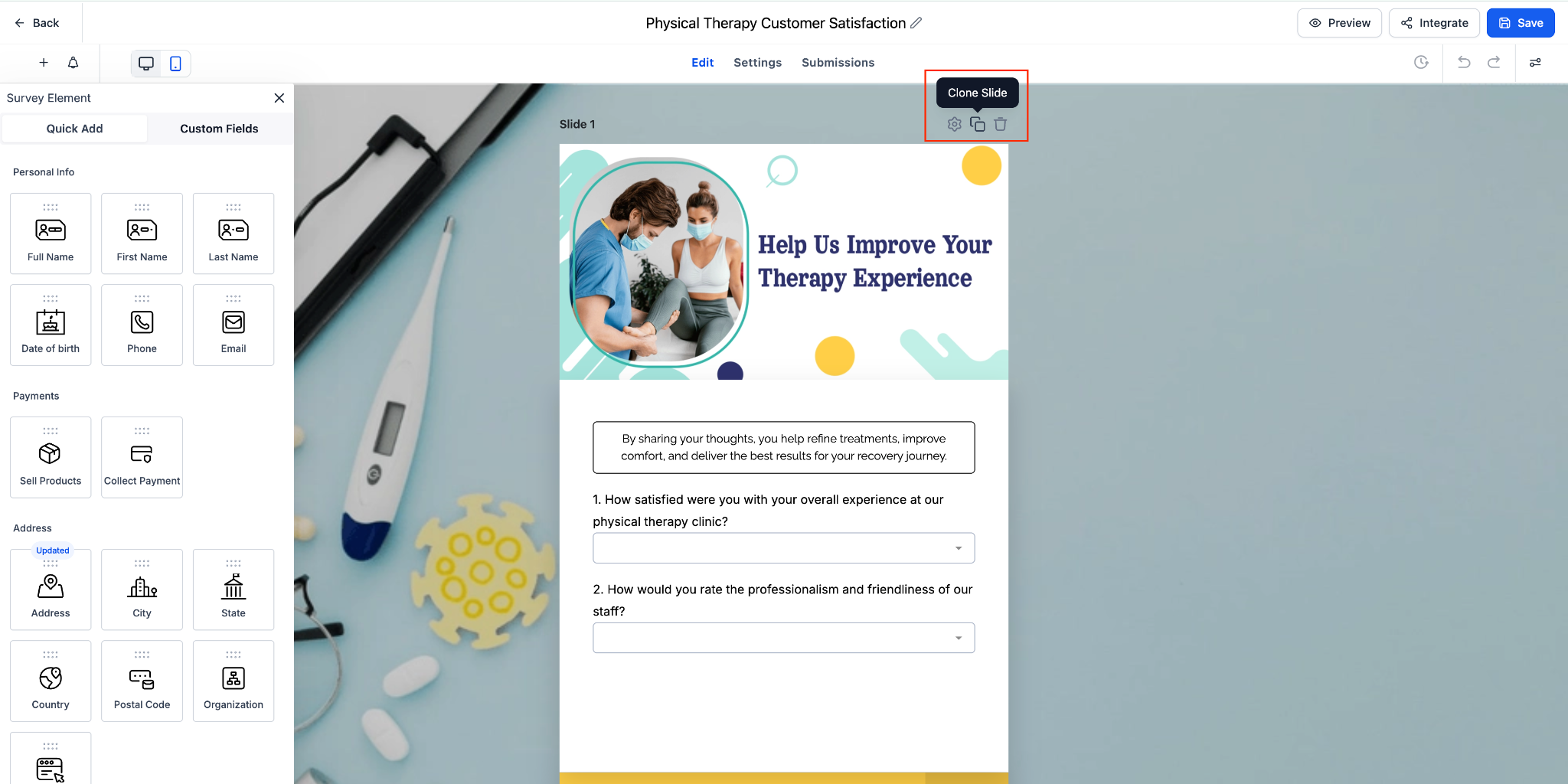
Move your cursor to the top-right of the slide
Click Clone Slide
A full duplicate slide appears, preserving layout and formatting
Edit the new slide as needed
Sample Scenario: Launching a Multi-Step Customer Feedback Survey
A restaurant wants to collect feedback after dine-in experiences, with consistent styling for each question section.
Steps using Element & Slide Cloning:
Create the first slide with questions about service quality, food taste, and ambiance
Hover over a text question element and click Clone to replicate it for similar follow-up questions
Once the first slide is complete, click Clone Slide to duplicate the entire layout for questions about pricing and menu variety
Adjust cloned slides with slide-specific questions
Launch the survey—each step has consistent design and preserved validations
Result:
The survey is built quickly, looks uniform across slides, and ensures all responses meet the required validation rules.
Frequently Asked Questions
Q: Does cloning work in Forms, Surveys, and Quizzes?
Yes. Element cloning works in all three; slide cloning works in Surveys & Quizzes only.
Q: Where does the duplicate appear?
Directly below the original element or slide.
Q: Do cloned elements keep my validations and styles?
Yes. Clones retain settings such as required/validation rules and styling.
Q: Can I clone the same element multiple times?
Yes, there’s no limit to the number of clones.
Q: How do I remove an accidental clone?
Hover over the element or slide and click Delete (trash icon).
Best Practices
Plan your survey or form layout before cloning to minimize adjustments afterward
Clone entire slides for multi-step surveys to maintain consistency across steps
Review cloned elements for slide-specific adjustments to avoid duplicate content errors
Use cloning to speed up repetitive sections while keeping your forms professional and accurate

Blogs / Calendars / Campaign
How To Quickly Duplicate Form & Survey Elements Using Tekmatix Element & Slide Cloning
How To Quickly Duplicate Form & Survey Elements Using Tekmatix Element & Slide Cloning
Why This Feature Matters
Creating complex forms, surveys, or quizzes can be time-consuming—especially when multiple questions or sections share similar layouts and styling. Tekmatix Element & Slide Cloning lets you instantly duplicate elements or entire slides, saving time, maintaining consistency, and reducing errors.
This feature is essential for:
Efficiency: Reuse well-configured elements instead of building from scratch
Consistency: Keep styles, spacing, and formatting uniform across forms or surveys
Accuracy: Preserve validation rules, required fields, and content
Scalability: Quickly create multi-step surveys or large forms without repetitive work
Using cloning ensures your forms and surveys look professional and your data collection remains reliable.
What You Can Clone
Element Cloning duplicates individual components:
Text boxes, labels, or placeholders
Images with alignment and size
Choice fields and helper text
Validation and required toggles
Slide Cloning duplicates entire slides (available in Surveys & Quizzes only):
Layout and visual blocks
Multiple elements with preserved styling
Question formats for multi-step surveys
Note: Slide cloning is not available in Forms.
Step-by-Step: Cloning Elements
Open your Form, Survey, or Quiz in the builder
Hover over the element you want to duplicate
Click the Clone icon (two-rectangle icon)
The duplicate appears directly below the original
Click the cloned element to make edits—changes won’t affect the original
Step-by-Step: Cloning Entire Slides (Surveys & Quizzes)
Open your Survey or Quiz in the builder
Move your cursor to the top-right of the slide
Click Clone Slide
A full duplicate slide appears, preserving layout and formatting
Edit the new slide as needed
Sample Scenario: Launching a Multi-Step Customer Feedback Survey
A restaurant wants to collect feedback after dine-in experiences, with consistent styling for each question section.
Steps using Element & Slide Cloning:
Create the first slide with questions about service quality, food taste, and ambiance
Hover over a text question element and click Clone to replicate it for similar follow-up questions
Once the first slide is complete, click Clone Slide to duplicate the entire layout for questions about pricing and menu variety
Adjust cloned slides with slide-specific questions
Launch the survey—each step has consistent design and preserved validations
Result:
The survey is built quickly, looks uniform across slides, and ensures all responses meet the required validation rules.
Frequently Asked Questions
Q: Does cloning work in Forms, Surveys, and Quizzes?
Yes. Element cloning works in all three; slide cloning works in Surveys & Quizzes only.
Q: Where does the duplicate appear?
Directly below the original element or slide.
Q: Do cloned elements keep my validations and styles?
Yes. Clones retain settings such as required/validation rules and styling.
Q: Can I clone the same element multiple times?
Yes, there’s no limit to the number of clones.
Q: How do I remove an accidental clone?
Hover over the element or slide and click Delete (trash icon).
Best Practices
Plan your survey or form layout before cloning to minimize adjustments afterward
Clone entire slides for multi-step surveys to maintain consistency across steps
Review cloned elements for slide-specific adjustments to avoid duplicate content errors
Use cloning to speed up repetitive sections while keeping your forms professional and accurate
Course / CRM / Chat Widget
How To Quickly Duplicate Form & Survey Elements Using Tekmatix Element & Slide Cloning
How To Quickly Duplicate Form & Survey Elements Using Tekmatix Element & Slide Cloning
Why This Feature Matters
Creating complex forms, surveys, or quizzes can be time-consuming—especially when multiple questions or sections share similar layouts and styling. Tekmatix Element & Slide Cloning lets you instantly duplicate elements or entire slides, saving time, maintaining consistency, and reducing errors.
This feature is essential for:
Efficiency: Reuse well-configured elements instead of building from scratch
Consistency: Keep styles, spacing, and formatting uniform across forms or surveys
Accuracy: Preserve validation rules, required fields, and content
Scalability: Quickly create multi-step surveys or large forms without repetitive work
Using cloning ensures your forms and surveys look professional and your data collection remains reliable.
What You Can Clone
Element Cloning duplicates individual components:
Text boxes, labels, or placeholders
Images with alignment and size
Choice fields and helper text
Validation and required toggles
Slide Cloning duplicates entire slides (available in Surveys & Quizzes only):
Layout and visual blocks
Multiple elements with preserved styling
Question formats for multi-step surveys
Note: Slide cloning is not available in Forms.
Step-by-Step: Cloning Elements
Open your Form, Survey, or Quiz in the builder
Hover over the element you want to duplicate
Click the Clone icon (two-rectangle icon)
The duplicate appears directly below the original
Click the cloned element to make edits—changes won’t affect the original
Step-by-Step: Cloning Entire Slides (Surveys & Quizzes)
Open your Survey or Quiz in the builder
Move your cursor to the top-right of the slide
Click Clone Slide
A full duplicate slide appears, preserving layout and formatting
Edit the new slide as needed
Sample Scenario: Launching a Multi-Step Customer Feedback Survey
A restaurant wants to collect feedback after dine-in experiences, with consistent styling for each question section.
Steps using Element & Slide Cloning:
Create the first slide with questions about service quality, food taste, and ambiance
Hover over a text question element and click Clone to replicate it for similar follow-up questions
Once the first slide is complete, click Clone Slide to duplicate the entire layout for questions about pricing and menu variety
Adjust cloned slides with slide-specific questions
Launch the survey—each step has consistent design and preserved validations
Result:
The survey is built quickly, looks uniform across slides, and ensures all responses meet the required validation rules.
Frequently Asked Questions
Q: Does cloning work in Forms, Surveys, and Quizzes?
Yes. Element cloning works in all three; slide cloning works in Surveys & Quizzes only.
Q: Where does the duplicate appear?
Directly below the original element or slide.
Q: Do cloned elements keep my validations and styles?
Yes. Clones retain settings such as required/validation rules and styling.
Q: Can I clone the same element multiple times?
Yes, there’s no limit to the number of clones.
Q: How do I remove an accidental clone?
Hover over the element or slide and click Delete (trash icon).
Best Practices
Plan your survey or form layout before cloning to minimize adjustments afterward
Clone entire slides for multi-step surveys to maintain consistency across steps
Review cloned elements for slide-specific adjustments to avoid duplicate content errors
Use cloning to speed up repetitive sections while keeping your forms professional and accurate
Compliance / Custom Fields
How To Quickly Duplicate Form & Survey Elements Using Tekmatix Element & Slide Cloning
How To Quickly Duplicate Form & Survey Elements Using Tekmatix Element & Slide Cloning
Why This Feature Matters
Creating complex forms, surveys, or quizzes can be time-consuming—especially when multiple questions or sections share similar layouts and styling. Tekmatix Element & Slide Cloning lets you instantly duplicate elements or entire slides, saving time, maintaining consistency, and reducing errors.
This feature is essential for:
Efficiency: Reuse well-configured elements instead of building from scratch
Consistency: Keep styles, spacing, and formatting uniform across forms or surveys
Accuracy: Preserve validation rules, required fields, and content
Scalability: Quickly create multi-step surveys or large forms without repetitive work
Using cloning ensures your forms and surveys look professional and your data collection remains reliable.
What You Can Clone
Element Cloning duplicates individual components:
Text boxes, labels, or placeholders
Images with alignment and size
Choice fields and helper text
Validation and required toggles
Slide Cloning duplicates entire slides (available in Surveys & Quizzes only):
Layout and visual blocks
Multiple elements with preserved styling
Question formats for multi-step surveys
Note: Slide cloning is not available in Forms.
Step-by-Step: Cloning Elements
Open your Form, Survey, or Quiz in the builder
Hover over the element you want to duplicate
Click the Clone icon (two-rectangle icon)
The duplicate appears directly below the original
Click the cloned element to make edits—changes won’t affect the original
Step-by-Step: Cloning Entire Slides (Surveys & Quizzes)
Open your Survey or Quiz in the builder
Move your cursor to the top-right of the slide
Click Clone Slide
A full duplicate slide appears, preserving layout and formatting
Edit the new slide as needed
Sample Scenario: Launching a Multi-Step Customer Feedback Survey
A restaurant wants to collect feedback after dine-in experiences, with consistent styling for each question section.
Steps using Element & Slide Cloning:
Create the first slide with questions about service quality, food taste, and ambiance
Hover over a text question element and click Clone to replicate it for similar follow-up questions
Once the first slide is complete, click Clone Slide to duplicate the entire layout for questions about pricing and menu variety
Adjust cloned slides with slide-specific questions
Launch the survey—each step has consistent design and preserved validations
Result:
The survey is built quickly, looks uniform across slides, and ensures all responses meet the required validation rules.
Frequently Asked Questions
Q: Does cloning work in Forms, Surveys, and Quizzes?
Yes. Element cloning works in all three; slide cloning works in Surveys & Quizzes only.
Q: Where does the duplicate appear?
Directly below the original element or slide.
Q: Do cloned elements keep my validations and styles?
Yes. Clones retain settings such as required/validation rules and styling.
Q: Can I clone the same element multiple times?
Yes, there’s no limit to the number of clones.
Q: How do I remove an accidental clone?
Hover over the element or slide and click Delete (trash icon).
Best Practices
Plan your survey or form layout before cloning to minimize adjustments afterward
Clone entire slides for multi-step surveys to maintain consistency across steps
Review cloned elements for slide-specific adjustments to avoid duplicate content errors
Use cloning to speed up repetitive sections while keeping your forms professional and accurate
Dashboard / Domain
How To Quickly Duplicate Form & Survey Elements Using Tekmatix Element & Slide Cloning
How To Quickly Duplicate Form & Survey Elements Using Tekmatix Element & Slide Cloning
Why This Feature Matters
Creating complex forms, surveys, or quizzes can be time-consuming—especially when multiple questions or sections share similar layouts and styling. Tekmatix Element & Slide Cloning lets you instantly duplicate elements or entire slides, saving time, maintaining consistency, and reducing errors.
This feature is essential for:
Efficiency: Reuse well-configured elements instead of building from scratch
Consistency: Keep styles, spacing, and formatting uniform across forms or surveys
Accuracy: Preserve validation rules, required fields, and content
Scalability: Quickly create multi-step surveys or large forms without repetitive work
Using cloning ensures your forms and surveys look professional and your data collection remains reliable.
What You Can Clone
Element Cloning duplicates individual components:
Text boxes, labels, or placeholders
Images with alignment and size
Choice fields and helper text
Validation and required toggles
Slide Cloning duplicates entire slides (available in Surveys & Quizzes only):
Layout and visual blocks
Multiple elements with preserved styling
Question formats for multi-step surveys
Note: Slide cloning is not available in Forms.
Step-by-Step: Cloning Elements
Open your Form, Survey, or Quiz in the builder
Hover over the element you want to duplicate
Click the Clone icon (two-rectangle icon)
The duplicate appears directly below the original
Click the cloned element to make edits—changes won’t affect the original
Step-by-Step: Cloning Entire Slides (Surveys & Quizzes)
Open your Survey or Quiz in the builder
Move your cursor to the top-right of the slide
Click Clone Slide
A full duplicate slide appears, preserving layout and formatting
Edit the new slide as needed
Sample Scenario: Launching a Multi-Step Customer Feedback Survey
A restaurant wants to collect feedback after dine-in experiences, with consistent styling for each question section.
Steps using Element & Slide Cloning:
Create the first slide with questions about service quality, food taste, and ambiance
Hover over a text question element and click Clone to replicate it for similar follow-up questions
Once the first slide is complete, click Clone Slide to duplicate the entire layout for questions about pricing and menu variety
Adjust cloned slides with slide-specific questions
Launch the survey—each step has consistent design and preserved validations
Result:
The survey is built quickly, looks uniform across slides, and ensures all responses meet the required validation rules.
Frequently Asked Questions
Q: Does cloning work in Forms, Surveys, and Quizzes?
Yes. Element cloning works in all three; slide cloning works in Surveys & Quizzes only.
Q: Where does the duplicate appear?
Directly below the original element or slide.
Q: Do cloned elements keep my validations and styles?
Yes. Clones retain settings such as required/validation rules and styling.
Q: Can I clone the same element multiple times?
Yes, there’s no limit to the number of clones.
Q: How do I remove an accidental clone?
Hover over the element or slide and click Delete (trash icon).
Best Practices
Plan your survey or form layout before cloning to minimize adjustments afterward
Clone entire slides for multi-step surveys to maintain consistency across steps
Review cloned elements for slide-specific adjustments to avoid duplicate content errors
Use cloning to speed up repetitive sections while keeping your forms professional and accurate
Email Builder / Email Deliverability
How To Quickly Duplicate Form & Survey Elements Using Tekmatix Element & Slide Cloning
How To Quickly Duplicate Form & Survey Elements Using Tekmatix Element & Slide Cloning
Why This Feature Matters
Creating complex forms, surveys, or quizzes can be time-consuming—especially when multiple questions or sections share similar layouts and styling. Tekmatix Element & Slide Cloning lets you instantly duplicate elements or entire slides, saving time, maintaining consistency, and reducing errors.
This feature is essential for:
Efficiency: Reuse well-configured elements instead of building from scratch
Consistency: Keep styles, spacing, and formatting uniform across forms or surveys
Accuracy: Preserve validation rules, required fields, and content
Scalability: Quickly create multi-step surveys or large forms without repetitive work
Using cloning ensures your forms and surveys look professional and your data collection remains reliable.
What You Can Clone
Element Cloning duplicates individual components:
Text boxes, labels, or placeholders
Images with alignment and size
Choice fields and helper text
Validation and required toggles
Slide Cloning duplicates entire slides (available in Surveys & Quizzes only):
Layout and visual blocks
Multiple elements with preserved styling
Question formats for multi-step surveys
Note: Slide cloning is not available in Forms.
Step-by-Step: Cloning Elements
Open your Form, Survey, or Quiz in the builder
Hover over the element you want to duplicate
Click the Clone icon (two-rectangle icon)
The duplicate appears directly below the original
Click the cloned element to make edits—changes won’t affect the original
Step-by-Step: Cloning Entire Slides (Surveys & Quizzes)
Open your Survey or Quiz in the builder
Move your cursor to the top-right of the slide
Click Clone Slide
A full duplicate slide appears, preserving layout and formatting
Edit the new slide as needed
Sample Scenario: Launching a Multi-Step Customer Feedback Survey
A restaurant wants to collect feedback after dine-in experiences, with consistent styling for each question section.
Steps using Element & Slide Cloning:
Create the first slide with questions about service quality, food taste, and ambiance
Hover over a text question element and click Clone to replicate it for similar follow-up questions
Once the first slide is complete, click Clone Slide to duplicate the entire layout for questions about pricing and menu variety
Adjust cloned slides with slide-specific questions
Launch the survey—each step has consistent design and preserved validations
Result:
The survey is built quickly, looks uniform across slides, and ensures all responses meet the required validation rules.
Frequently Asked Questions
Q: Does cloning work in Forms, Surveys, and Quizzes?
Yes. Element cloning works in all three; slide cloning works in Surveys & Quizzes only.
Q: Where does the duplicate appear?
Directly below the original element or slide.
Q: Do cloned elements keep my validations and styles?
Yes. Clones retain settings such as required/validation rules and styling.
Q: Can I clone the same element multiple times?
Yes, there’s no limit to the number of clones.
Q: How do I remove an accidental clone?
Hover over the element or slide and click Delete (trash icon).
Best Practices
Plan your survey or form layout before cloning to minimize adjustments afterward
Clone entire slides for multi-step surveys to maintain consistency across steps
Review cloned elements for slide-specific adjustments to avoid duplicate content errors
Use cloning to speed up repetitive sections while keeping your forms professional and accurate
Form / Funnels
How To Quickly Duplicate Form & Survey Elements Using Tekmatix Element & Slide Cloning
How To Quickly Duplicate Form & Survey Elements Using Tekmatix Element & Slide Cloning
Why This Feature Matters
Creating complex forms, surveys, or quizzes can be time-consuming—especially when multiple questions or sections share similar layouts and styling. Tekmatix Element & Slide Cloning lets you instantly duplicate elements or entire slides, saving time, maintaining consistency, and reducing errors.
This feature is essential for:
Efficiency: Reuse well-configured elements instead of building from scratch
Consistency: Keep styles, spacing, and formatting uniform across forms or surveys
Accuracy: Preserve validation rules, required fields, and content
Scalability: Quickly create multi-step surveys or large forms without repetitive work
Using cloning ensures your forms and surveys look professional and your data collection remains reliable.
What You Can Clone
Element Cloning duplicates individual components:
Text boxes, labels, or placeholders
Images with alignment and size
Choice fields and helper text
Validation and required toggles
Slide Cloning duplicates entire slides (available in Surveys & Quizzes only):
Layout and visual blocks
Multiple elements with preserved styling
Question formats for multi-step surveys
Note: Slide cloning is not available in Forms.
Step-by-Step: Cloning Elements
Open your Form, Survey, or Quiz in the builder
Hover over the element you want to duplicate
Click the Clone icon (two-rectangle icon)
The duplicate appears directly below the original
Click the cloned element to make edits—changes won’t affect the original
Step-by-Step: Cloning Entire Slides (Surveys & Quizzes)
Open your Survey or Quiz in the builder
Move your cursor to the top-right of the slide
Click Clone Slide
A full duplicate slide appears, preserving layout and formatting
Edit the new slide as needed
Sample Scenario: Launching a Multi-Step Customer Feedback Survey
A restaurant wants to collect feedback after dine-in experiences, with consistent styling for each question section.
Steps using Element & Slide Cloning:
Create the first slide with questions about service quality, food taste, and ambiance
Hover over a text question element and click Clone to replicate it for similar follow-up questions
Once the first slide is complete, click Clone Slide to duplicate the entire layout for questions about pricing and menu variety
Adjust cloned slides with slide-specific questions
Launch the survey—each step has consistent design and preserved validations
Result:
The survey is built quickly, looks uniform across slides, and ensures all responses meet the required validation rules.
Frequently Asked Questions
Q: Does cloning work in Forms, Surveys, and Quizzes?
Yes. Element cloning works in all three; slide cloning works in Surveys & Quizzes only.
Q: Where does the duplicate appear?
Directly below the original element or slide.
Q: Do cloned elements keep my validations and styles?
Yes. Clones retain settings such as required/validation rules and styling.
Q: Can I clone the same element multiple times?
Yes, there’s no limit to the number of clones.
Q: How do I remove an accidental clone?
Hover over the element or slide and click Delete (trash icon).
Best Practices
Plan your survey or form layout before cloning to minimize adjustments afterward
Clone entire slides for multi-step surveys to maintain consistency across steps
Review cloned elements for slide-specific adjustments to avoid duplicate content errors
Use cloning to speed up repetitive sections while keeping your forms professional and accurate
Google My Business / Integrations
How To Quickly Duplicate Form & Survey Elements Using Tekmatix Element & Slide Cloning
How To Quickly Duplicate Form & Survey Elements Using Tekmatix Element & Slide Cloning
Why This Feature Matters
Creating complex forms, surveys, or quizzes can be time-consuming—especially when multiple questions or sections share similar layouts and styling. Tekmatix Element & Slide Cloning lets you instantly duplicate elements or entire slides, saving time, maintaining consistency, and reducing errors.
This feature is essential for:
Efficiency: Reuse well-configured elements instead of building from scratch
Consistency: Keep styles, spacing, and formatting uniform across forms or surveys
Accuracy: Preserve validation rules, required fields, and content
Scalability: Quickly create multi-step surveys or large forms without repetitive work
Using cloning ensures your forms and surveys look professional and your data collection remains reliable.
What You Can Clone
Element Cloning duplicates individual components:
Text boxes, labels, or placeholders
Images with alignment and size
Choice fields and helper text
Validation and required toggles
Slide Cloning duplicates entire slides (available in Surveys & Quizzes only):
Layout and visual blocks
Multiple elements with preserved styling
Question formats for multi-step surveys
Note: Slide cloning is not available in Forms.
Step-by-Step: Cloning Elements
Open your Form, Survey, or Quiz in the builder
Hover over the element you want to duplicate
Click the Clone icon (two-rectangle icon)
The duplicate appears directly below the original
Click the cloned element to make edits—changes won’t affect the original
Step-by-Step: Cloning Entire Slides (Surveys & Quizzes)
Open your Survey or Quiz in the builder
Move your cursor to the top-right of the slide
Click Clone Slide
A full duplicate slide appears, preserving layout and formatting
Edit the new slide as needed
Sample Scenario: Launching a Multi-Step Customer Feedback Survey
A restaurant wants to collect feedback after dine-in experiences, with consistent styling for each question section.
Steps using Element & Slide Cloning:
Create the first slide with questions about service quality, food taste, and ambiance
Hover over a text question element and click Clone to replicate it for similar follow-up questions
Once the first slide is complete, click Clone Slide to duplicate the entire layout for questions about pricing and menu variety
Adjust cloned slides with slide-specific questions
Launch the survey—each step has consistent design and preserved validations
Result:
The survey is built quickly, looks uniform across slides, and ensures all responses meet the required validation rules.
Frequently Asked Questions
Q: Does cloning work in Forms, Surveys, and Quizzes?
Yes. Element cloning works in all three; slide cloning works in Surveys & Quizzes only.
Q: Where does the duplicate appear?
Directly below the original element or slide.
Q: Do cloned elements keep my validations and styles?
Yes. Clones retain settings such as required/validation rules and styling.
Q: Can I clone the same element multiple times?
Yes, there’s no limit to the number of clones.
Q: How do I remove an accidental clone?
Hover over the element or slide and click Delete (trash icon).
Best Practices
Plan your survey or form layout before cloning to minimize adjustments afterward
Clone entire slides for multi-step surveys to maintain consistency across steps
Review cloned elements for slide-specific adjustments to avoid duplicate content errors
Use cloning to speed up repetitive sections while keeping your forms professional and accurate
Invoices / LC Email / LC Phone
How To Quickly Duplicate Form & Survey Elements Using Tekmatix Element & Slide Cloning
How To Quickly Duplicate Form & Survey Elements Using Tekmatix Element & Slide Cloning
Why This Feature Matters
Creating complex forms, surveys, or quizzes can be time-consuming—especially when multiple questions or sections share similar layouts and styling. Tekmatix Element & Slide Cloning lets you instantly duplicate elements or entire slides, saving time, maintaining consistency, and reducing errors.
This feature is essential for:
Efficiency: Reuse well-configured elements instead of building from scratch
Consistency: Keep styles, spacing, and formatting uniform across forms or surveys
Accuracy: Preserve validation rules, required fields, and content
Scalability: Quickly create multi-step surveys or large forms without repetitive work
Using cloning ensures your forms and surveys look professional and your data collection remains reliable.
What You Can Clone
Element Cloning duplicates individual components:
Text boxes, labels, or placeholders
Images with alignment and size
Choice fields and helper text
Validation and required toggles
Slide Cloning duplicates entire slides (available in Surveys & Quizzes only):
Layout and visual blocks
Multiple elements with preserved styling
Question formats for multi-step surveys
Note: Slide cloning is not available in Forms.
Step-by-Step: Cloning Elements
Open your Form, Survey, or Quiz in the builder
Hover over the element you want to duplicate
Click the Clone icon (two-rectangle icon)
The duplicate appears directly below the original
Click the cloned element to make edits—changes won’t affect the original
Step-by-Step: Cloning Entire Slides (Surveys & Quizzes)
Open your Survey or Quiz in the builder
Move your cursor to the top-right of the slide
Click Clone Slide
A full duplicate slide appears, preserving layout and formatting
Edit the new slide as needed
Sample Scenario: Launching a Multi-Step Customer Feedback Survey
A restaurant wants to collect feedback after dine-in experiences, with consistent styling for each question section.
Steps using Element & Slide Cloning:
Create the first slide with questions about service quality, food taste, and ambiance
Hover over a text question element and click Clone to replicate it for similar follow-up questions
Once the first slide is complete, click Clone Slide to duplicate the entire layout for questions about pricing and menu variety
Adjust cloned slides with slide-specific questions
Launch the survey—each step has consistent design and preserved validations
Result:
The survey is built quickly, looks uniform across slides, and ensures all responses meet the required validation rules.
Frequently Asked Questions
Q: Does cloning work in Forms, Surveys, and Quizzes?
Yes. Element cloning works in all three; slide cloning works in Surveys & Quizzes only.
Q: Where does the duplicate appear?
Directly below the original element or slide.
Q: Do cloned elements keep my validations and styles?
Yes. Clones retain settings such as required/validation rules and styling.
Q: Can I clone the same element multiple times?
Yes, there’s no limit to the number of clones.
Q: How do I remove an accidental clone?
Hover over the element or slide and click Delete (trash icon).
Best Practices
Plan your survey or form layout before cloning to minimize adjustments afterward
Clone entire slides for multi-step surveys to maintain consistency across steps
Review cloned elements for slide-specific adjustments to avoid duplicate content errors
Use cloning to speed up repetitive sections while keeping your forms professional and accurate
Memberships Area
How To Quickly Duplicate Form & Survey Elements Using Tekmatix Element & Slide Cloning
How To Quickly Duplicate Form & Survey Elements Using Tekmatix Element & Slide Cloning
Why This Feature Matters
Creating complex forms, surveys, or quizzes can be time-consuming—especially when multiple questions or sections share similar layouts and styling. Tekmatix Element & Slide Cloning lets you instantly duplicate elements or entire slides, saving time, maintaining consistency, and reducing errors.
This feature is essential for:
Efficiency: Reuse well-configured elements instead of building from scratch
Consistency: Keep styles, spacing, and formatting uniform across forms or surveys
Accuracy: Preserve validation rules, required fields, and content
Scalability: Quickly create multi-step surveys or large forms without repetitive work
Using cloning ensures your forms and surveys look professional and your data collection remains reliable.
What You Can Clone
Element Cloning duplicates individual components:
Text boxes, labels, or placeholders
Images with alignment and size
Choice fields and helper text
Validation and required toggles
Slide Cloning duplicates entire slides (available in Surveys & Quizzes only):
Layout and visual blocks
Multiple elements with preserved styling
Question formats for multi-step surveys
Note: Slide cloning is not available in Forms.
Step-by-Step: Cloning Elements
Open your Form, Survey, or Quiz in the builder
Hover over the element you want to duplicate
Click the Clone icon (two-rectangle icon)
The duplicate appears directly below the original
Click the cloned element to make edits—changes won’t affect the original
Step-by-Step: Cloning Entire Slides (Surveys & Quizzes)
Open your Survey or Quiz in the builder
Move your cursor to the top-right of the slide
Click Clone Slide
A full duplicate slide appears, preserving layout and formatting
Edit the new slide as needed
Sample Scenario: Launching a Multi-Step Customer Feedback Survey
A restaurant wants to collect feedback after dine-in experiences, with consistent styling for each question section.
Steps using Element & Slide Cloning:
Create the first slide with questions about service quality, food taste, and ambiance
Hover over a text question element and click Clone to replicate it for similar follow-up questions
Once the first slide is complete, click Clone Slide to duplicate the entire layout for questions about pricing and menu variety
Adjust cloned slides with slide-specific questions
Launch the survey—each step has consistent design and preserved validations
Result:
The survey is built quickly, looks uniform across slides, and ensures all responses meet the required validation rules.
Frequently Asked Questions
Q: Does cloning work in Forms, Surveys, and Quizzes?
Yes. Element cloning works in all three; slide cloning works in Surveys & Quizzes only.
Q: Where does the duplicate appear?
Directly below the original element or slide.
Q: Do cloned elements keep my validations and styles?
Yes. Clones retain settings such as required/validation rules and styling.
Q: Can I clone the same element multiple times?
Yes, there’s no limit to the number of clones.
Q: How do I remove an accidental clone?
Hover over the element or slide and click Delete (trash icon).
Best Practices
Plan your survey or form layout before cloning to minimize adjustments afterward
Clone entire slides for multi-step surveys to maintain consistency across steps
Review cloned elements for slide-specific adjustments to avoid duplicate content errors
Use cloning to speed up repetitive sections while keeping your forms professional and accurate
Opportunities & Pipeline / Payment
How To Quickly Duplicate Form & Survey Elements Using Tekmatix Element & Slide Cloning
How To Quickly Duplicate Form & Survey Elements Using Tekmatix Element & Slide Cloning
Why This Feature Matters
Creating complex forms, surveys, or quizzes can be time-consuming—especially when multiple questions or sections share similar layouts and styling. Tekmatix Element & Slide Cloning lets you instantly duplicate elements or entire slides, saving time, maintaining consistency, and reducing errors.
This feature is essential for:
Efficiency: Reuse well-configured elements instead of building from scratch
Consistency: Keep styles, spacing, and formatting uniform across forms or surveys
Accuracy: Preserve validation rules, required fields, and content
Scalability: Quickly create multi-step surveys or large forms without repetitive work
Using cloning ensures your forms and surveys look professional and your data collection remains reliable.
What You Can Clone
Element Cloning duplicates individual components:
Text boxes, labels, or placeholders
Images with alignment and size
Choice fields and helper text
Validation and required toggles
Slide Cloning duplicates entire slides (available in Surveys & Quizzes only):
Layout and visual blocks
Multiple elements with preserved styling
Question formats for multi-step surveys
Note: Slide cloning is not available in Forms.
Step-by-Step: Cloning Elements
Open your Form, Survey, or Quiz in the builder
Hover over the element you want to duplicate
Click the Clone icon (two-rectangle icon)
The duplicate appears directly below the original
Click the cloned element to make edits—changes won’t affect the original
Step-by-Step: Cloning Entire Slides (Surveys & Quizzes)
Open your Survey or Quiz in the builder
Move your cursor to the top-right of the slide
Click Clone Slide
A full duplicate slide appears, preserving layout and formatting
Edit the new slide as needed
Sample Scenario: Launching a Multi-Step Customer Feedback Survey
A restaurant wants to collect feedback after dine-in experiences, with consistent styling for each question section.
Steps using Element & Slide Cloning:
Create the first slide with questions about service quality, food taste, and ambiance
Hover over a text question element and click Clone to replicate it for similar follow-up questions
Once the first slide is complete, click Clone Slide to duplicate the entire layout for questions about pricing and menu variety
Adjust cloned slides with slide-specific questions
Launch the survey—each step has consistent design and preserved validations
Result:
The survey is built quickly, looks uniform across slides, and ensures all responses meet the required validation rules.
Frequently Asked Questions
Q: Does cloning work in Forms, Surveys, and Quizzes?
Yes. Element cloning works in all three; slide cloning works in Surveys & Quizzes only.
Q: Where does the duplicate appear?
Directly below the original element or slide.
Q: Do cloned elements keep my validations and styles?
Yes. Clones retain settings such as required/validation rules and styling.
Q: Can I clone the same element multiple times?
Yes, there’s no limit to the number of clones.
Q: How do I remove an accidental clone?
Hover over the element or slide and click Delete (trash icon).
Best Practices
Plan your survey or form layout before cloning to minimize adjustments afterward
Clone entire slides for multi-step surveys to maintain consistency across steps
Review cloned elements for slide-specific adjustments to avoid duplicate content errors
Use cloning to speed up repetitive sections while keeping your forms professional and accurate
Reputation Management / Review Request
How To Quickly Duplicate Form & Survey Elements Using Tekmatix Element & Slide Cloning
How To Quickly Duplicate Form & Survey Elements Using Tekmatix Element & Slide Cloning
Why This Feature Matters
Creating complex forms, surveys, or quizzes can be time-consuming—especially when multiple questions or sections share similar layouts and styling. Tekmatix Element & Slide Cloning lets you instantly duplicate elements or entire slides, saving time, maintaining consistency, and reducing errors.
This feature is essential for:
Efficiency: Reuse well-configured elements instead of building from scratch
Consistency: Keep styles, spacing, and formatting uniform across forms or surveys
Accuracy: Preserve validation rules, required fields, and content
Scalability: Quickly create multi-step surveys or large forms without repetitive work
Using cloning ensures your forms and surveys look professional and your data collection remains reliable.
What You Can Clone
Element Cloning duplicates individual components:
Text boxes, labels, or placeholders
Images with alignment and size
Choice fields and helper text
Validation and required toggles
Slide Cloning duplicates entire slides (available in Surveys & Quizzes only):
Layout and visual blocks
Multiple elements with preserved styling
Question formats for multi-step surveys
Note: Slide cloning is not available in Forms.
Step-by-Step: Cloning Elements
Open your Form, Survey, or Quiz in the builder
Hover over the element you want to duplicate
Click the Clone icon (two-rectangle icon)
The duplicate appears directly below the original
Click the cloned element to make edits—changes won’t affect the original
Step-by-Step: Cloning Entire Slides (Surveys & Quizzes)
Open your Survey or Quiz in the builder
Move your cursor to the top-right of the slide
Click Clone Slide
A full duplicate slide appears, preserving layout and formatting
Edit the new slide as needed
Sample Scenario: Launching a Multi-Step Customer Feedback Survey
A restaurant wants to collect feedback after dine-in experiences, with consistent styling for each question section.
Steps using Element & Slide Cloning:
Create the first slide with questions about service quality, food taste, and ambiance
Hover over a text question element and click Clone to replicate it for similar follow-up questions
Once the first slide is complete, click Clone Slide to duplicate the entire layout for questions about pricing and menu variety
Adjust cloned slides with slide-specific questions
Launch the survey—each step has consistent design and preserved validations
Result:
The survey is built quickly, looks uniform across slides, and ensures all responses meet the required validation rules.
Frequently Asked Questions
Q: Does cloning work in Forms, Surveys, and Quizzes?
Yes. Element cloning works in all three; slide cloning works in Surveys & Quizzes only.
Q: Where does the duplicate appear?
Directly below the original element or slide.
Q: Do cloned elements keep my validations and styles?
Yes. Clones retain settings such as required/validation rules and styling.
Q: Can I clone the same element multiple times?
Yes, there’s no limit to the number of clones.
Q: How do I remove an accidental clone?
Hover over the element or slide and click Delete (trash icon).
Best Practices
Plan your survey or form layout before cloning to minimize adjustments afterward
Clone entire slides for multi-step surveys to maintain consistency across steps
Review cloned elements for slide-specific adjustments to avoid duplicate content errors
Use cloning to speed up repetitive sections while keeping your forms professional and accurate
Settings / SMS / SMTP Providers
How To Quickly Duplicate Form & Survey Elements Using Tekmatix Element & Slide Cloning
How To Quickly Duplicate Form & Survey Elements Using Tekmatix Element & Slide Cloning
Why This Feature Matters
Creating complex forms, surveys, or quizzes can be time-consuming—especially when multiple questions or sections share similar layouts and styling. Tekmatix Element & Slide Cloning lets you instantly duplicate elements or entire slides, saving time, maintaining consistency, and reducing errors.
This feature is essential for:
Efficiency: Reuse well-configured elements instead of building from scratch
Consistency: Keep styles, spacing, and formatting uniform across forms or surveys
Accuracy: Preserve validation rules, required fields, and content
Scalability: Quickly create multi-step surveys or large forms without repetitive work
Using cloning ensures your forms and surveys look professional and your data collection remains reliable.
What You Can Clone
Element Cloning duplicates individual components:
Text boxes, labels, or placeholders
Images with alignment and size
Choice fields and helper text
Validation and required toggles
Slide Cloning duplicates entire slides (available in Surveys & Quizzes only):
Layout and visual blocks
Multiple elements with preserved styling
Question formats for multi-step surveys
Note: Slide cloning is not available in Forms.
Step-by-Step: Cloning Elements
Open your Form, Survey, or Quiz in the builder
Hover over the element you want to duplicate
Click the Clone icon (two-rectangle icon)
The duplicate appears directly below the original
Click the cloned element to make edits—changes won’t affect the original
Step-by-Step: Cloning Entire Slides (Surveys & Quizzes)
Open your Survey or Quiz in the builder
Move your cursor to the top-right of the slide
Click Clone Slide
A full duplicate slide appears, preserving layout and formatting
Edit the new slide as needed
Sample Scenario: Launching a Multi-Step Customer Feedback Survey
A restaurant wants to collect feedback after dine-in experiences, with consistent styling for each question section.
Steps using Element & Slide Cloning:
Create the first slide with questions about service quality, food taste, and ambiance
Hover over a text question element and click Clone to replicate it for similar follow-up questions
Once the first slide is complete, click Clone Slide to duplicate the entire layout for questions about pricing and menu variety
Adjust cloned slides with slide-specific questions
Launch the survey—each step has consistent design and preserved validations
Result:
The survey is built quickly, looks uniform across slides, and ensures all responses meet the required validation rules.
Frequently Asked Questions
Q: Does cloning work in Forms, Surveys, and Quizzes?
Yes. Element cloning works in all three; slide cloning works in Surveys & Quizzes only.
Q: Where does the duplicate appear?
Directly below the original element or slide.
Q: Do cloned elements keep my validations and styles?
Yes. Clones retain settings such as required/validation rules and styling.
Q: Can I clone the same element multiple times?
Yes, there’s no limit to the number of clones.
Q: How do I remove an accidental clone?
Hover over the element or slide and click Delete (trash icon).
Best Practices
Plan your survey or form layout before cloning to minimize adjustments afterward
Clone entire slides for multi-step surveys to maintain consistency across steps
Review cloned elements for slide-specific adjustments to avoid duplicate content errors
Use cloning to speed up repetitive sections while keeping your forms professional and accurate
Website / WordPress / Workflow
How To Quickly Duplicate Form & Survey Elements Using Tekmatix Element & Slide Cloning
How To Quickly Duplicate Form & Survey Elements Using Tekmatix Element & Slide Cloning
Why This Feature Matters
Creating complex forms, surveys, or quizzes can be time-consuming—especially when multiple questions or sections share similar layouts and styling. Tekmatix Element & Slide Cloning lets you instantly duplicate elements or entire slides, saving time, maintaining consistency, and reducing errors.
This feature is essential for:
Efficiency: Reuse well-configured elements instead of building from scratch
Consistency: Keep styles, spacing, and formatting uniform across forms or surveys
Accuracy: Preserve validation rules, required fields, and content
Scalability: Quickly create multi-step surveys or large forms without repetitive work
Using cloning ensures your forms and surveys look professional and your data collection remains reliable.
What You Can Clone
Element Cloning duplicates individual components:
Text boxes, labels, or placeholders
Images with alignment and size
Choice fields and helper text
Validation and required toggles
Slide Cloning duplicates entire slides (available in Surveys & Quizzes only):
Layout and visual blocks
Multiple elements with preserved styling
Question formats for multi-step surveys
Note: Slide cloning is not available in Forms.
Step-by-Step: Cloning Elements
Open your Form, Survey, or Quiz in the builder
Hover over the element you want to duplicate
Click the Clone icon (two-rectangle icon)
The duplicate appears directly below the original
Click the cloned element to make edits—changes won’t affect the original
Step-by-Step: Cloning Entire Slides (Surveys & Quizzes)
Open your Survey or Quiz in the builder
Move your cursor to the top-right of the slide
Click Clone Slide
A full duplicate slide appears, preserving layout and formatting
Edit the new slide as needed
Sample Scenario: Launching a Multi-Step Customer Feedback Survey
A restaurant wants to collect feedback after dine-in experiences, with consistent styling for each question section.
Steps using Element & Slide Cloning:
Create the first slide with questions about service quality, food taste, and ambiance
Hover over a text question element and click Clone to replicate it for similar follow-up questions
Once the first slide is complete, click Clone Slide to duplicate the entire layout for questions about pricing and menu variety
Adjust cloned slides with slide-specific questions
Launch the survey—each step has consistent design and preserved validations
Result:
The survey is built quickly, looks uniform across slides, and ensures all responses meet the required validation rules.
Frequently Asked Questions
Q: Does cloning work in Forms, Surveys, and Quizzes?
Yes. Element cloning works in all three; slide cloning works in Surveys & Quizzes only.
Q: Where does the duplicate appear?
Directly below the original element or slide.
Q: Do cloned elements keep my validations and styles?
Yes. Clones retain settings such as required/validation rules and styling.
Q: Can I clone the same element multiple times?
Yes, there’s no limit to the number of clones.
Q: How do I remove an accidental clone?
Hover over the element or slide and click Delete (trash icon).
Best Practices
Plan your survey or form layout before cloning to minimize adjustments afterward
Clone entire slides for multi-step surveys to maintain consistency across steps
Review cloned elements for slide-specific adjustments to avoid duplicate content errors
Use cloning to speed up repetitive sections while keeping your forms professional and accurate
Copyright © 2022 TekMatix. All rights reserved | [email protected]