
TekMatix Blog & Help Articles
Use the search bar below to look for help articles you need.
What to Do If Your WordPress Site Breaks After a PHP Update
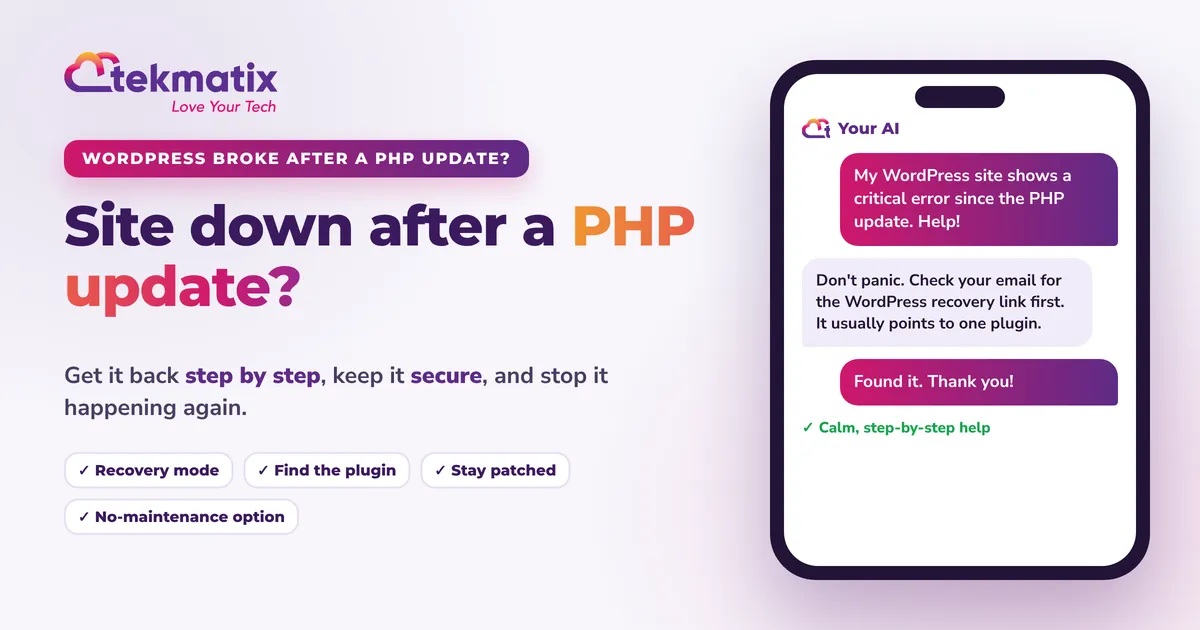
You did the right thing and updated PHP for the October security fix. Now your website is showing a scary error. Take a breath. Here's exactly what to do, in order, and how to stop it happening again.
Quick answer: Don't panic, and don't go back to an unsafe PHP version. In most cases one plugin or theme isn't ready for the newer PHP. Check your admin email for the WordPress recovery link and use it to pause whatever crashed. If you can't get in, ask your host to switch you to the patched release of your previous PHP version (for example 8.2.35) while you fix it, and to restore a backup if needed. Then update or replace the plugin that caused it, test, and move back up. If you haven't patched yet, start with our urgent PHP security update guide.
First, you're not alone
After the urgent PHP security release on 21 October 2026, hosts and website owners all over the world have been moving websites onto patched PHP versions. That's exactly the right thing to do, and we explained why in our WordPress PHP security update guide.
But for some websites, especially older ones, the update shows up a problem that was hiding there all along: a plugin or theme that hasn't been kept up to date. The PHP update didn't break your website. It just found the weak spot.
The good news is that this is usually very fixable, and your content is almost always still safe.
TL;DR
- Your content is usually fine. The error stops the site loading, but your pages and posts are still there.
- Check your admin email first. WordPress usually sends a recovery link that shows you what crashed.
- It's almost always one plugin or theme that isn't ready for the newer PHP.
- Don't roll back to PHP 8.1 or older. If you need a short-term fix, use the patched release of your previous version.
- Fix the cause, test, then move back up.
- Tired of this? Tekmatix websites have no PHP, plugins or servers for you to manage.
Signs your site has been hit by a PHP update
- A message that says "There has been a critical error on this website"
- A completely blank white page (often called the white screen of death)
- A 500 Internal Server Error page
- Strange warnings at the top of your pages, such as "Deprecated" or "Warning"
- Your site loads, but a form, checkout, booking page or page builder suddenly stops working
- You can't log in to your WordPress dashboard
Step 1: Take a backup before you touch anything
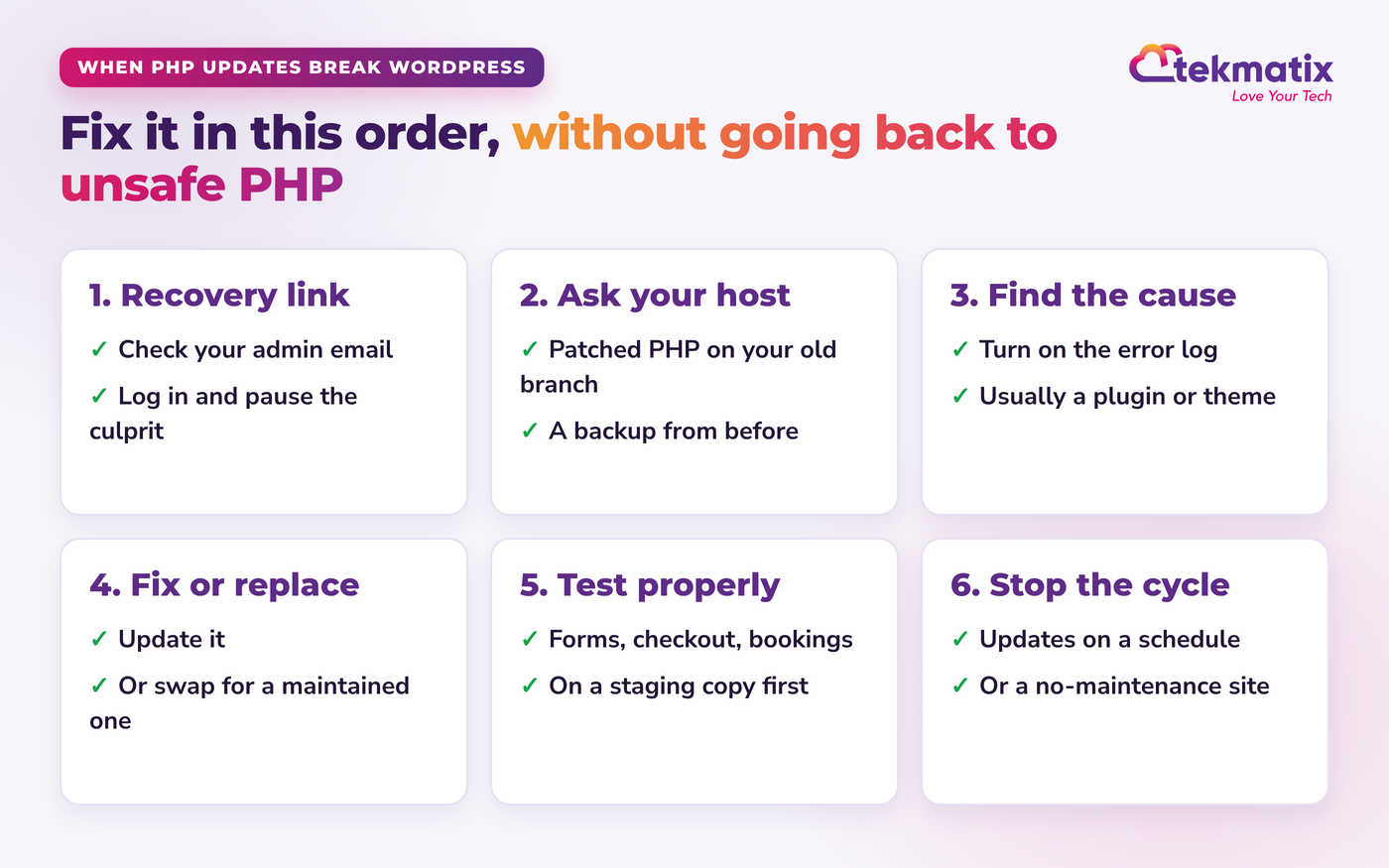
Even a broken site is worth backing up. Ask your host to take a full backup of your files and database right now, or check that last night's backup exists. That way nothing you try in the next steps can make things worse.
Step 2: Look for the WordPress recovery email
When a plugin or theme crashes, WordPress usually emails the site's admin address with a subject like "Your Site is Experiencing a Technical Issue". Check your inbox and your spam folder.
If that fixes it, you've found your culprit. Skip to Step 5.
Step 3: No email? Ask your host for a safe, short-term fix
If you can't get in, send your host this message. It gets you back online without leaving you exposed:
- Hi, my website [your website address] stopped working after the PHP update.
- Please take a full backup first.
- If I was moved up a PHP version, please switch me to the patched release of my previous version (for example 8.2.35, 8.3.36 or 8.4.27) while I fix the cause. Please don't move me to PHP 8.1 or older.
- Can you check the PHP error log and tell me which plugin or theme is causing the error?
- If it's quicker, please restore last night's backup on the patched PHP version. Thank you!
Notice the word patched. Going back to your old PHP branch for a few days is fine, as long as it's the fixed release. Going back to an unpatched or end-of-life version is not.
Step 4: Find the plugin or theme that's causing it
If you or your developer are comfortable doing this, here are the two classic ways. If not, it's completely fine to hand this step to your host, your developer or a Tekspert.
Option A: Turn on the WordPress error log
In your site's wp-config.php file, above the line that says "That's all, stop editing!", add:
define( 'WP_DEBUG_LOG', true );
define( 'WP_DEBUG_DISPLAY', false );
Reload the broken page, then open wp-content/debug.log. Look for the words "Fatal error" and a folder name inside wp-content/plugins/ or wp-content/themes/. That's your culprit. Turn these settings off again when you're done.
Option B: Switch all plugins off at once
wp-content.plugins folder to plugins-off. This switches every plugin off.Step 5: Fix it or replace it
- Update the plugin or theme. Most popular plugins released PHP-ready versions long ago. Your site may just be a few updates behind.
- Check when it was last updated. If a plugin hasn't been updated in a year or more, it's a risk, even after you get it working. Replace it with a maintained alternative.
- Custom code? If a developer built part of your site, ask them to update it for the current PHP version.
- Paid plugins or themes with expired licences often stop getting updates. Renew, or replace them.
Step 6: Test properly, then move back up
Once your site loads again, test the pages that make you money, not just the home page:
If your host moved you back to your previous PHP branch for now, ask them to move you up again once everything works, ideally after testing on a staging copy first.
How to stop this happening every time PHP updates
PHP is updated several times a year, and older versions stop getting security fixes. With WordPress, keeping up is part of owning the website. Here's the routine that keeps sites healthy:
- Update WordPress, plugins and themes at least monthly
- Delete plugins and themes you no longer use
- Keep automatic daily backups running, and know how to restore one
- Test big updates on a staging copy first
- Ask your host to tell you before PHP versions change
- Know who is responsible for your website, in writing
If reading that list made you tired, you're not alone. Most business owners didn't start a business to manage server software.
The no-maintenance alternative: a Tekmatix website
This is one of the reasons I founded Tekmatix. When your website is built in the Tekmatix website builder, there's no PHP version to check, no plugins to update and no server for you to manage. Hosting is included, and the platform is looked after for you.
- No plugins to break. Forms, booking calendars, checkouts, email sign-ups, chat and course portals are built in, not bolted on.
- Hosting included for websites and funnels on your own domains.
- Run it by talking to AI. Ask for a new page, an update or a new booking calendar from your phone, and review it before it goes live.
- Real humans when you need them. 24/7 live chat, free daily training calls and Teksperts you can book by the hour.
- Or have it done for you. Our Done-For-You 5 Page Website service rebuilds your site in Tekmatix for you.
Tell your AI what you want
You can use Ask AI, built into every account, or connect your own Claude, ChatGPT or GrokBot (here is how).
Your AI works from your own original material, in your voice, and it asks before it creates, changes, deletes or sends anything. Not sure a website is even worth it for you? Read what to do if your website never brings you clients.
My honest answer
If your site broke after the PHP update, fix it calmly: back up, use the recovery link, stay on patched PHP, find the plugin, update or replace it, and test.
Then ask yourself one question. Do you want to keep doing this every few months? If WordPress is working well for you and someone reliable looks after it, keep it. If not, there's an easier way.
Frequently asked questions
Why did my WordPress site break after a PHP update?
Almost always because a plugin or theme uses old code that the newer PHP version no longer accepts. WordPress itself copes well with new PHP versions. The usual culprit is one older plugin, a custom theme, or code a developer added years ago.
What does "There has been a critical error on this website" mean?
It's WordPress telling you some PHP code has crashed. WordPress usually emails the site admin a message called "Your Site is Experiencing a Technical Issue" with a special recovery link. Use that link to log in, see which plugin or theme caused it, and pause it.
Should I just switch back to my old PHP version?
Only as a short, safe step. If you moved up a version (for example from 8.2 to 8.3), your host can switch you back to the patched release of your old version, such as 8.2.35, while you fix the plugin. Never go back to PHP 8.1 or older, because those versions no longer get security fixes.
How do I find which plugin is causing the problem?
Use the WordPress recovery link if you got one. If not, ask your host or developer to turn on the WordPress error log, or rename your plugins folder to switch every plugin off at once, then switch them back on one at a time until the site breaks again.
Will I lose my content if my site shows a critical error?
Usually not. Your pages, posts and images are still in your database and files. The error stops the site from loading, but your content is normally still there. Take a fresh backup before you change anything, just in case.
How do I stop this happening every time PHP updates?
Keep WordPress, your theme and your plugins up to date on a regular schedule, delete plugins you don't use, test updates on a staging copy first, and keep backups running. Or move to a platform where there's no PHP, plugins or server for you to manage at all.
Do Tekmatix websites need PHP updates?
No. Websites built in the Tekmatix website builder don't have a PHP version, plugins or a server for you to look after, and hosting is included. If you also have a WordPress site somewhere else, keep checking that one with its host.
Want a website you never have to patch?
See how Tekmatix works: your website, bookings, payments and emails in one place, run by chatting to your AI, with no PHP, plugins or servers to manage.
See how Tekmatix worksSee plans and pricingWant a human to set it up with you?
- Done for you: our Done-For-You 5 Page Website service.
- Book a Tekspert by the hour to help you move your site across. Book a Tekspert
- Already a customer? Bring your questions to a free daily training call.
This article is general information to help you get your website working again. It isn't a security audit of your site. Your web host or website manager is the best person to confirm your server is patched.
Sarah x
Warning: you may get addicted to your productivity.

Copyright © 2026 TekMatix. All rights reserved | [email protected]