
TekMatix Blog & Help Articles
Use the search bar below to look for help articles you need.
How to Send SMS Notifications for Rental Bookings in tekmatix
Keeping customers informed throughout the booking journey is essential for delivering a great rental experience. With the latest Tekmatix update, you can now send SMS notifications for rental bookings, making it easier to provide timely confirmations, reminders, updates, and follow-ups directly to your customers' mobile phones.
Whether you're managing holiday rentals, equipment hire, venue bookings, or other rental services, SMS notifications help ensure important messages are seen quickly and acted upon.
What's New?
Send SMS Notifications for Rental Booking Events
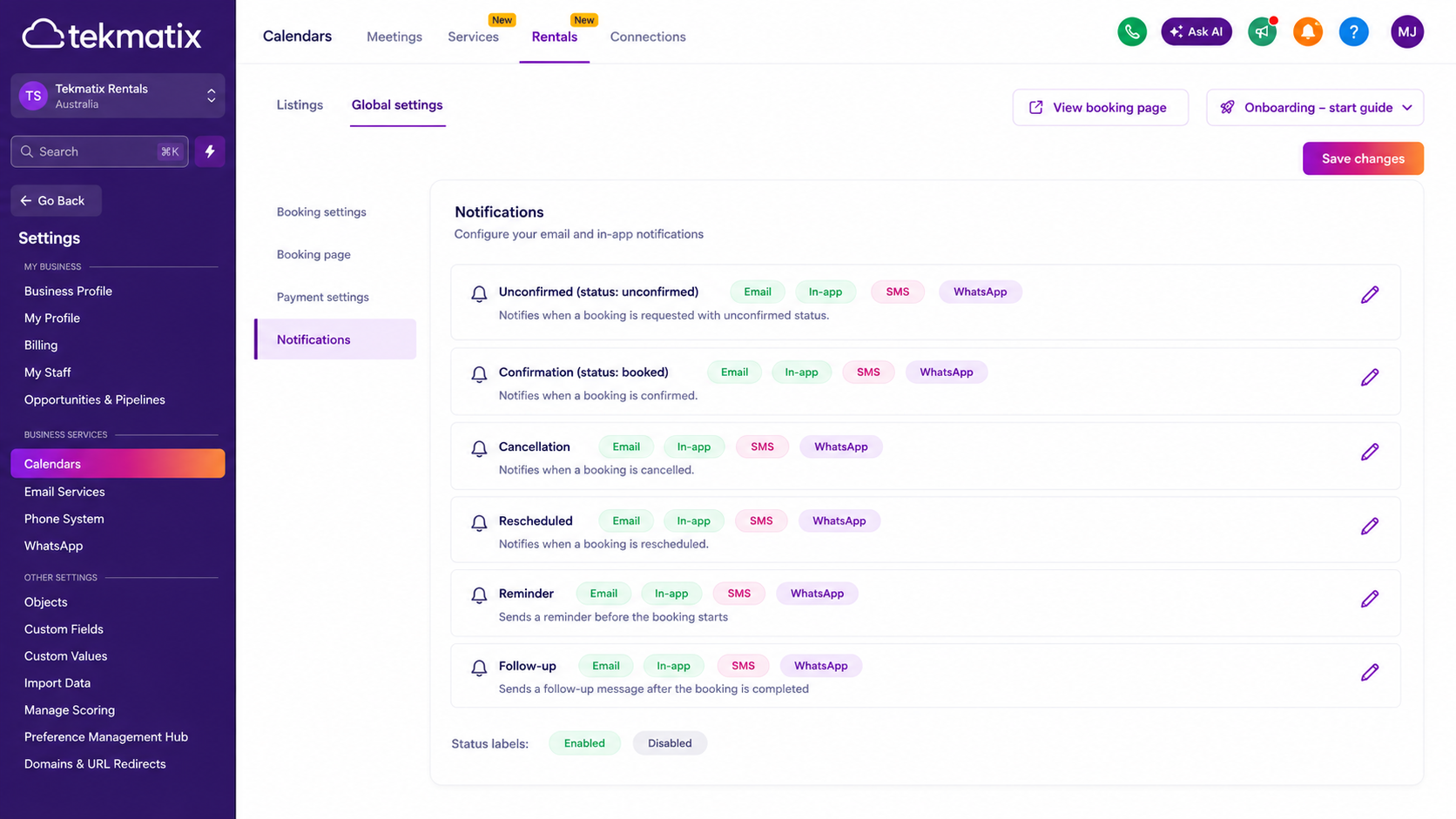
You can now enable SMS notifications across all major rental booking events, including:
Booking Unconfirmed
Booking Confirmed
Booking Cancelled
Booking Rescheduled
Booking Reminders
Booking Follow-Ups
This allows you to keep customers and team members informed throughout the entire booking lifecycle.
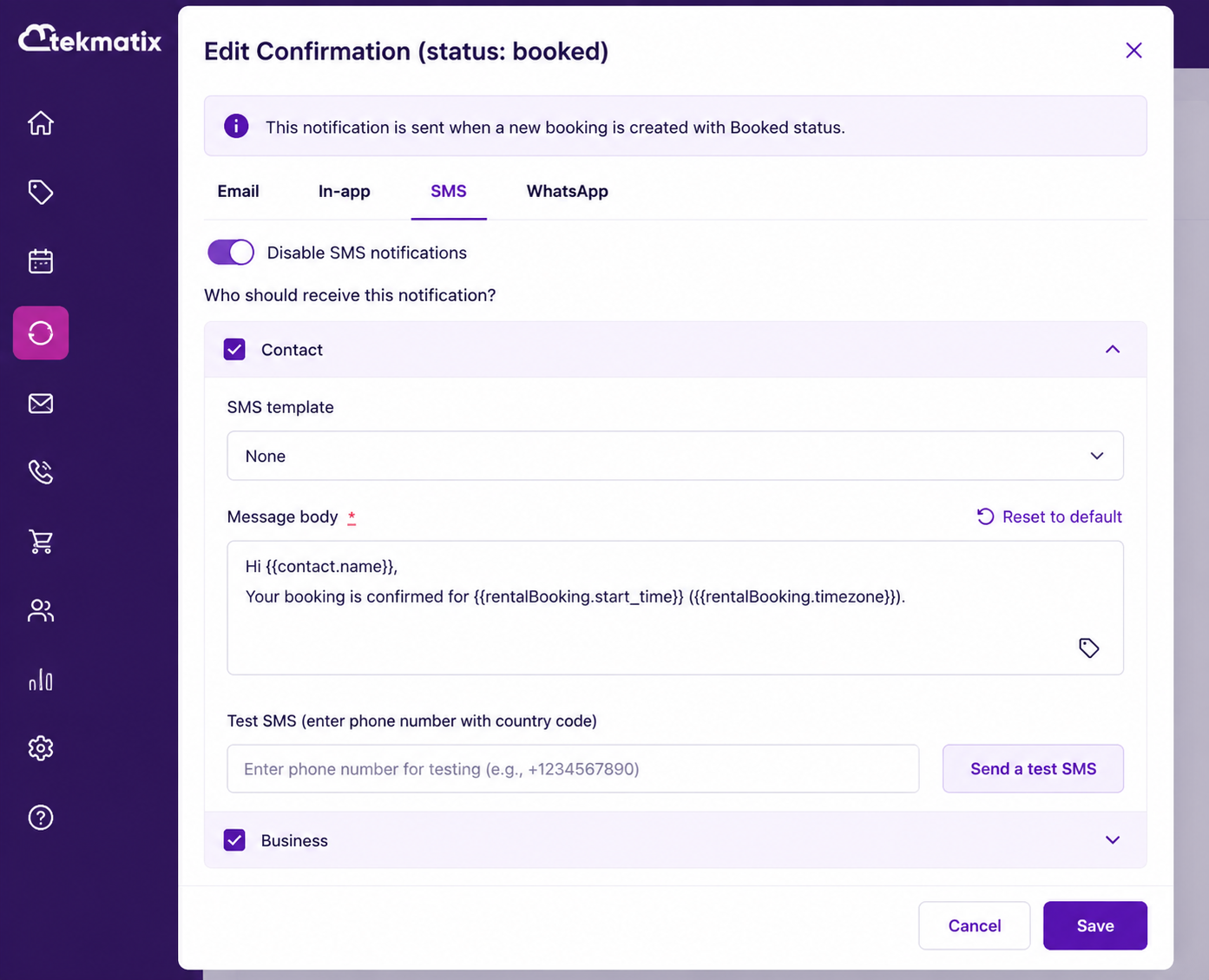
Choose Who Receives Notifications
You now have full control over notification recipients.
Send SMS notifications to:
The Contact (Customer)
The Business
Both Contact and Business
This flexibility ensures the right people receive the right information at the right time.
Customise Messages for Different Recipients
Different recipients often require different information.
With per-recipient SMS templates, you can create unique messages for:
Customers receiving booking updates
Internal staff receiving operational notifications
This helps keep communication relevant and professional.
Flexible SMS Template Management
Every notification type includes a default SMS template to help you get started quickly.
You can:
Use the default template
Edit and customise existing templates
Select a previously created SMS template
Create brand-new SMS templates for specific notification types
Test Before You Launch
Before activating notifications, you can send a test SMS to verify:
Message content
Personalisation fields
Formatting
Delivery experience
This ensures your customer communications are exactly how you want them before going live.
How to Set Up SMS Notifications
Follow these steps to enable SMS notifications for rental bookings:
Navigate to Calendar Settings
Select Rentals
Open Global Settings
Click Notifications
Choose the notification type you want to edit
Open the SMS tab
Enable the SMS Notification toggle
Select your recipients:
Contact
Business
Choose or create an SMS template
Send a test SMS
Save your settings
Your SMS notifications will now be automatically triggered when the selected rental event occurs.
Why This Matters
SMS remains one of the most effective communication channels available.
This update helps rental businesses:
Improve customer communication
Increase booking attendance and show-up rates
Deliver real-time updates instantly
Reduce missed bookings and confusion
Automate reminders and follow-ups
Minimise manual administrative work
Create a better customer experience
By combining rental automation with SMS delivery, businesses can stay connected with customers at every stage of the booking journey while saving valuable time.

Copyright © 2026 TekMatix. All rights reserved | [email protected]