
TekMatix Blog & Help Articles
Use the search bar below to look for help articles you need.
How To Use Tekmatix Multiple Calendars Support for Smarter AI Appointment Booking
How To Use Tekmatix Multiple Calendars Support for Smarter AI Appointment Booking
Why Multiple Calendars Support Matters
If your business offers different services, departments, or specialists, managing appointments across a single calendar can be chaotic. Tekmatix Multiple Calendars Support lets your AI Appointment Booking Bot automatically route bookings to the correct calendar based on the customer’s request.
Key Importance: This ensures accurate bookings, reduces manual errors, and improves customer experience, all while keeping workflow automation intact.
Key Benefits of Multiple Calendars Support
Smart Calendar Detection: AI automatically matches customer requests to the right calendar using names, descriptions, and keywords.
Effortless Multi-Department Booking: Handle bookings for multiple teams (e.g., Cardiology, Neurology, Physiotherapy) with a single bot.
Fallback Calendar Assurance: Capture unmatched requests with a default fallback calendar to prevent missed appointments.
Seamless Workflow Integration: All workflow triggers (cancel, reschedule, post-booking actions) work like they do in single-calendar mode.
Transparent Tracking: Instantly see which calendar was used for each booking in the conversation or appointment record.
How Tekmatix Detects the Correct Calendar
The AI interprets user intent using calendar names, descriptions, and optional keywords.
Example:
User: “I want to consult a Neurologist for migraine headaches.”
AI identifies the Neurology calendar and shows available slots for booking.
A fallback calendar acts as a safety net when no match is found, ensuring no request is ever missed.
How To Configure Multiple Calendars
Follow these steps to enable and set up Multiple Calendars in your AI Appointment Booking Bot:
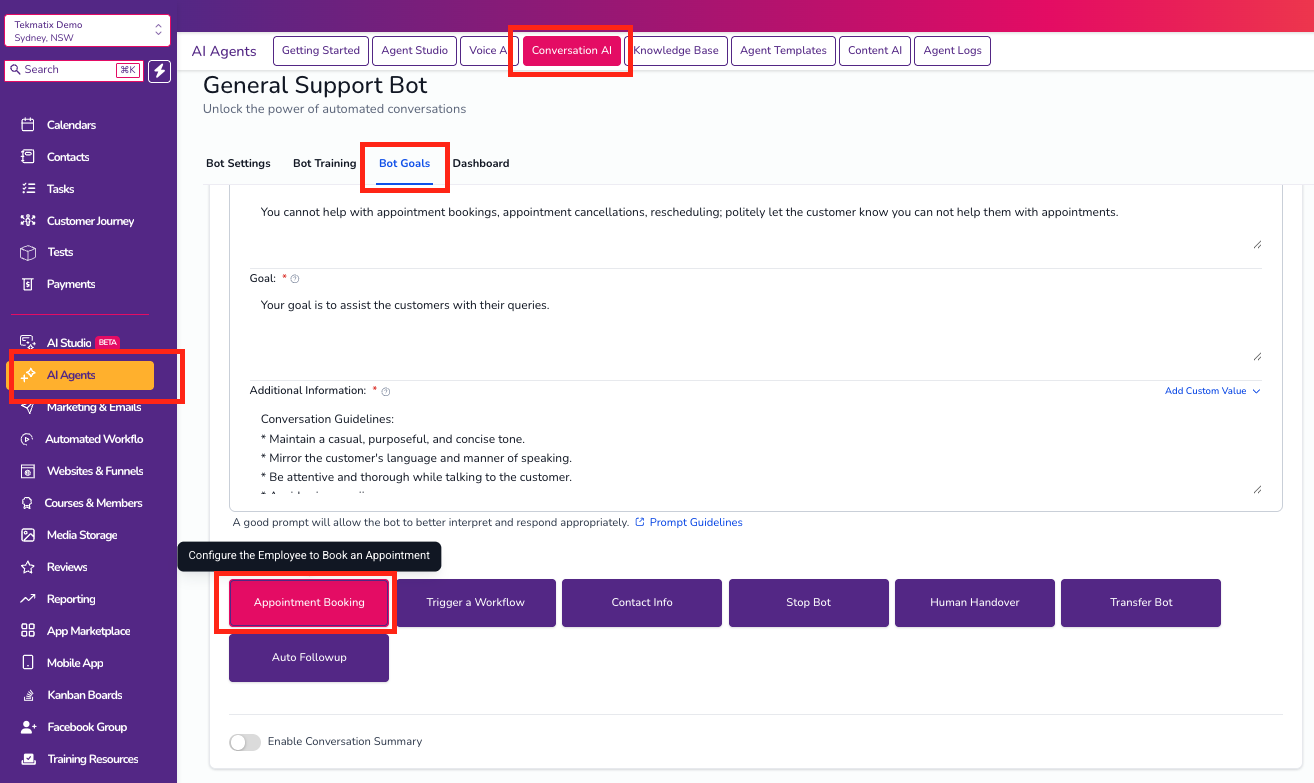
Navigate to AI Agents → Conversation AI → Bot Goals and select Appointment Booking.
Enable the Multiple Calendars option at the top.
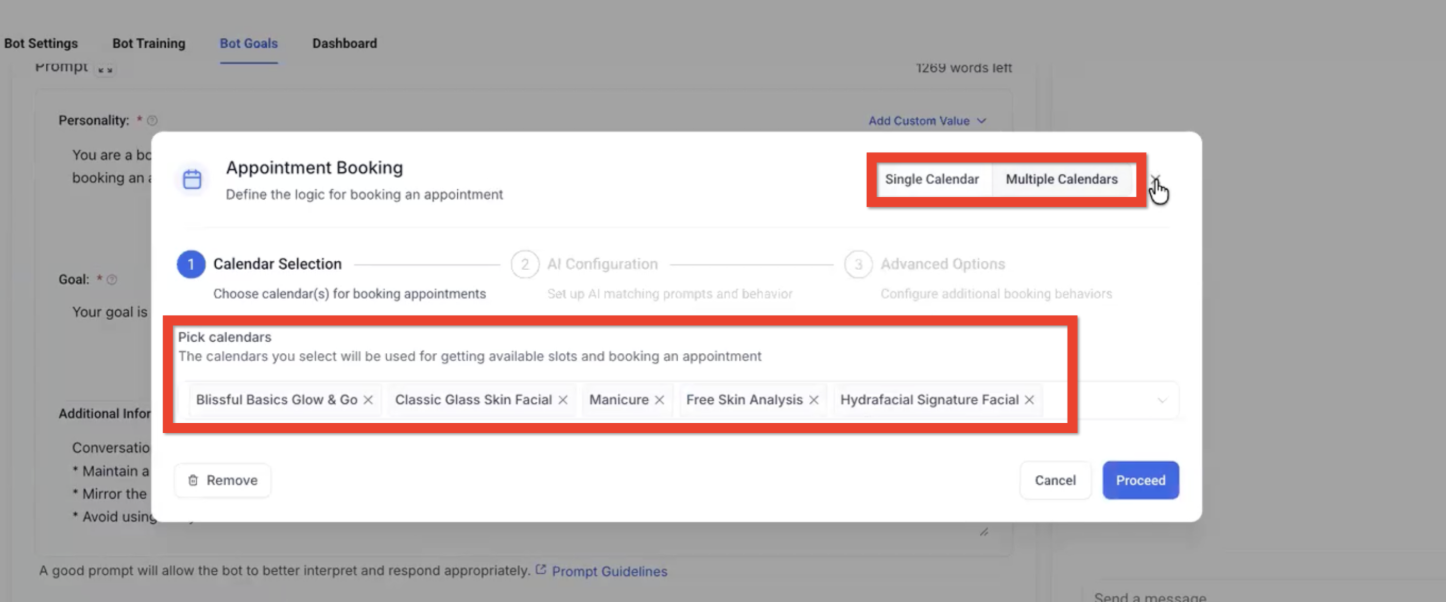
Under Calendar Selection, pick the calendars to include. Names and descriptions are auto-fetched.
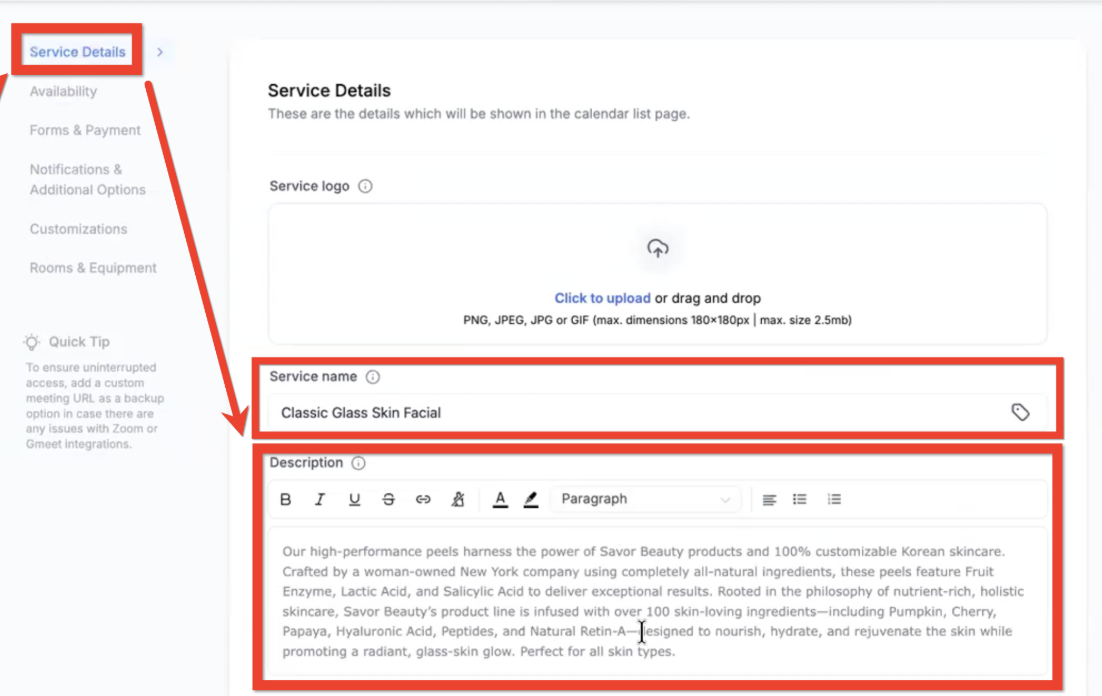
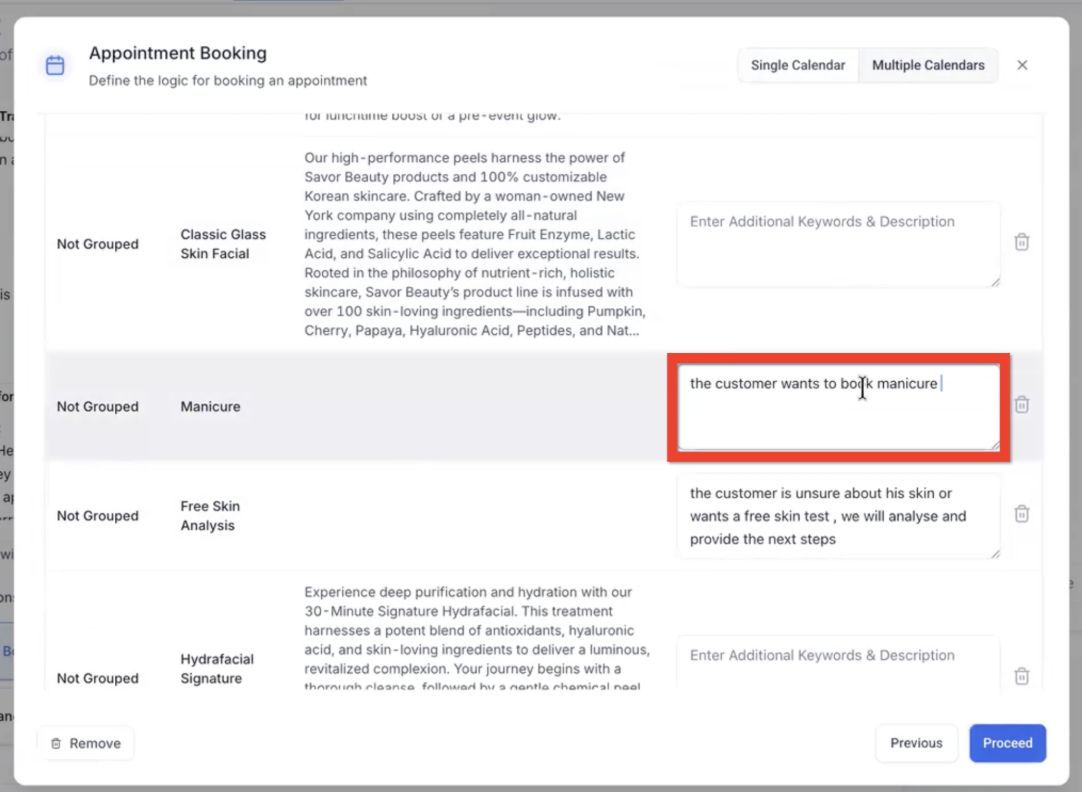
Optionally, add Additional Keywords & Descriptions to help the AI recognize user intent.
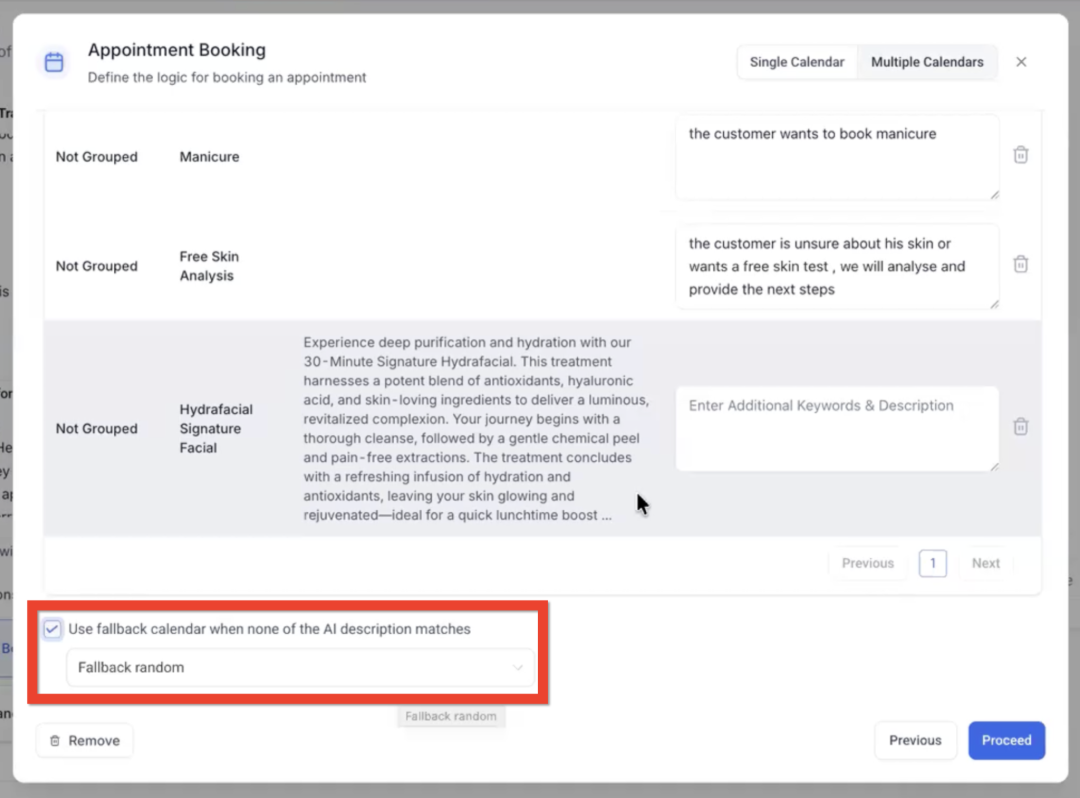
Configure a Fallback Calendar for unmatched requests (optional).
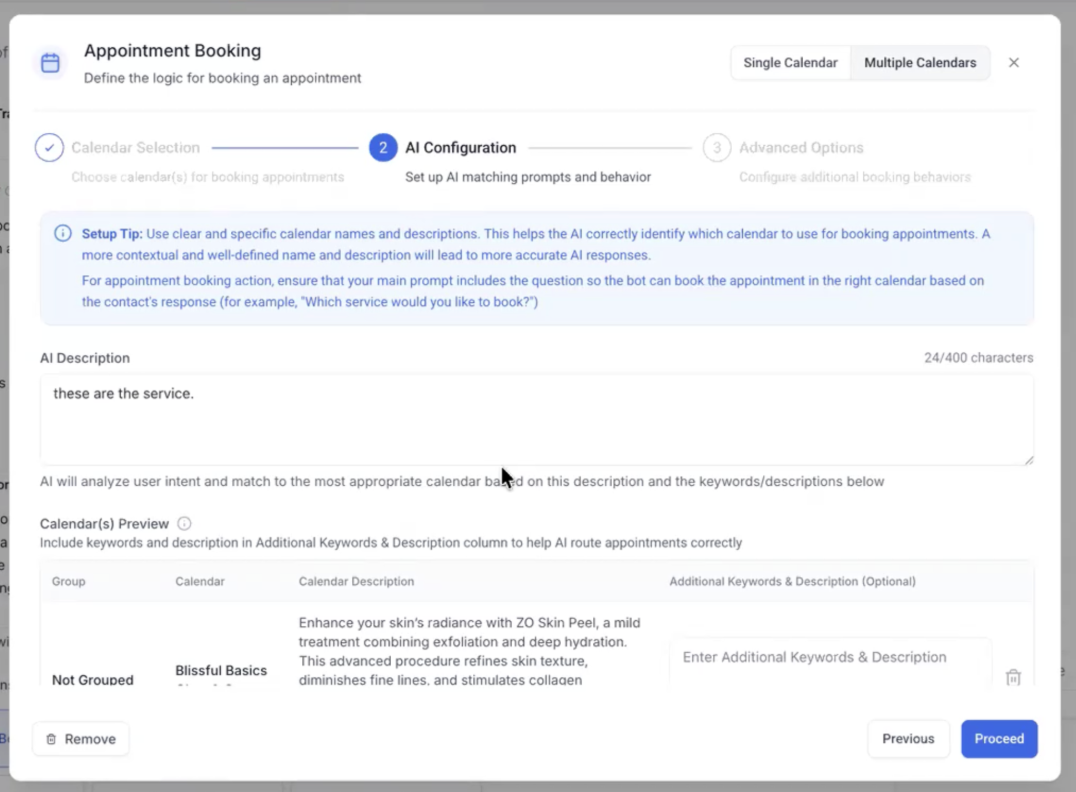
Define your AI prompt (e.g., “Which type of consultation would you like to book?”).
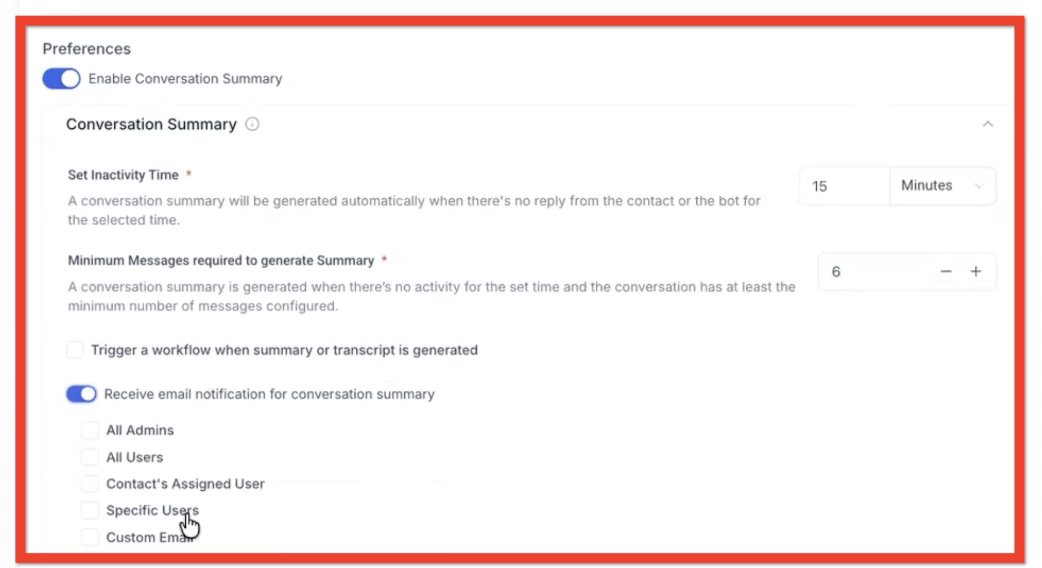
Adjust Advanced Options:
Pause bot response after booking
Trigger workflows after booking
Transfer employee post-booking
Allow bot to cancel or reschedule appointments
Click Save to activate the configuration.
Once enabled, the bot automatically detects intent and books appointments in the correct calendar.
AI Configuration Tips (Prompts & Keywords)
Use clear service-based keywords: “dentist,” “eye check,” “consultation.”
Write calendar descriptions in plain language for easy AI interpretation.
Include alternative phrases for common intents: “I need a doctor for my eyes” → Ophthalmology.
Keep prompts concise: “Which service would you like to book?” works better than long instructions.
Sample Scenario: Multi-Specialty Clinic
Scenario: Your clinic has Cardiology, Neurology, and Physiotherapy departments. A patient types:
“I need to see a physiotherapist for back pain.”
Steps:
Create three calendars in Tekmatix for each department.
Add them under the Multiple Calendars setup in your AI bot.
Add keywords like “back pain,” “muscle therapy” for Physiotherapy.
Configure a fallback calendar for general inquiries.
Test the bot by simulating user requests.
Result: The bot routes the appointment to Physiotherapy, avoiding manual errors, while Cardiology and Neurology calendars remain untouched. If a request doesn’t match, the fallback calendar captures it.
Viewing Booked Appointments
Open the conversation thread to see the AI’s confirmation and booked slot.
Click View Appointment to open details, including the assigned calendar name.
All bookings show which calendar was used for easy tracking.
Frequently Asked Questions
Q: Can I use Single and Multiple Calendar modes?
Yes. Single Calendar works for one service; Multiple Calendars is ideal for multi-department setups.
Q: How many calendars can I add?
Multiple calendars are supported, but keeping the list concise ensures accurate AI matching.
Q: What if AI can’t identify the correct calendar?
The fallback calendar automatically handles unmatched requests.
Q: Will my existing workflows still trigger?
Yes. Notifications, reminders, and post-booking workflows continue to function.
Q: Can this work for Voice AI?
Not yet. Currently, it applies to Conversation AI (chat) only.
Q: Is this feature generally available?
It’s in Closed Beta for early testers, with broader release planned soon.

Copyright © 2026 TekMatix. All rights reserved | [email protected]