
TekMatix Blog & Help Articles
Use the search bar below to look for help articles you need.
How To Use Tekmatix Custom Object Widgets for Tailored Business Insights
How To Use Tekmatix Custom Object Widgets for Tailored Business Insights
Why Custom Object Widgets Are Important
Every business tracks unique data—like pets, properties, cases, or projects—that doesn’t always fit standard CRM objects. Without proper visualization, this data can get buried and never inform decisions.
Tekmatix Custom Object Widgets let you turn these custom records into actionable metrics across dashboards and reports. By leveraging widgets, you can see totals, averages, and trends at a glance, combine them with standard CRM data, and share insights securely with your team.
Key Importance: Custom Object Widgets help your team focus on the KPIs that matter most, avoid manual calculations, and make faster, data-driven decisions.
Key Benefits of Custom Object Widgets
Tailored Analytics: Measure the exact metrics your business cares about (e.g., Avg. Pet Age).
Centralized Reporting: Combine Contacts, Opportunities, and Custom Object metrics in one dashboard.
Flexible Charting: Switch between Numeric, Line, Bar, Horizontal Bar, Donut, or Table views.
Reusable Filters: Apply Quick Filters at the dashboard or widget level without altering the original chart.
Secure Sharing: Dashboard permissions ensure only authorized users can view or edit widgets.
Metrics & Chart Types
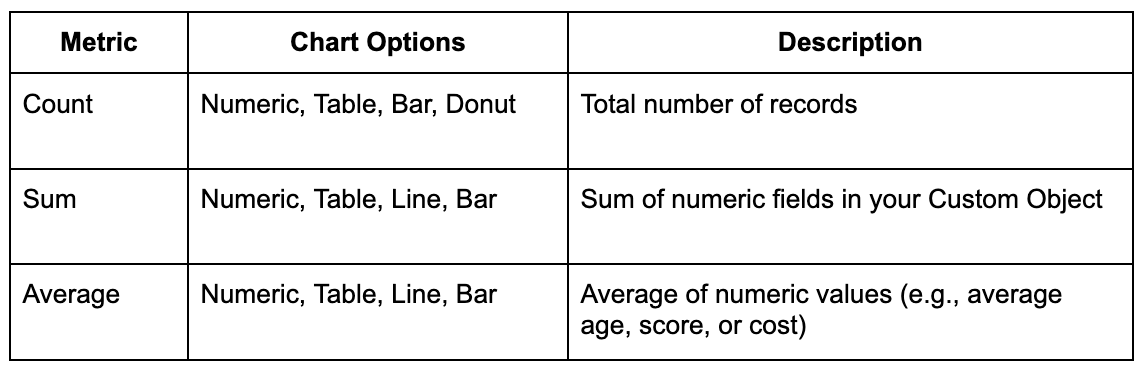
Tip: A recommended chart type is pre-selected when you add a widget, but you can switch anytime using the chart picker.
How To Set Up Custom Object Widgets
Before adding widgets, make sure your Custom Object is created (Sub-Account Settings → Custom Objects).
1) Adding a Custom Object Widget to a Dashboard
Navigate to Dashboards in your account.
Click Edit Dashboard (pencil icon) → Add Widget.
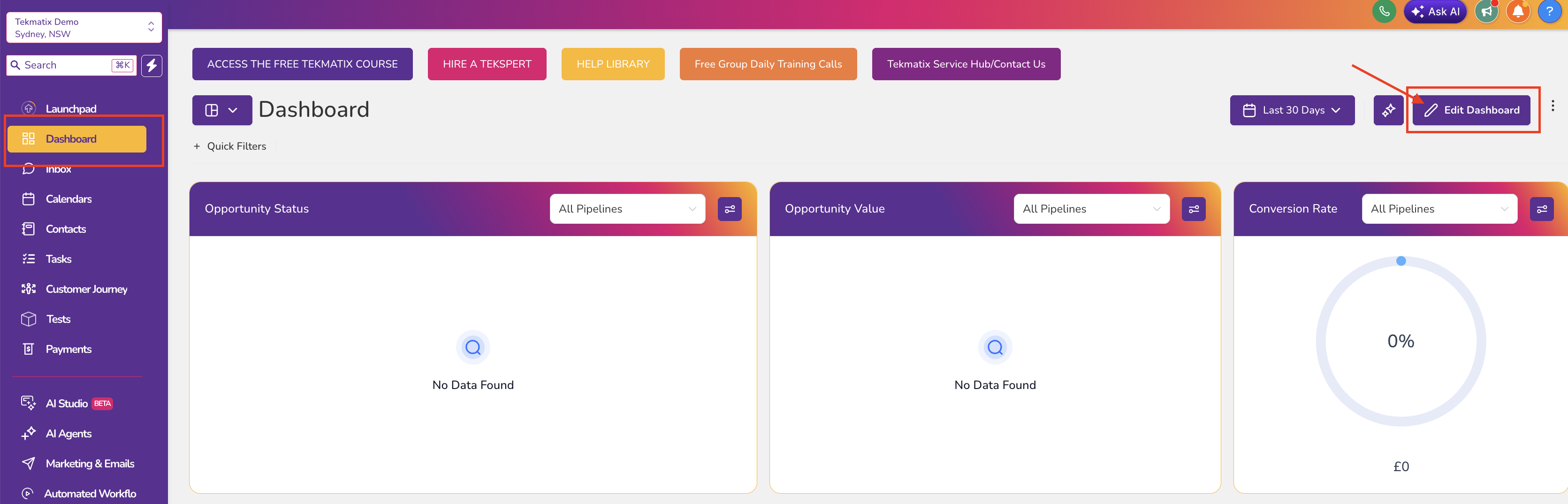
Select the chart type: Numeric, Donut, Line, Bar, or Table.
Scroll to the Custom Objects section and select the object (e.g., “Dogs”) and metric (Count, Sum, or Average).
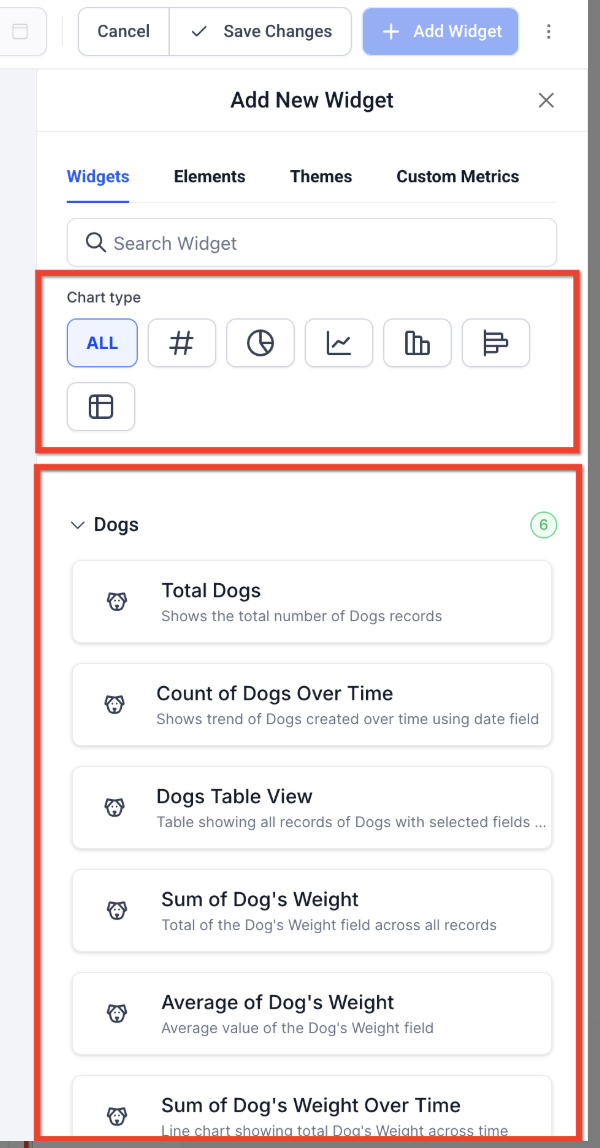
Apply filters (campaign, date range, metric) and select your theme/colors.
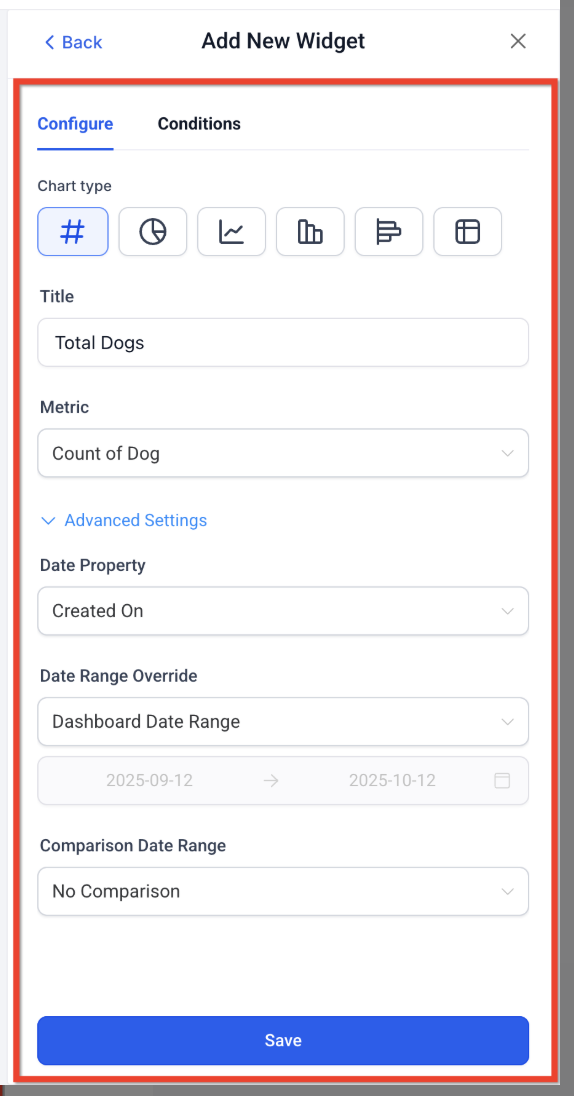
Click Save – the widget now streams data in real-time.
2) Adding a Custom Object Widget to a Custom Report
Go to Reporting → Custom Reports and open an existing report or click + New Report.
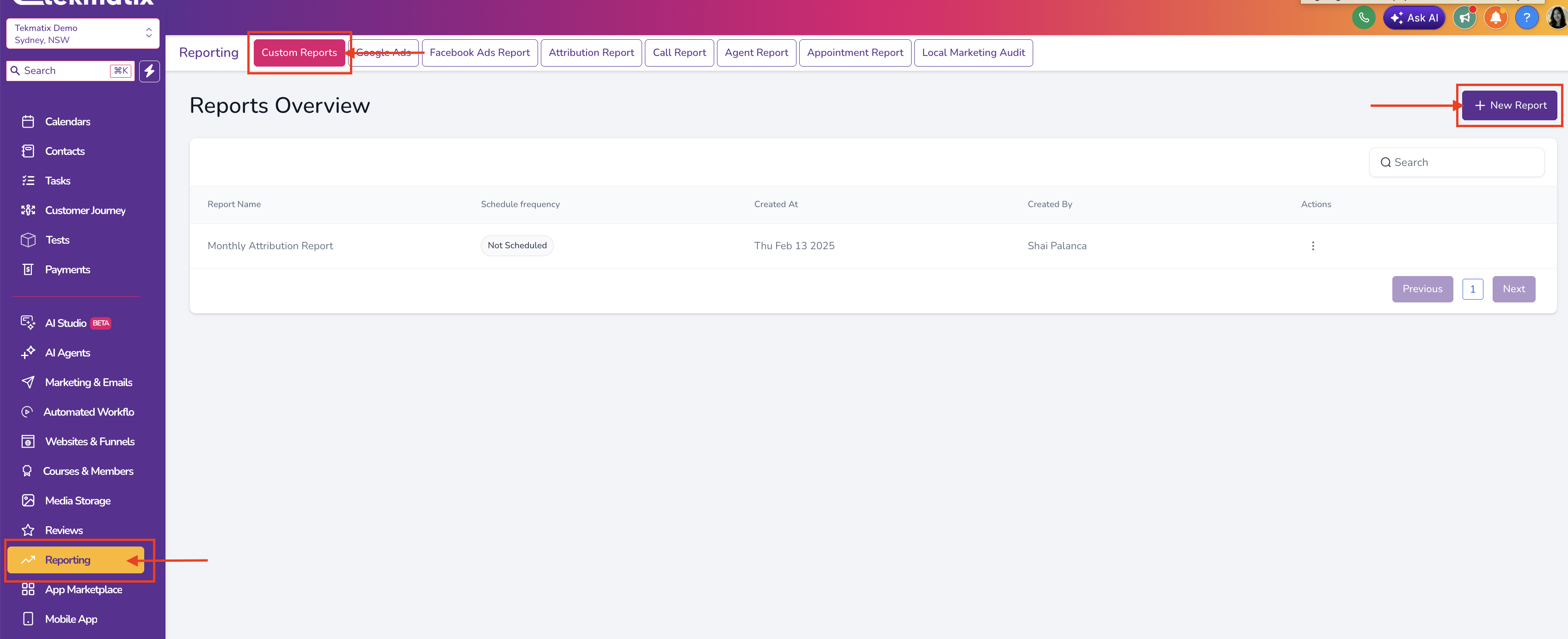
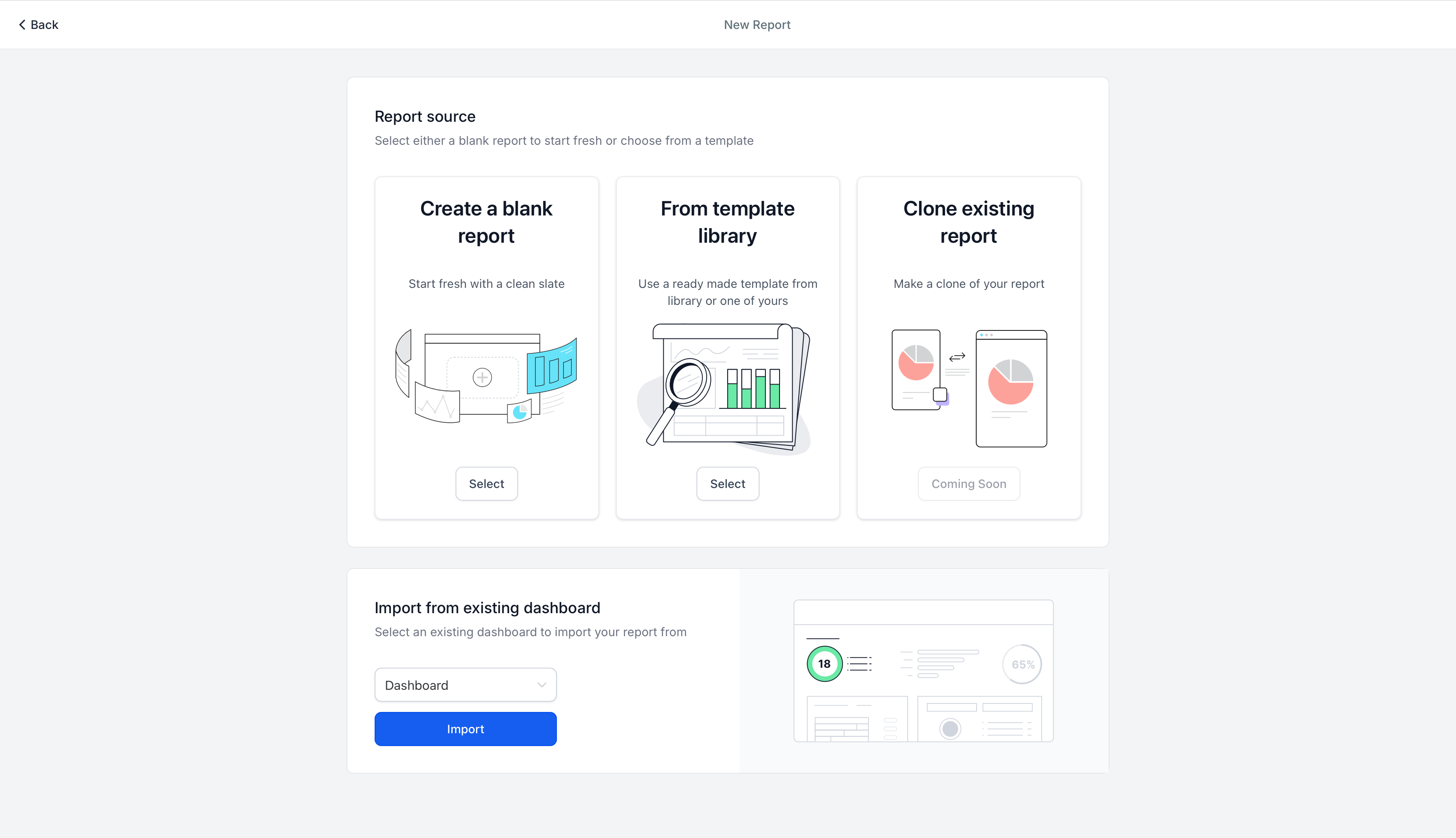
Start from a blank canvas, a template, or import an existing dashboard layout.
Click Add Widget/Element, locate Custom Object Widgets, and drag the ones you need.
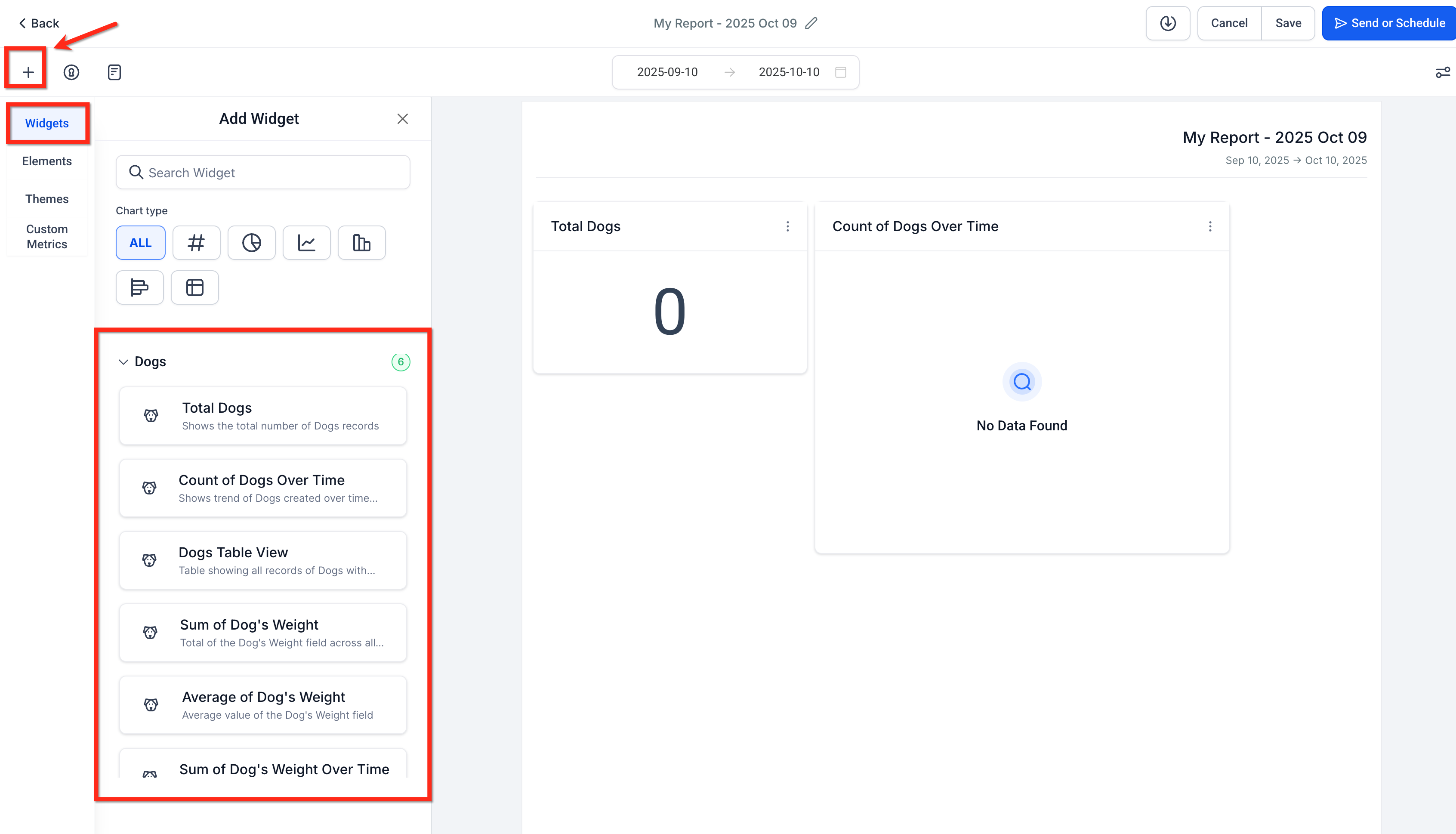
Configure each widget’s chart type, filters, and theme.
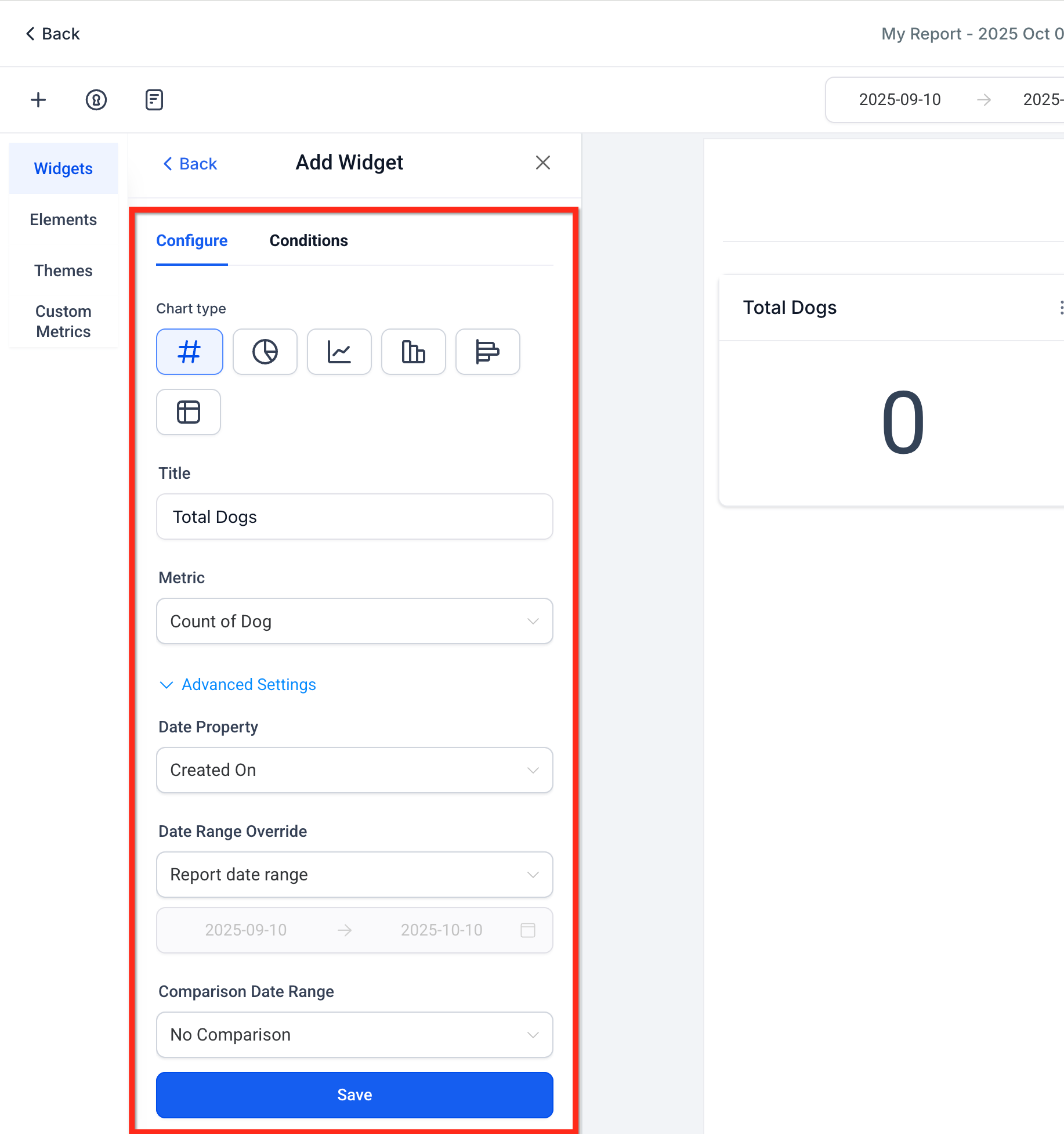
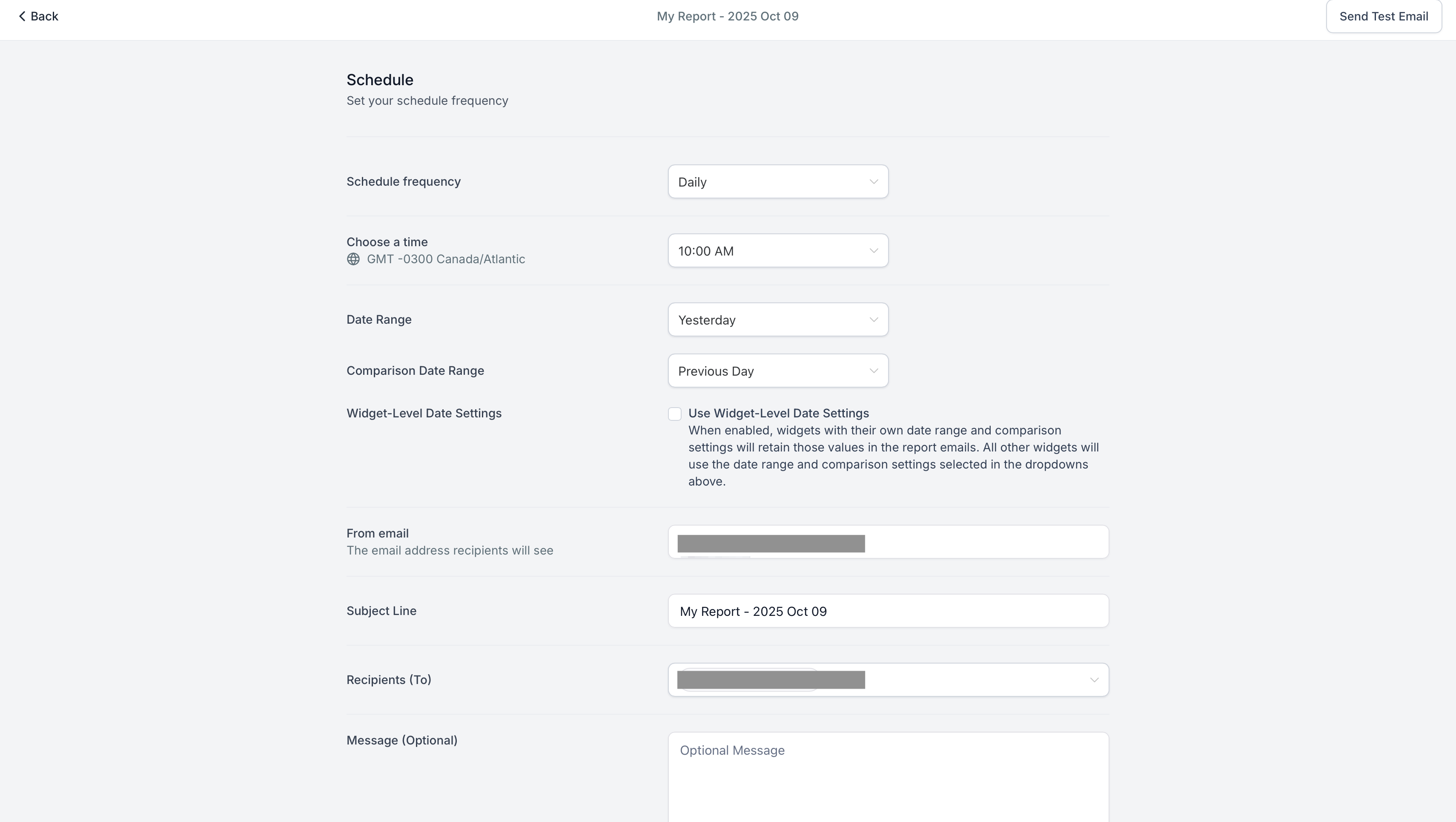
Click Save, then optionally Send or Schedule the report via email for automated updates.
Sample Scenario: Tracking Pet Ages in a Veterinary Clinic
Scenario: Your veterinary clinic tracks all pets in a Custom Object called “Pets.” You want to monitor average pet age and total number of pets per vet.
Steps:
Create the Pets Custom Object with fields like Age, Owner, and Vet Assigned.
Add a Custom Object Widget to your dashboard.
Select Average for the metric and Vet Assigned for grouping.
Add a Count widget to track total pets per vet.
Apply filters: Current Year, Active Pets only.
Save the dashboard.
Result: You can now see at a glance which vets handle the most pets and the average age, helping with staffing, scheduling, and client communications.
Permissions & Sharing
Dashboard VIEW/EDIT/FULL/NO ACCESS roles also apply to Custom Object Widgets.
Editors can modify chart type, metrics, filters, and theme.
Viewers can interact with Quick Filters but cannot change widget configurations.
Duplicate widgets via the three-dot menu to create variations without affecting the original.
Frequently Asked Questions
Q: How many Custom Objects can I create?
Up to 10 per sub-account, all usable in widgets.
Q: Can I duplicate a Custom Object Widget?
Yes, use three-dot menu → Duplicate and modify as needed.
Q: Can I group by a picklist field?
Yes, if your chart or table supports grouping and the field type is eligible.
Q: Why does my widget show “No data”?
Ensure the Custom Object has records, selected fields/metrics are correct, the date range includes data, and filters are not excluding all records.

Copyright © 2026 TekMatix. All rights reserved | [email protected]