
TekMatix Blog & Help Articles
Use the search bar below to look for help articles you need.
How To Use Tekmatix Multi-Object Task Associations for Smarter Team Collaboration
How To Use Tekmatix Multi-Object Task Associations for Smarter Team Collaboration
Why This Feature Matters
Before Multi-Object Task Associations, tasks in Tekmatix could only be linked to a single contact. This meant teams often had to create duplicate tasks for deals, companies, or other related objects—creating clutter, confusion, and wasted time.
With Multi-Object Task Associations, you can now link a single task to multiple records—contacts, deals, companies, and custom objects—allowing every stakeholder to see and manage the same task from their respective modules. This ensures end-to-end visibility, reduces duplication, and supports cross-team collaboration.
Key Benefits of Multi-Object Task Associations
End-to-End Visibility: Tasks appear in every linked record’s Associated Objects panel.
Cross-Team Collaboration: Sales, success, and operations teams can all follow the same task, even if they operate in different modules.
Less Duplication: One task replaces multiple “clone tasks” previously needed for each record.
Flexible Limits: Link up to 10 contacts, 10 deals, 10 companies, and 10 custom objects per task.
Powerful Filtering: Quickly filter tasks by assignee, status, or any linked object for precise task management.
Default Association Behavior
Tekmatix applies smart defaults depending on where you create a task:
Tasks page ➜ starts with no associations; pick whatever records you need.
From a Contact ➜ pre-links that contact plus its primary company (if any).
From an Opportunity ➜ pre-links the opportunity, its primary contact, and that contact’s primary company.
From a Company ➜ pre-links the company.
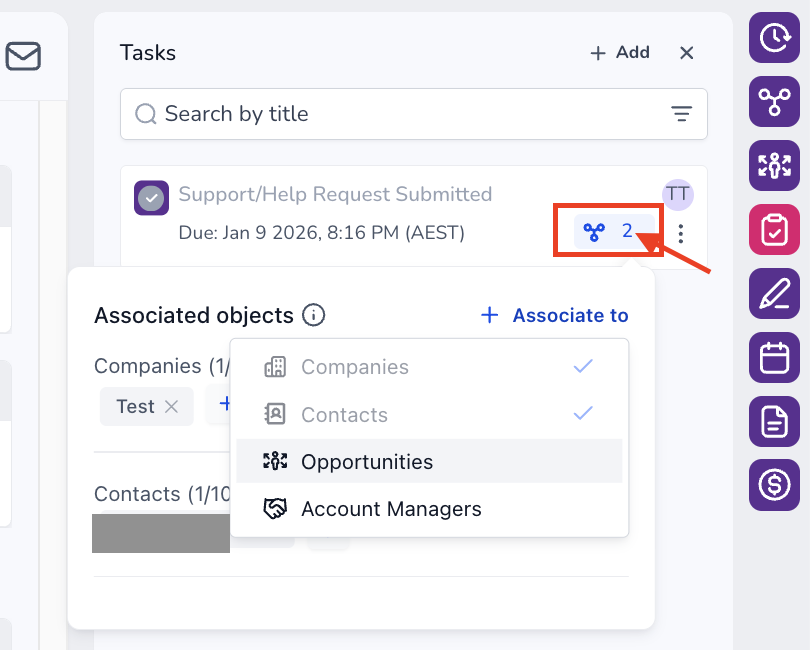
You can always add, edit, or remove associations using the Associate To drop-down.
How To View Associated Objects
Each Contact, Deal, Company, and Custom Object record now has an Associated Objects section.
Hover the chain-link icon in any task row to preview linked records.
Click a record name to open it in a new tab for quick access.
How To Filter Tasks by Associations
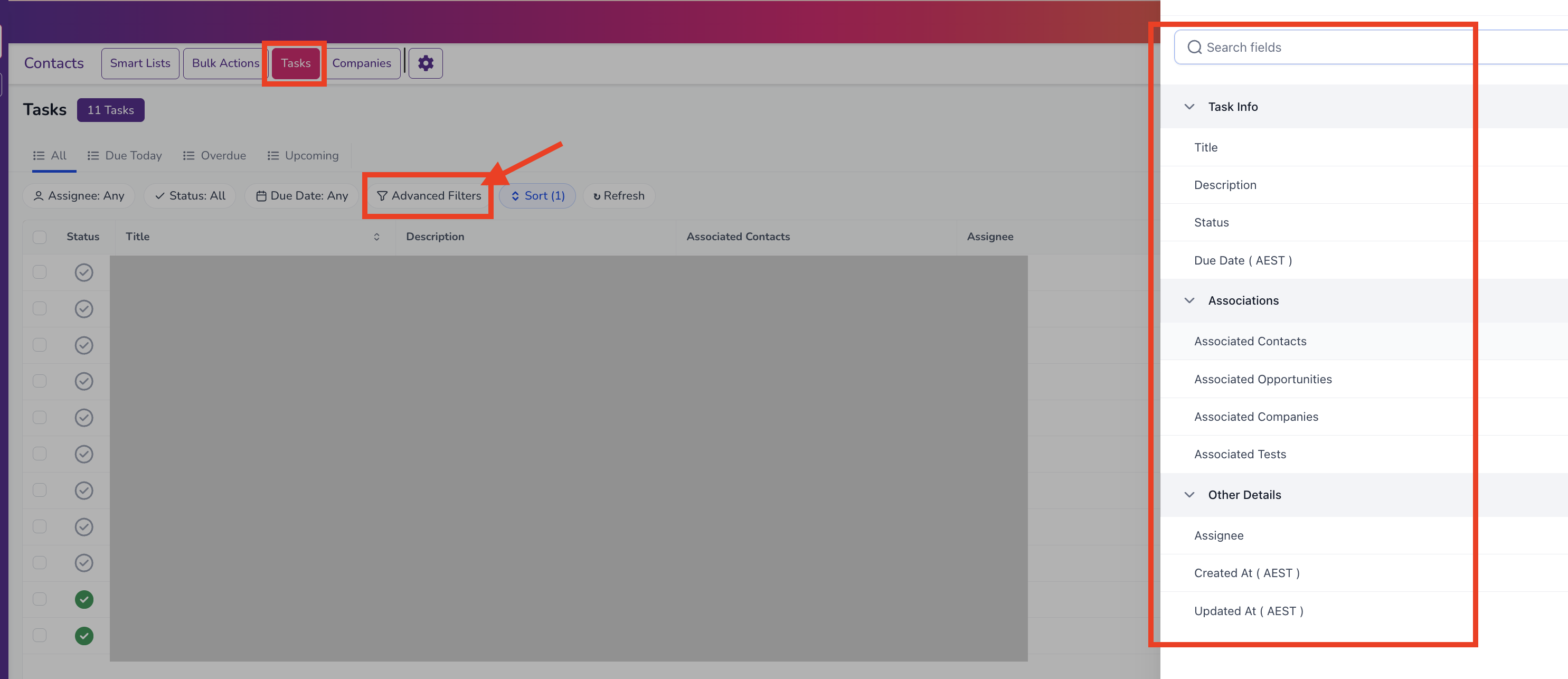
Click the filter icon on the Tasks page or inside a record’s task panel.
Filter tasks by:
Specific Contact, Deal, Company, or Custom Object
Status (Open, Completed, Overdue)
Assignee
These filters pull from the association data, giving you laser-focused task lists.
How To Setup Multi-Object Task Associations
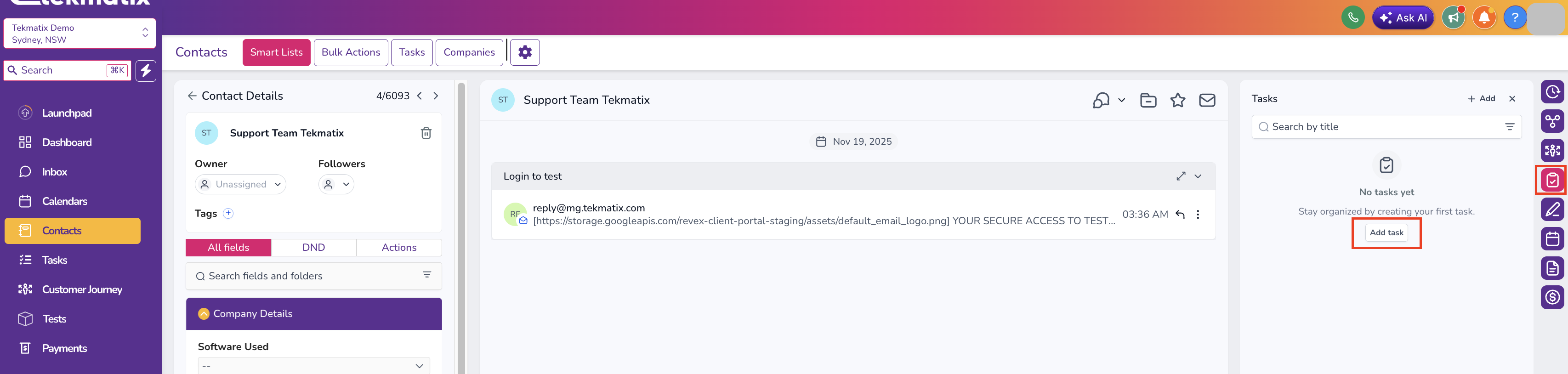
Navigate to any Contact, Deal, Company, Custom Object, or open the Tasks page.
Click + Add Task.
Confirm or modify default associations in the Associate To field.
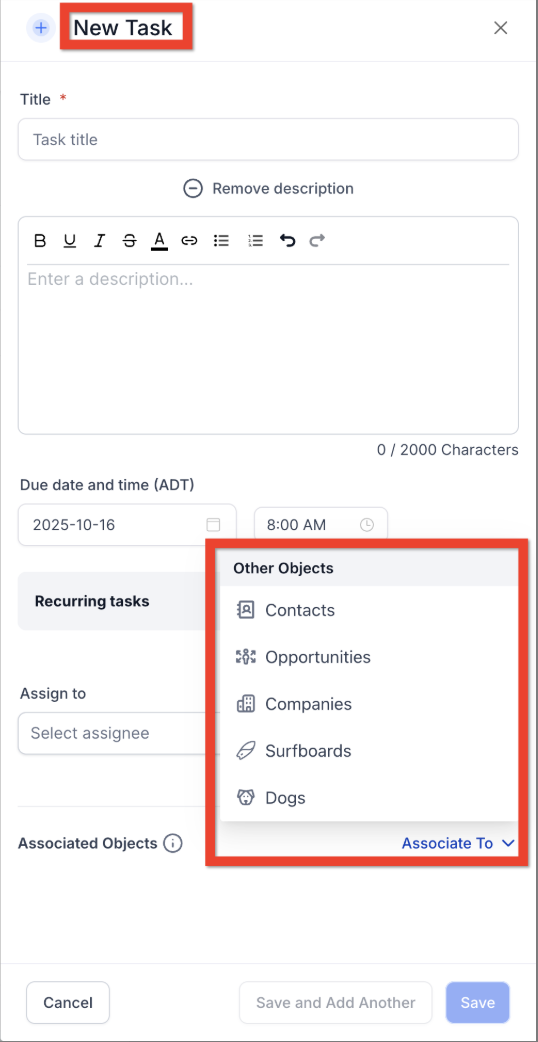
(Optional) Click + Add Association to link additional records—up to 10 per object type.
Complete the task form (title, assignee, due date, etc.).
Click Save.
To edit associations later, open the task, click the pencil icon next to Associated Objects, adjust, and Save.
Sample Scenario: Streamlining a Sales Campaign Task
Scenario: Your sales team needs to send a proposal follow-up for a major deal. Multiple contacts, the opportunity record, and the company record should all see the same task.
Steps Using Multi-Object Task Associations:
Create a single task: “Send Proposal Follow-Up Email.”
Link it to:
All relevant contacts on the deal
The opportunity itself
The company record
Assign the task to the sales rep responsible.
All stakeholders see the task in their associated records and can track progress.
Result: Only one task is needed, reducing clutter while keeping everyone aligned. The sales manager, account owner, and operations team can all monitor completion without creating duplicates.
Frequently Asked Questions
Q: Does this affect existing tasks?
No. Pre-existing tasks remain linked to their original contact only. You can manually add additional associations.
Q: Can I exceed the 10-per-object limit?
No. The limit ensures data remains manageable. For larger projects, create separate tasks.
Q: Can I automate associations in workflows?
Not yet. Associations are currently managed in the UI. Workflow automation for task associations is on the roadmap.
Q: Will recurring tasks maintain associations?
Yes. Recurring tasks inherit all associations from the original task.
Q: Do permissions follow object ownership?
Yes. A user can see a task if they have access to any of the associated records.
Best Practices
Link all relevant records to reduce duplication and improve visibility.
Use clear task titles to make multi-object tasks understandable across teams.
Regularly review task filters to focus on overdue or high-priority items.
Keep associations updated when contacts, deals, or companies change ownership.

Copyright © 2026 TekMatix. All rights reserved | [email protected]