
TekMatix Blog & Help Articles
Use the search bar below to look for help articles you need.

How To Use the Custom Reports Template Library in Tekmatix
How To Use the Custom Reports Template Library in Tekmatix
Why This Matters
Creating professional reports from scratch for each client can be time-consuming and prone to formatting errors. Tekmatix’s Custom Reports Template Library allows you to start with pre-designed templates that are brand-consistent, easy to customize, and ready to schedule. This ensures faster report delivery, reduces setup errors, and keeps your team aligned on reporting standards.
By using the library, agencies and teams can streamline reporting workflows, enforce visual consistency, and focus on data insights rather than repetitive formatting.
Key Benefits
Brand Consistency: Keep fonts, colors, and layouts uniform across clients
Faster Report Creation: Deploy new reports in minutes using ready-made templates
Proven Best Practices: Templates are designed by reporting and business experts
Continuous Updates: Access new templates added regularly to the library
Customizable: Edit metrics, filters, visuals, and layouts to fit your needs
Reduced Learning Curve: Ideal for new users or teams standardizing reporting
Time Savings: Focus on analyzing data instead of formatting reports
Adding a Custom Report to the Template Library
You can convert a finished report into a reusable template so that your team can use it across sub-accounts.
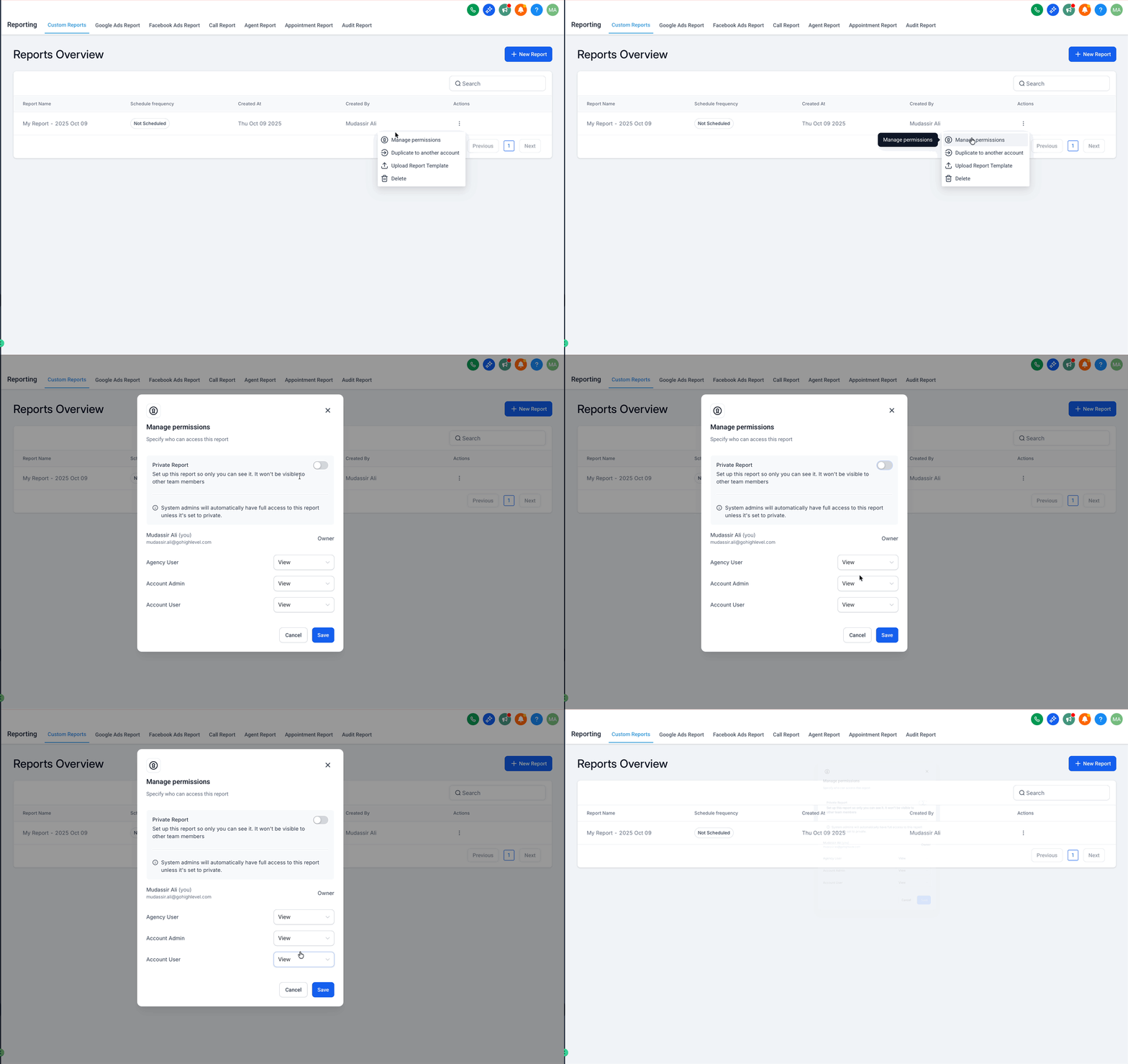
Step 1: Set Minimum Access Permissions
Navigate to Reporting › Custom Reports and locate your finished report
Click the ⋮ (three dots) next to the report → Manage Permissions
Grant at least Read access to:
Agency User
Account Admin
Account User
Step 2: Prepare Your Report for Template Upload
Finalize layout, branding, and page order
Replace any client-specific text/screenshots with generic placeholders
Normalize date ranges and widget settings to be reused
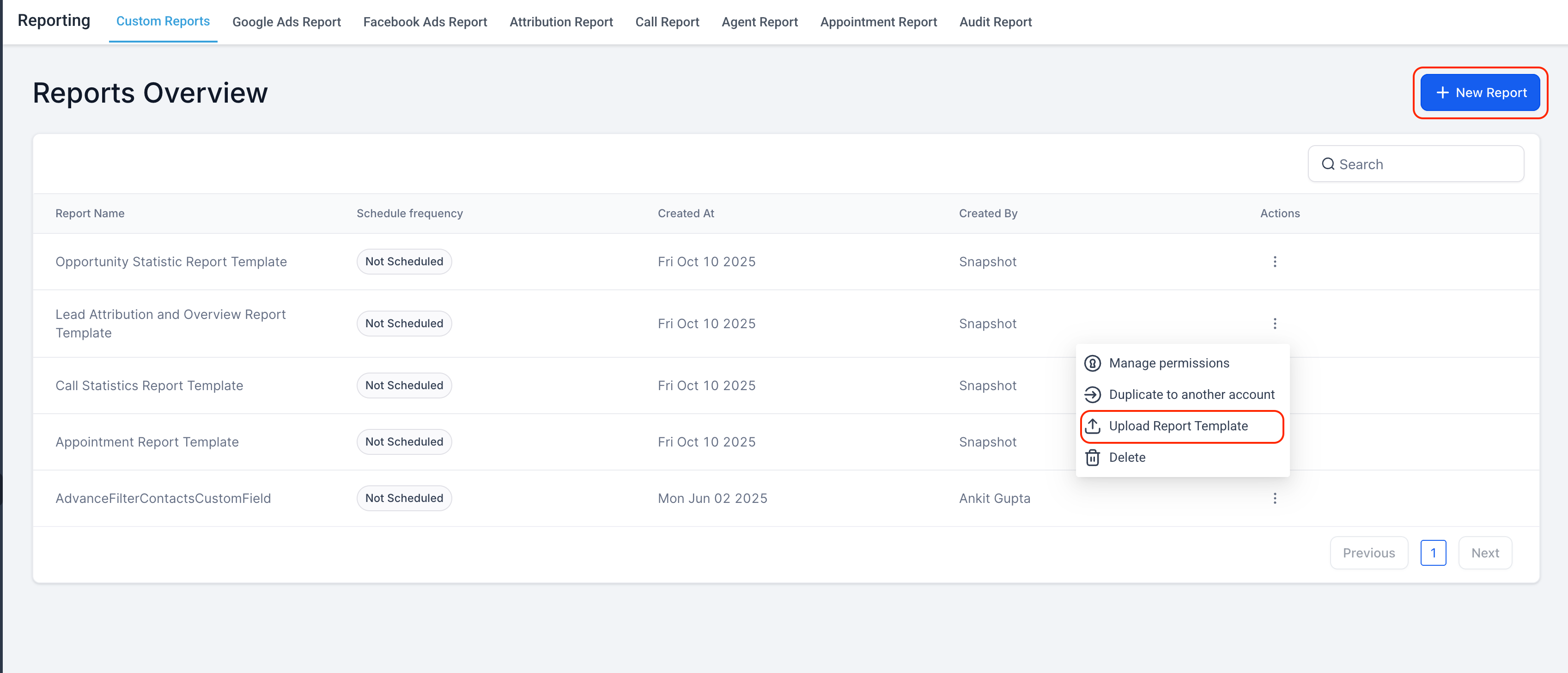
Step 3: Upload the Report as a Template
Click the ⋮ (three dots) → Upload Report Template
The report is now available in the Template Library for future use
How To Use the Custom Reports Template Library
Follow these steps to quickly create, customize, and schedule reports:
Step 1: Create a New Report
Go to Reporting › Custom Reports
Click New Report

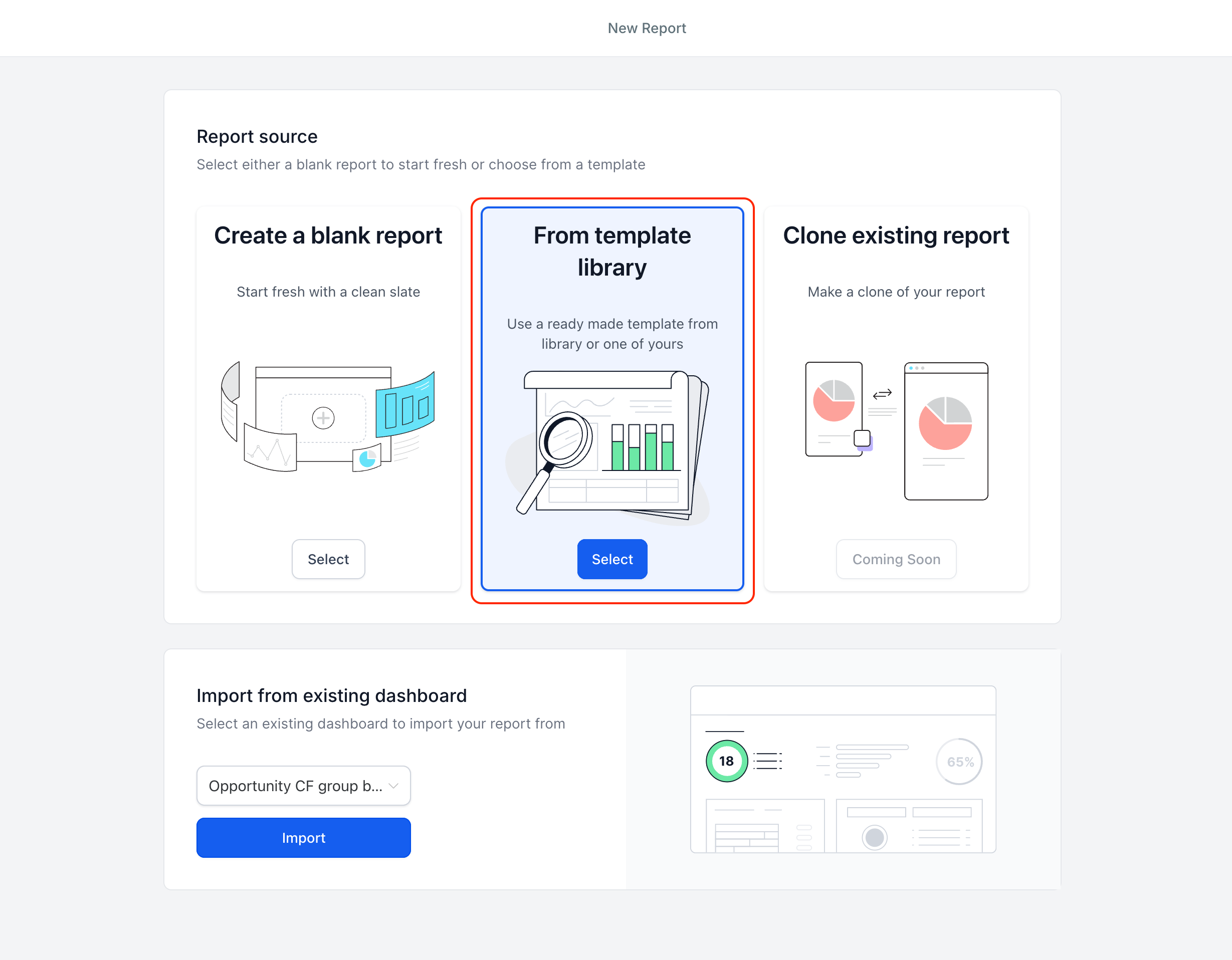
Step 2: Select From Template Library
Choose From Template Library to browse pre-designed templates
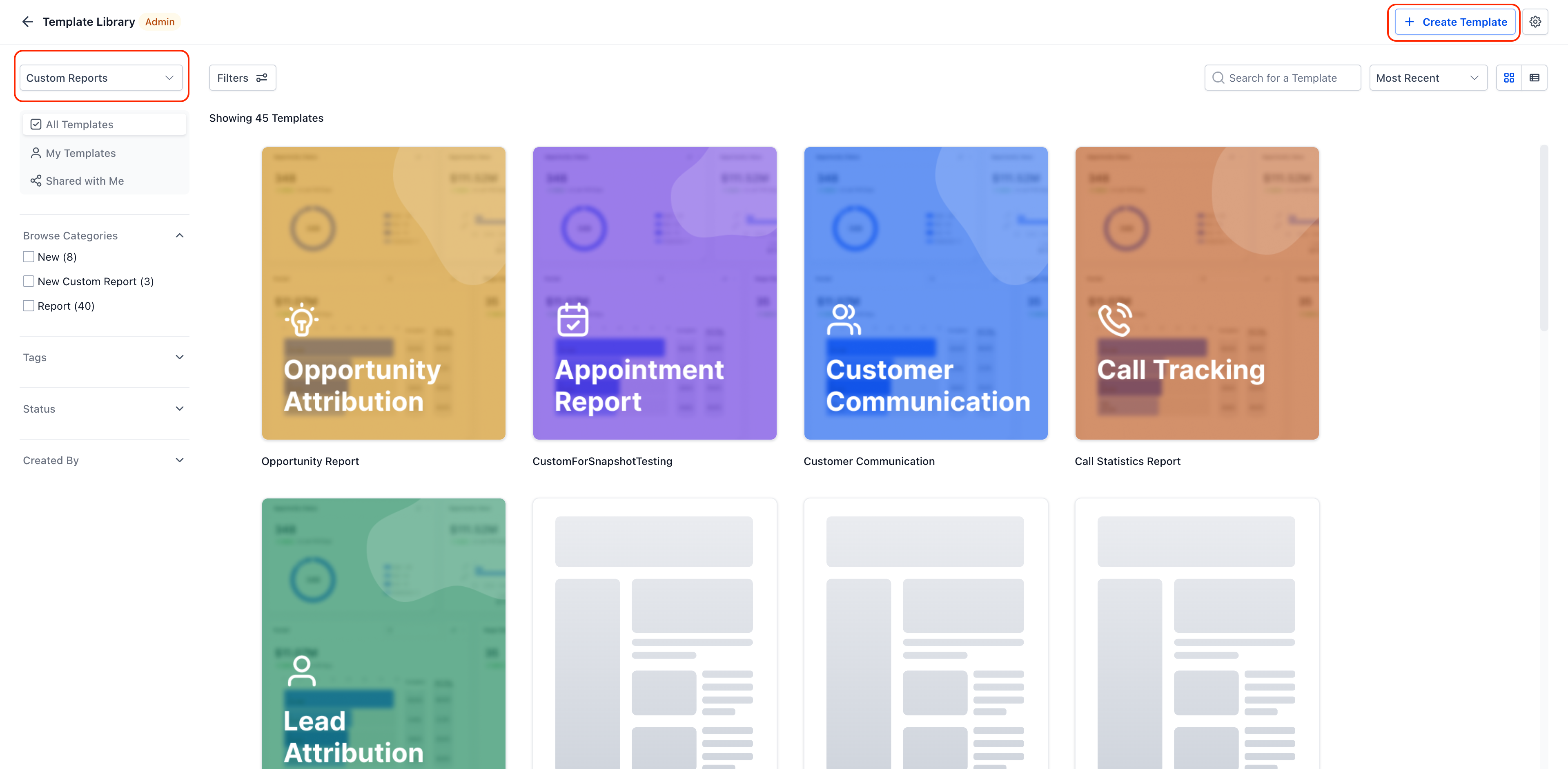
Step 3: Filter and Preview
Filter by niche or tags to find the right template
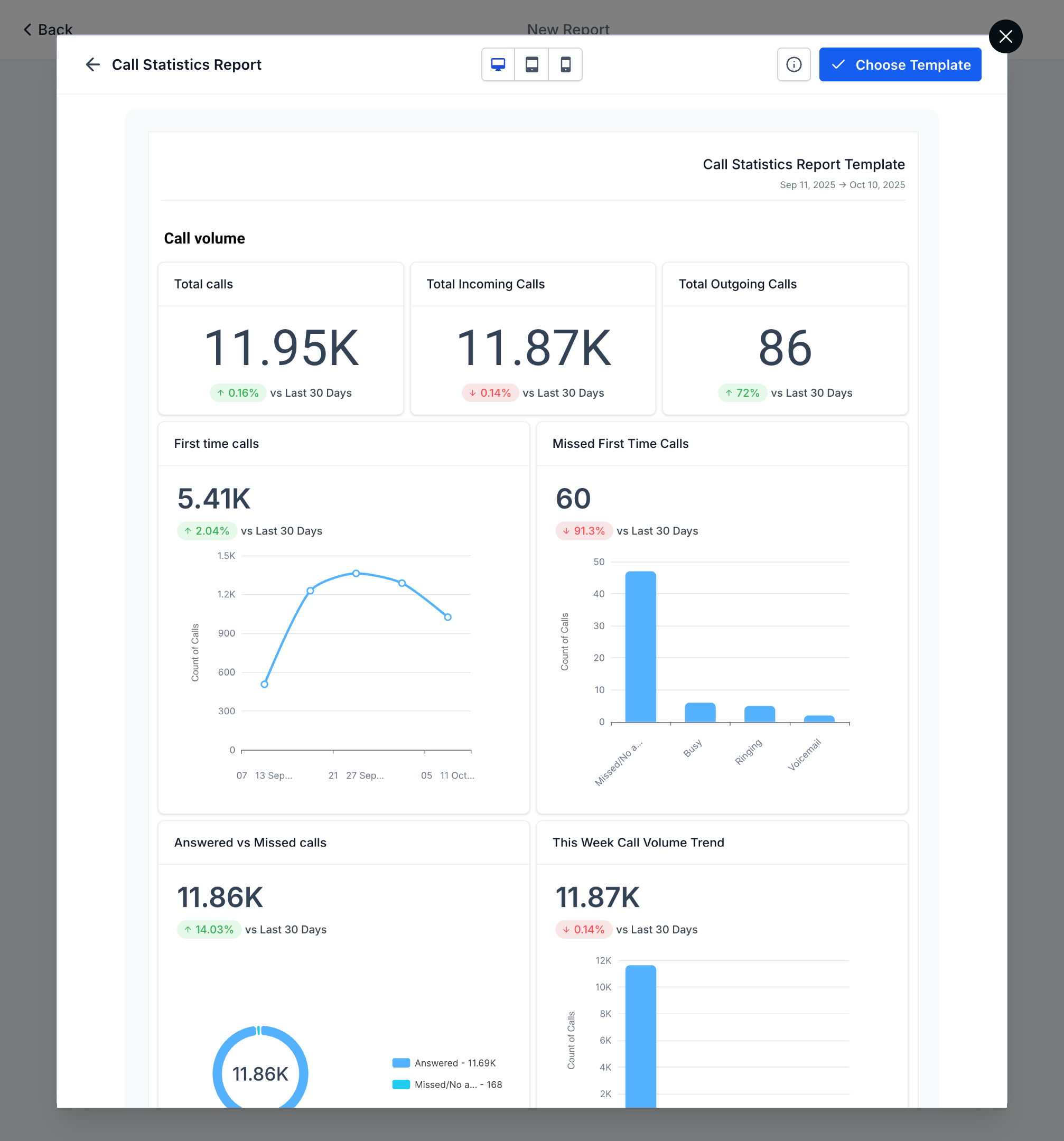
Click a template → Preview to view it with live data
Click Use Template to apply it
Step 4: Customize and Schedule
Edit metrics, filters, and visuals as needed
Click Save → Schedule to set delivery cadence (daily, weekly, or monthly)
Optionally, Send Immediately or Download PDF
Sample Scenario: Weekly Client Marketing Report
Goal: Provide clients with consistent, branded weekly performance insights
Workflow:
Select Marketing Performance Template from the Template Library
Preview live campaign metrics and adjust filters for each client
Schedule automatic delivery every Monday morning via email
Outcome:
Clients receive professional, brand-aligned weekly performance reports without manual setup. Your team saves hours each week and ensures consistency across all client reports.
Frequently Asked Questions
Q: Will editing a template update existing reports?
A: No. Templates are starting points. Edits affect future reports; existing or scheduled reports remain unchanged.
Q: Can I hide specific templates from certain sub-accounts?
A: Not directly. Use a hidden category to exclude templates from view.
Q: Why do numbers differ between builder, email preview, and ads widgets?
A: Different time zones: browser, sub-account, and connected ad accounts can cause discrepancies.
Q: Are images included in downloaded PDFs?
A: Images and iframes may appear in previews/emails but not in downloaded PDFs due to security restrictions.

Copyright © 2026 TekMatix. All rights reserved | [email protected]