
TekMatix Blog & Help Articles
Use the search bar below to look for help articles you need.

How to Automate AI Studio Form Submissions with Workflows in Tekmatix
Capturing a lead is only the beginning. The real value comes from what happens next.
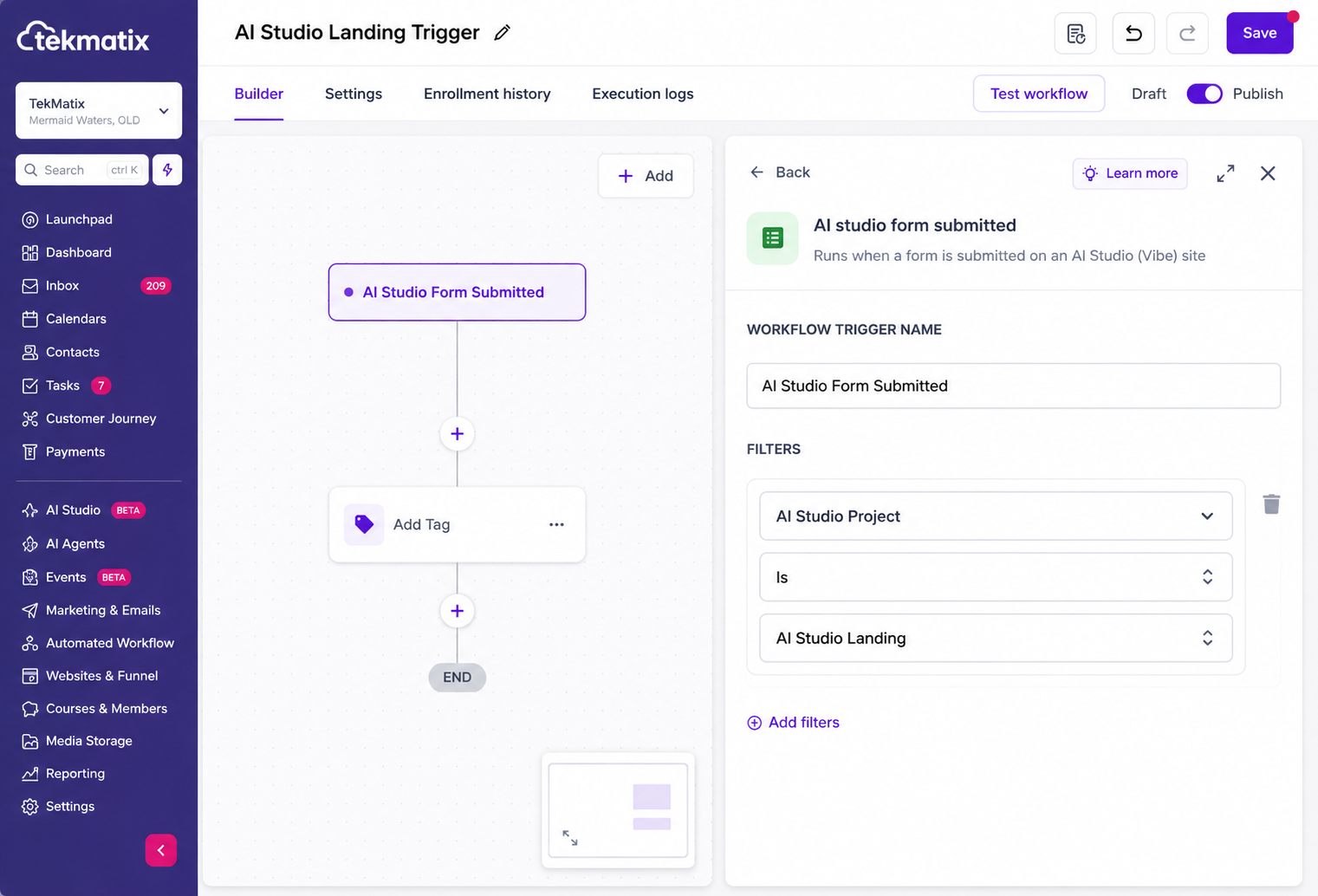
With AI Studio forms connected to Tekmatix CRM, you can automatically launch workflows whenever someone submits a form on your AI Studio website.
Whether you want to send a welcome email, notify your team, assign contact tags, send SMS messages, or create new opportunities, workflow automation helps you respond instantly without any manual work.
Using the built-in External Tracking Event trigger, you can seamlessly connect your AI Studio forms to your existing automation workflows and deliver faster, more consistent follow-up for every new lead.
What's New?
AI Studio forms can now trigger workflows through the External Tracking Event workflow trigger after they're connected to CRM tracking.
When a visitor submits a connected AI Studio form, you can automatically:
Send welcome emails
Send SMS follow-ups
Notify your team
Apply contact tags
Create sales opportunities
Launch additional workflow automations
This makes it easy to nurture new leads immediately after they engage with your website.
How It Works
Setting up AI Studio form automation only takes a few steps.
Create or open your AI Studio project.
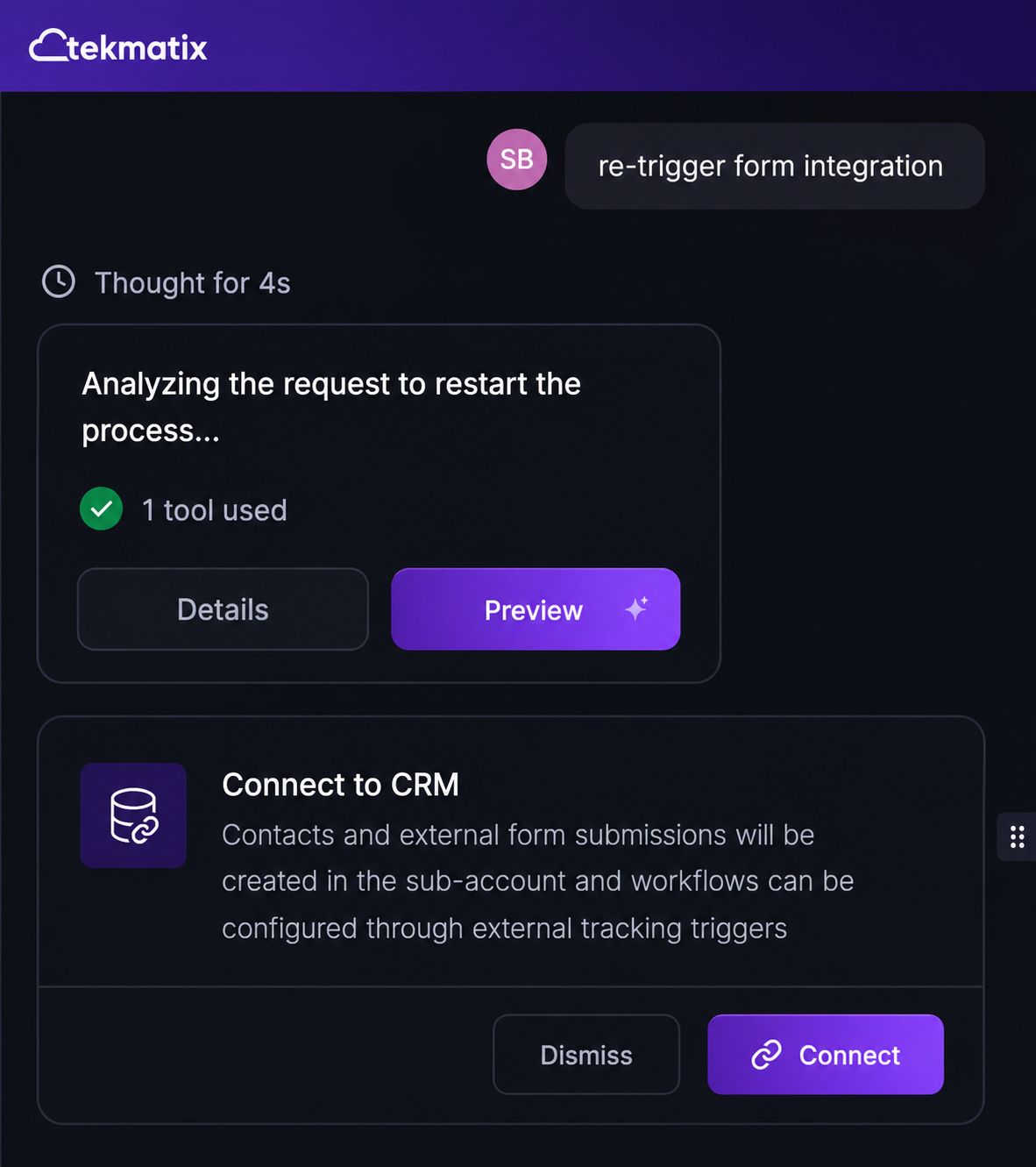
Connect your form to CRM tracking.
Publish your AI Studio project.
Open Automation and create or edit a workflow.
Add the External Tracking Event workflow trigger.
Select Form Submission as the event.
(Optional) Filter the trigger by Domain or External Form to target a specific AI Studio form.
Add the workflow actions you want to perform after a submission.
Save and publish your workflow.
Whenever a visitor submits the connected form, Tekmatix automatically starts the workflow and performs the actions you've configured.
Connect Existing AI Studio Forms
If your AI Studio form was created before connecting it to CRM tracking, you'll need to reconnect it before workflows can detect new submissions.
To update an existing form:
Open your AI Studio project.
Connect or reconnect the form to CRM tracking.
Publish the updated project.
Submit a test form entry.
Confirm the submission appears in your CRM.
Configure your workflow using the External Tracking Event trigger.
Once connected, future form submissions can automatically launch your workflows.
Keep Using External Tracking
AI Studio workflows use the existing External Tracking Event system, allowing your website forms to integrate seamlessly with Tekmatix automation.
Because this integration uses the existing tracking framework, you can continue building powerful workflow automations while managing AI Studio forms alongside your other tracked events.
Why This Feature Matters
Automating form submissions allows you to respond to new leads immediately without relying on manual follow-up.
With AI Studio forms connected to Tekmatix workflows, you can:
Respond instantly to new inquiries
Automate email and SMS follow-up
Notify team members automatically
Apply tags and update contact records
Create opportunities inside your CRM
Build personalized customer journeys
Automate lead nurturing from AI Studio websites
Whether you're collecting inquiries, generating leads, or booking appointments, connecting AI Studio forms to workflows helps ensure every submission receives timely, consistent follow-up.
Best Practices
For the most reliable automation experience:
Make sure your AI Studio form is connected to CRM tracking before creating your workflow.
Use Domain or External Form filters when managing multiple AI Studio websites to ensure the correct workflow is triggered.
Publish your AI Studio project after making changes to your forms.
Submit a test form after setup to verify that submissions are reaching your CRM and triggering your workflow as expected.
Review incoming submissions under Sites → Forms → Submissions → External Forms when troubleshooting.

Copyright © 2026 TekMatix. All rights reserved | [email protected]