
TekMatix Blog & Help Articles
Use the search bar below to look for help articles you need.
How to Use the User Replied Goal Event in Tekmatix Workflows
Overview
Tekmatix Workflows can now automatically respond when a member of your team replies to a contact.
The Goal workflow action now includes a new event called User Replied.
When a team member sends a reply through a supported conversation channel, the contact can immediately jump ahead to the selected Goal step, skipping any automated actions scheduled in between.
This helps you stop unnecessary nurture messages, prevent duplicate communication and smoothly transition a contact from automated follow-up to a real human conversation.
What’s New?
User Replied Is Now Available as a Goal Event
You can now select User Replied when configuring a Goal action inside a workflow.
Once this Goal is active, Tekmatix monitors the conversation for a reply sent by one of your team members.
As soon as a team member responds, the contact immediately advances to the Goal step.
Any workflow actions positioned between the contact’s current location and the Goal are skipped.
This allows your automation to adapt instantly when a team member begins personally communicating with the contact.
How the User Replied Goal Works
Imagine that a contact is moving through a seven-day follow-up sequence.
The workflow may include:
Email messages
SMS reminders
Wait steps
Internal notifications
Follow-up tasks
Additional nurture content
If a sales representative personally replies to the contact on Day 2, continuing to send the remaining automated messages may feel repetitive or confusing.
With the User Replied Goal, the contact immediately jumps forward to the Goal step.
The workflow can then:
End the automated sequence
Update the contact’s pipeline stage
Assign the contact to a team member
Add or remove tags
Create a follow-up task
Begin a different workflow
Send an internal notification
Continue into a human-led sales or support process
This gives your team greater control over when automation should stop and personal communication should take over.
How to Set Up the User Replied Goal
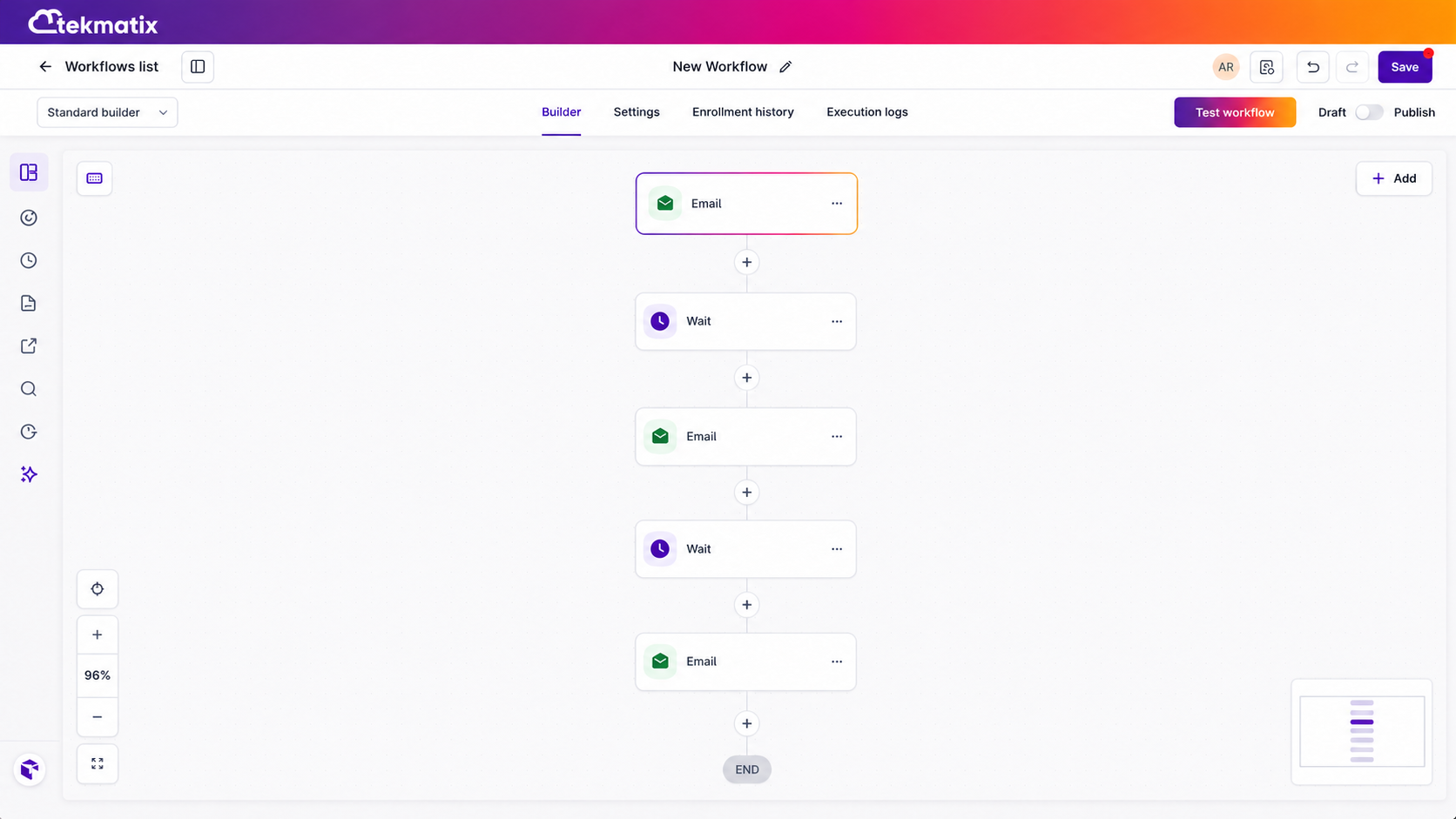
Step 1: Open Your Workflow
Navigate to:
Automation → Workflows
Open an existing workflow or create a new one.
Step 2: Add a Goal Action
Add a new workflow action and select Goal.
Place the Goal at the point where you want contacts to move when a team member replies.
For example, you may place it:
At the end of a nurture sequence
Before a pipeline update
Before a task assignment
Before an internal notification
At the beginning of a human follow-up process
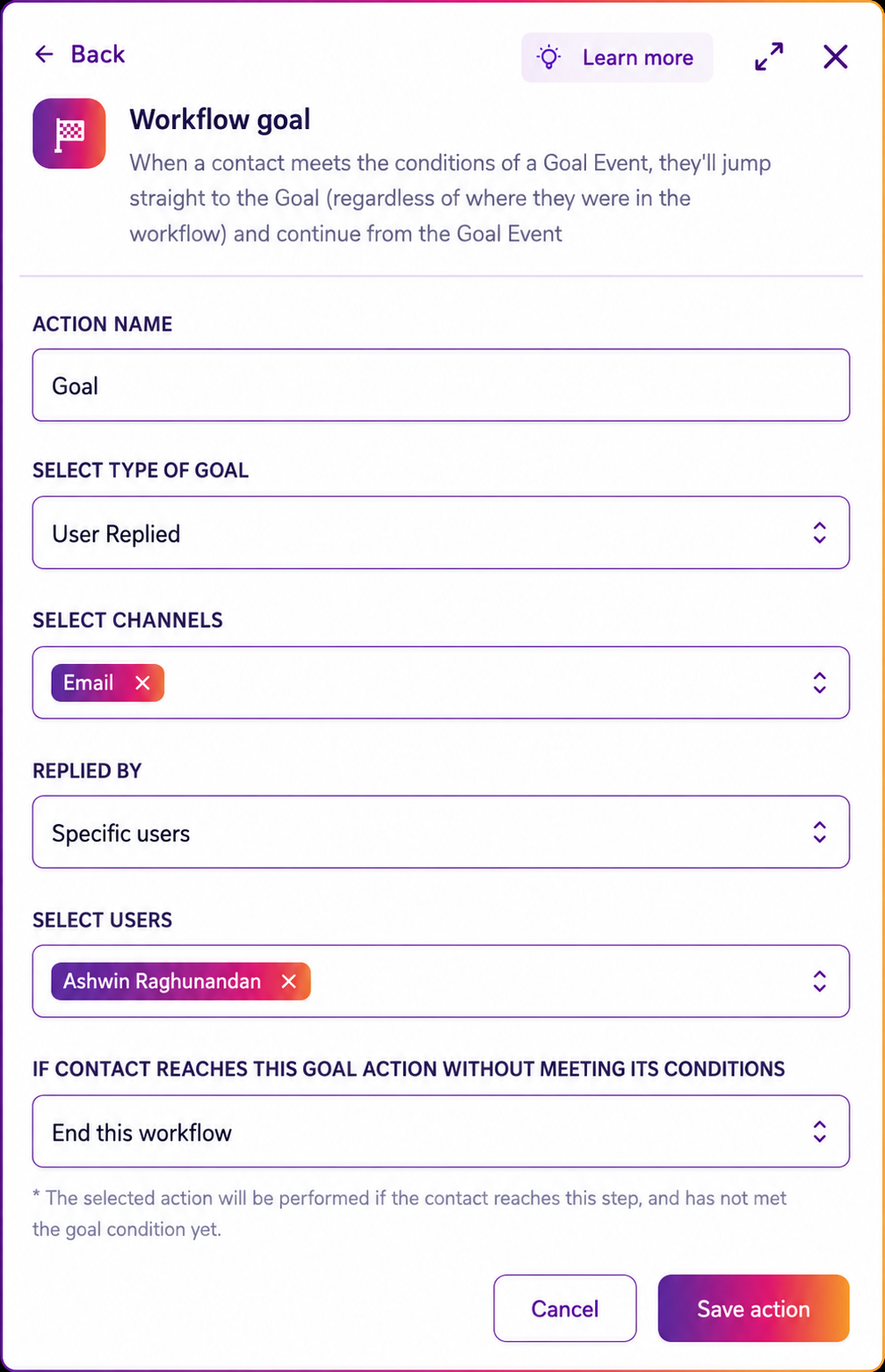
Step 3: Select User Replied
Open the Goal event settings and choose:
User Replied
This tells Tekmatix that the Goal should be reached when a team member sends a reply to the contact.
Step 4: Configure What Happens Next
Add the workflow actions that should run after the Goal is reached.
You may choose to:
Move the opportunity into a new pipeline stage
Mark the contact as being handled
Assign the contact to the replying team member
Remove the contact from an automated sequence
Create a sales or support task
Add a conversation-related tag
Notify another team member
End the workflow
Step 5: Save and Publish the Workflow
Review the workflow structure and confirm that the Goal is positioned correctly.
Save and publish the workflow when you are ready.
Practical Ways to Use the User Replied Goal
Stop a Lead Nurture Sequence
A new lead enters a seven-day email and SMS nurture sequence.
The workflow is scheduled to send:
A welcome email
An SMS follow-up
A case study
A reminder email
A booking invitation
On Day 2, a sales representative replies personally to the lead’s SMS.
The contact immediately reaches the User Replied Goal and skips the remaining nurture messages.
The workflow can then move the opportunity into a stage such as:
Sales Conversation Started
This prevents the lead from receiving generic messages while already speaking with a team member.
Stop Support Reminders
A support workflow sends reminders while a customer is waiting for assistance.
The workflow may be scheduled to send another message if no response has been provided within a certain period.
As soon as a support team member replies, the contact reaches the User Replied Goal.
The remaining reminders are skipped, preventing the customer from receiving messages suggesting that nobody has responded.
Transition From Automation to a Sales Conversation
A lead downloads a resource and enters an automated follow-up sequence.
A salesperson reviews the lead and decides to begin a personal conversation.
Once the salesperson sends a reply, the contact skips the remaining automated messages and moves into a human-led follow-up process.
The workflow could then:
Assign the opportunity to the salesperson
Move the opportunity into Contacted
Create a follow-up task
Notify the sales manager
Apply a Human Follow-Up tag
Prevent Duplicate Appointment Messages
A workflow encourages a prospect to book an appointment.
Before the next automated reminder is sent, a team member replies personally to answer the prospect’s questions.
The User Replied Goal can stop the automated reminders while the team member handles the conversation directly.
End Automated Client Onboarding Reminders
A client onboarding workflow may send reminders asking the customer to provide information or complete a task.
When an account manager replies personally to assist the customer, the User Replied Goal can stop the automated reminders and move the contact into a personalised support process.
Why This Update Matters
Automation is valuable because it helps businesses follow up consistently.
However, automation should not continue blindly once a real conversation has started.
Without a clear stopping point, contacts may receive automated messages that:
Repeat information a team member has already provided
Interrupt an active conversation
Create confusion about who is responding
Make communication feel impersonal
Send reminders that are no longer relevant
Cause sales or support teams to duplicate each other’s work
The User Replied Goal helps your workflows recognise when a team member has stepped in.
This makes it easier to maintain a balance between efficient automation and personal communication.
Key Benefits
With the User Replied Goal, you can:
Stop automated messages when a team member responds
Prevent duplicate sales and support communication
Skip unnecessary workflow actions
Move contacts directly to the next appropriate stage
Create smoother handovers from automation to your team
Improve the customer experience
Keep workflows aligned with real conversation activity
Reduce the risk of conflicting or poorly timed messages
Important Notes
The Goal is reached only when a Tekmatix user or team member sends a reply to the contact.
A reply from the contact does not trigger the User Replied Goal.
When the Goal is reached, the contact immediately jumps to the Goal step and skips any workflow actions positioned between their current location and that Goal.
The User Replied Goal is particularly useful for:
Lead nurture sequences
Sales follow-up workflows
Support reminder automations
Appointment booking campaigns
Client onboarding workflows
Re-engagement campaigns
Human handover processes
Create More Human Automation in Tekmatix
The best workflows do not simply send messages on a schedule.
They respond to what is actually happening.
By using User Replied as a Goal event, your Tekmatix workflows can recognise when your team has begun a personal conversation and adjust the automation immediately.
This helps you protect the customer experience, reduce unnecessary messaging and create a much smoother transition from automated follow-up to genuine human engagement.

Copyright © 2026 TekMatix. All rights reserved | [email protected]