
TekMatix Blog & Help Articles
Use the search bar below to look for help articles you need.
How To Sell Gift Cards Across Multiple Channels Using Tekmatix
How To Sell Gift Cards Across Multiple Channels Using Tekmatix
Why Selling Gift Cards in Tekmatix Matters
Gift cards are more than just a convenience feature they are a revenue accelerator.
With Tekmatix Gift Cards, you can:
Generate immediate cash flow before services are redeemed
Offer flexible gifting options for customers
Sell across multiple channels without rebuilding your checkout flows
Expand reach both online and offline (QR codes, embeds, invoices, etc.)
Whether you’re a local business, agency, coach, or service provider, gift cards help you monetize faster while giving customers an easy way to buy for themselves or others.
What Does “Selling Gift Cards” Mean in Tekmatix?
Selling Gift Cards in Tekmatix means offering a prepaid balance as a product that customers can purchase and redeem later.
Once purchased, Tekmatix:
Creates a Gift Card Order
Generates a unique gift card with:
A checkout link
An embed code
A QR code
Delivers the gift card immediately or on a scheduled date, depending on checkout selection
Gift cards can be sold as:
A standalone product
An add-on inside existing checkout flows
Key Benefits of Selling Gift Cards in Tekmatix
Why Businesses Use Gift Cards
Multiple sales channels: Sell via links, embeds, QR codes, or existing checkouts
Built-in gifting: Customers can buy for themselves or someone else
Safe testing: Separate Test and Live modes prevent errors
Upfront revenue: Get paid before services are redeemed
Brand control: Upload custom designs and match your brand look
Before You Start: Prerequisites Checklist
Before selling gift cards, confirm the following:
At least one Gift Card Product is created and active
Go to Payments → Gift Cards → Create Gift Card
A payment method is connected
Required to collect payments during checkout
Understanding Test Mode vs Live Mode
Tekmatix provides two environments to protect your business:
Test Mode
Used for internal testing only
Separate checkout links
Gift cards can only be redeemed in test checkouts
Live Mode
Used for real customer purchases
Gift cards are redeemable in live checkouts only
Tip: Always test pricing, delivery timing, and messaging in Test Mode before selling live.
Where You Can Sell Gift Cards in Tekmatix
Gift Cards can be sold across multiple channels simultaneously:
Dedicated Checkout Link
Embed Code (website pages)
QR Code (print or in-person use)
Forms
Funnels
Stores
Payment Links
Invoices
Calendars (if product payments are enabled)
Option 1: How To Sell Gift Cards Using a Dedicated Checkout Link
This is the fastest way to start selling gift cards no funnel or form required.
Steps
Go to Payments → Gift Cards

Locate your gift card product
Click Sell

Copy the Live Checkout Link

Share the link via email, SMS, social media, or website buttons
Best For
Email promotions
SMS broadcasts
Social media posts
“Buy Gift Card” website buttons
How to Access the Test Checkout Link for Gift Cards
Follow the steps below to copy a Test Mode link for internal QA purposes, without impacting live balances.
Steps
Go to Payments → Gift Cards
Open the Test Mode Checkout Link
In the top-right corner, click Test Mode Checkout Link. This will generate a test checkout link you can use safely for internal testing.

Customer Experience Using the Dedicated Checkout Link
This overview outlines the steps a buyer follows when purchasing a gift card through the Dedicated Checkout Link.
Steps
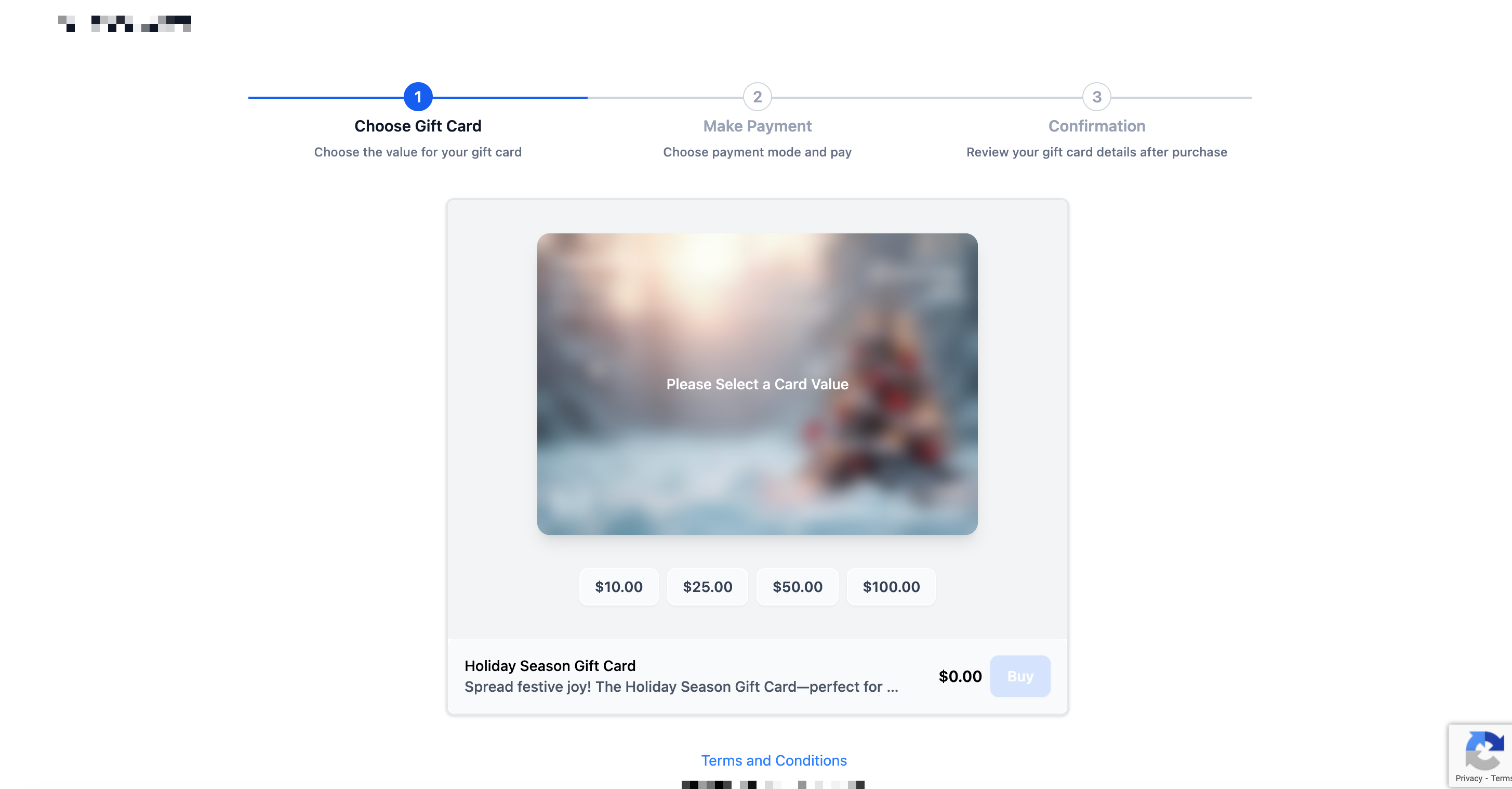
Choose a Gift Card Amount. The buyer selects one of the available denominations (for example, $10, $25, $50, or $100).
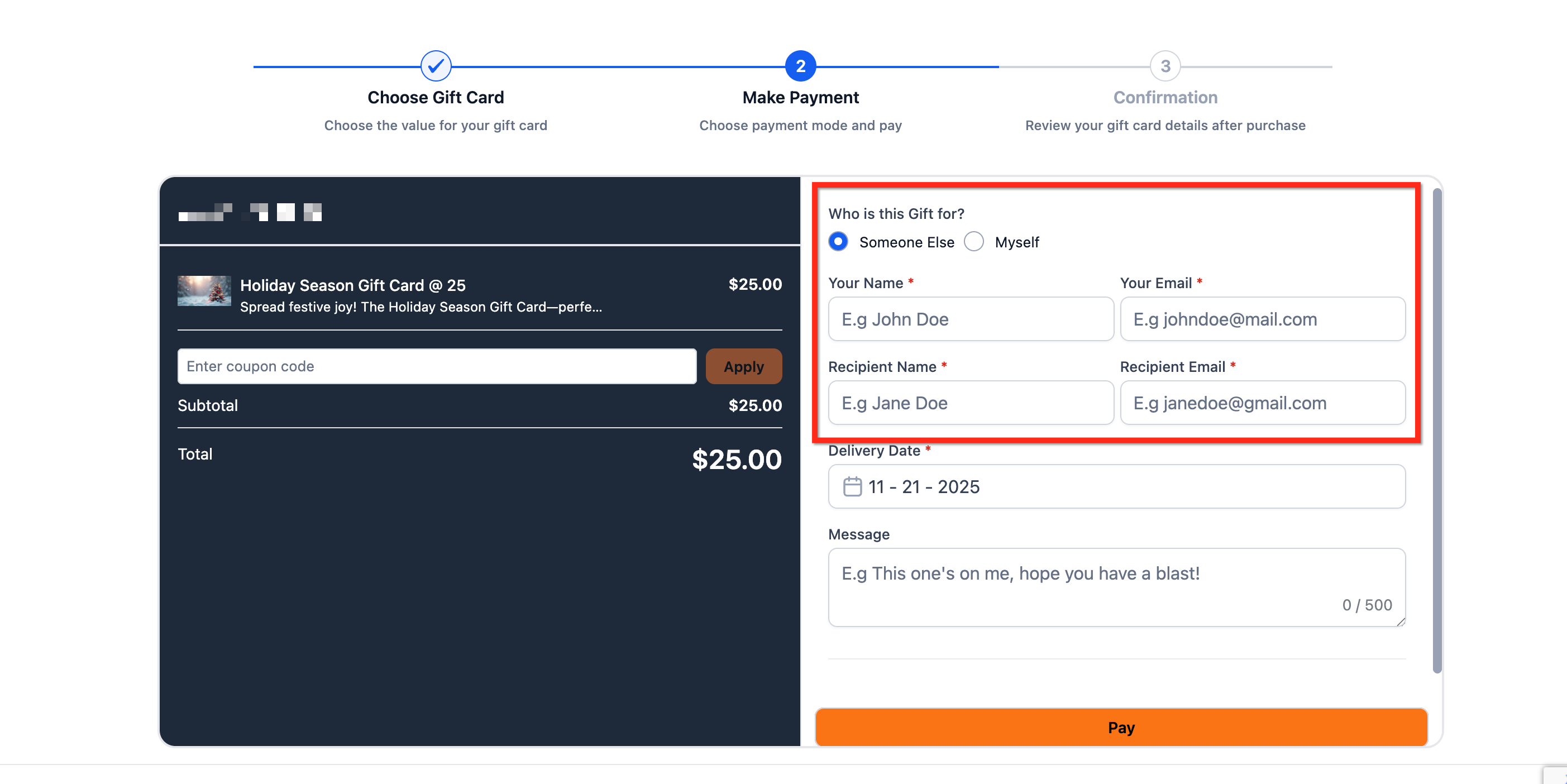
Choose the Recipient. The buyer indicates whether the gift card is for Myself or Someone Else.
For someone else: The checkout collects the recipient’s name and email, along with the sender’s name and email.
For myself: The checkout collects the buyer’s name and email.
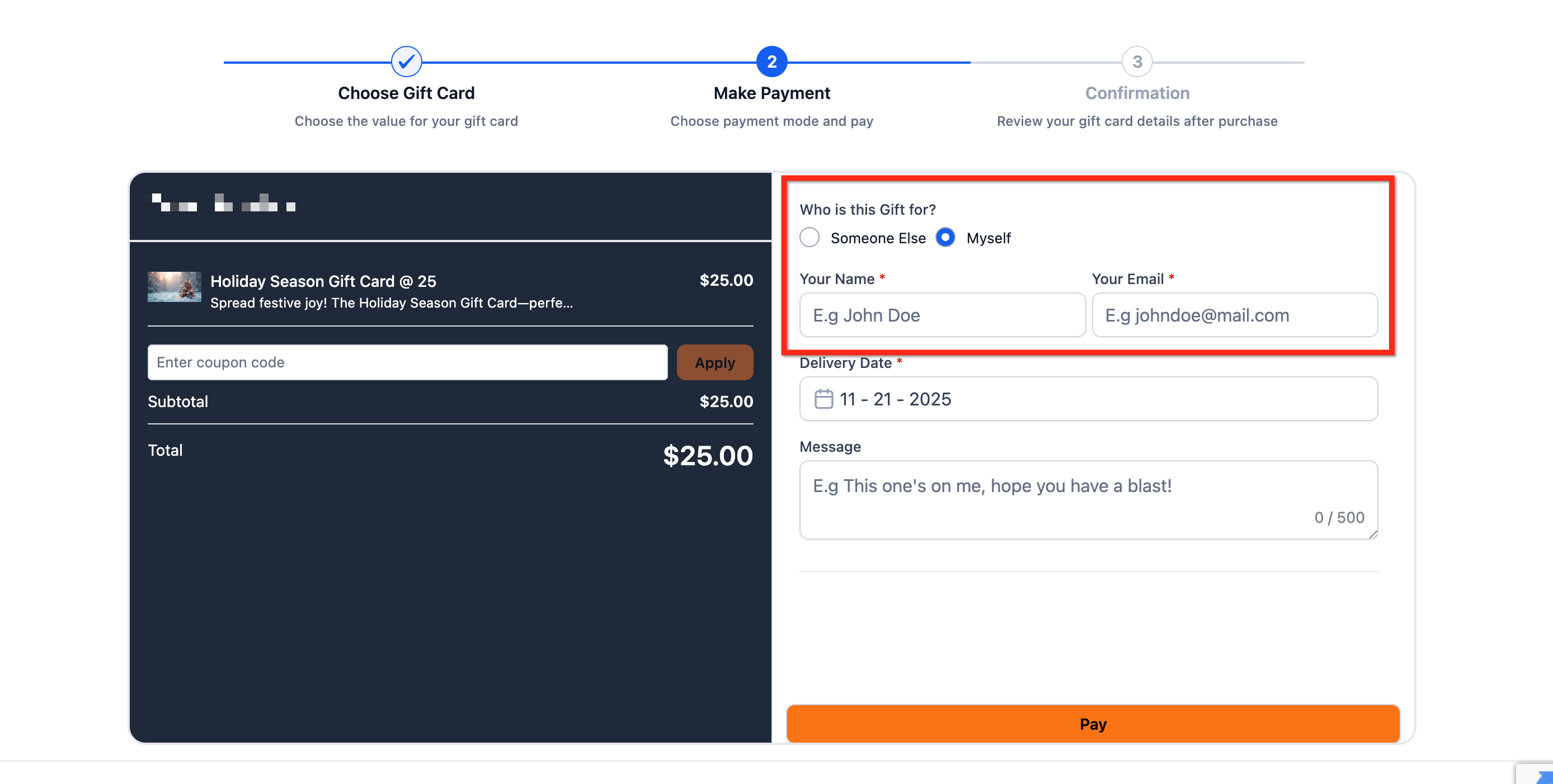
Set the Delivery Options. The buyer chooses to Deliver Now or Schedule for Later, selecting a date (and time, if available). An optional personal message can also be added for the recipient.
Important: Scheduled gift cards are sent at a later time; however, if the gift card code is accessed and used at any checkout before the scheduled delivery, it can still be redeemed.
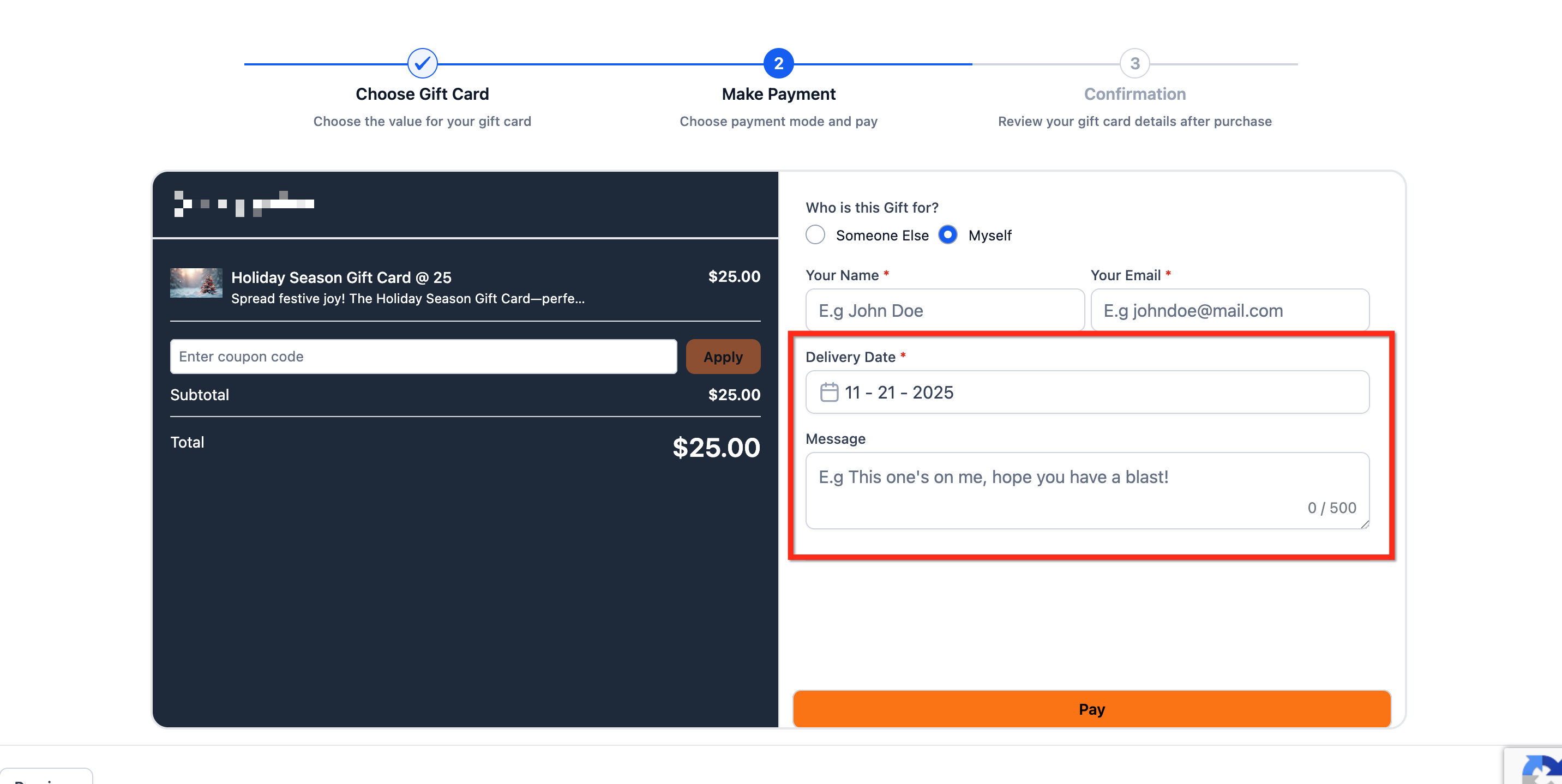
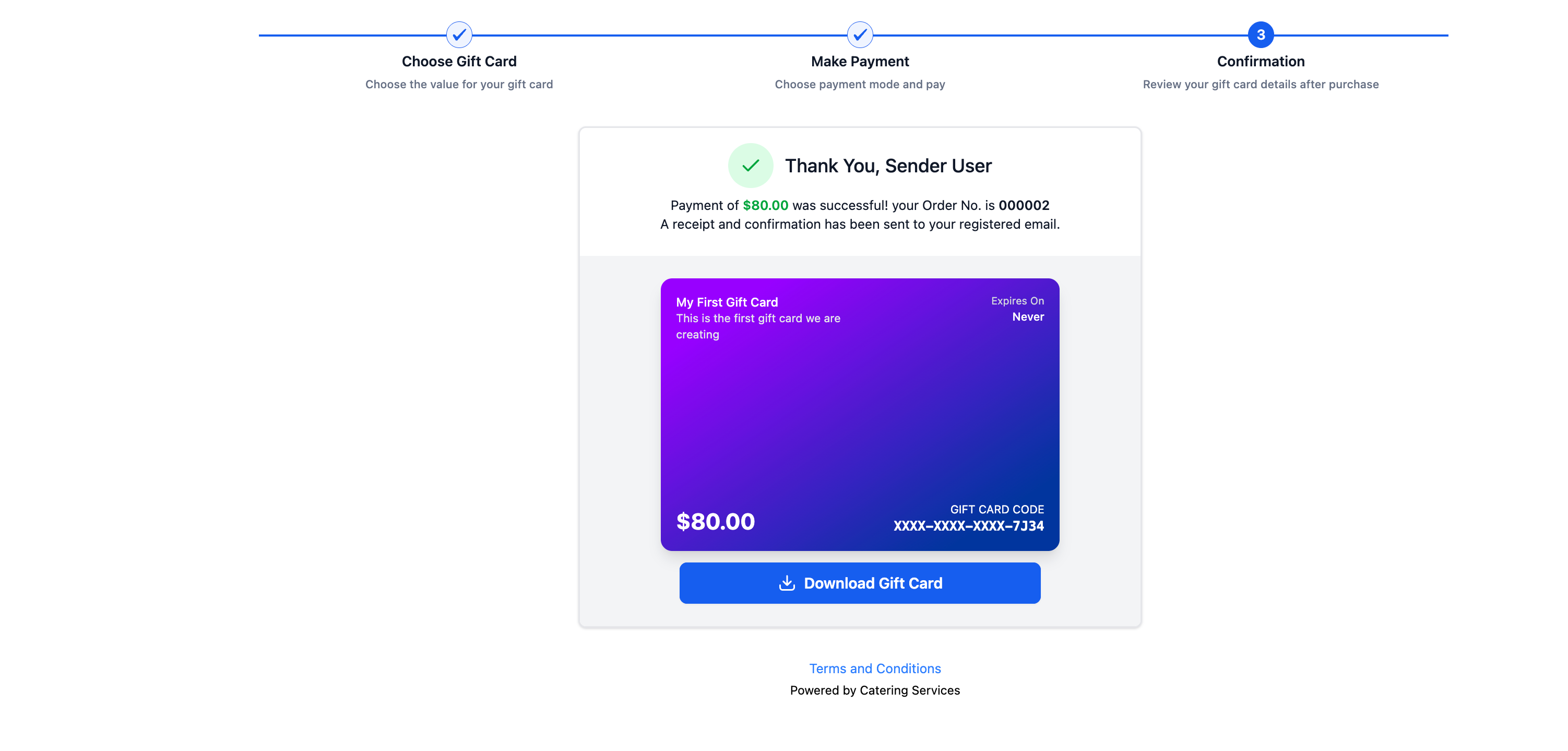
Complete Payment and Confirmation. The buyer selects a payment method and clicks Pay. Once the payment is successful, the buyer can immediately download the gift card from the confirmation screen.
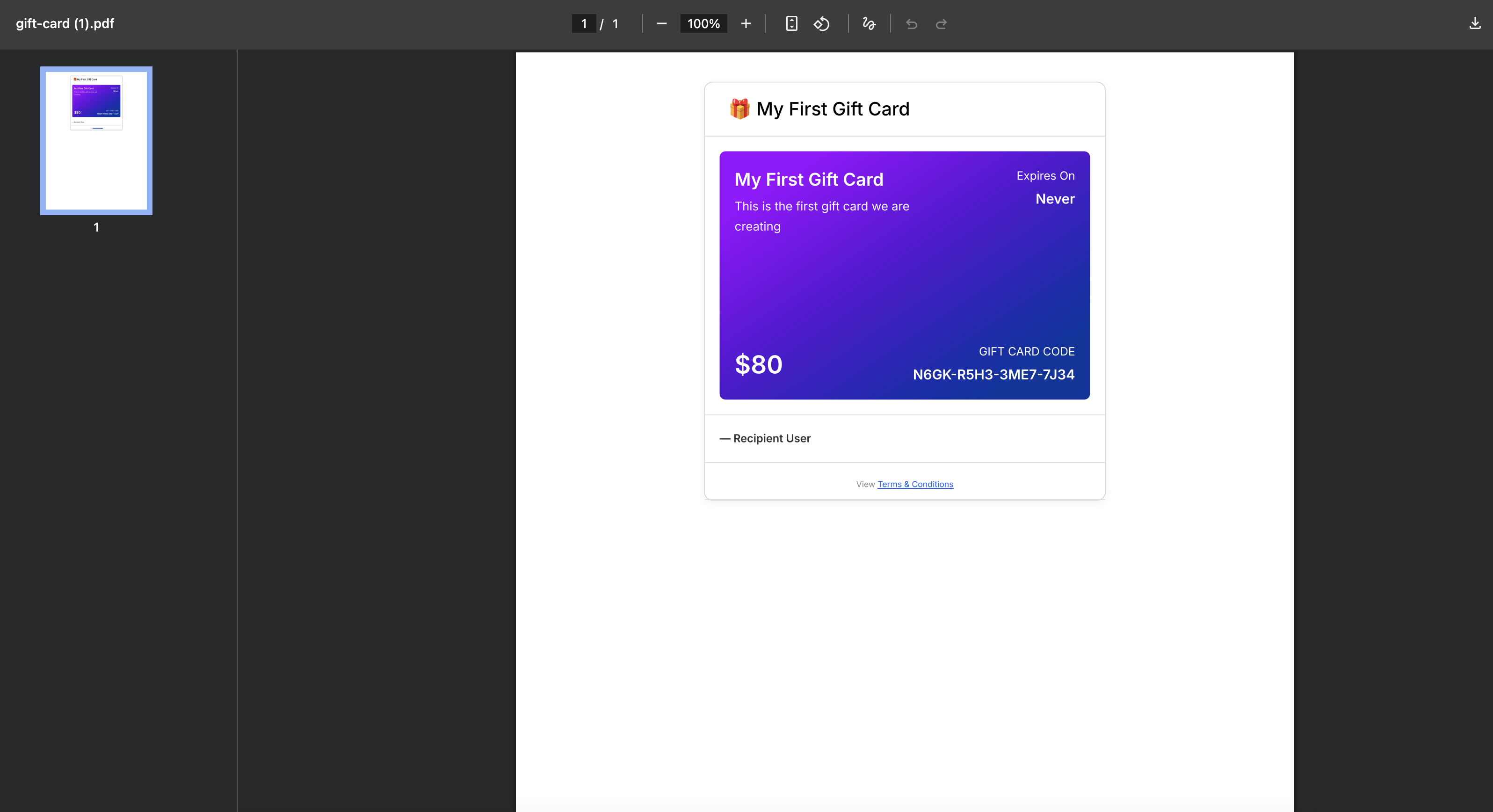
Step 5: Gift Card Delivery. If the gift card is for someone else, the recipient receives it via email at the selected delivery time (immediately or on the scheduled date).
Option 2: How To Sell Gift Cards Using an Embed Code
Embedding allows customers to buy gift cards without leaving your website.
Steps
Go to Payments → Gift Cards
Click Sell on the gift card
Copy the Embed Code

Paste it into:
WordPress pages
Blog posts
Landing pages
Link-in-bio pages
Option 3: How To Sell Gift Cards Using QR Codes
QR codes are ideal for offline and in-person sales.
Steps
Go to Payments → Gift Cards
Click QR Code on the gift card

Download or copy the QR link


Use it on:
Posters
Flyers
In-store signage
Event booths
Option 4: How To Sell Gift Cards Through Existing Checkouts
You can add gift cards as products inside your existing selling flows.
Supported Channels
Forms
Funnels
Stores
Payment Links
Invoices
Calendars
Adding Gift Cards to a Form
Go to Websites & Funnels → Forms

Open or create a form
Drag the Sell Products element
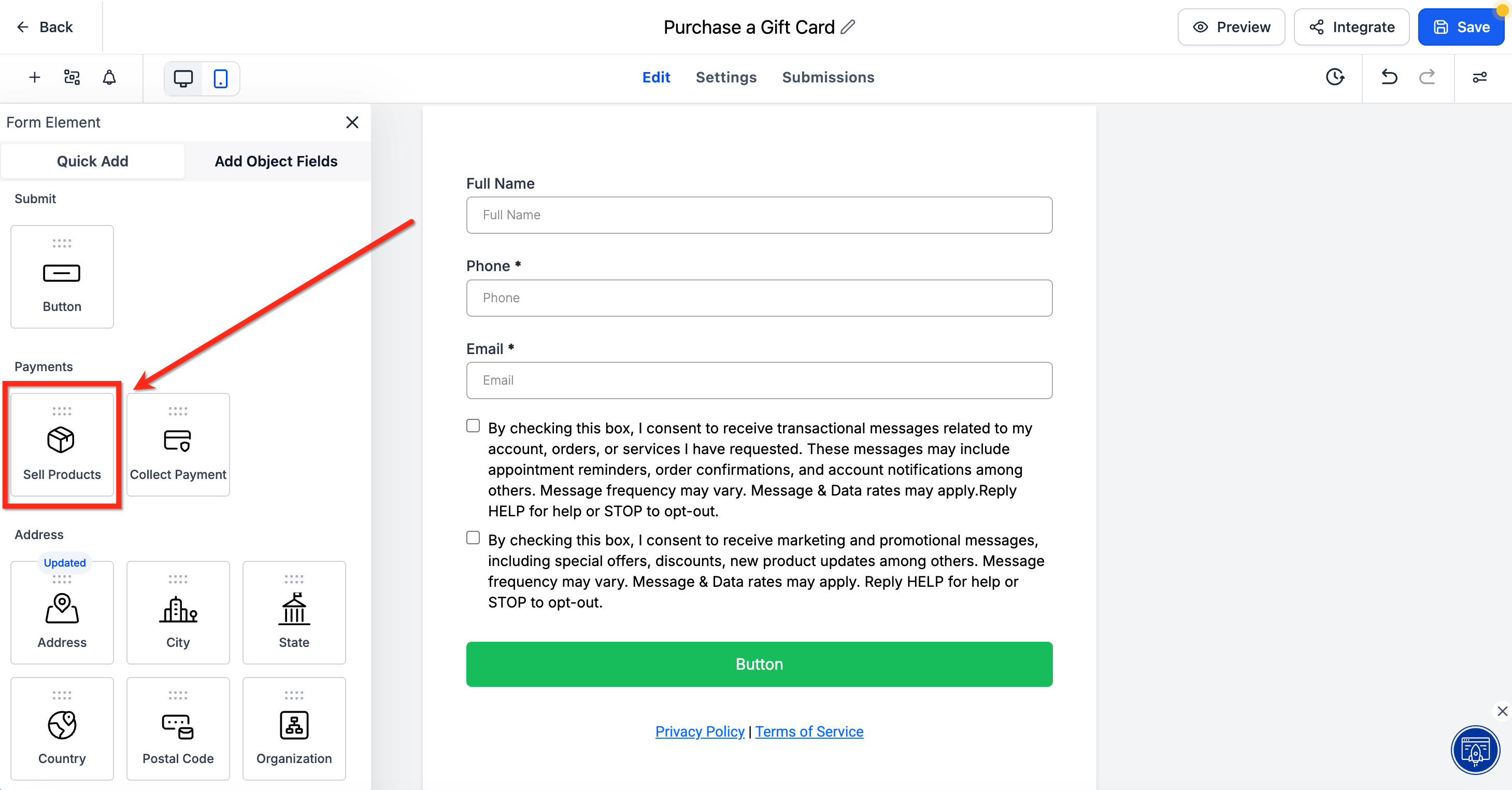
Select your gift card product
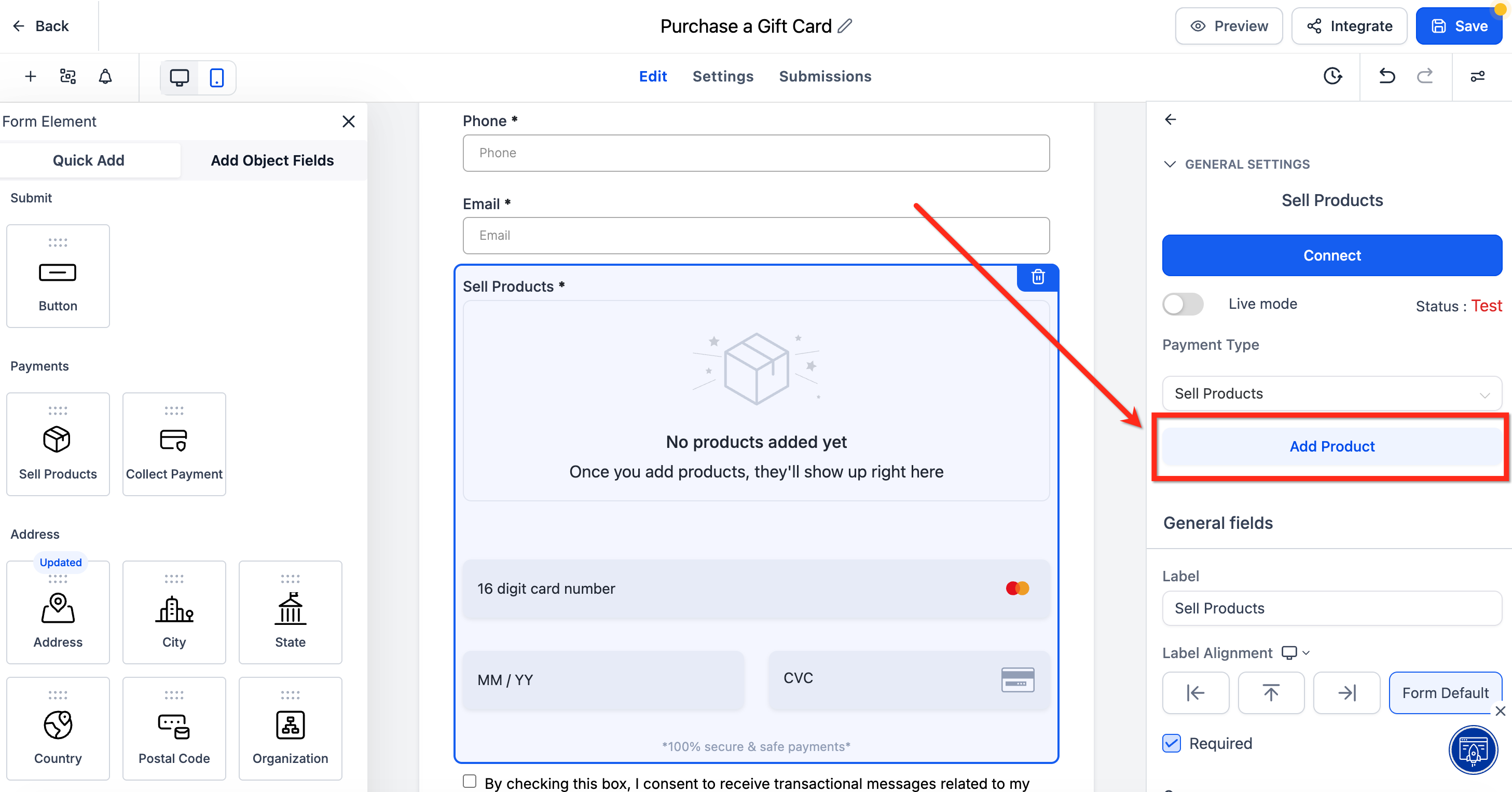
Save and publish
Selling Through Funnels
Offer gift cards on one-step or two-step order forms within a funnel.
Go to Websites & Funnels → Funnels
Open an existing funnel or create a new one.
Drag the Form element onto your funnel page.
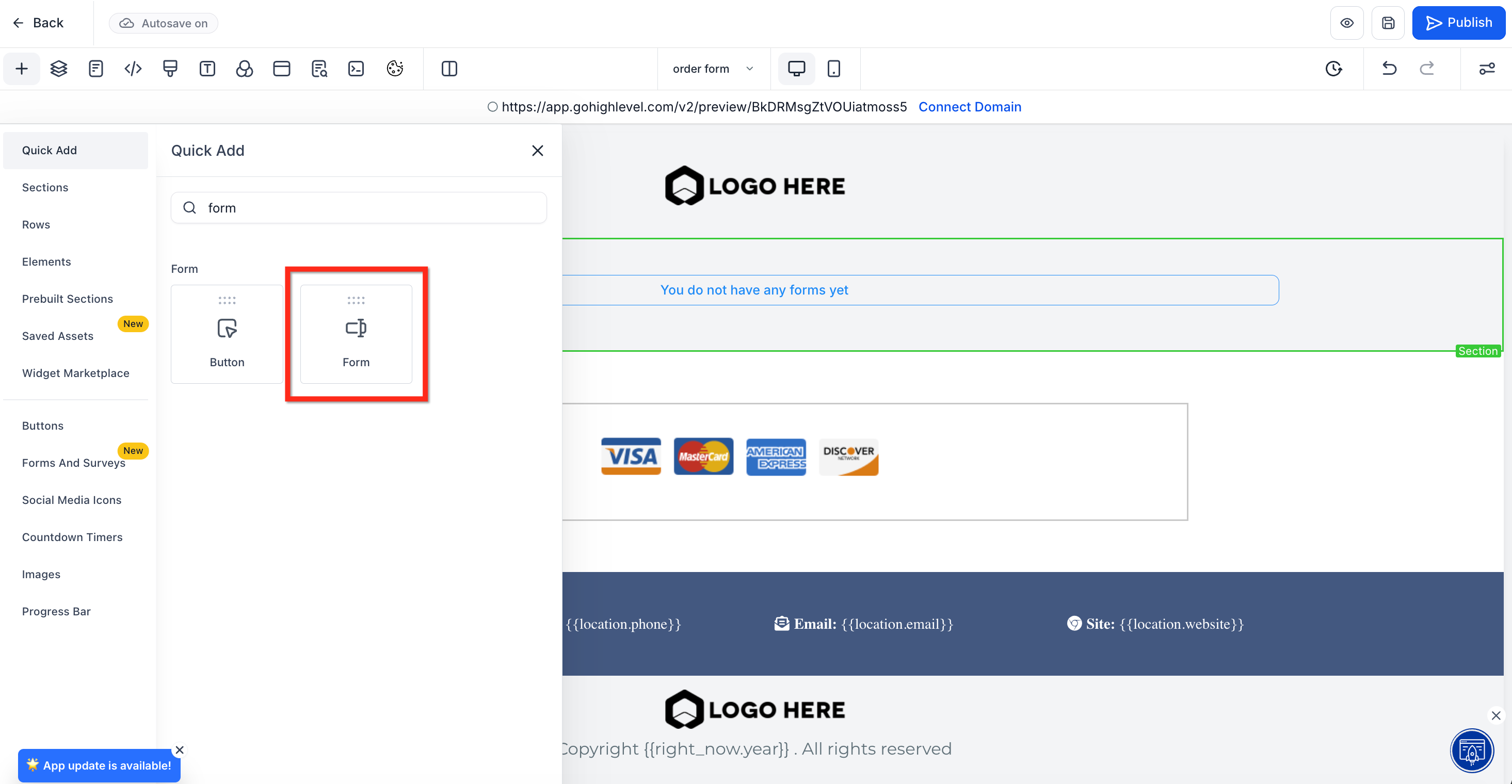
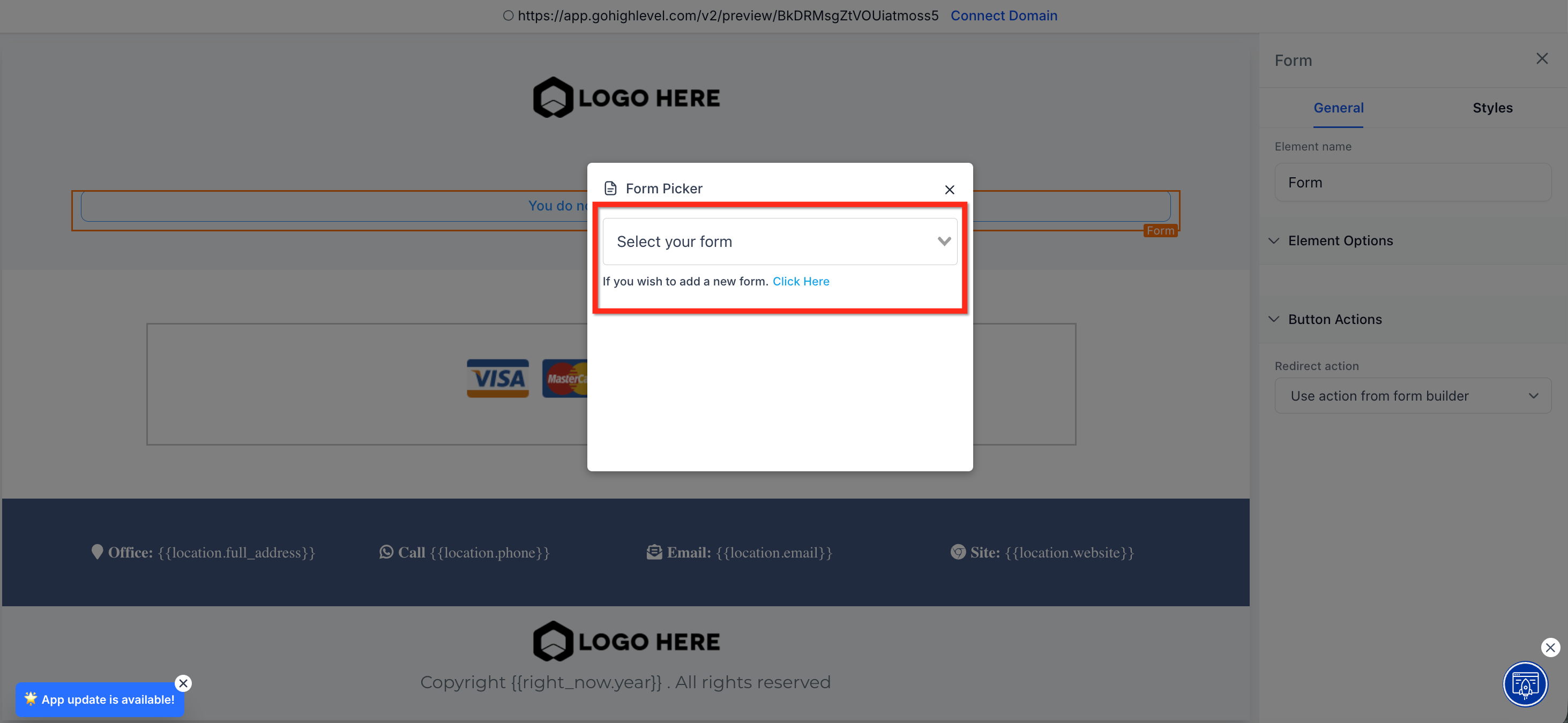
Click the form element and choose your gift card form from the dropdown. If you don’t have a gift card form yet, click the link to create one.
After adding the form and making edits, publish the funnel.
Selling Through Stores
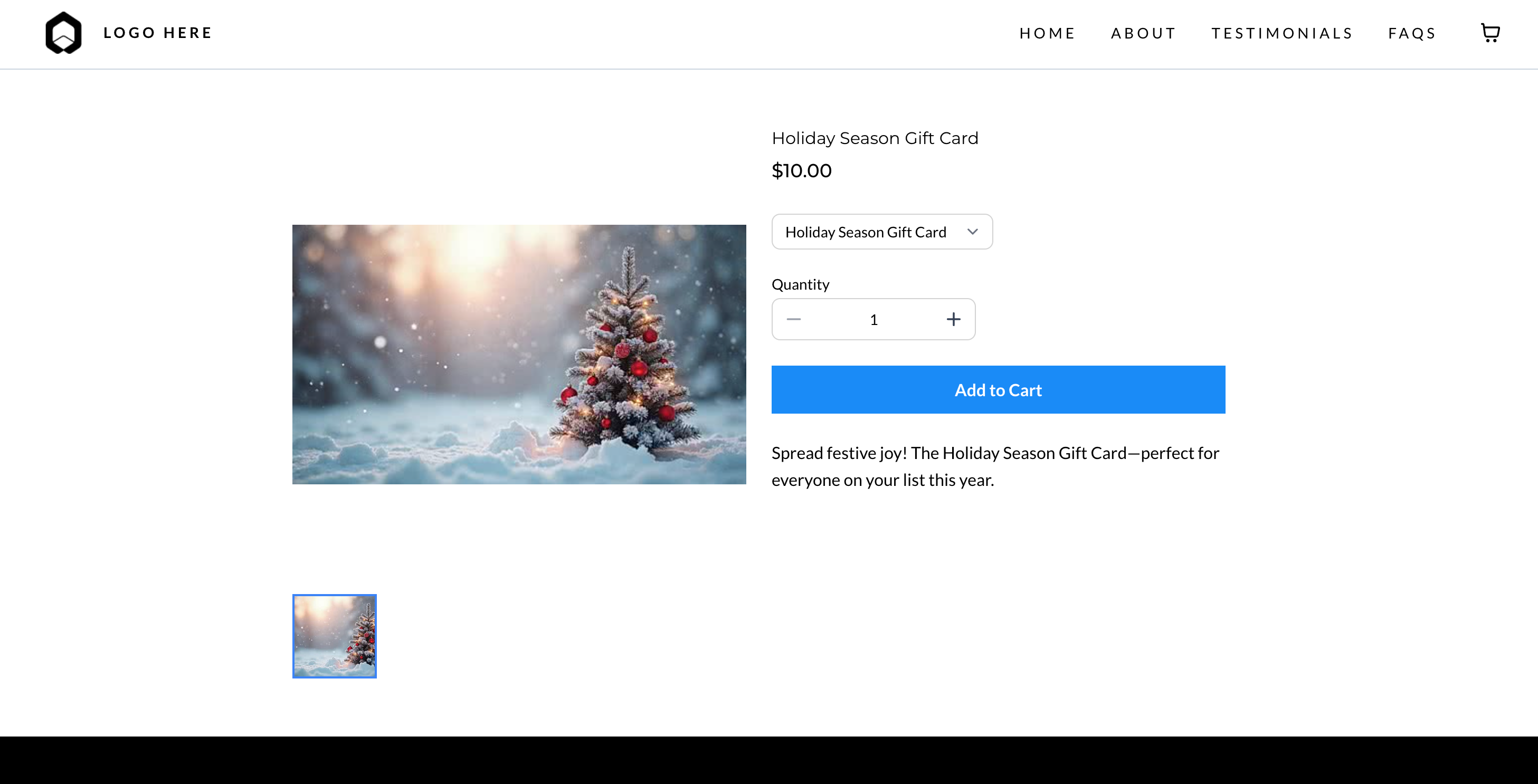
Display gift cards in your online store so customers can browse and purchase like any other product.
Go to Websites & Funnels→ Stores and open an existing store or create a new one.
Go to Products From the store page, select the Products tab.

Add Gift Card to Store. Check the box next to the gift card(s) you want to include. Click Bulk Actions → Include in this store.

Preview. Customers can now browse and buy gift cards just like any other product.
Selling Through Payment Links
Payment Links are quick to create and easy to share via email or chat.
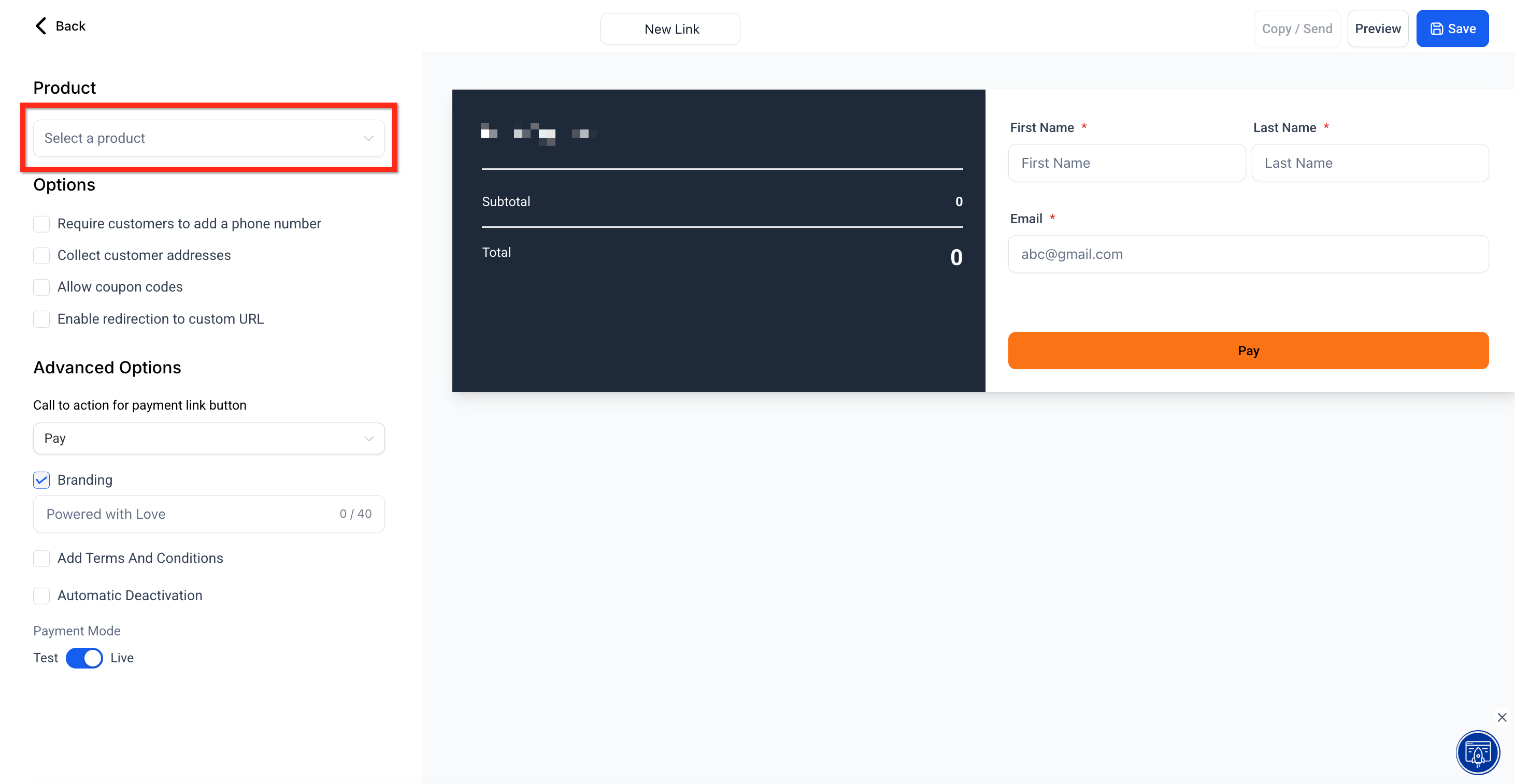
Create a Payment Link. Navigate to Payments → Payment Links and create a new link.

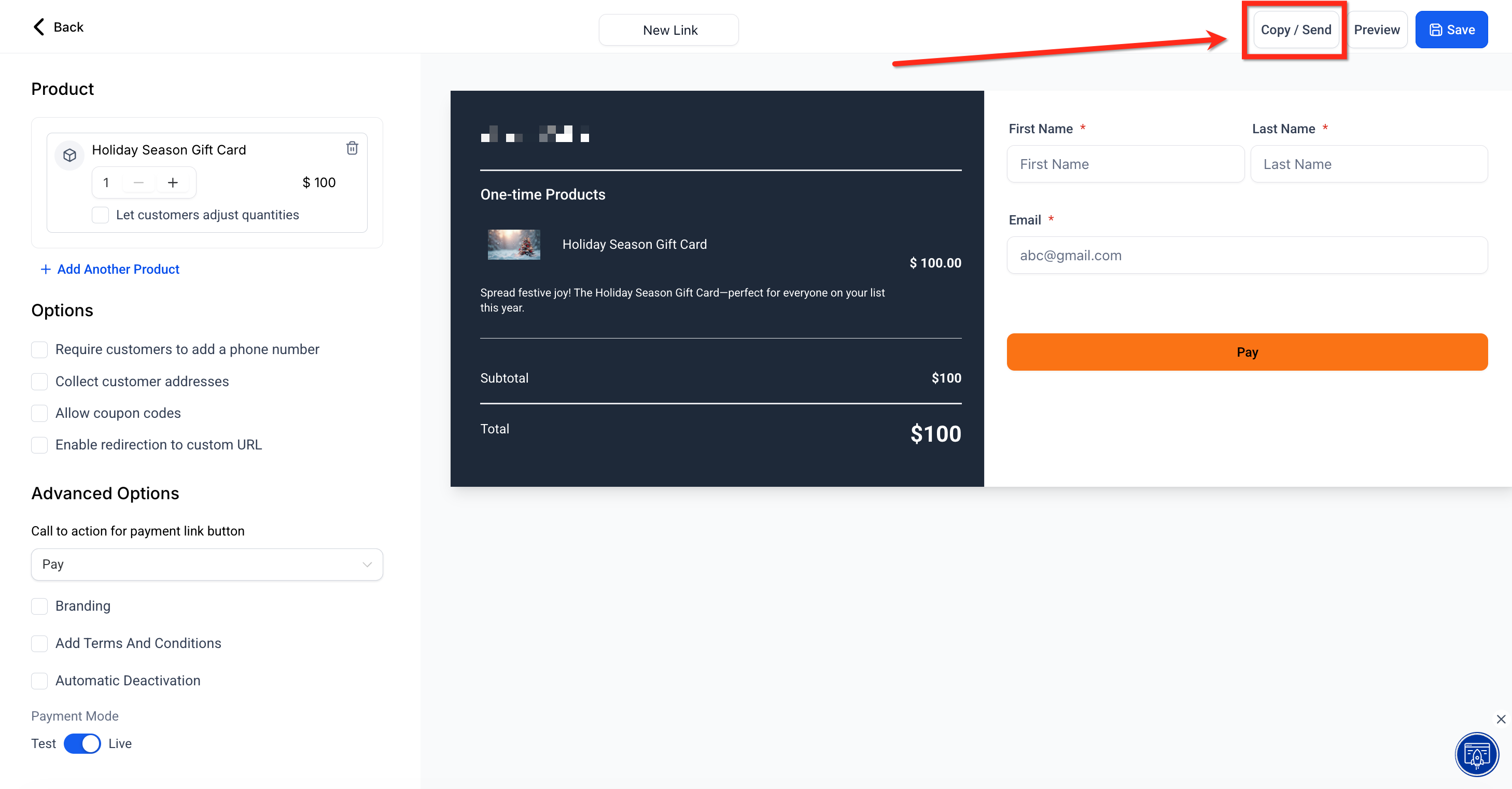
Add Gift Card as Product. Select your gift card from the product dropdown, then click Save.
Share the Link. Click Copy/Send to share the payment link with customers.
Selling Through Invoices
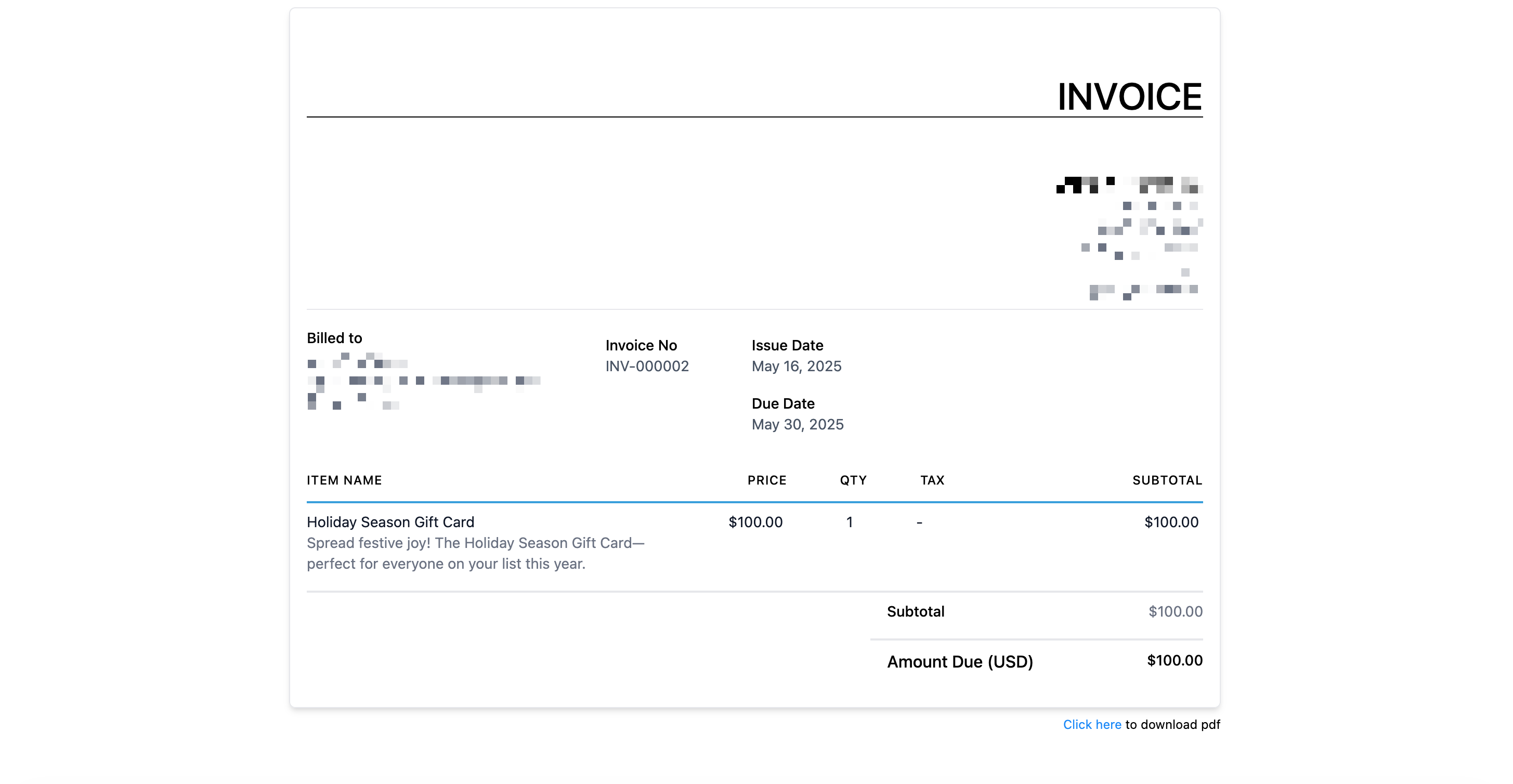
Gift cards can be added to invoices for customers who prefer invoicing workflows. Upon payment, a gift card order is generated automatically.
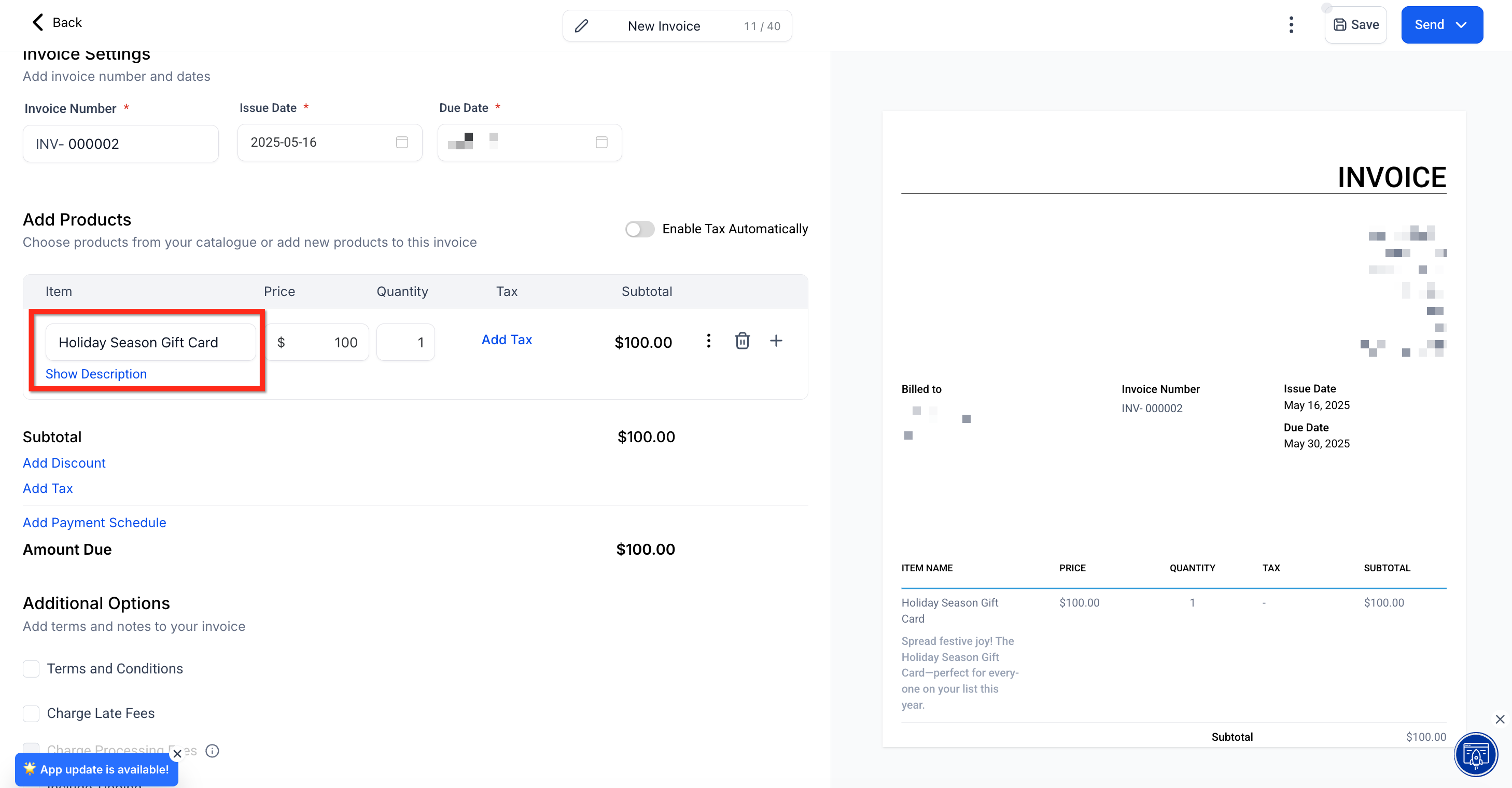
Open or Create an Invoice. Go to Payments → Invoices & Estimates and open or create an invoice.

Add Gift Card as Product. Under Add Products, select the gift card(s). Once ready, click Send to deliver the invoice to the customer.
Delivery Upon Payment. After the invoice is paid, the gift card is automatically delivered to the buyer.
Selling Through Calendars
If your calendar supports product-based payments, gift cards can be added to appointment flows. A gift card form must be created first.
Open Calendar Settings. Go to Calendar Settings and click Edit on the calendar you want to add gift cards to.

Select the Form. Under Forms & Payments, choose your gift card form from the Select Form dropdown.

Enable Payments. Toggle on Accept Payments under Payments, then click Save.

Sample Use Case: Holiday Campaign for a Local Business
Scenario
A local wellness studio wants to boost holiday sales.
Setup in Tekmatix
Creates $25, $50, and $100 gift cards
Shares the checkout link via email and SMS
Displays a QR code at the front desk
Adds gift cards to online checkout forms
Outcome
Customers buy gifts for friends and family
Revenue is collected before appointments are booked
Gift cards are redeemed gradually over time
Result: Increased cash flow and higher retention.
Frequently Asked Questions
Can I sell the same gift card across multiple channels?
Yes. Inventory updates automatically across all sales channels.
What happens if a gift card product is deactivated?
The checkout link stops working, but gift cards already added to other checkouts must be manually removed.
Can gift cards be used to buy other gift cards?
No. Gift cards cannot be used to purchase additional gift cards.
Which payment providers support redemption?
Redemption is supported with Stripe, NMI, Authorize.net, and Square.

Copyright © 2026 TekMatix. All rights reserved | [email protected]