
TekMatix Blog & Help Articles
Use the search bar below to look for help articles you need.

How To Save Time and Ensure Consistency With Tekmatix Element Templates
How To Save Time and Ensure Consistency With Tekmatix Element Templates
Why This Feature Matters
Building multiple pages or funnels often requires repeating the same buttons, headlines, forms, or other design elements. Tekmatix Element Templates let you save any single page-builder element with its styling to a centralized library. This ensures consistent branding, faster page builds, and eliminates repetitive work.
Using Element Templates is especially important for agencies and teams that manage multiple pages, funnels, or campaigns—keeping your designs on-brand and consistent across every page while saving hours of manual work.
Key Benefits of Element Templates
Consistent Branding: Reuse approved design elements to maintain your fonts, colors, and spacing.
Faster Page Builds: Insert proven design blocks instead of rebuilding from scratch.
Centralized Library: Access saved templates in one location, available to every user in the account.
Style Preservation: Ensure pixel-perfect design consistency for every element.
Simple Management: Easily rename or delete templates when updates are needed.
How To Save and Reuse Element Templates
Follow these steps to streamline your page-building workflow:
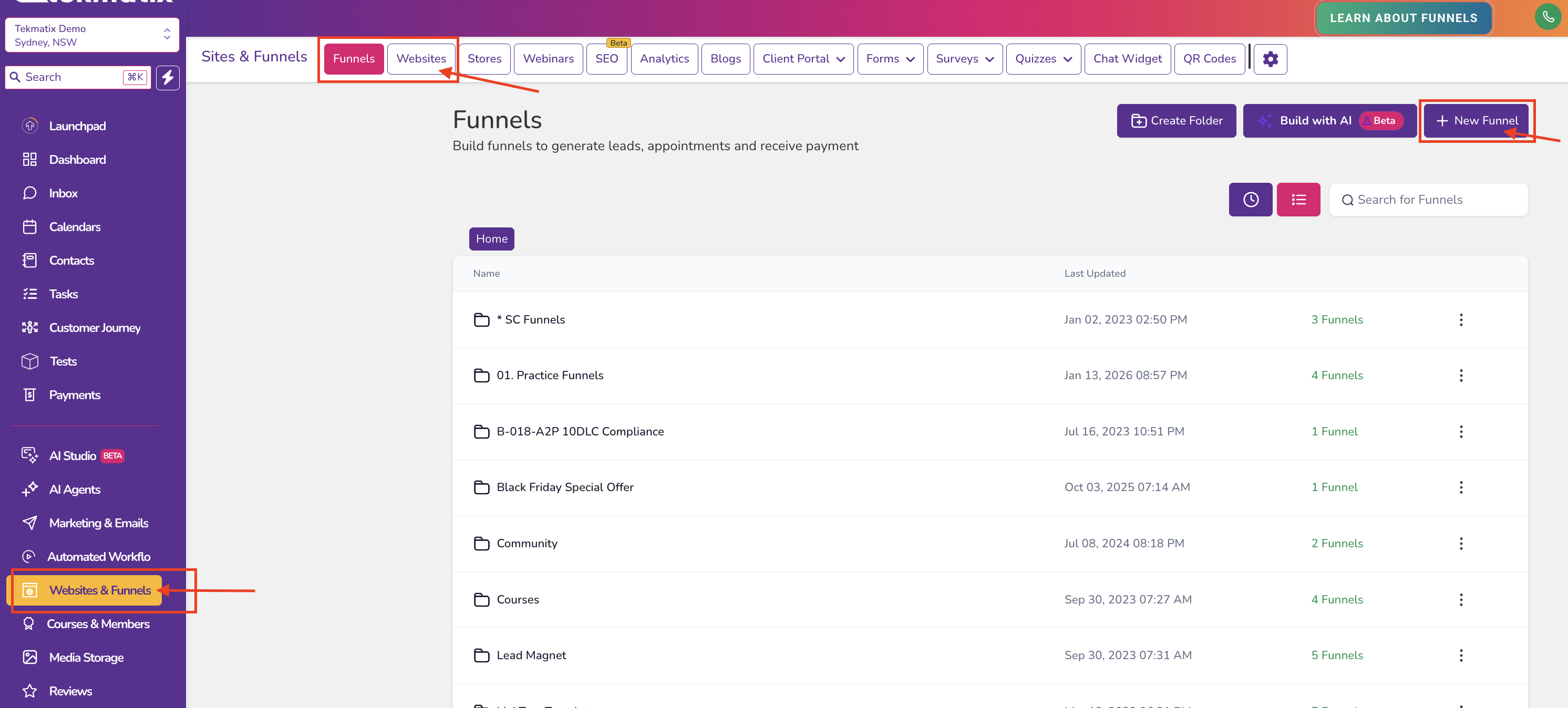
Step 1: Open Your Page Builder
Go to Websites & Funnels from your account.
Create a New Funnel/Website or edit an existing one.
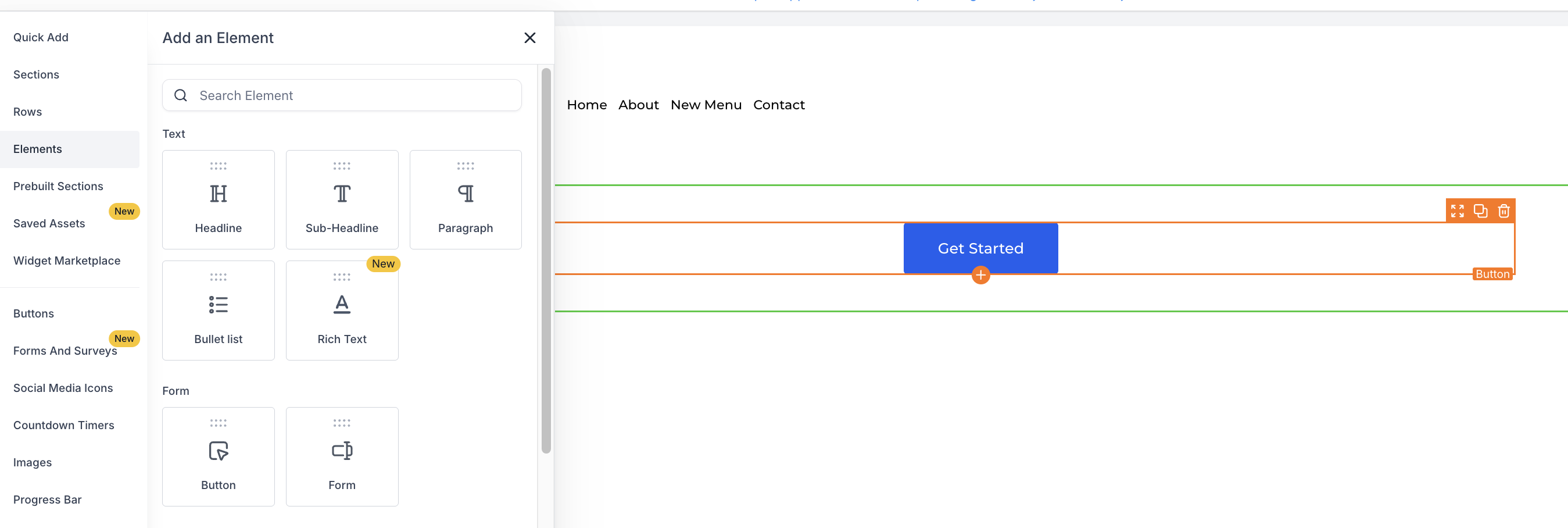
Step 2: Select an Element to Save
Add or edit any element—buttons, text, images, or forms.
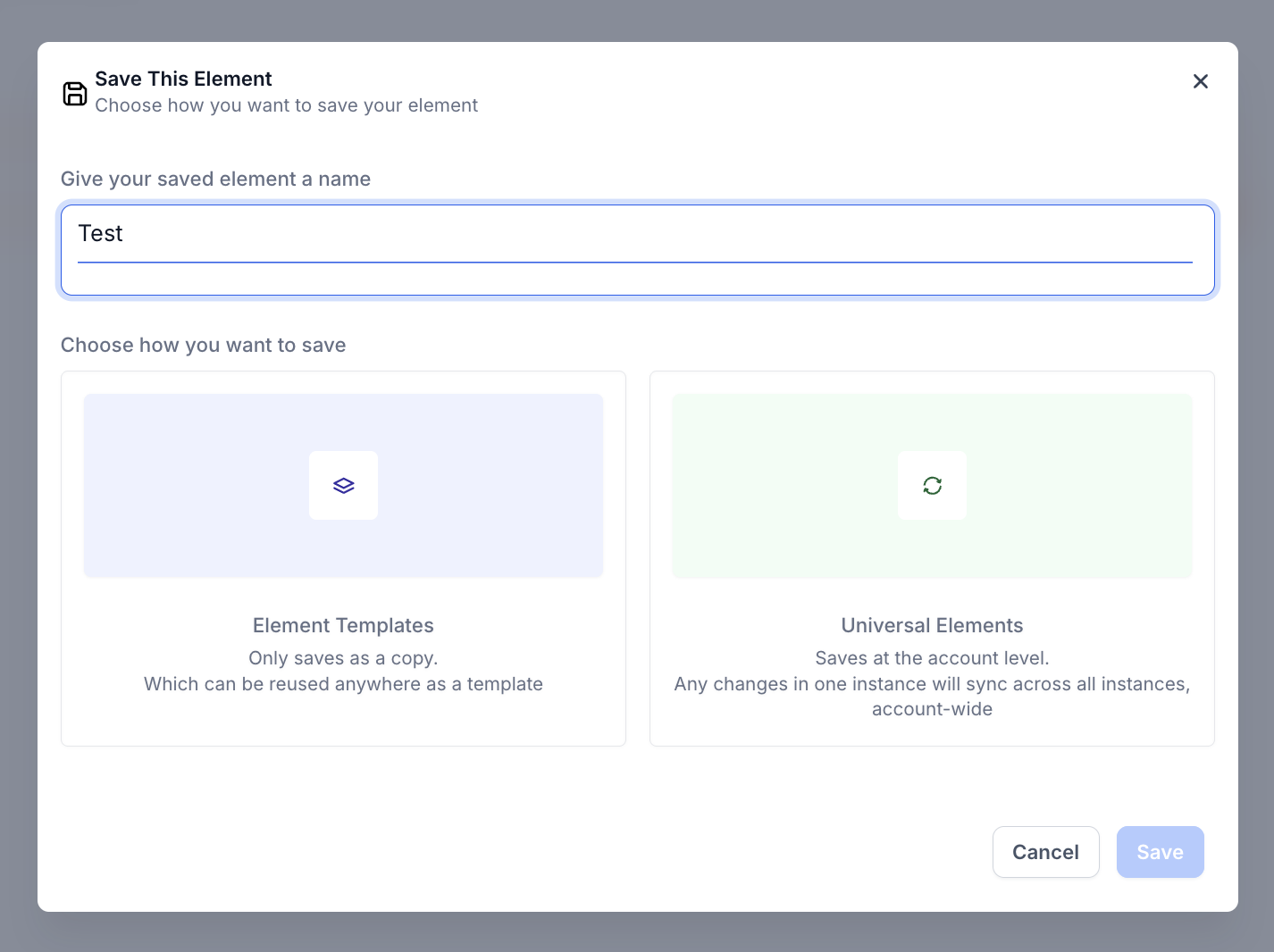
Step 3: Save as a Template
Option 1: Click the Save icon on the element’s outline toolbar.

Option 2: Open Layers → ⋯ → Save Element.
In the save modal, enter a clear, descriptive name (e.g., “Primary CTA Button”).
The element and its styling are now stored in the Element Templates library.
Step 4: Reuse the Template
Open any page in the builder.
Click Add Elements (+) → Saved Assets → Element Templates.
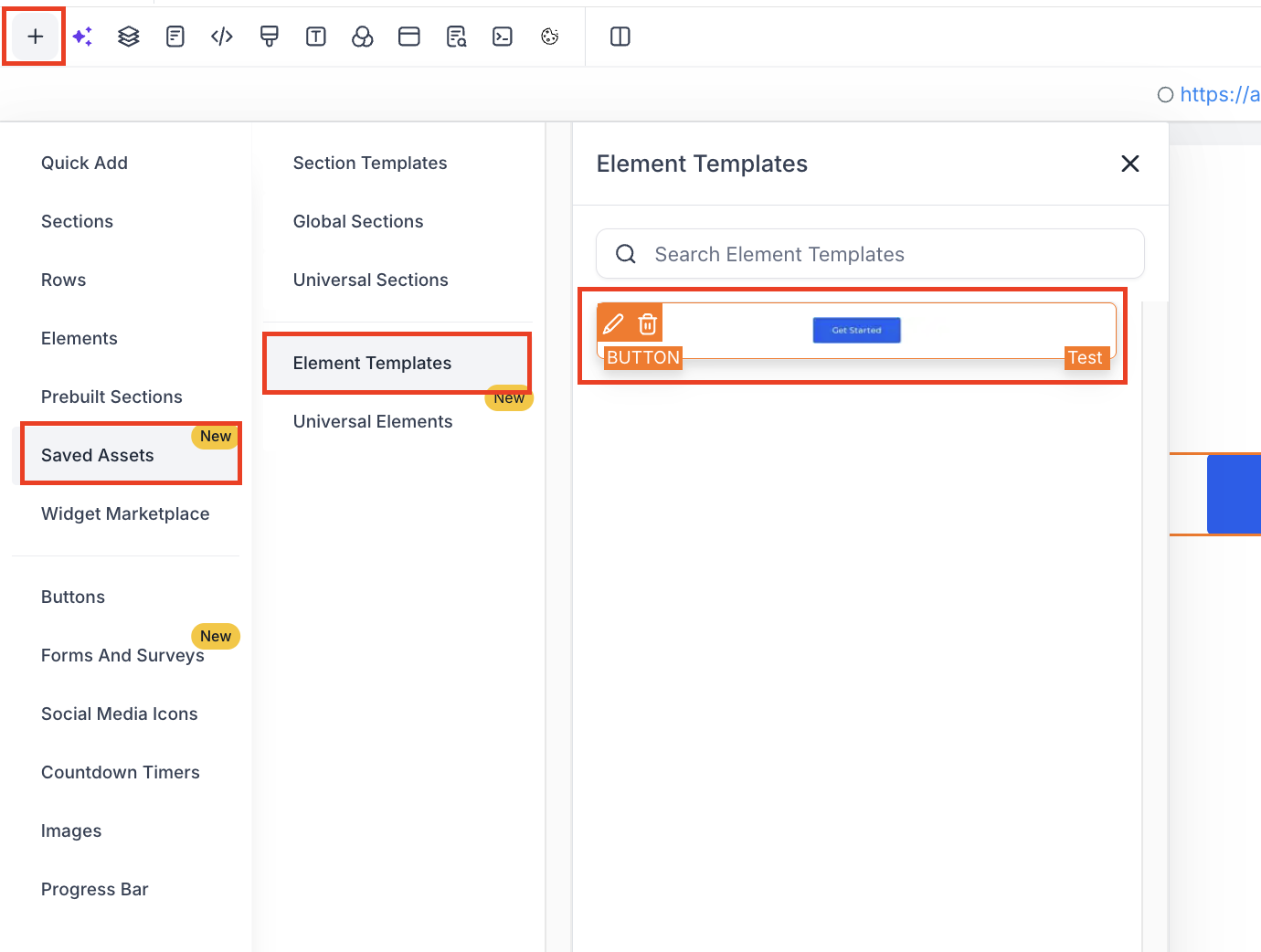
Insert the template where needed.
Tip: Templates are static. Editing one instance does not affect other instances, so you can safely customize each use without impacting the original.
Sample Scenario: Consistent Call-to-Action Buttons Across a Funnel
Scenario: Your team wants every landing page in a campaign to have the same Primary CTA Button for conversions.
Steps Using Element Templates:
Design the CTA button with the preferred font, color, size, and hover effect.
Save it to the Element Templates library as “Primary CTA Button.”
On each landing page, insert the saved template instead of redesigning the button.
Customize text if needed (e.g., “Sign Up Now” vs “Get Started”), while keeping styling consistent.
Result: Every page in the funnel has the same professional look, reducing mistakes and building trust with visitors.
Frequently Asked Questions
Q: Do Element Templates sync like Global or Universal Sections?
No. They are static—editing one instance does not update others.
Q: Who can access saved elements?
Anyone with edit rights in the same sub-account (location).
Q: Can I convert an existing element into a template?
Yes. Open the page, select the element, and click Save.
Q: Are fonts and colors preserved?
Yes. Styling is stored with the template for consistent reuse.
Q: How many Element Templates can I create?
There’s no hard limit, but use descriptive names for easier searching.
Q: Can templates be organized into folders?
Not yet. Clear naming conventions are recommended to keep your library tidy.
Best Practices
Name templates clearly for easy search (e.g., “Primary CTA Button – Blue”).
Save commonly used elements like headers, footers, CTA buttons, and forms.
Encourage team adoption to maintain consistent design across all pages.
Review and update templates periodically to match brand or campaign changes.

Copyright © 2026 TekMatix. All rights reserved | [email protected]