
TekMatix Blog & Help Articles
Use the search bar below to look for help articles you need.

How To Manage Tekmatix Pipeline Permissions for Secure and Efficient Deal Tracking
How To Manage Tekmatix Pipeline Permissions for Secure and Efficient Deal Tracking
Why Pipeline Permissions Matter
Managing who can see and edit your sales pipelines is critical for both data security and team efficiency. Without proper pipeline permissions, sensitive revenue information or critical deal data could be visible to the wrong team members, contractors, or new hires.
With Tekmatix Pipeline Permissions, you can control access per pipeline, ensuring only the right users see or modify the deals that matter to them. This creates a focused workspace, reduces mistakes, and preserves consistent pipeline stages across your organization.
Key Benefits of Tekmatix Pipeline Permissions
Consistency: Maintain stage names and order while letting reps focus on their deals.
Data Privacy: Hide sensitive revenue or board data from unauthorized users.
Granular Control: Share pipelines with all users, selected roles, or exclude specific individuals.
Auditability: Track who changed pipeline settings for compliance or troubleshooting.
Cross-Platform Access: Permissions apply on both web and the Tekmatix mobile app.
Dashboard Parity: Widgets and metrics respect assigned pipeline access.
How To Manage Pipeline Permissions
Follow these steps to configure visibility and editing rights for each pipeline:
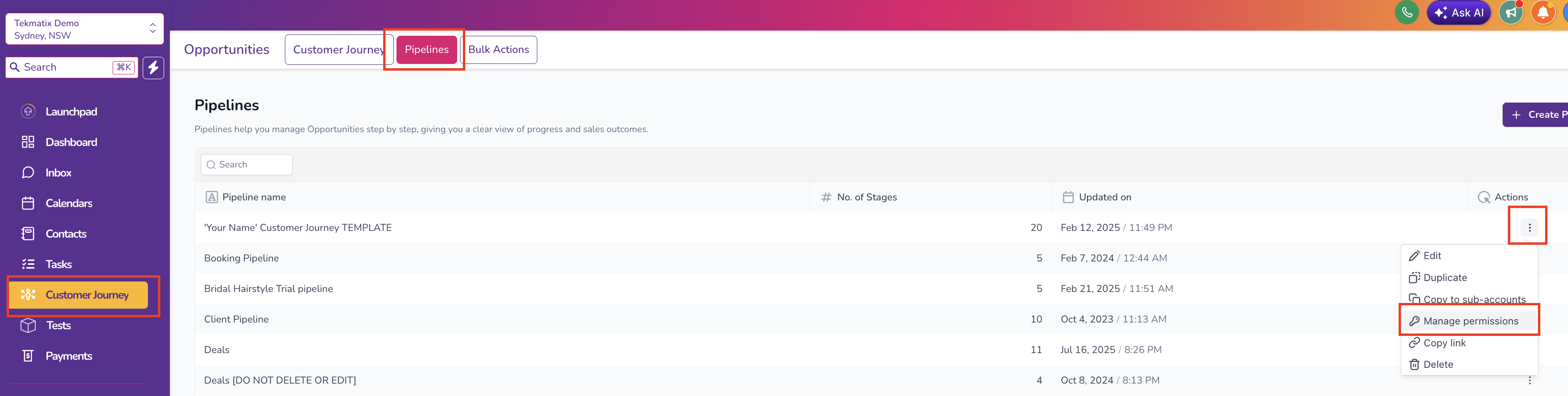
Go to Customer Journey → Pipelines.
Click on the three dots and select the key icon next to the pipeline name to open Manage Permissions.
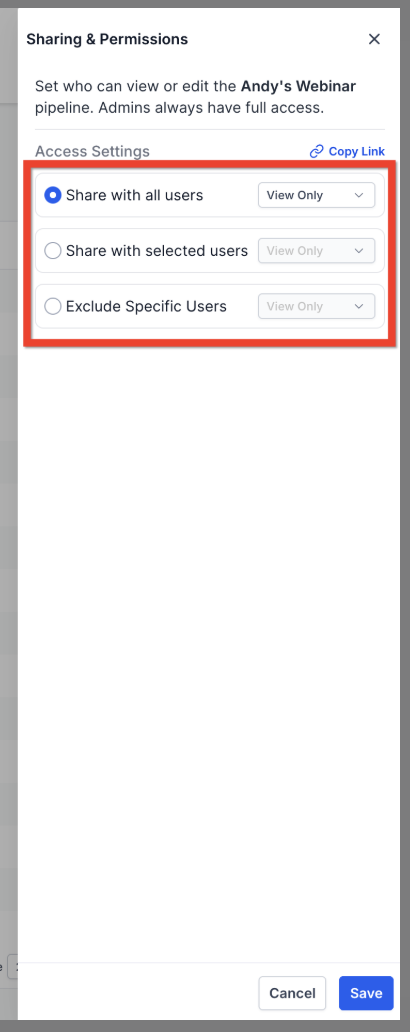
Choose a Sharing Mode:
Share with All Users:grant everyone View Only, Edit or No Access in one click.
Share with Selected Users:pick individual users/roles and set View Only, Edit, or No Access for each.
Exclude specific users:keep the pipeline global, then remove access for a few exceptions.
Note: Admin users always retain full access.
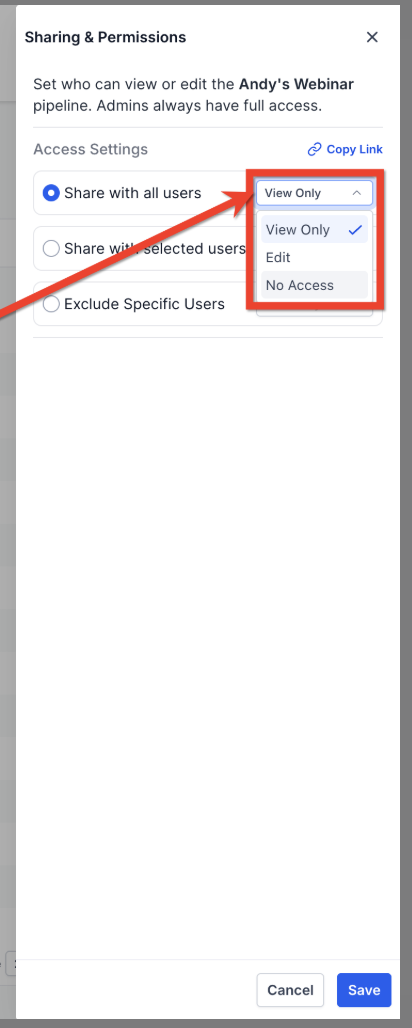
For each included user or role, set an Access Level:
View Only – move/update opportunities but cannot modify stages or pipelines
Edit – full control to add/edit/delete pipeline stages and the pipeline itself
No Access – pipeline is completely hidden
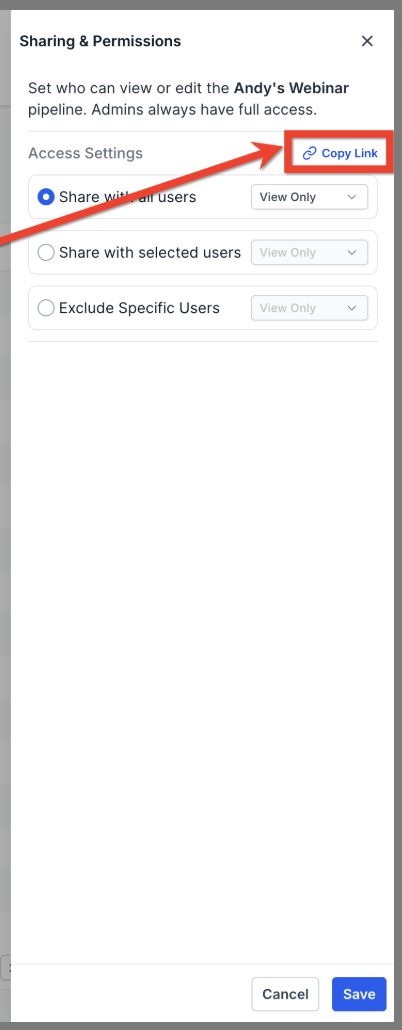
(Optional) Click Copy Link to share direct access with teammates who already have permission.
Click Save to apply changes.
Audit Logs & Compliance
Tekmatix logs every pipeline permission action—create, update, or revoke—for 60 days.
To view logs:
Go to Settings → Audit Logs.
Filter by User, Module (Pipeline Permissions), Action, Date Range.
This ensures accountability, simplifies troubleshooting, and helps with compliance reviews.
Sample Scenario: Restricting Pipeline Access for a Contractor
Scenario: Your sales team is working with a contractor on lead qualification. You want them to update opportunities they are assigned to but hide sensitive revenue information.
Steps:
Go to the target pipeline.
Select Share with Selected Users.
Add the contractor and set View Only access.
Assign full Edit access to your internal sales team.
Confirm and Save.
Result: The contractor can update opportunity stages without seeing revenue metrics, while your sales team retains full control.
Frequently Asked Questions
Q: What’s the difference between View Only and No Access?
View Only users can still manage assigned opportunities.
No Access hides the pipeline completely.
Q: What if a user already owns opportunities and I set them to No Access?
Tekmatix blocks the change. Reassign or delete their opportunities first.
Q: Do permissions sync to the mobile app?
Yes, the same rules apply on web, iOS, Android, and API responses.
Q: Can I bulk-assign permissions to a role?
Yes, roles can inherit the chosen access level for all members.
Q: Will permission changes break automations or webhooks?
No. Automations continue to run. API calls from a restricted user return an empty pipeline list.
Q: Is there an “Owner Only” option?
Use Share with Selected Users, choose the owner, and set others to No Access.
Q: How long are Audit Logs retained?
60 days for review or download.
Best Practices
Always assign minimal necessary access to sensitive pipelines.
Use roles for efficient bulk permission management.
Regularly review audit logs for compliance and unusual changes.
Combine pipeline permissions with proper opportunity ownership to maintain secure workflows.

Copyright © 2026 TekMatix. All rights reserved | [email protected]