
TekMatix Blog & Help Articles
Use the search bar below to look for help articles you need.

How To Manage QR Codes Efficiently Using Bulk Actions in Tekmatix
How To Manage QR Codes Efficiently Using Bulk Actions in Tekmatix
Why QR Code Bulk Actions Matter
Managing a large library of QR Codes can quickly become overwhelming if each code must be handled individually. Tekmatix’s QR Code Bulk Actions & Quick Management tools allow you to perform multiple tasks at once moving, deleting, downloading, renaming, or sharing links saving time and reducing repetitive clicks.
Pro Tip: Proper organization and naming conventions make your QR Code library easier to search, report, and maintain, especially for marketing campaigns, events, or multi-location businesses.
Key Benefits
Time Savings: Perform actions on multiple QR Codes in one step.
Fewer Clicks: Rename codes or folders directly from the list view.
Faster Sharing: Copy direct links without opening individual QR Codes.
Smarter Exports: Download large batches as PNG, SVG, or PDF with automatic ZIP packaging.
Step-by-Step Guide to Bulk Managing QR Codes
Step 1: Navigate to QR Codes
Go to Websites & Funnels → QR Codes.

Step 2: Enable Selection Mode
Click Select in the top-right corner to activate checkboxes on each QR Code card.

Step 3: Select QR Codes
Check the QR Codes you want to manage.
A counter (e.g., “2 Selected”) appears with bulk action icons in the top-right corner.

Step 4: Perform Bulk Actions
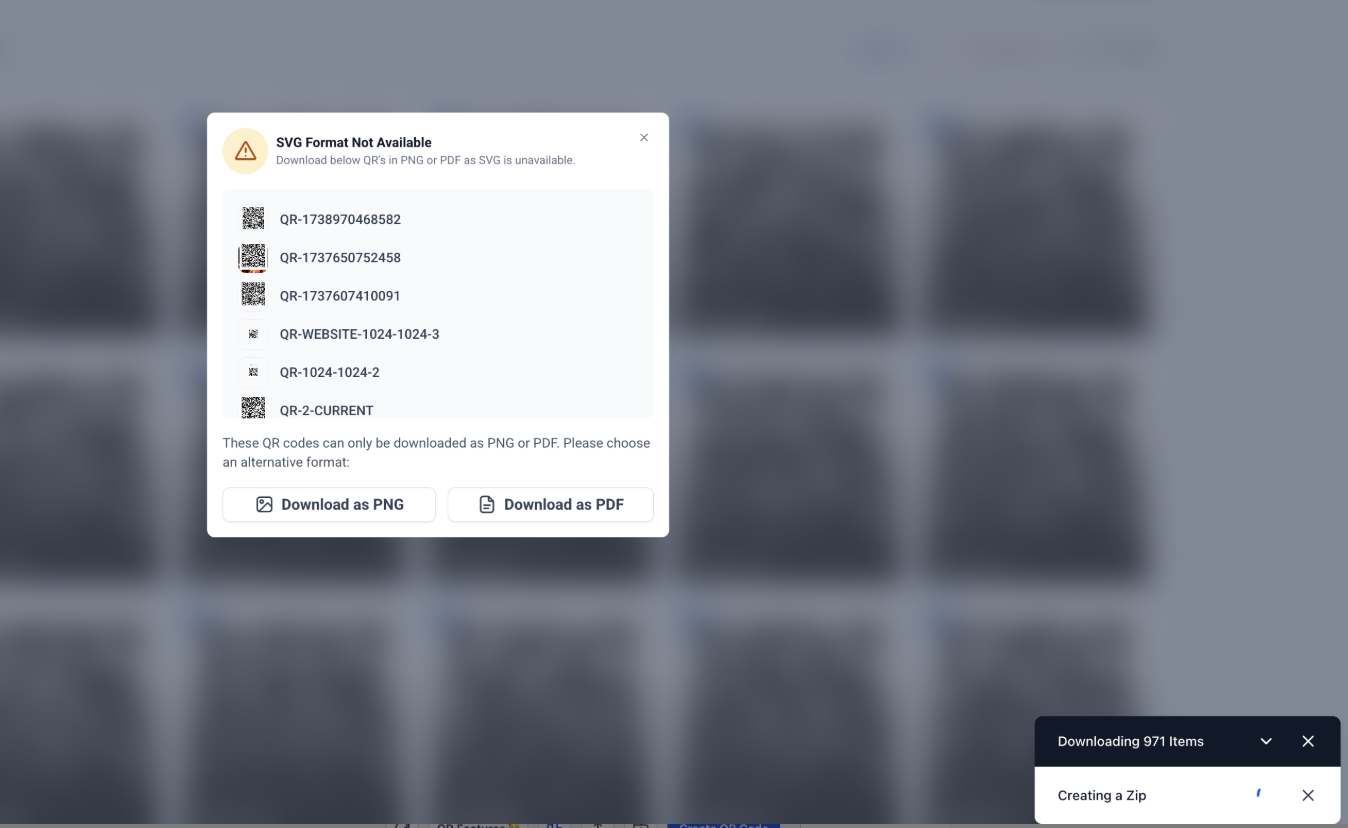
Bulk Download
Click Download from the bulk toolbar.

Choose your preferred format: PNG, SVG, or PDF.
Confirm in the pop-up.

Large batches are zipped asynchronously for reliable delivery.
Move to Folder
Click the Move to Folder icon.
Select a destination folder and click Move to Selected folder.


Bulk Delete
Click the Delete icon.
Review the confirmation message and click Delete.
Bulk delete is permanent. Download codes beforehand if needed.


Step 5: Rename QR Codes
Hover over a QR Code card and click ⋯ → Rename.

Enter the new name and click Save.

Step 6: Copy QR Code Link
Hover over a QR Code card, click ⋯ → Copy Link.

Use this direct link in emails, documents, or print campaigns.
Step 7: Folder-Level Actions
Click the ⋯ menu on any folder.
Download All: Export all contained QR Codes as a ZIP.
Rename Folder: Update folder name for clarity.
Delete Folder: Remove all QR Codes inside (irreversible).

Sample Scenario: Event Marketing Campaign
Scenario:
Your company is hosting a trade show and has created 50 QR Codes linking to different product pages. You need to share them with the marketing team and organize them by product category.
Steps Using Tekmatix Bulk Actions:
Go to Websites & Funnels → QR Codes.
Click Select, then check all 50 QR Codes.
Click Move to Folder → Trade Show 2025 Products.
Use Rename to add category labels for easier identification.
Bulk download as PNG to distribute to the team for printing on banners and brochures.
Copy direct links for sharing in pre-event emails.
Outcome:
QR Codes are organized, renamed, and ready for distribution in minutes instead of hours.
Team can track, print, and share links without opening each QR Code individually.
Frequently Asked Questions
Q: Where are these bulk actions found?
In Sites → QR Codes, click Select to enable the bulk toolbar.
Q: Which formats can I download?
PNG, SVG, or PDF. Large batches are packaged in ZIP files.
Q: Can I download all QR Codes in a folder at once?
Yes, click Download on the folder menu.
Q: Is bulk delete permanent?
Yes. Always download needed QR Codes before deleting.
Q: Are there selection limits?
Very large batches may be split into multiple ZIPs. Reduce selection and repeat if needed.

Copyright © 2026 TekMatix. All rights reserved | [email protected]