
TekMatix Blog & Help Articles
Use the search bar below to look for help articles you need.

How To Create and Use Custom Dashboards in Tekmatix to Track What Matters Most
How To Create and Use Custom Dashboards in Tekmatix to Track What Matters Most
Why Custom Dashboards Matter in Tekmatix
Running a business or agency means tracking a lot of moving parts—leads, appointments, sales, revenue, and team performance. Custom Dashboards in Tekmatix give you a single, visual command center where you can monitor key metrics in real time without jumping between reports.
Instead of relying on generic analytics, Custom Dashboards allow you to:
Focus only on KPIs that matter to your role or team
Share performance updates automatically
Make faster, data-driven decisions
Whether you’re a business owner, marketer, or agency admin, Custom Dashboards help turn raw data into clear, actionable insights.
What Are Custom Dashboards in Tekmatix?
Custom Dashboards are configurable analytics pages inside each Tekmatix sub-account where you can track performance across:
Contacts and leads
Appointments and calendars
Opportunities and pipelines
Calls and conversations
Revenue and payments
You control:
The layout
The widgets and metrics displayed
Dashboard permissions
Branding and appearance
Automated report delivery
You can also create multiple dashboards for different teams or purposes.
Key Benefits of Custom Dashboards
Multiple Dashboards: Create dashboards for Sales, Marketing, Finance, or Operations
Custom Widgets & Metrics: Show only the KPIs that matter most to you
Scheduled Reports: Automatically email dashboard reports on a schedule
Full Customization: Match dashboards to your brand using themes and colors
Deeper Insights: View data as scorecards, charts, tables, or time series
Universal Widgets: Reuse widgets across dashboards to maintain consistency
Step-by-Step: How To Create a Custom Dashboard in Tekmatix
Follow this SOP to build a dashboard that fits your workflow.
Step 1: Go to the Dashboard Area
Log in to your Tekmatix account
Navigate to the Dashboard section
Step 2: Add a New Dashboard
Click the Dashboard Selection Menu
Select + Add Dashboard
Tip: If you don’t see this option, make sure you are in dashboard view mode.

Step 3: Name Your Dashboard
Enter a clear, descriptive name
Example: Sales Performance Dashboard
Example: Marketing KPIs – Weekly
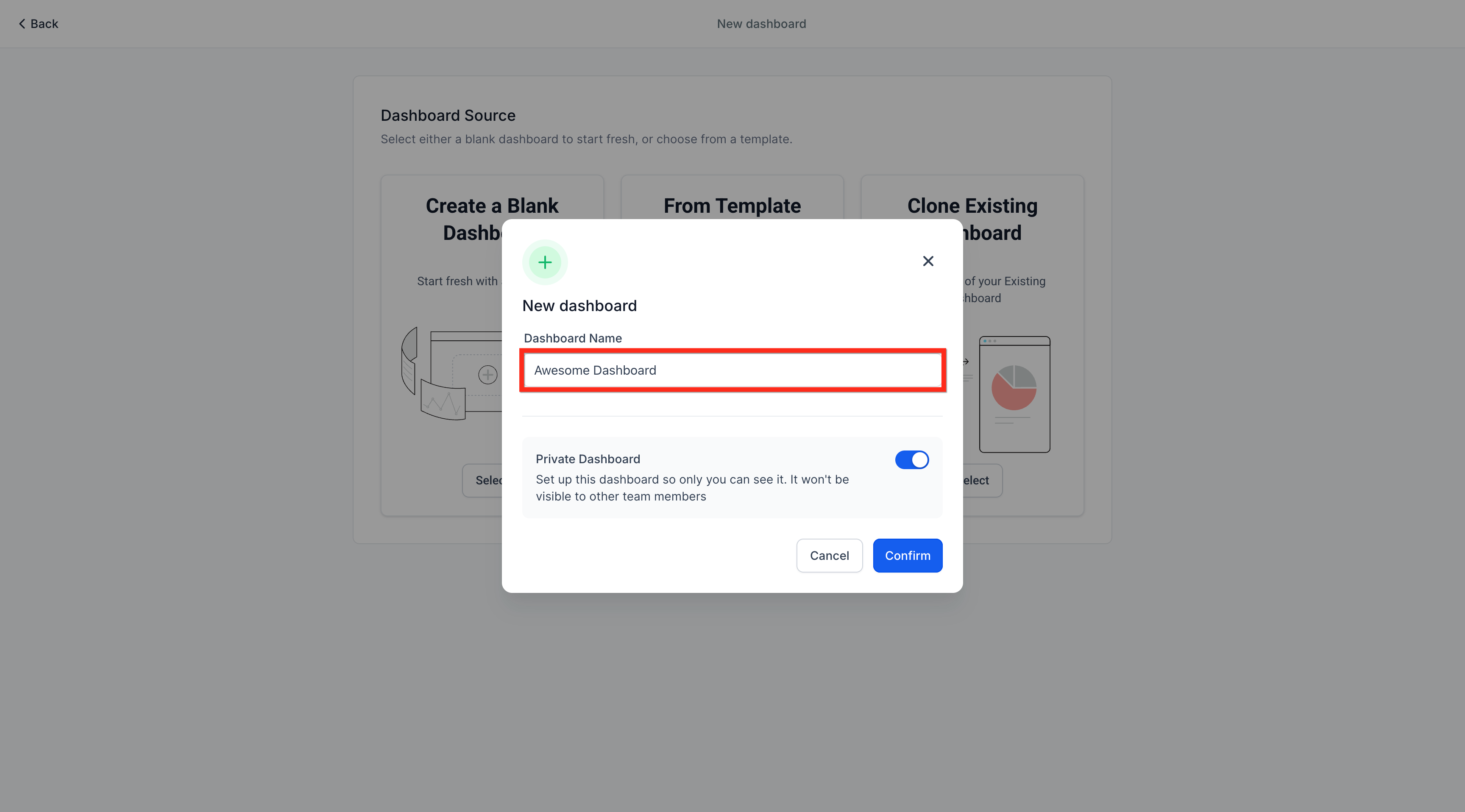
Step 4: Set Dashboard Permissions
Use the Private Dashboard toggle:
ON → Only visible to you
OFF → Accessible to team members
If public, set access levels for:
Agency User
Account Admin
Account User
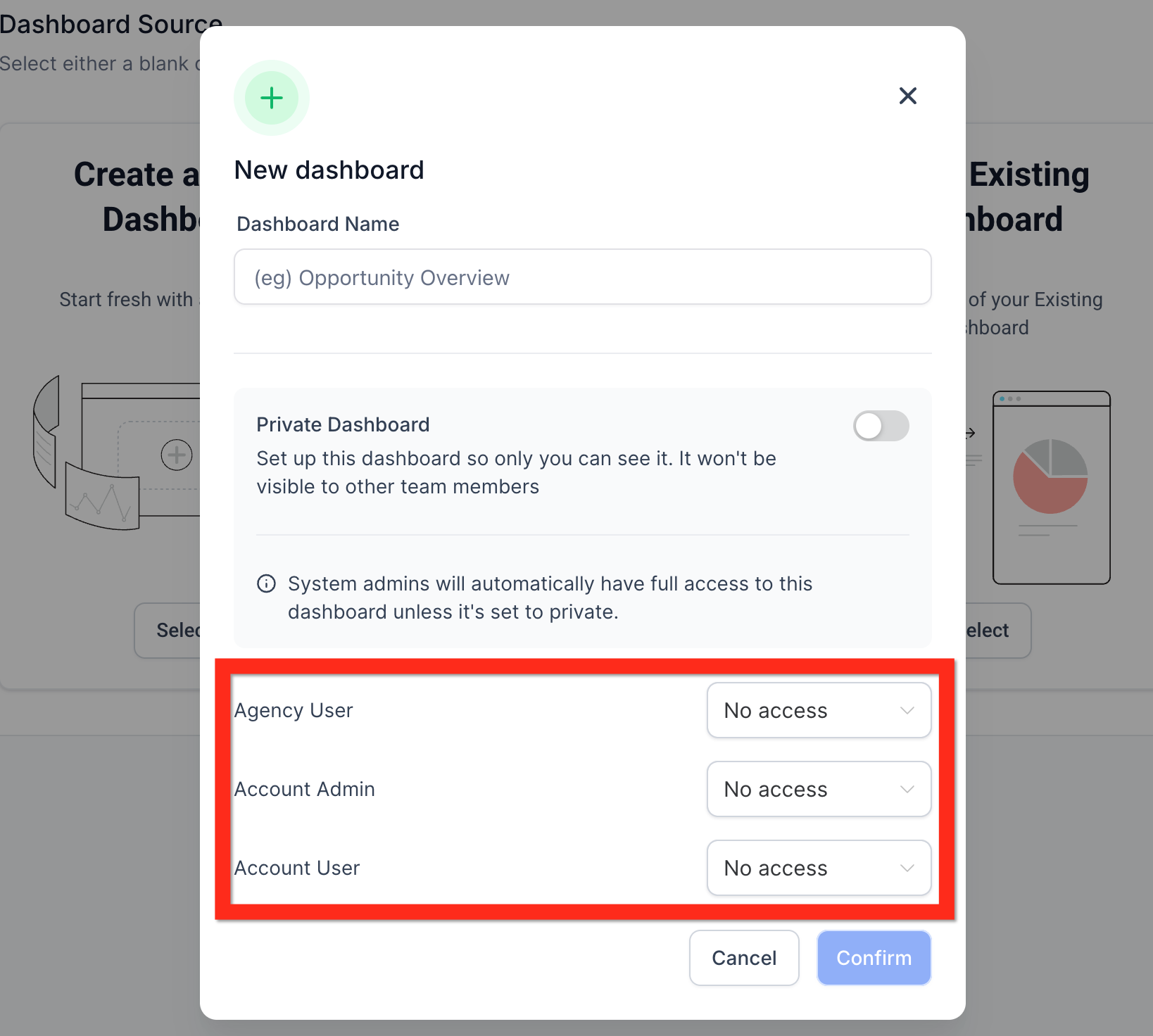
Step 5: Confirm and Create
Click Confirm
Your new (blank) dashboard will open automatically
Step 6: Add Widgets to Your Dashboard
When a dashboard is empty, Tekmatix shows the Quick Start Widgets screen.
Option A: Use Suggested Widgets (Fastest)
Choose widgets based on:
“What is your goal?”
“Top used widgets”
Click Confirm & Add

Option B: Add Widgets Manually
Click + Add a widget manually
Configure metrics, filters, and visualization type

Option C: Add Widgets in Edit Mode
Click the Edit (pencil) icon
Click + Add Widget

Step 7: Configure the Widget
Select the data source (contacts, opportunities, revenue, etc.)
Choose chart type (scorecard, chart, table)
Apply filters and date ranges

Step 8: Save the Widget
Click Save inside the widget panel
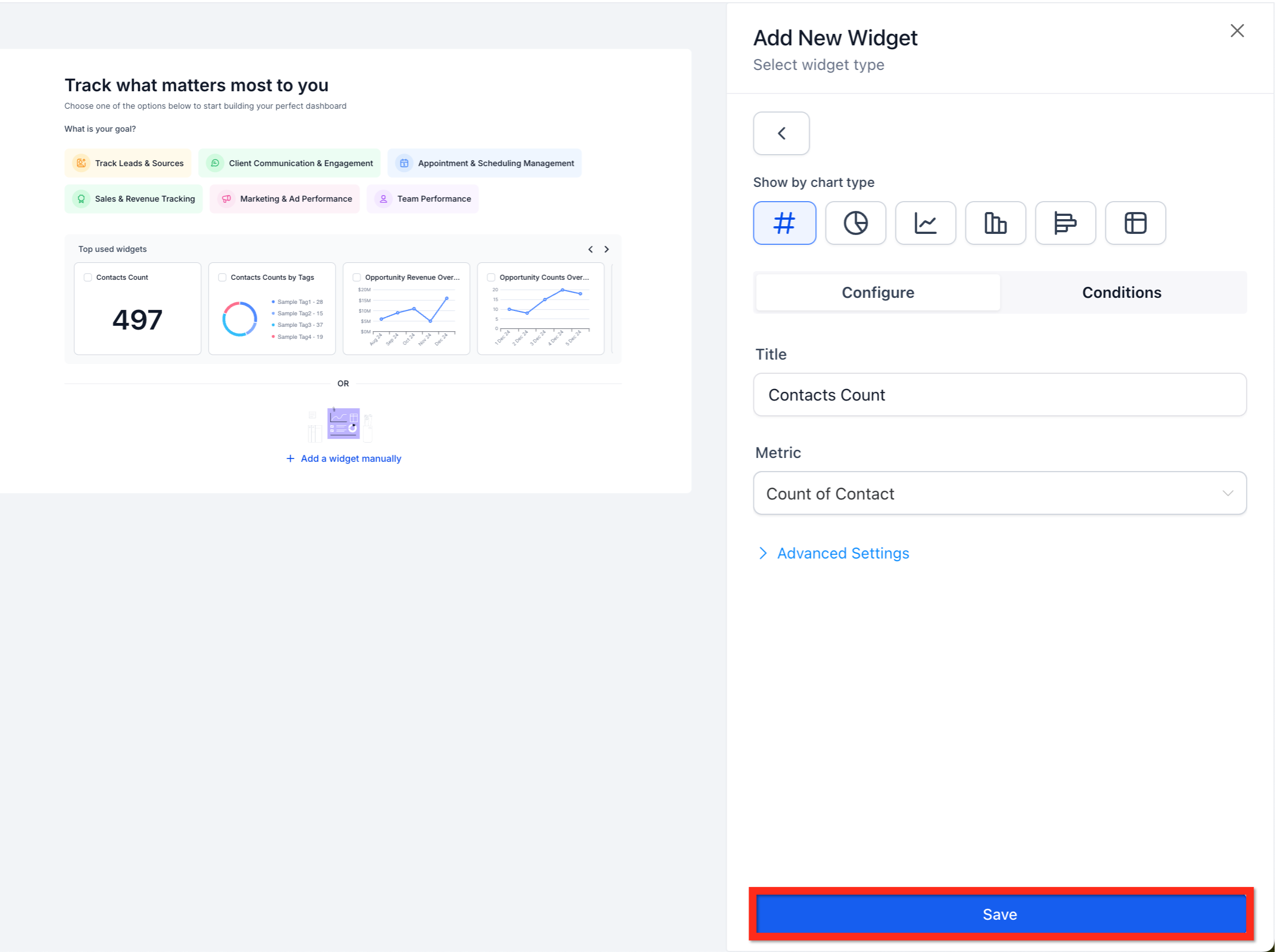
Step 9: Save Dashboard Layout
Click ✓ Save Changes to lock in your dashboard
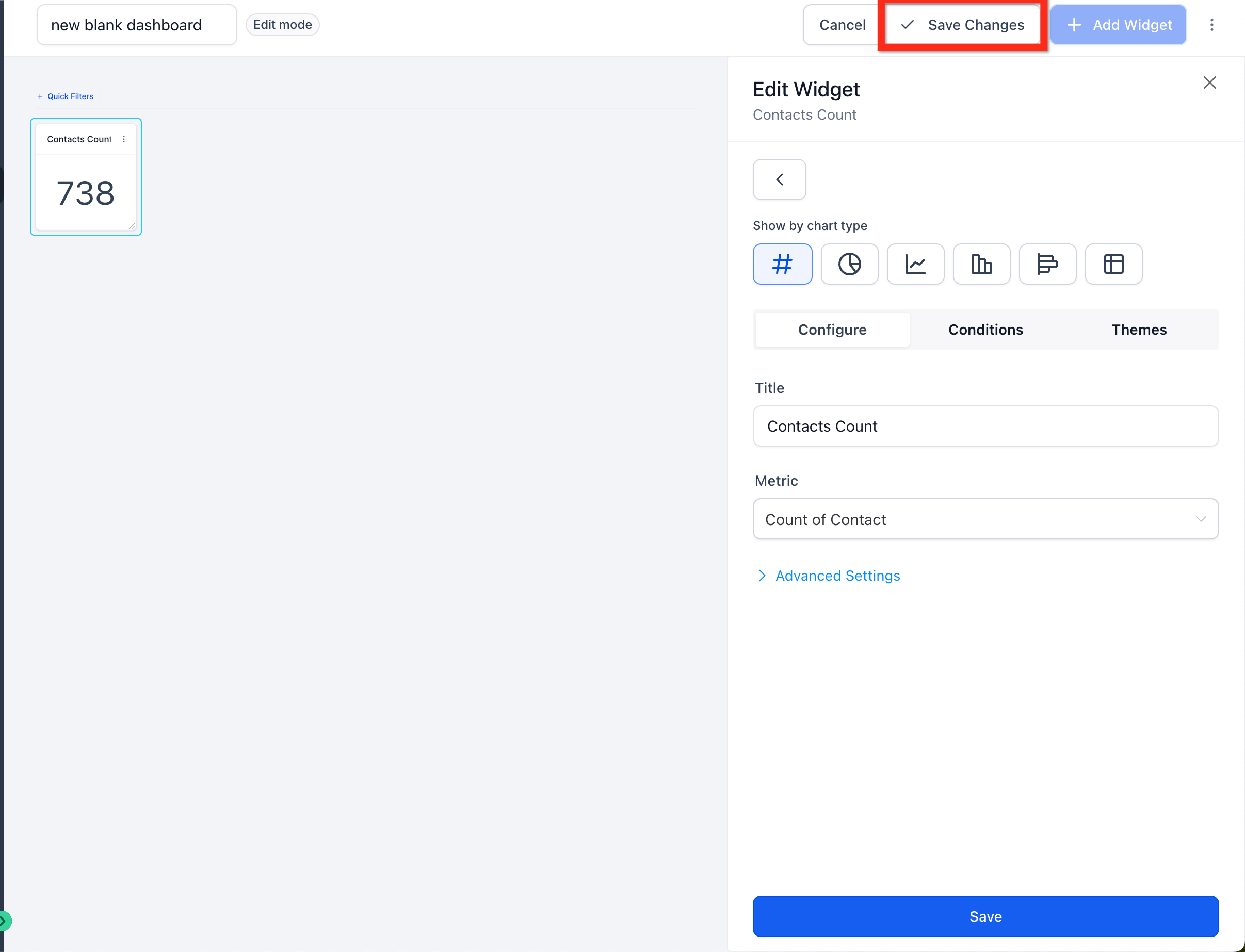
Sample Scenario: Using Custom Dashboards for a Sales Team
Scenario: Sales Manager Tracking Weekly Performance
Goal: Monitor lead flow, pipeline value, and closed deals in one view
Dashboard Setup:
Widget 1: New Leads (This Week)
Widget 2: Opportunities by Pipeline Stage
Widget 3: Revenue Closed – Last 7 Days
Widget 4: Appointment Show Rate
How It’s Used:
Sales manager checks the dashboard daily
Weekly report is automatically emailed to leadership
Underperforming stages are identified early
Result:
The team spots pipeline bottlenecks faster and improves close rates without digging through multiple reports.
Best Practices for Custom Dashboards
Create role-based dashboards (Sales vs Marketing vs Finance)
Keep dashboards focused—avoid metric overload
Use scheduled reports to reduce manual updates
Duplicate dashboards for faster setup across teams
Review and refine widgets monthly as goals change

Copyright © 2026 TekMatix. All rights reserved | [email protected]