
TekMatix Blog & Help Articles
Use the search bar below to look for help articles you need.
How To Create and Manage Client Contracts with Documents & Contracts in Tekmatix
How To Create and Manage Client Contracts with Documents & Contracts in Tekmatix
Why This Feature Matters
Managing contracts manually can slow down your business and create unnecessary paperwork. The Documents & Contracts feature inside Tekmatix Payments allows you to create agreements, collect legally binding e-signatures, and even accept payments — all in one place.
Instead of sending separate proposals, invoices, and contracts, you can streamline the entire process into a single document that your client signs and pays in minutes.
This helps you:
Close deals faster
Reduce back-and-forth emails
Keep legally binding agreements organized
Automate follow-ups and payment collection
Whether you run a coaching business, agency, consulting firm, or service-based company, this feature makes your client onboarding process smoother and more professional.
What is Documents & Contracts in Tekmatix?
Documents & Contracts is a built-in tool under the Payments section in Tekmatix that allows you to create, send, and manage agreements with clients.
You can:
Create documents from scratch
Upload existing contracts (PDFs)
Use reusable templates
Collect e-signatures
Accept payments directly within the contract
Track document activity with an audit trail
Everything is managed from one centralized dashboard so you always know the status of every agreement.
How To Access the Documents & Contracts Dashboard
Follow these steps to access your contract management area:
Go to Payments in the left menu.
Click Documents & Contracts.
Select All Documents & Contracts from the dropdown.
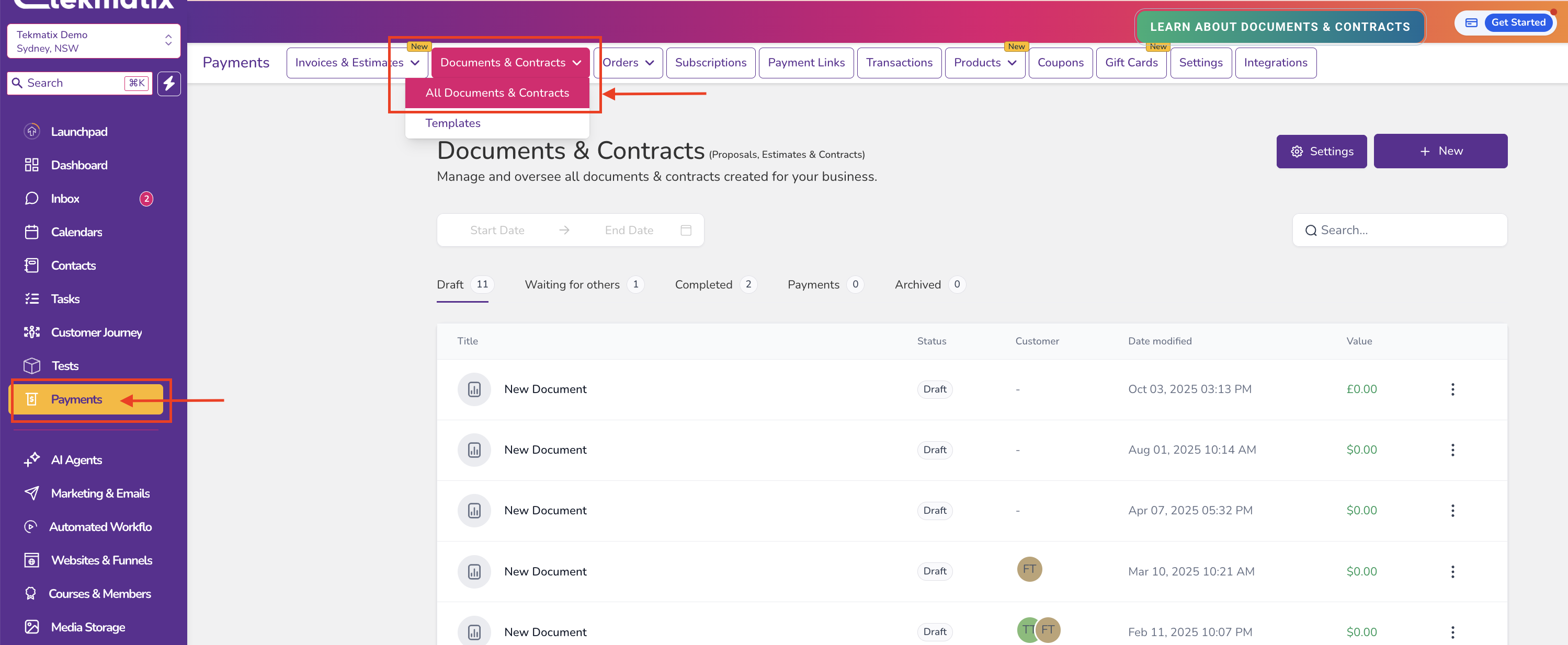
This dashboard displays all documents including:
Drafts
Sent documents
Waiting for signatures
Completed agreements
Archived records
This view makes it easy to track which contracts require follow-up.
Understanding the Documents Dashboard
The dashboard helps you monitor all agreements in one place.
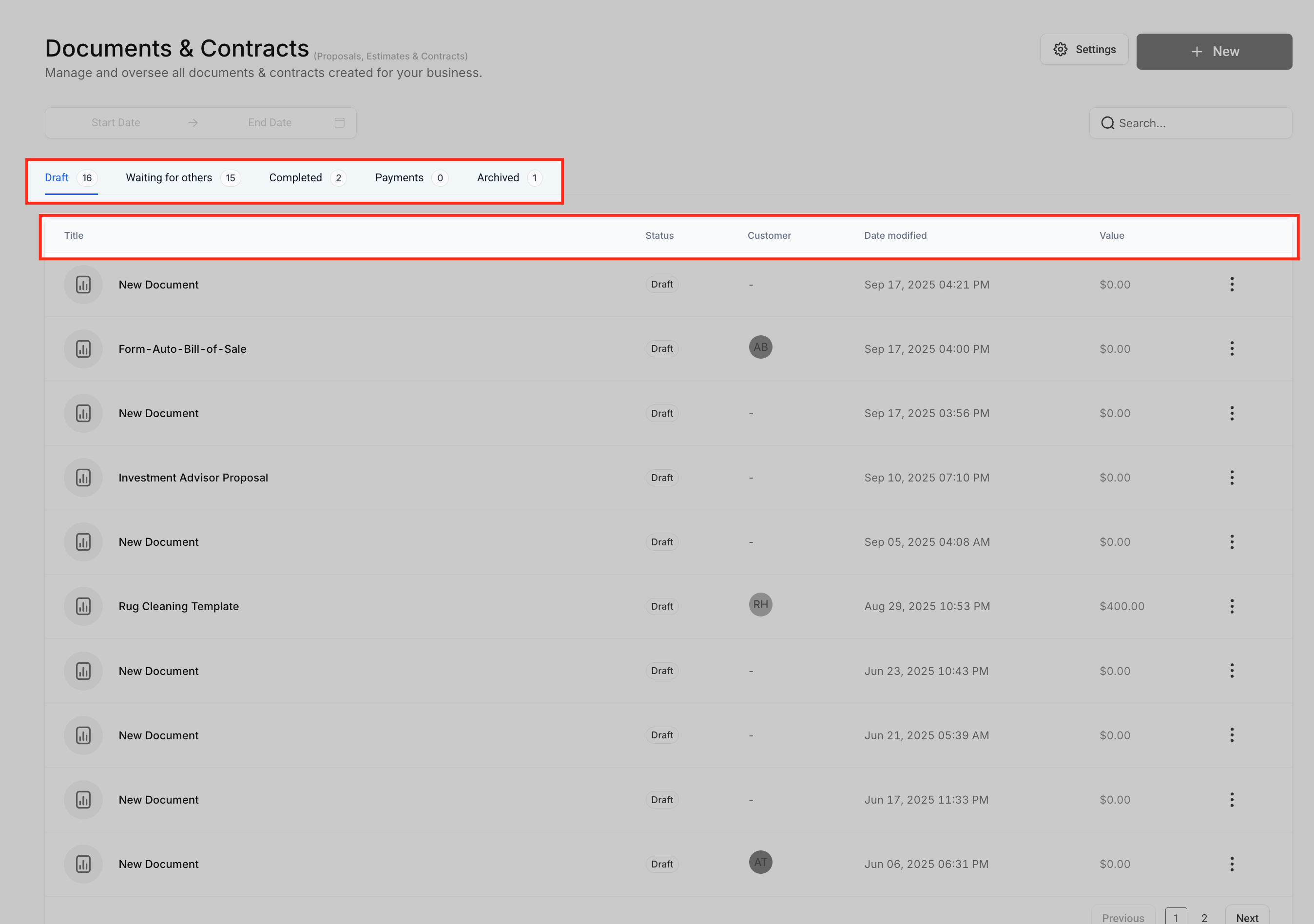
Key Tabs
You will see different document statuses including:
Draft - Documents still being created and not yet sent.
Waiting for Others - Documents sent but still awaiting signatures.
Completed - Fully signed agreements.
Payments - Contracts that include payment transactions.
Archived - Old or inactive agreements kept for records.
Key Information Displayed
Each document row shows important details such as:
Document title
Status
Customer name
Date last modified
Contract value
This allows you to quickly identify active deals and pending approvals.
How To Create a New Contract in Tekmatix
Tekmatix provides three ways to create a document depending on your needs.
Step 1: Create a New Document
Click + New in the top-right corner of the dashboard.
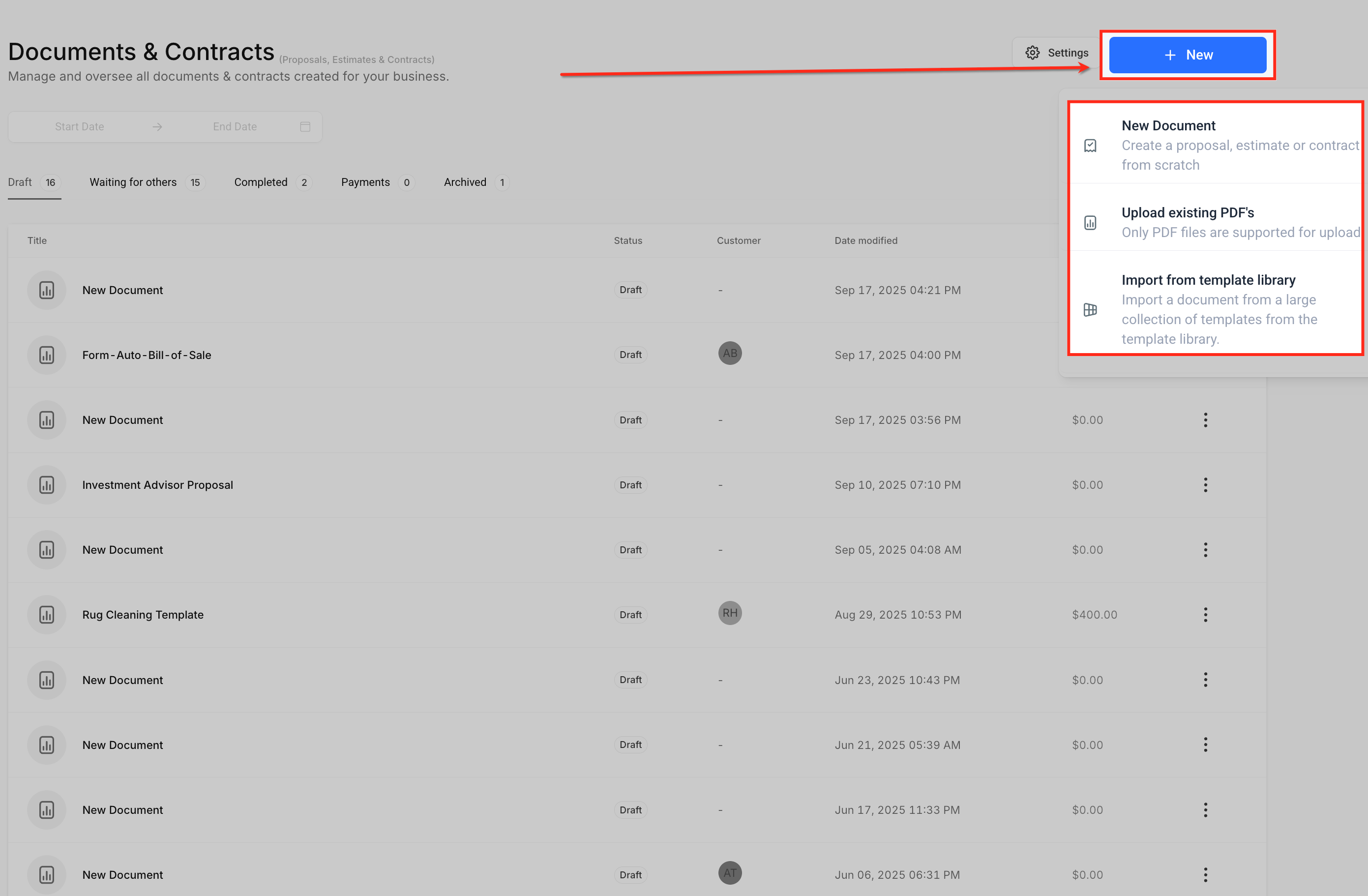
Choose one of the following options:
New Document - Create a contract from scratch using the editor.
Upload Existing PDF - Upload an existing contract and add e-signature fields.
Import from Template Library - Use a prebuilt contract template for faster setup.
Templates are ideal for recurring agreements like:
Coaching agreements
Service contracts
Client proposals
How To Customize Your Contract
The document editor allows you to build professional agreements using drag-and-drop elements.
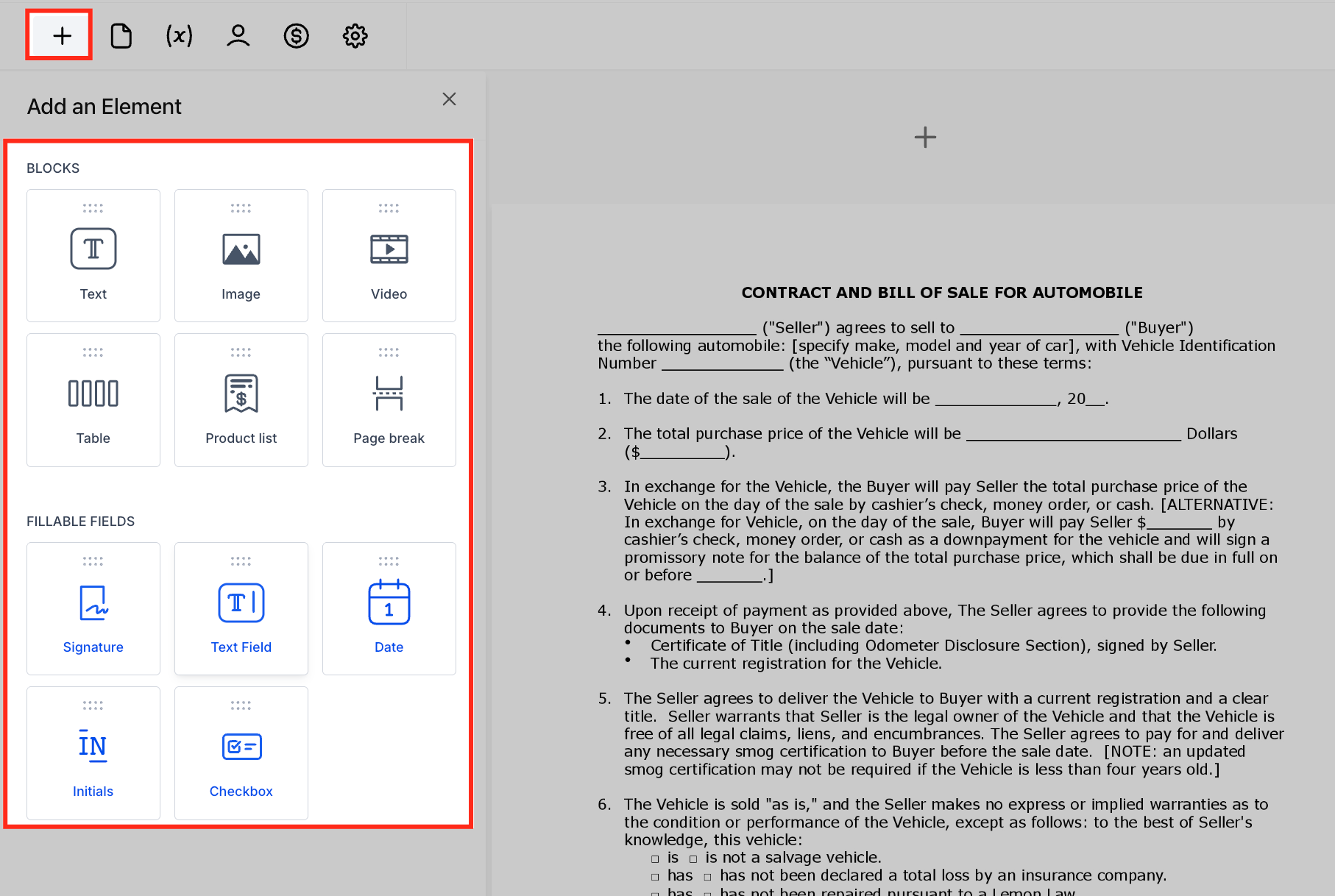
Add Content Elements
You can insert:
Text sections
Images or videos
Pricing tables
Product lists
Page breaks
Add Fillable Fields
You can also add fields that recipients must complete, such as:
Signature
Initials
Date
Text fields
Checkboxes
After adding a field:
Select the field.
Assign it to the correct signer using the Properties panel.
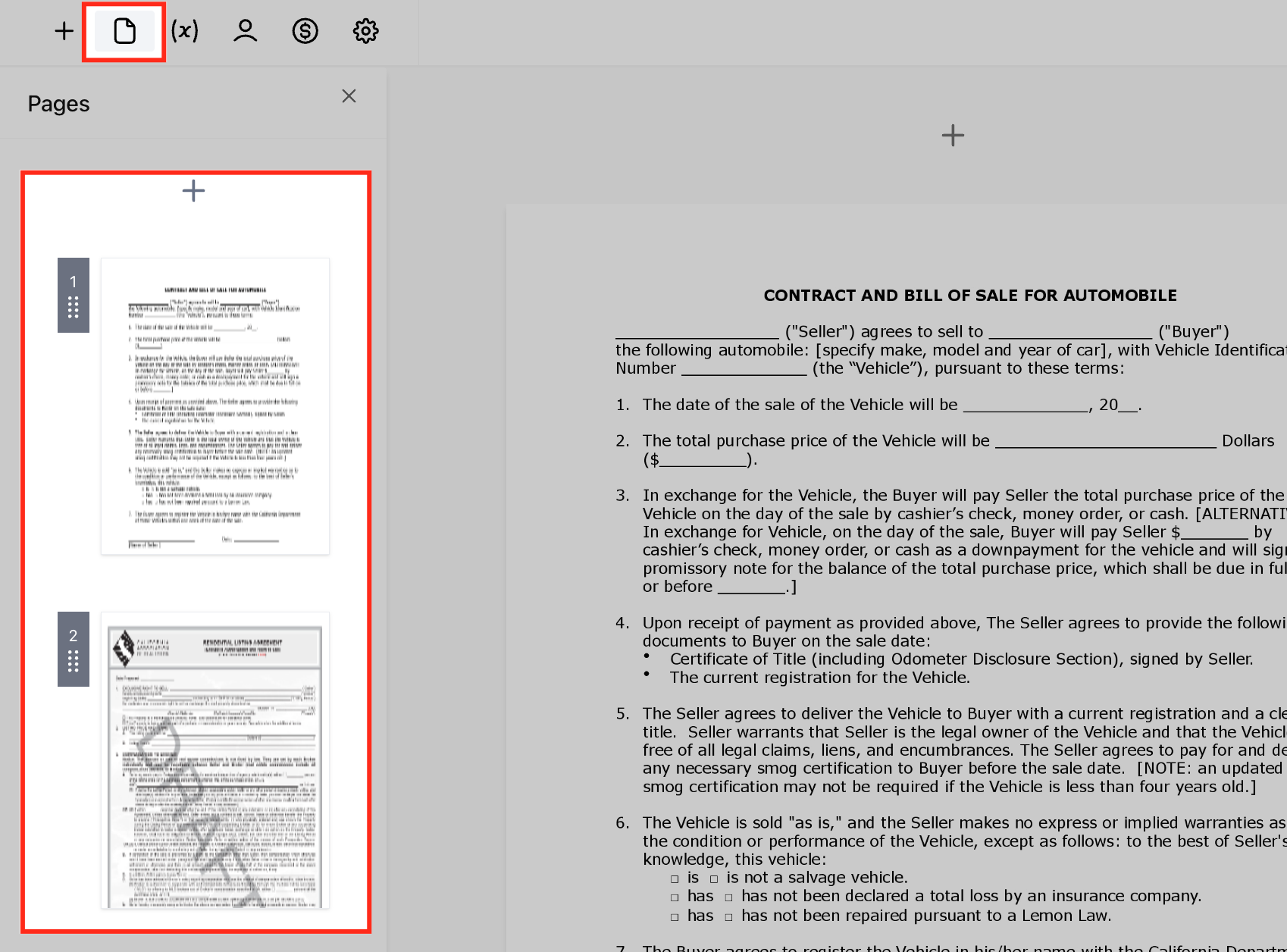
Page Management
Manage multi-page documents.
Add, duplicate, or remove pages as needed.
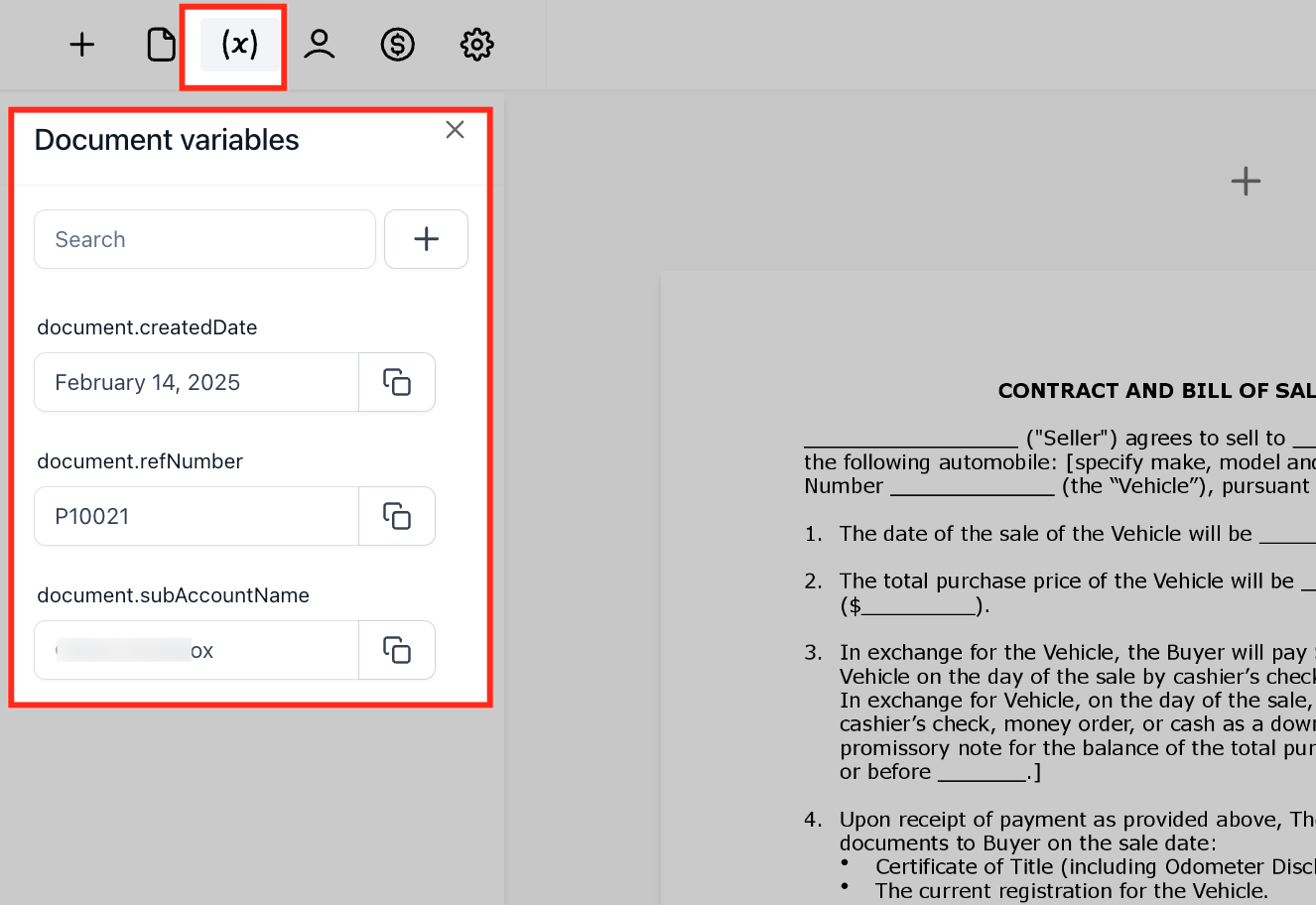
Document Variables
Insert dynamic placeholders like Created Date, Reference Number, Sub-Account Name, and custom fields.
Variables automatically populate with the correct data when the document is sent.
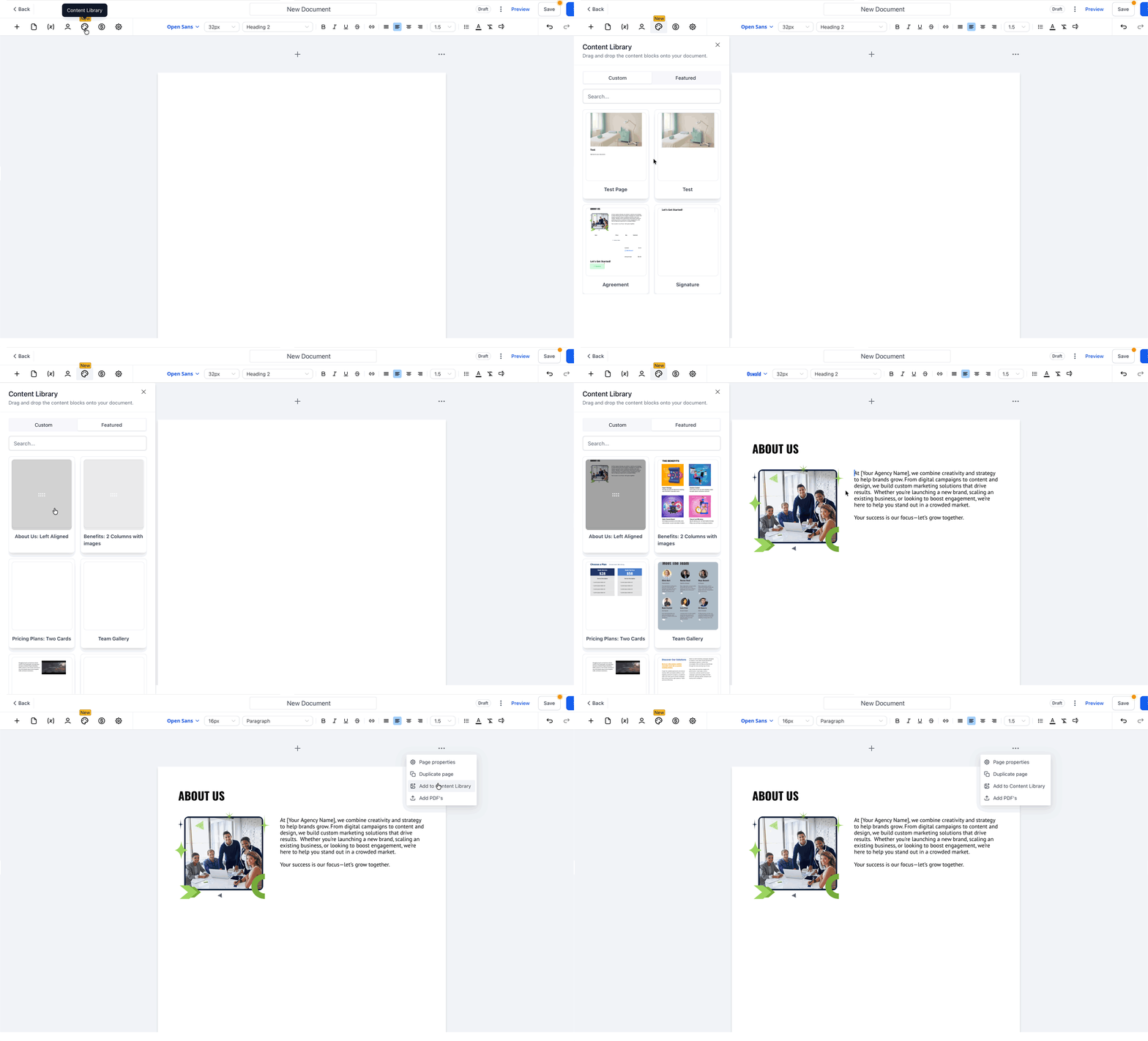
Content Library
Centralized library of reusable blocks and full pages for Documents & Contracts
Save a section/page you’ll reuse via Add to Content Library and name it for easy finding
Insert saved items in any doc/template from Content Library → Custom using drag & drop
Update/customize the inserted content as needed after adding it to the document
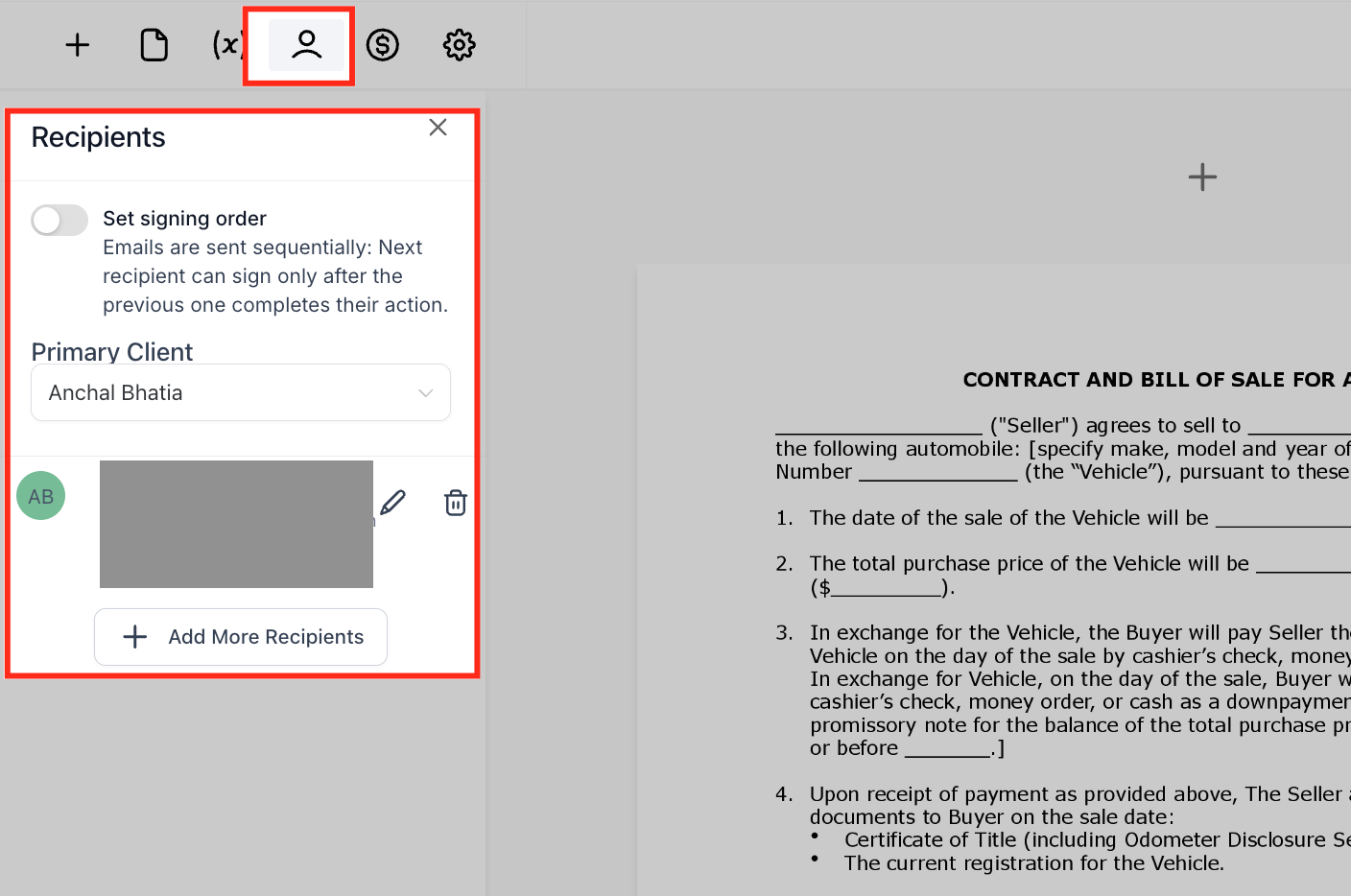
Add Recipients
To configure who will sign the document:
Add one or more recipients.
Assign signature fields to each person.
Choose the signing order:
Sequential signing – One person signs after another
Simultaneous signing – Everyone can sign at the same time
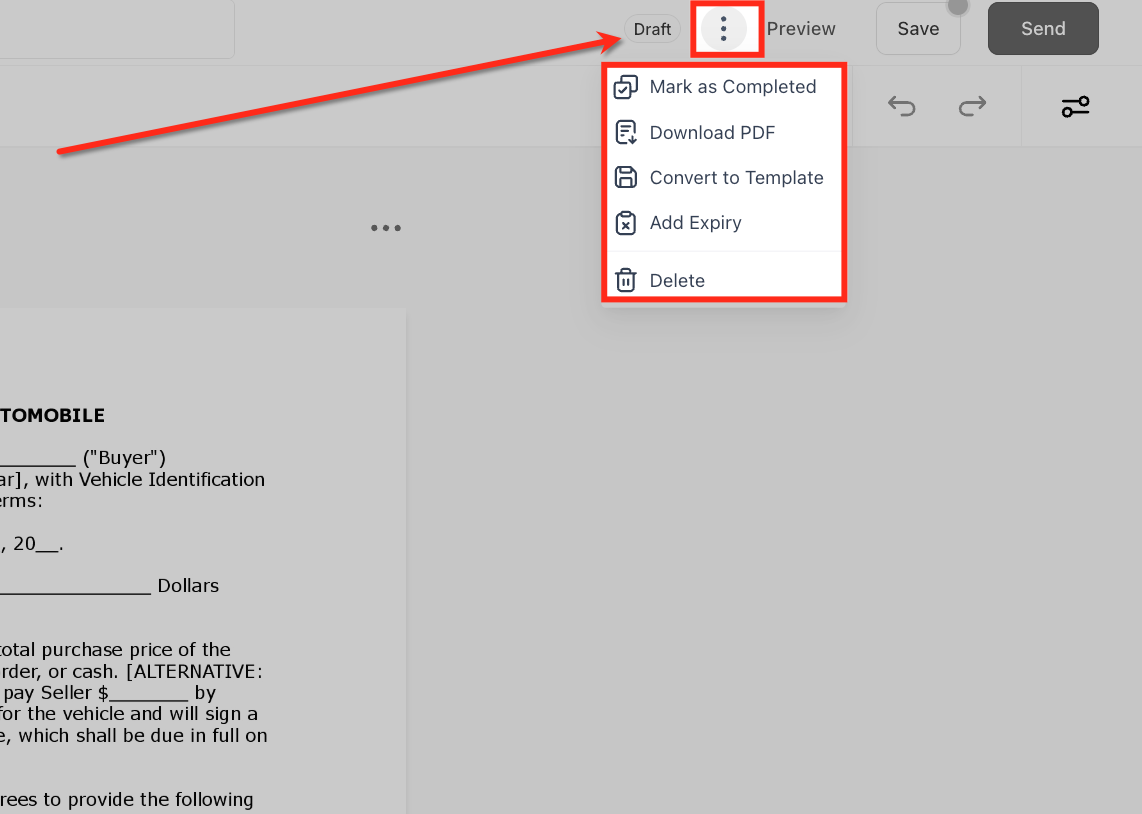
Action Menu Inside the Editor
Access the three-dot menu (⋮) for additional options: Mark as Completed, Download PDF, Convert to Template, Add Expiry, Delete.
How To Add Payments to Your Contract
One of the most powerful features of Documents & Contracts is integrated payment collection.
You can configure:
One-time payments
Recurring subscriptions
Autopay options
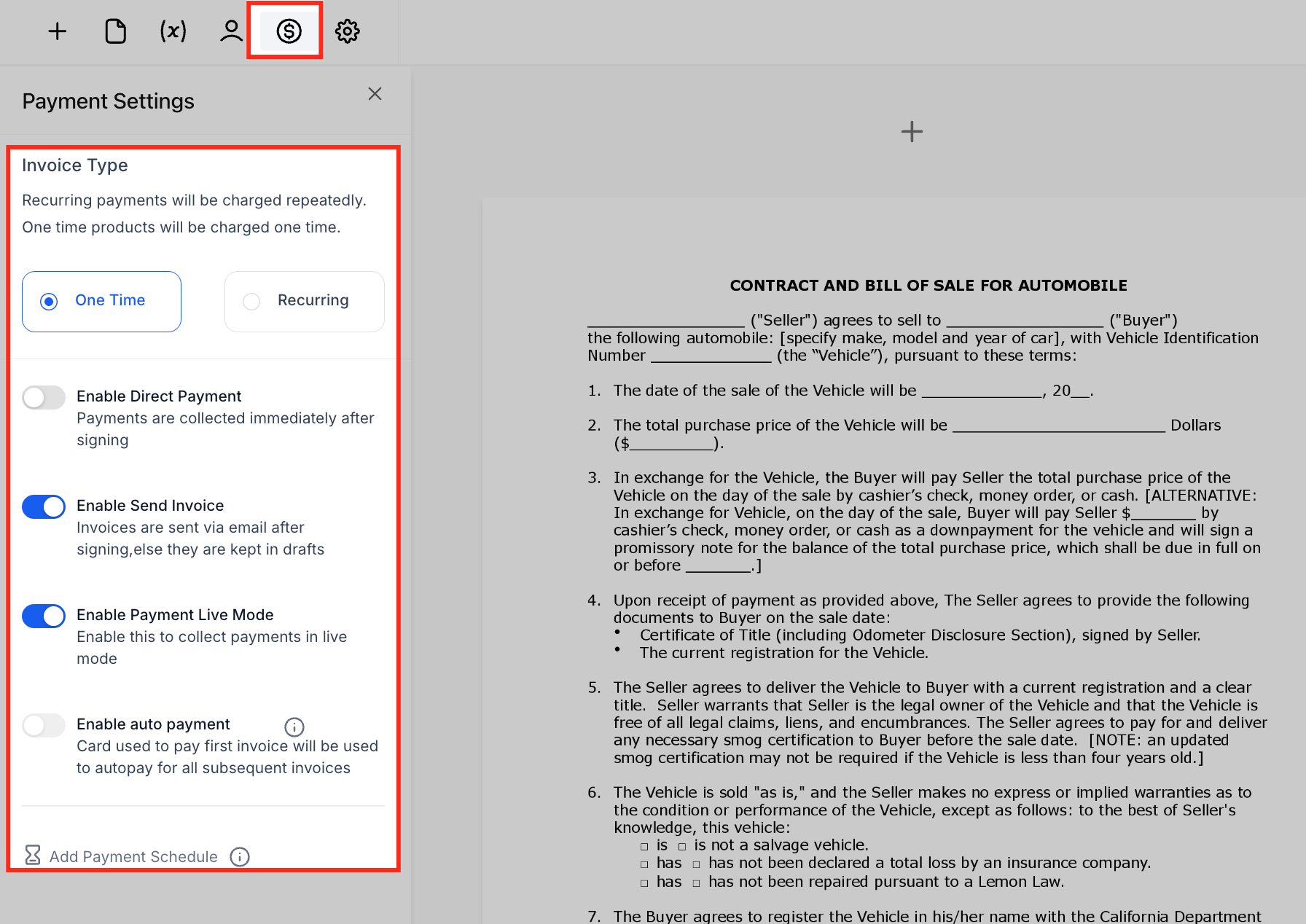
This allows clients to sign the contract and pay instantly, reducing delays and improving cash flow.
How To Send the Document to Your Client
Once your document is ready:
Click Send.
Choose an Email Template.
Edit the email subject or message if needed.
Confirm the preview.
Click Send via Email or Share via Link.
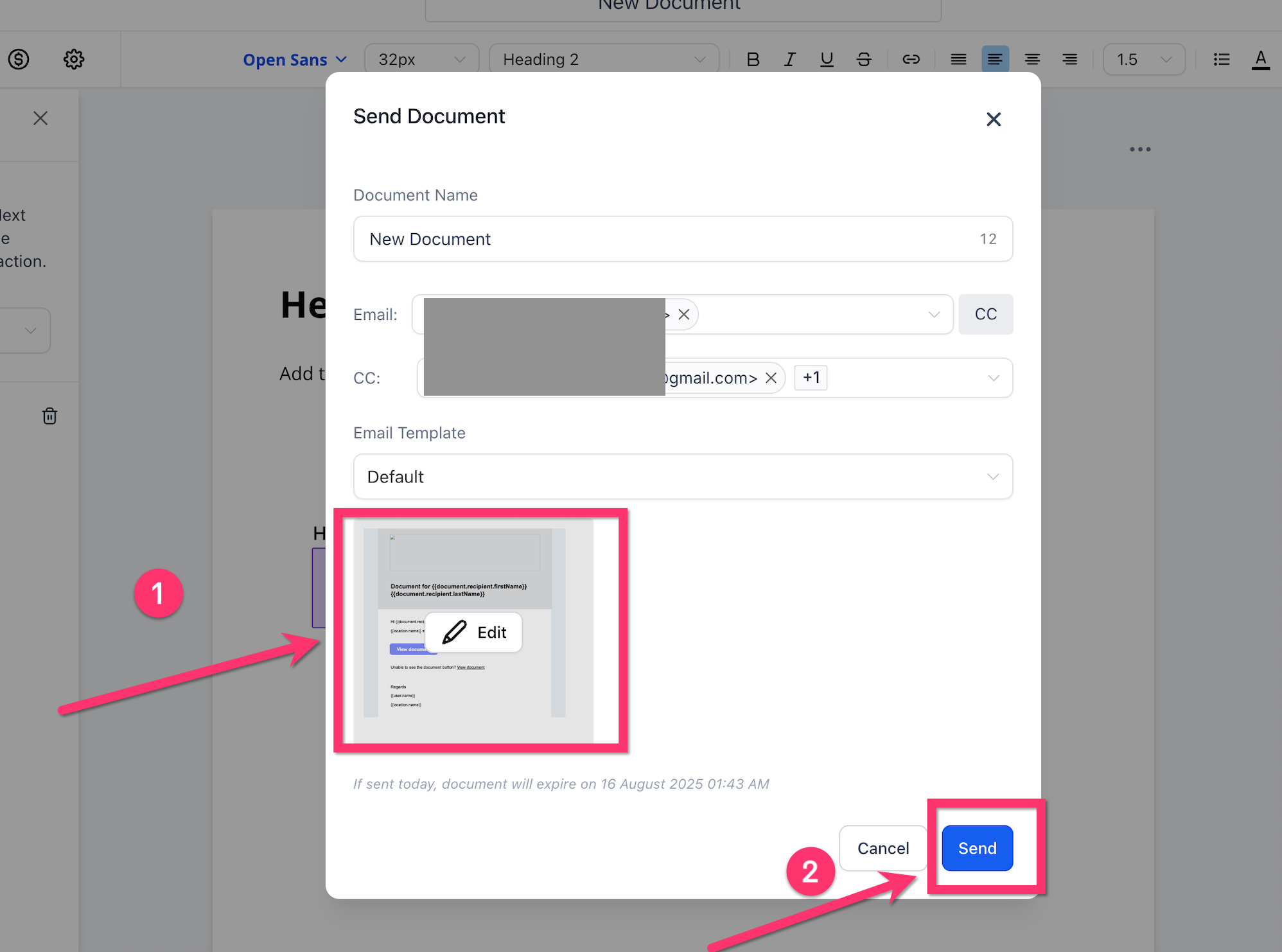
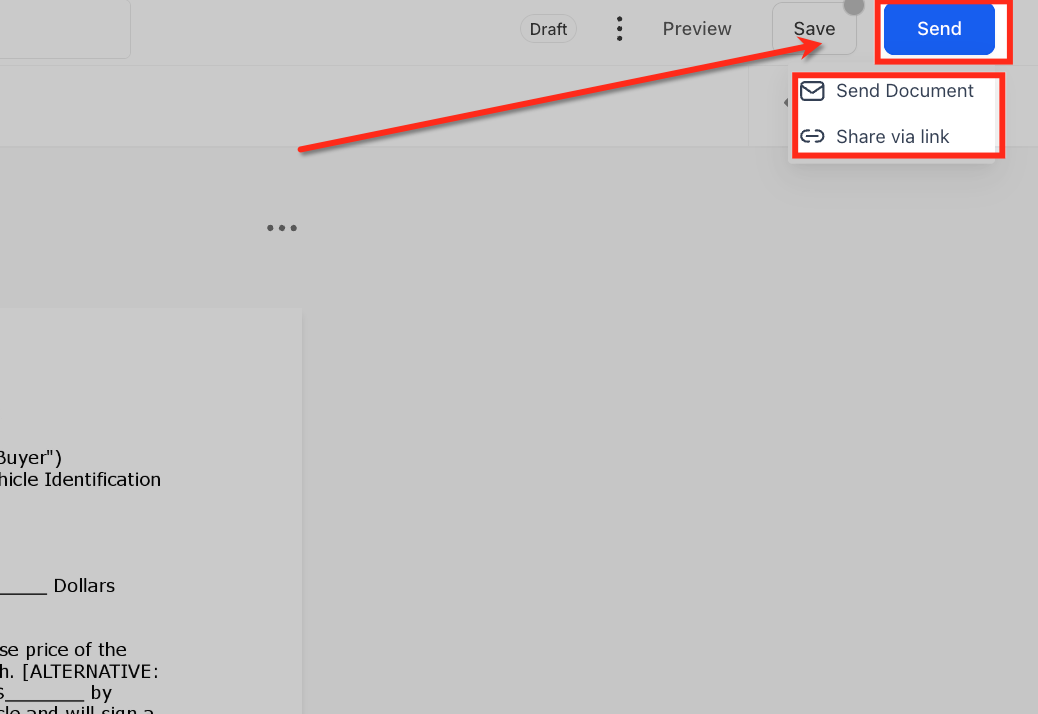
This ensures your client receives clear instructions and can complete the agreement quickly.
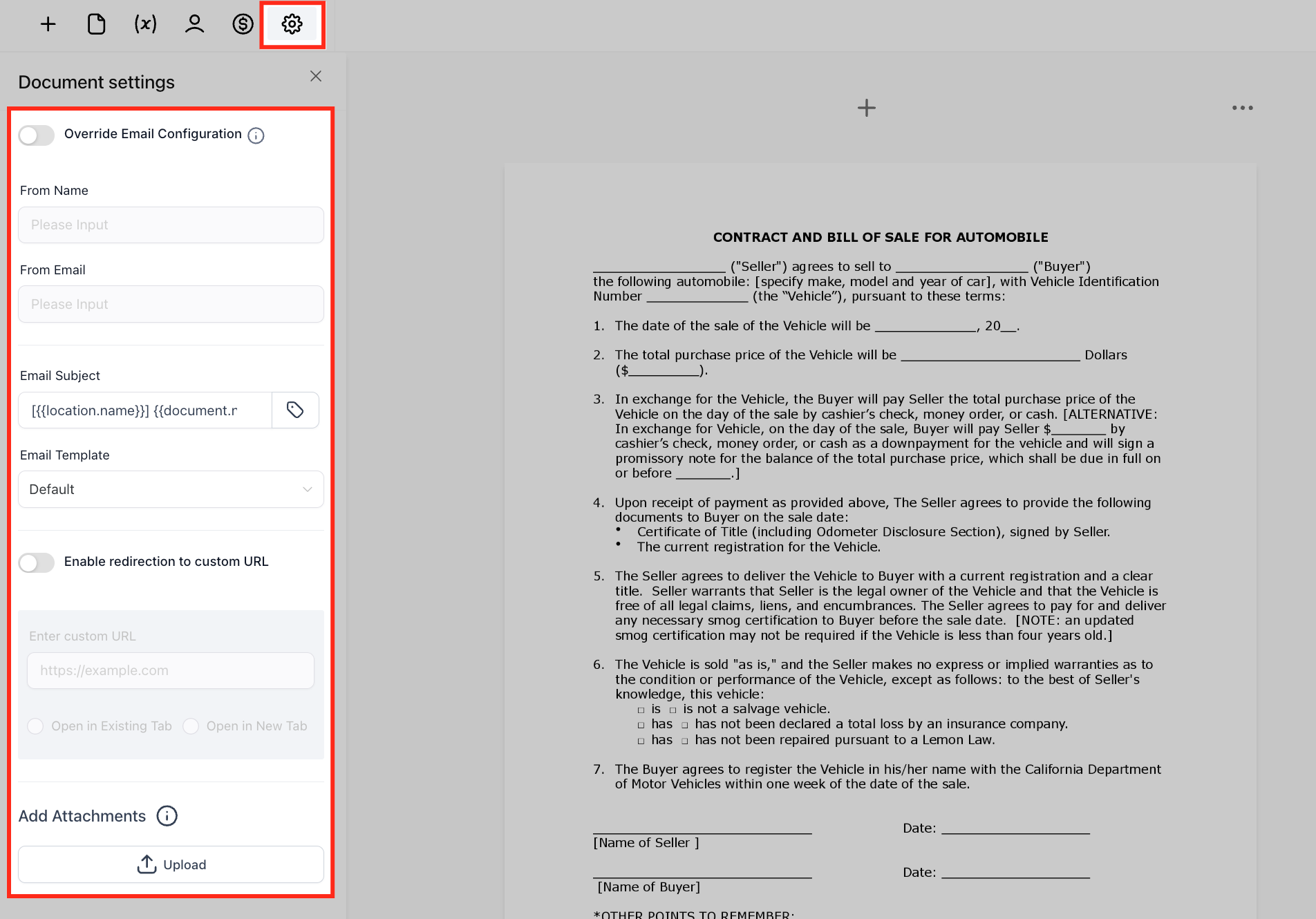
Document Settings
Control how the document is delivered.
Override the default email configuration (From Name, From Email, Subject, Template).
Redirect clients to a custom URL after signing.
Upload attachments to be included with the document email.
Sample Scenario: How Businesses Use Documents & Contracts
Example: A Business Coach Signing New Clients
Sarah runs a business coaching program and signs 10–15 new clients every month.
Before using Tekmatix, she had to:
Send a proposal
Email a contract
Send an invoice separately
Manually track signatures
This process took several days and often delayed onboarding.
With Documents & Contracts in Tekmatix, she now:
Creates a coaching agreement template.
Adds a monthly payment subscription inside the contract.
Sends the document to new clients.
The client simply:
Opens the document
Reviews the agreement
Signs electronically
Pays the first invoice
The entire process takes less than 5 minutes, allowing Sarah to onboard clients instantly and reduce admin work.
Pro Tips for Using Documents & Contracts
To get the most out of this feature:
✔ Create templates for frequently used contracts
✔ Use workflows to send reminders for unsigned documents
✔ Add expiry dates for time-sensitive offers
✔ Track unsigned agreements under Waiting for Others
✔ Include payment options to speed up deal closing
These strategies help businesses increase conversions and reduce manual follow-ups.
Frequently Asked Questions
What happens if a client signs partially but does not finish?
If multiple signers are required and only some complete their fields, the document remains under Waiting for Others until all signatures are completed.
You can resend reminders directly from the dashboard.
Are e-signatures secure?
Yes. All documents and payment data are protected with SSL encryption, and each signature includes a certificate with:
Signer email
IP address
Timestamp
This creates a legally traceable record.
Can I edit a template after sending a contract?
Yes, but the changes will only apply to future documents created from that template. Documents already sent remain unchanged for legal accuracy.
Can contracts expire?
Yes. You can set an expiry date so that documents can no longer be signed after a certain time. This is useful for proposals or limited-time offers.
Final Thoughts
The Documents & Contracts feature in Tekmatix simplifies how businesses manage agreements, collect signatures, and accept payments.
By combining contracts, signatures, and payments into one streamlined workflow, you can:
Reduce admin work
Speed up onboarding
Improve professionalism
Close deals faster
If your business regularly sends proposals, service agreements, or onboarding contracts, this feature can significantly improve your client experience and operational efficiency.

Copyright © 2026 TekMatix. All rights reserved | [email protected]