
TekMatix Blog & Help Articles
Use the search bar below to look for help articles you need.
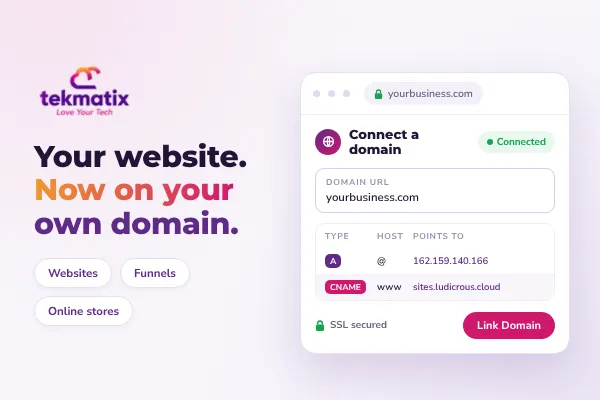
How to connect your domain or subdomain to a website or funnel on Tekmatix
Your website, funnel, store, blog or webinar page should live on your own web address. Not a long system link. Your name, on your domain.
This guide walks you through connecting a root domain (like yourbusiness.com) or a subdomain (like offers.yourbusiness.com) to your Tekmatix account. It covers the DNS records, the order to do things in, your default and 404 pages, and what to check if it doesn't connect first time.
The short answer
In your Tekmatix account, go to Settings > Domains & URL Redirects > + Connect a domain, choose Funnel/Website/Store/Blog/Webinar, enter your domain, then let Tekmatix set it up automatically or add the DNS record yourself.
Once it verifies, pick the website page or funnel step it should open on and click Link Domain. Your SSL certificate is added for you.
What is a root domain and what is a subdomain?
A root domain is your main web address, such as example.com.
A subdomain puts a word in front of it, such as www.example.com, offers.example.com or go.example.com.
You can connect either one to your Tekmatix funnels, websites, stores, blogs and webinars. That way, every page your customers land on carries your brand.
Why it matters for your business
- People trust a branded address. A link on your own domain looks like your business, so more people click it and fewer people worry it's spam.
- Your SEO builds on your name. Every page you publish adds weight to a domain you own, not someone else's.
- SSL is handled for you. Tekmatix adds the security certificate automatically once the domain connects. No separate purchase.
- You control the first impression. Choose exactly which page opens when someone types in your domain.
- No dead ends. Set a branded 404 page so a mistyped link still lands somewhere useful.
- Keep what already works. Already have a website elsewhere? Use a subdomain for your Tekmatix pages and leave the main site alone.
Before you start
- You need to own the domain, or have login access to it.
- You need access to wherever the domain's DNS is managed. This is usually your domain registrar (GoDaddy, Crazy Domains, Namecheap, VentraIP and so on), or Cloudflare if you use it.
- Decide whether you want the root domain or a subdomain (more on this in step 1).
- If the address you want is already running another website or service that needs to keep working, pick a different subdomain instead of repointing it.
Which Tekmatix plan do you need?
Connecting your own domains is included on the Starter, Pro and Max plans, and you can connect as many domains as you like to your one account.
If you're on the Launch Plan, you can connect a domain to your websites, but funnels are not included on Launch. If you want funnels, stores or courses on your domain, you'll need Starter or above.
Compare everything on the pricing page, or change your plan here in a couple of clicks.
How to connect a root domain or subdomain on Tekmatix
Step 1. Decide: root domain or subdomain?
Get this right before you touch any DNS, so you don't accidentally knock an existing website offline.
| Use this | When | Example |
|---|---|---|
| Root domain | Tekmatix will host your main website | example.com |
| Subdomain | Your main site lives somewhere else, or you want a separate space for offers, funnels or a brand | www.example.comoffers.example.comgo.example.com |
If your root domain already runs a website you want to keep, use a subdomain. Simple as that.
Step 2. Start the connection in Tekmatix
- In your Tekmatix account, click Settings.
- Select Domains & URL Redirects.
- Click + Connect a domain.
- Find Funnel/Website/Store/Blog/Webinar and click Connect.
- Type your root domain or subdomain into the Domain URL field.
- Choose Continue to try automatic setup, or Add record manually to add the DNS record yourself.
Connecting a root domain? Tekmatix can also add the www version for you and redirect it to your root domain, so both addresses end up in the same place.
Building with AI Studio? You'll see an AI Studio option on the same Connect a domain screen. Choose that one instead to put your AI Studio project on your own domain.
Step 3. Set up your DNS, automatically or manually
Option A: automatic setup. If your domain provider supports it, Tekmatix can add the records for you.
- Enter your domain and click Continue.
- If your provider is recognised, click Authorize.
- Sign in to your domain provider when it asks.
- Approve the DNS connection.
- Close the provider tab and head back to Tekmatix.
- Give Tekmatix a moment to verify the connection.
Option B: manual setup. If automatic setup isn't available for your provider, or you'd rather do it yourself:
- Enter your domain in Tekmatix and click Add record manually.
- Sign in to wherever your domain's DNS is actually managed.
- Add one of the records below for the address you're connecting.
| You're connecting | Type | Host / Name | Value / Points to |
|---|---|---|---|
| A root domain | A | @ | 162.159.140.166 |
| A subdomain | CNAME | Just the subdomain part, e.g. www or offers | sites.ludicrous.cloud |
| A subdomain (alternative) | A | Just the subdomain part | 162.159.140.166 |
These are the values shown at the time of writing. Always copy the exact values on your own Connect a domain screen, as those are the ones Tekmatix is checking for.
Two things that trip people up
One record per address. Use an A record or a CNAME for each hostname, never both.
Using Cloudflare? Set the Tekmatix record's proxy status to DNS only (grey cloud), not Proxied. Otherwise Tekmatix can't verify it.
Step 4. Link the domain to your website or funnel
- Wait for Tekmatix to verify your DNS record.
- On the next screen, choose the Funnel or Website this domain is for.
- Choose the funnel step or website page that should open when someone visits the domain.
- Click Link Domain.
Tekmatix starts adding your SSL certificate straight away. It can take a few minutes to finish.
Step 5. Set your default page and your 404 page
Your default page is what people see when they type in your domain on its own. Your 404 page is where they land if they hit a link that doesn't exist.
- Go to Settings > Domains & URL Redirects.
- Find your domain and click Manage.
- Look at the domain's Connected Products.
- If you see an Action Required reminder, click it.
- Choose a page from the Default Page dropdown.
- Choose a page from the Default 404/Error Page dropdown.
The Action Required reminder only shows in the account where the domain was first connected.
Editing and managing your domain
To change the default or 404 page later: go to Settings > Domains & URL Redirects, click Manage on the domain, open the three-dot menu, select Edit, update the default page or Set default 404/Error Page, then click Save.
To check your DNS is live: use a free public lookup tool such as MXToolbox. Run a DNS or CNAME lookup on the address you connected and check you can see sites.ludicrous.cloud (for a CNAME) or 162.159.140.166 (for an A record). New records can take up to 24 hours to show everywhere, so give it time before assuming something's wrong.
To remove a domain: go to Settings > Domains & URL Redirects, click Manage, open the three-dot menu, select Delete and confirm. Make sure nothing live still relies on that address first.
What your customers see
Once it's connected, your visitors type in your domain and land on the exact page you chose. The padlock shows in their browser. The address bar shows your name.
If they mistype a link, they get your branded 404 page instead of a blank error. And if you connected a root domain with the www redirect, it doesn't matter which version they type. They end up in the same place.
Test it before you launch
- Open your domain in a private or incognito window and check the right page loads.
- Check for the padlock in the address bar.
- Try both
example.comandwww.example.comif you connected a root domain. - Type a made-up path like
example.com/test-123and check your 404 page appears. - Open it on your phone too.
- Send yourself a test email to make sure your normal business email still arrives.
If it doesn't connect first time
"Tekmatix can't find the CNAME or A record"
- Check your domain's nameservers to see who really manages its DNS. The record has to be added there.
- Look for an existing A or CNAME record on the same hostname pointing somewhere else, and remove it.
- Use only one of the Tekmatix records for that hostname.
- In the Host or Name field, enter only the subdomain part (like
wwworoffers) if your provider asks for it that way. - Save, wait for it to update, then retry the verification in Tekmatix.
An SSL or privacy warning shows
This usually means another record is sending some of your traffic somewhere else. Remove any conflicting A, CNAME or AAAA records for that hostname, confirm the Tekmatix record is there, set Cloudflare to DNS only if you use it, then give it time to update.
Cloudflare won't connect
In Cloudflare, open your domain, go to DNS, find the Tekmatix A or CNAME record and change Proxy status to DNS only. Save, then retry in Tekmatix.
The domain sometimes shows a 404
Check whether people are visiting both the root and www versions. Set up a 301 redirect so one always sends visitors to the other. Then confirm your default page and default 404 page are both set.
Five ways to actually use this
- Run your whole website on your root domain. Move your main site into Tekmatix and your forms, bookings, chat and payments all sit on the same address, feeding straight into your CRM.
- Keep your existing site, add a subdomain for offers. Leave
yourbusiness.comexactly where it is and put your funnels ongo.yourbusiness.com. No migration needed to start selling. - Give each programme or brand its own space.
courses.,events.orshop.subdomains make your links easier to remember and your ads easier to track. - Turn your 404 page into a lead catcher. Add an opt-in or a link to your best offer, so a broken link still earns its keep.
- Test before you switch. Build your new site on a subdomain, check everything works, then point the root domain across when you're ready.
One more tip: connecting a domain to your website only touches the A or CNAME record for that address. Leave your MX records alone, as those are what keep your business email flowing.
Rather we just did it for you?
DNS isn't everyone's idea of a good afternoon. Our Teksperts do this every day, so you can get on with the work only you can do.
5 Page Website
We build up to five pages from our industry templates in your branding, with an opt-in, a checkout for one product or service, SEO settings and an AI chat widget. It's hosted on Tekmatix and runs on your domain, so you get a professional site working for you without learning a page builder.
See the 5 Page WebsiteSales Funnel System
A three-step funnel (sales page, checkout and thank you page) built in your branding, plus the purchase confirmation workflow and an abandoned cart recovery workflow. That last one alone brings back sales you'd otherwise lose.
See the Sales Funnel SystemQuick Account Set-Up
A private 90-minute session with a Tekspert where your account settings, email sending on your own domain, pipeline, calendars and branding get checked and set up properly. Your emails get the best chance of reaching inboxes, and your account is ready to sell from.
See Quick Account Set-UpSee every done-for-you package on our services page.
Frequently asked questions
Can I use the same domain in more than one Tekmatix account?
Yes. The same domain can be added to more than one account. The Action Required reminder only appears in the account where it was first connected.
How many domains can I connect?
On Starter, Pro and Max you can connect unlimited domains to your one account.
Do I need to buy an SSL certificate?
No. Tekmatix adds SSL automatically once your domain connects. It can take a few minutes.
Can more than one website or funnel use the same domain?
Yes. Several websites and funnels can share one domain. Just set each page's path and your default page so every link goes where it should.
Do I have to use automatic setup?
No. You can always add the DNS record manually, whether your provider supports automatic setup or not.
How long does it take to work?
Often minutes, but DNS changes can take up to 24 hours to update everywhere. If it hasn't verified after that, check the troubleshooting steps above.
Will connecting my domain affect my email?
Not if you only add or change the A or CNAME record for the address you're connecting. Don't delete or edit your MX records, as those handle your email.
Which plan do I need to connect a domain?
Starter, Pro and Max include unlimited domain connections for websites, funnels, stores, blogs and webinars. The Launch Plan includes websites but not funnels. Compare plans here.
Does it cost extra to connect a domain?
No. Connecting your domain and the SSL certificate are included in your plan. You only pay your domain provider for the domain itself.
Need a hand?
Free daily group training
Join a free live session and watch a Tekspert walk through it on our demo account, then follow along in yours.
Book free trainingHire a Tekspert for 60 minutes
Share your screen and we'll connect your domain with you, live, in your own account.
Book a Tekspert15-minute advanced tech support
Stuck on one record or one error? A quick call to get you unstuck.
Book 15 minutes24/7 live chat
Click the chat bubble inside your Tekmatix account any time, day or night.
Visit supportYour domain is your address on the internet. Once it's connected, every page you build carries your name, and that's worth ten minutes of DNS.
You've got this, and we've got your back.
Happy Tekkin'!
Tekmatix is an all-in-one business platform built on HighLevel infrastructure, with our own AI agents, templates, Teksperts, 24/7 live chat and free daily training on top. Steps and DNS values are correct at the time of publishing; always follow what your own Connect a domain screen shows.

Copyright © 2026 TekMatix. All rights reserved | [email protected]