
TekMatix Blog & Help Articles
Use the search bar below to look for help articles you need.
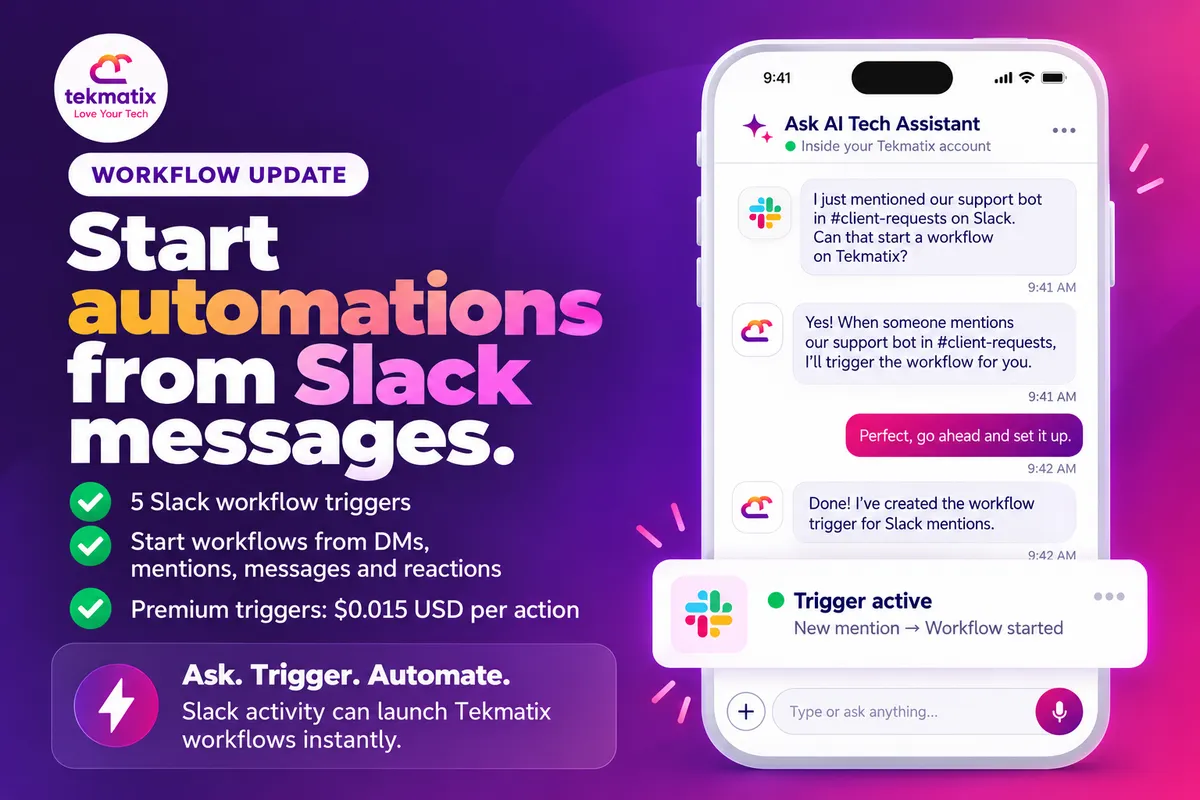
How do I start automations from Slack messages on Tekmatix?
If your team runs on Slack, that's where requests, questions and feedback start. Someone posts in a channel. Someone messages your Slack app. Someone drops an emoji on a message. Then somebody has to notice it and do something about it.
Now Slack activity can start your Tekmatix workflows for you. There are five Slack workflow triggers, covering direct messages, people joining a channel, mentions, new channel messages and emoji reactions.
Go to Automation, then Workflows, open a workflow, click Add trigger and search for Slack. Choose a trigger, select your connected Slack account, and set the channel or filters where needed. These are Premium triggers, charged at $0.015 USD per action.
What the Slack triggers are
A trigger is what starts a workflow. These five triggers listen for activity in your Slack workspace and start a workflow straight away when it happens.
| Trigger | What starts the workflow |
|---|---|
| New direct message | Someone sends a direct message to your Slack app (bot). |
| User invited to channel | A user joins or is invited to a channel you select. |
| New mention | Your Slack app (bot) is @-mentioned in a channel it has been added to. |
| New message posted to channel | A new message is posted to a public or private channel you select. |
| New reaction added | An emoji reaction is added to a message in a channel you select. |
Why this matters for your business
Nobody has to watch the channels. Requests and feedback that start in Slack can be routed automatically, instead of relying on someone spotting them.
The right people hear about it. A workflow can alert the person or team who needs to act the moment something happens.
New teammates get a proper welcome. When someone joins a channel, a workflow can take care of the onboarding message.
Slack and your CRM work together. What happens in Slack can kick off what happens in your Tekmatix account, without anyone copying details across.
Before you start
- A Slack account connected to your Tekmatix account.
- For the mention trigger, your Slack app added to the channel you want to watch.
- Access to the channels you want to use. Channel lists show the public and private channels visible to the connected Slack user.
- A clear idea of what should happen next in your workflow.
Which Tekmatix plan do you need?
Workflows are included, unlimited, on the Starter, Pro and Max plans. The Slack triggers are Premium triggers, which means usage is charged. Premium triggers and actions are $0.015 USD per action. So if Slack activity starts your workflow 1,000 times in a month, that's $15 USD for those triggers.
See current usage pricing at tekmatix.com/rebilling. Compare every plan at tekmatix.com/pricing, or change your plan here.
How to start a workflow from Slack
- Open a workflow and add a triggerGo to Automation, then Workflows, open a workflow, click Add trigger and search for Slack.
- Choose a trigger and your Slack accountPick New direct message, User invited to channel, New mention, New message posted to channel or New reaction added, then select your connected Slack account.
- Set the channel or filtersWhere the trigger asks for it, choose the channel or filters you want to use.
- Build what happens nextAdd the actions you want the workflow to take, then test it and publish when you're ready.
A few things to know
- Direct messages go to your Slack app. The New direct message trigger listens for messages sent to the Slack app (bot), not to you personally.
- Add the app before using mentions. For the New mention trigger, add the Slack app to the channel first.
- Channel lists depend on who's connected. You'll see the public and private channels visible to the connected Slack user.
- Every trigger is Premium. Each time one starts a workflow, it's charged at the Premium rate.
Test it in a quiet channel first.
Set up a test channel in Slack and point your trigger at it. Post a message, add a reaction or mention your Slack app, then check the workflow ran and did what you expected. Once you're happy, switch it to your real channel and publish.
Five ways to actually use this
- Route incoming requests. When someone messages or @-mentions your Slack app, notify a triage channel so the request gets picked up.
- Welcome new teammates. When a user joins your team's channel, post an onboarding message so they know where to start.
- Follow up on feedback. When a message in a review channel gets an emoji reaction, alert your reviewers.
- Keep teams in the loop. When a new message is posted to a shared request channel, notify the other team who needs to know.
- Use reactions as a simple approval. Agree as a team that a particular emoji means "approved" or "done", and use New reaction added in that channel to start the next step.
Want it done for you?
Triggers are the start. The systems behind them are what save you time. If you'd rather hand that over, our Teksperts can build it straight into your Tekmatix account.
New Client Onboarding System
A branded intake form, a welcome page, a kick-off call calendar, a five-email welcome sequence, internal team alerts when a client signs up or completes intake, and automated tasks or pipelines to track each stage. Clients move from paid to onboarded with less manual admin, and your team always knows what's next.
See the Onboarding SystemQuick Account Set-Up
A private 90-minute session with a Tekspert to set up your core settings and integrations, email sending, contacts, tags, pipeline, calendars and branding. You get a clean, properly set up account to build your automations on, instead of weeks of trial and error.
See Quick Account Set-UpSee every done-for-you package at tekmatix.com/services.
Frequently asked questions
Which Slack triggers are there?
Five: New direct message, User invited to channel, New mention, New message posted to channel and New reaction added.
Does the direct message trigger fire for messages sent to me?
No. It listens for direct messages sent to your Slack app (bot).
Why isn't my mention trigger working?
The mention trigger only fires when your Slack app is @-mentioned in a channel it has been added to. Add the Slack app to the channel first.
Can I use private channels?
Yes. Channel lists include public and private channels visible to the connected Slack user.
Where do I find the Slack triggers?
Go to Automation, then Workflows, open a workflow, click Add trigger and search for Slack.
Which Tekmatix plan do I need?
Workflows are included on the Starter, Pro and Max plans. The Slack triggers are Premium, so usage is charged. Compare the plans here and change your plan here.
How much do Slack triggers cost?
The Slack triggers are Premium triggers, charged at $0.015 USD per action. Current usage pricing is at tekmatix.com/rebilling.
Need a hand?
Free daily group training
Jump on a free group session with a Tekspert and connect Slack to a workflow live.
Book free trainingHire a Tekspert for 60 minutes
Share your screen and we'll map your Slack channels to the right workflows with you.
Book a Tekspert15 minute advanced tech support
Got one quick question, like why a trigger isn't firing? A focused 15 minutes sorts it out.
Book 15 minutes24/7 live chat
Our team is on live chat around the clock, right inside your Tekmatix account.
Get supportYour team is already talking in Slack. Now those conversations can get the work moving.
Happy Tekkin'!

Copyright © 2026 TekMatix. All rights reserved | [email protected]