
TekMatix Blog & Help Articles
Use the search bar below to look for help articles you need.
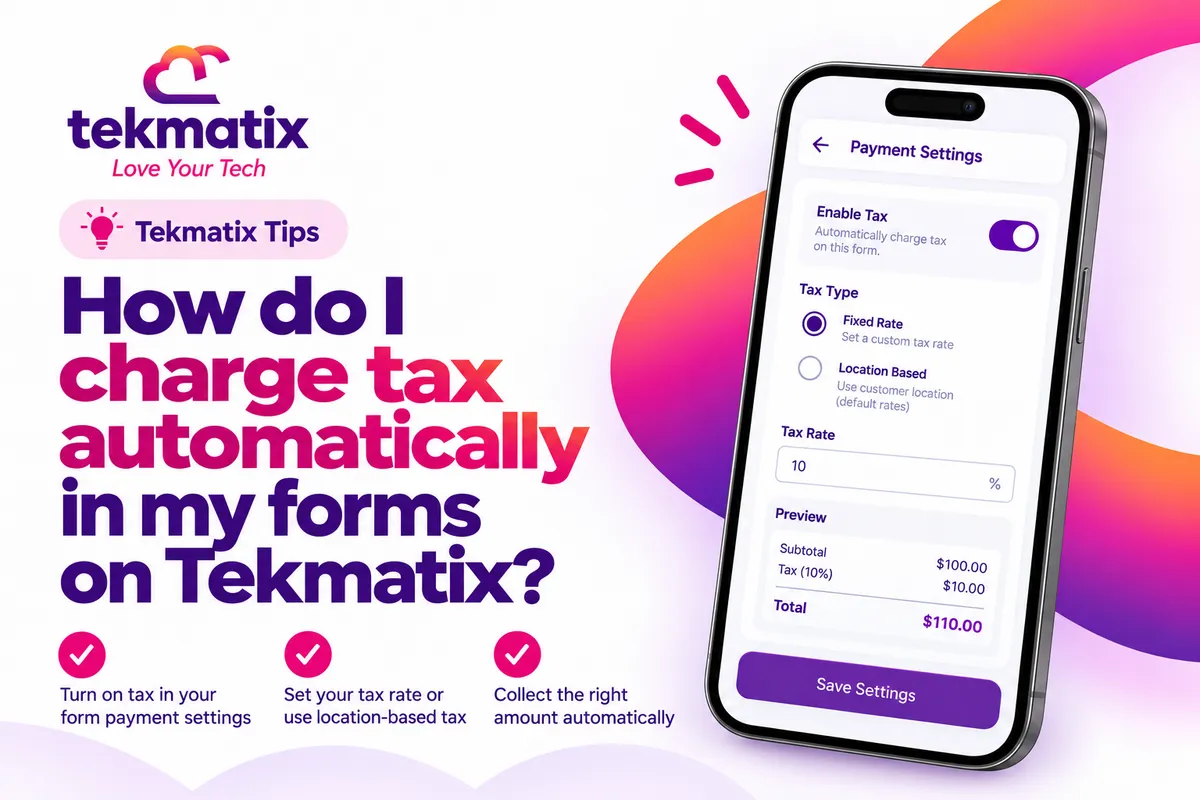
How do I charge tax automatically in my forms on Tekmatix?
You sell through a form. Maybe it's a workshop booking, a product order or a deposit. Then someone buys from another state or another country, and you're working out the tax by hand after the money's already come in.
Tekmatix forms and surveys can now charge tax automatically, based on the address your customer enters. You can also collect a separate billing address, with a handy "Same as Shipping Address" tick box so customers don't type it twice.
First switch on automatic tax in Payments, then Settings, then Taxes, and add the places where you have a tax obligation. Then open your form or survey in the builder, make sure it has the Sell Products element and the Address element, and set Automatic Taxes to use the customer's address. Tax is then calculated from that address at checkout.
What's new in forms and surveys
Forms and surveys that sell products used to rely on tax amounts you set up manually. Now they can calculate tax automatically from the customer's address, using the native Address element in your form.
- Automatic taxes. Tax is worked out from the address your customer enters in the Address element.
- Rename the Address element. Change its label to something clearer, like "Shipping Address".
- Separate billing address. A Billing Address toggle in the Sell Products element lets you collect a billing address too. It uses the same fields you've set up in the Address element.
- "Same as Shipping Address". Customers can tick a box when their billing address is the same, so they don't have to enter it again.
Why this matters for your business
Less admin after every sale. No more working out tax by hand or chasing customers for their address after they've paid.
Fewer mistakes. Tax is calculated from the customer's address and the settings you've chosen, instead of a flat rate you hope is right.
A smoother checkout. Customers see the tax as its own line item, and the "Same as Shipping Address" box saves them typing the same details twice.
Ready to sell further afield. Once your tax settings are in place, the same form can handle customers from different locations.
Before you start
- A payment provider connected to your Tekmatix account.
- The products you're selling set up in Payments, then Products.
- A form or survey that sells products, using the Sell Products element.
- A clear idea of where you have a tax obligation. Tax rules are your responsibility in every place you collect or pay tax, so check with your accountant or tax adviser if you're not sure.
Which Tekmatix plan do you need?
Unlimited forms are included from the Starter plan up. If you're using a survey with conditional logic, that's included on the Pro and Max plans. Compare every plan at tekmatix.com/pricing, or change your plan here.
We're not aware of a separate Tekmatix usage charge for automatic taxes. You can see all current usage pricing at tekmatix.com/rebilling.
Step 1: switch on automatic tax in your payment settings
- Open your tax settingsGo to Payments, then Settings, then Taxes. The Automatic Taxes section is further down the page.
- Choose whether prices include taxSet Include Tax in Prices to Yes or No. Yes keeps your price fixed and takes the tax out of it, so a $100 product at 10% shows $9.10 tax and still totals $100. No adds tax on top, so the same product shows $10 tax and totals $110.
- Turn on automatic taxSwitch on the toggle in the Automatic Taxes section.
- Pick a default tax category (optional)Choose the Default Tax Category that best fits your products. You can override it on individual products.
- Add your nexus addressesClick Add Nexus Address, choose the country (or state or province, for the US and Canada), add a Tax ID if you have one, and click Add. A nexus address is a place where you have a tax obligation.
- Set product tax categories (optional)Go to Payments, then Products, and edit a product. In the Product Tax Code section, choose a tax category and whether that product's price includes tax, then save. Products without one use your default.
Step 2: set up your form or survey
- Open your form or surveyOpen the builder for the form or survey that contains the Sell Products element.
- Add the Address elementAdd or set up the Address element to collect the address details you need. This is the address tax is calculated from.
- Rename it if you likeChange the Address element's label if it helps, for example to "Shipping Address".
- Set up Automatic TaxesConfigure Automatic Taxes so it uses the customer's address to calculate tax.
- Turn on Billing Address (optional)In the Sell Products element, switch on the Billing Address toggle. Shipping Address must be switched on first. The billing fields use the same set-up as your Address element.
- Save and publishSave your form or survey and publish it wherever you share it.
What your customers see
Your customer fills in their address as part of the form. If you've switched on Billing Address, they'll see billing fields too, with a Same as Shipping Address box they can tick if the details match. At checkout, tax is calculated from their address and shows as a separate line item.
A few things to know. Tax is only as accurate as the address your customer enters and the settings you've chosen, so check your nexus addresses and product tax categories carefully. Countries outside the US and Canada are chosen at country level, so check your country appears in the Add Nexus Address list before you rely on it. You remain responsible for meeting the tax rules wherever you collect or pay tax.
Test it before you take real money.
Open your form in a private browser window and go through it as a customer. Enter an address in a place you've added as a nexus address and check the tax line appears with the amount you expect. Try an address somewhere you haven't added, and check the result there too. If you've switched on Billing Address, test the "Same as Shipping Address" box both ticked and unticked.
Five ways to actually use this
- Sell workshop and event places from a simple form. Take the booking, the address and the right tax in one go, without building a full checkout funnel.
- Take product orders from anywhere. Use the Address element as your shipping address, so tax and delivery details come in together.
- Get invoices right for business customers. Switch on Billing Address so businesses can enter their accounts address separately from where the goods are going.
- Keep your prices simple. If you advertise prices with tax included, set Include Tax in Prices to Yes so the price your customer sees is the price they pay.
- Qualify and sell in one survey. On Pro and Max, use a survey with conditional logic to ask a few questions first, then show the right product, with tax calculated automatically at the end.
Want it done for you?
Tax settings, products and checkout forms all need to line up. If you'd rather hand that over, our Teksperts can build it straight into your Tekmatix account.
Sales Funnel System
A three-step funnel (landing or sales page, checkout and thank-you page) built in your branding, plus a purchase confirmation workflow and an abandoned cart recovery workflow. Your offer gets a proper place to sell, with follow-up that helps recover the sales that nearly got away.
See the Sales Funnel SystemContracts, Proposals & Invoicing
Invoice settings set up with your logo, tax IDs, payment gateway and default currency, a standard invoice template formatted for tax compliance, a proposal and contract template, and an unpaid invoice reminder sequence. Your paperwork and payments stay consistent, so tax and billing details are right every time.
See Contracts, Proposals & InvoicingEvent / Retreat Tickets System
A three-step event funnel, a ticket confirmation workflow with reminders and follow-ups, an abandoned cart sequence, attendees added to a Google Sheet, and a QR code registration form for the day. Selling tickets gets easier, and you spend less time on admin.
See the Event / Retreat Tickets SystemSee every done-for-you package at tekmatix.com/services.
Frequently asked questions
What is tax calculated from?
The address your customer enters in the Address element, together with your nexus addresses, the product's tax category and any Tax ID you've added.
Do I need the Address element in my form?
Yes. Automatic tax in forms and surveys uses the address collected through the native Address element.
Why can't I switch on Billing Address?
Billing Address can only be switched on after Shipping Address is switched on in the Sell Products element.
Can customers skip typing their billing address?
Yes. They can tick "Same as Shipping Address" when the details match.
Can my prices include tax?
Yes. Set Include Tax in Prices to Yes in Payments, then Settings, then Taxes. You can also override this on individual products.
Do I need to add every country I sell to?
You need to add each country, or state or province, where you have a tax obligation. If you're unsure, check with your accountant or tax adviser.
Do I need to be on a particular Tekmatix plan?
Unlimited forms are included from the Starter plan up. Surveys with conditional logic are included on the Pro and Max plans. You can compare the plans here and change your plan here.
Does automatic tax cost extra?
We're not aware of a separate Tekmatix usage charge for automatic taxes. Current usage pricing is at tekmatix.com/rebilling.
Need a hand?
Free daily group training
Jump on a free group session with a Tekspert and set up your tax settings live.
Book free trainingHire a Tekspert for 60 minutes
Share your screen and we'll set up your products, tax settings and checkout form with you.
Book a Tekspert15 minute advanced tech support
Got one quick question, like tax not showing at checkout? A focused 15 minutes sorts it out.
Book 15 minutes24/7 live chat
Our team is on live chat around the clock, right inside your Tekmatix account.
Get supportYour forms already take the money. Now they can take care of the tax too.
Happy Tekkin'!

Copyright © 2026 TekMatix. All rights reserved | [email protected]