
TEKMATIX INTEGRATIONS · CHATGPT · MCP
How to Connect ChatGPT to Tekmatix Using MCP: Step-by-Step Guide
By Sarah Cordiner · Updated 6 October 2026
You already ask ChatGPT to help you think, plan and write. Now imagine being able to ask it about your actual customers, your bookings and your sales pipeline, then get it to help with the work inside your business account.
Connecting ChatGPT to Tekmatix gives your AI access to supported tools for working with your CRM. Less copying between tabs. Less digging through records. More time to use the information and move your business forward.
Create a custom MCP plugin in ChatGPT using https://services.leadconnectorhq.com/mcp/openai/v2/, complete the LeadConnector sign-in and permission process, select your Tekmatix sub-account, then enable the connection in a new conversation. Start with a read-only question to check that it can access the correct account.
Screenshots below are extracted from Sarah’s supplied video. This guide follows her walkthrough, adds the current documented Developer mode step, and builds on our Claude-to-Tekmatix setup guide. Menu labels and available actions can change as ChatGPT and the connector develop.
Watch the ChatGPT-to-Tekmatix setup video
Watch the complete tutorial on YouTube.
What is MCP, and why would you use it?
MCP stands for Model Context Protocol. Think of it as the connection that lets an AI assistant use tools from another application.
In this case, it connects ChatGPT with supported Tekmatix operations. ChatGPT can retrieve account information and, where the connection and permissions allow it, create or update records. It does not need you to paste every customer record into your conversation manually.
The connector does not give ChatGPT unlimited access to everything. What it can do depends on the tools currently available, the sub-account you authorise, your user permissions and the scopes granted during installation.
What you need before you start
- A ChatGPT account with access to custom MCP plugins. Check your own account’s available settings and any workspace administrator restrictions. The video mentions a paid plan, but a particular price alone is not a guarantee of access.
- Your Tekmatix login and permission to authorise integrations for the intended business account.
- The exact Tekmatix sub-account name you want to connect. If you can access multiple businesses, decide which ones you actually need.
- A browser that can open the authorisation window.
You do not need to create an API key for this OAuth setup. You sign in and approve the connection through the authorisation screen.
Step 1: Open ChatGPT and check Developer mode
Sign in to the ChatGPT account you want to use. The current documented setup starts in Settings → Security and login → Developer mode. Turn on Developer mode if it is required to create a custom MCP connection in your version of ChatGPT.
Sarah’s recording starts from the Plugins area with this option already available. If you cannot see the custom connection controls, check your plan, workspace policy and available Developer mode settings.
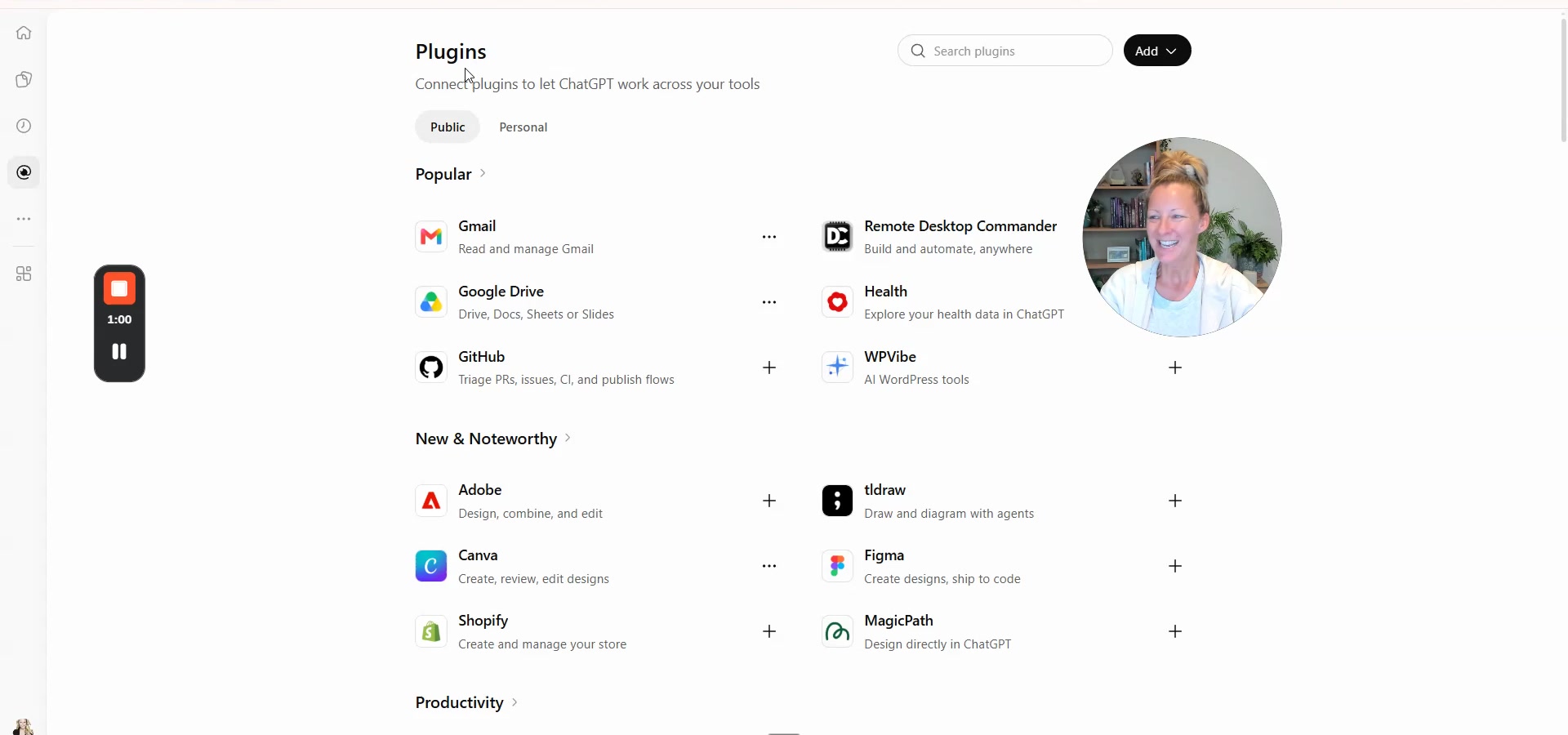
Step 2: Open Plugins and add a custom MCP connection
Video reference: 0:38–1:04. Open Plugins, select the add or plus button, then choose the option to add a custom MCP connector or create a plugin.
A plugin may contain a connection, reusable instructions or other capabilities. For this setup, you are adding the MCP connection that allows ChatGPT to use Tekmatix tools.
Step 3: Enter your Tekmatix connection details
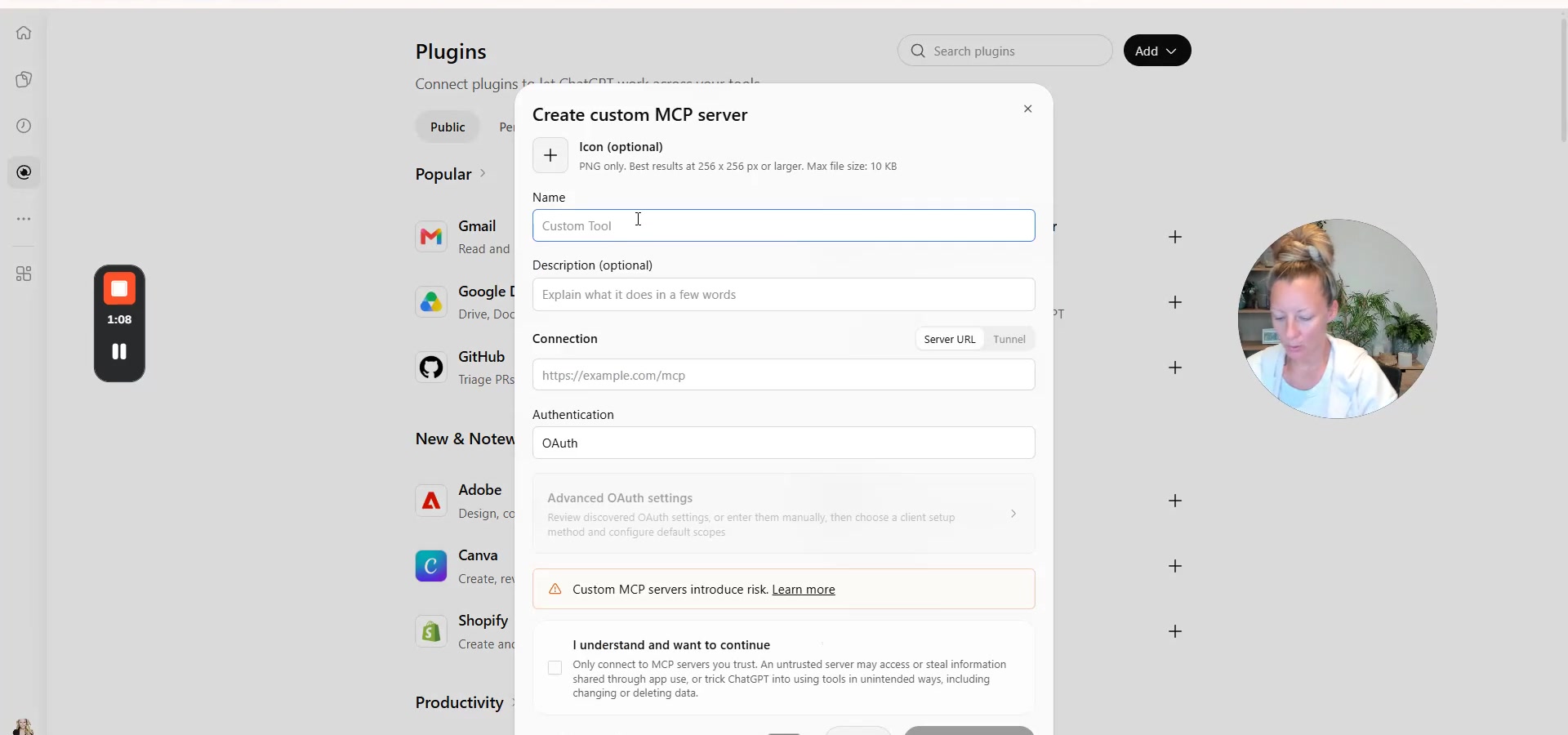
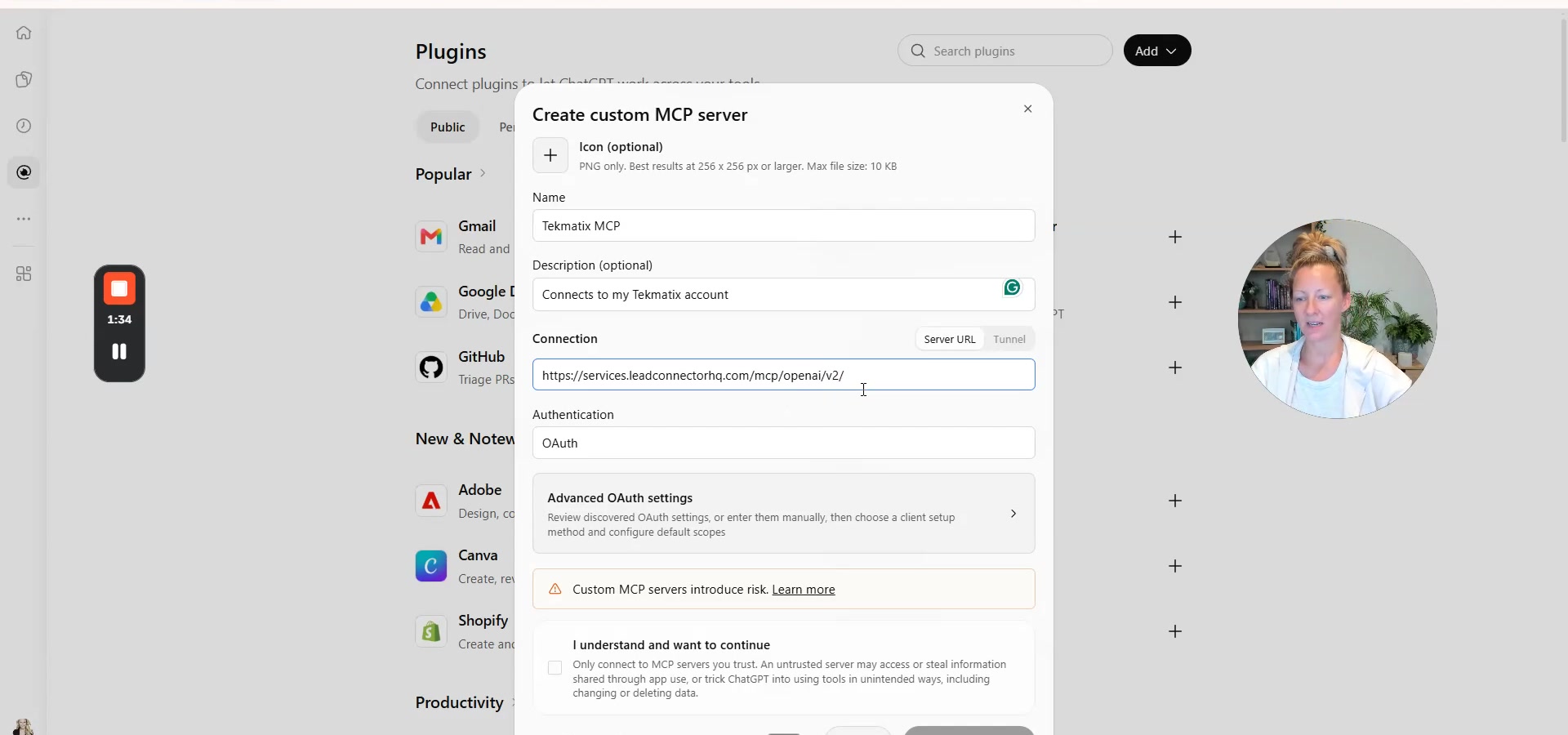
Video reference: 1:04–1:46. Enter the following:
| Field | What to enter |
|---|---|
| Name | Tekmatix |
| Description | Connects ChatGPT to my Tekmatix account. |
| MCP server URL | https://services.leadconnectorhq.com/mcp/openai/v2/ |
Copy the URL exactly. Use the written URL above if the automated video transcript has misheard part of the address. Do not use the Claude endpoint for ChatGPT.
Read the notice shown by ChatGPT. If you understand the connection and want to proceed, tick the acknowledgement shown in your interface and select Create or Create as a plugin.
Step 4: Complete the LeadConnector authorisation
Video reference: 1:46–2:14. ChatGPT opens the LeadConnector sign-in and consent process. LeadConnector is the service name you will see during this integration setup.
Sign in when prompted. If you already have a valid session, the process may take you straight to account selection. If the pop-up disappears, check your browser’s open windows and whether it blocked the authorisation window.
Step 5: Select the correct Tekmatix sub-account
Video reference: 2:14–2:23. Choose the account for the business you want ChatGPT to work in.
Do not simply select every account you can see. Connect only the business accounts you own or are authorised to manage. Some installations offer one sub-account; agency installations may offer multiple accounts where that option has been enabled.
When you have more than one authorised account, name the business in your prompts. Each operation runs against one sub-account at a time.
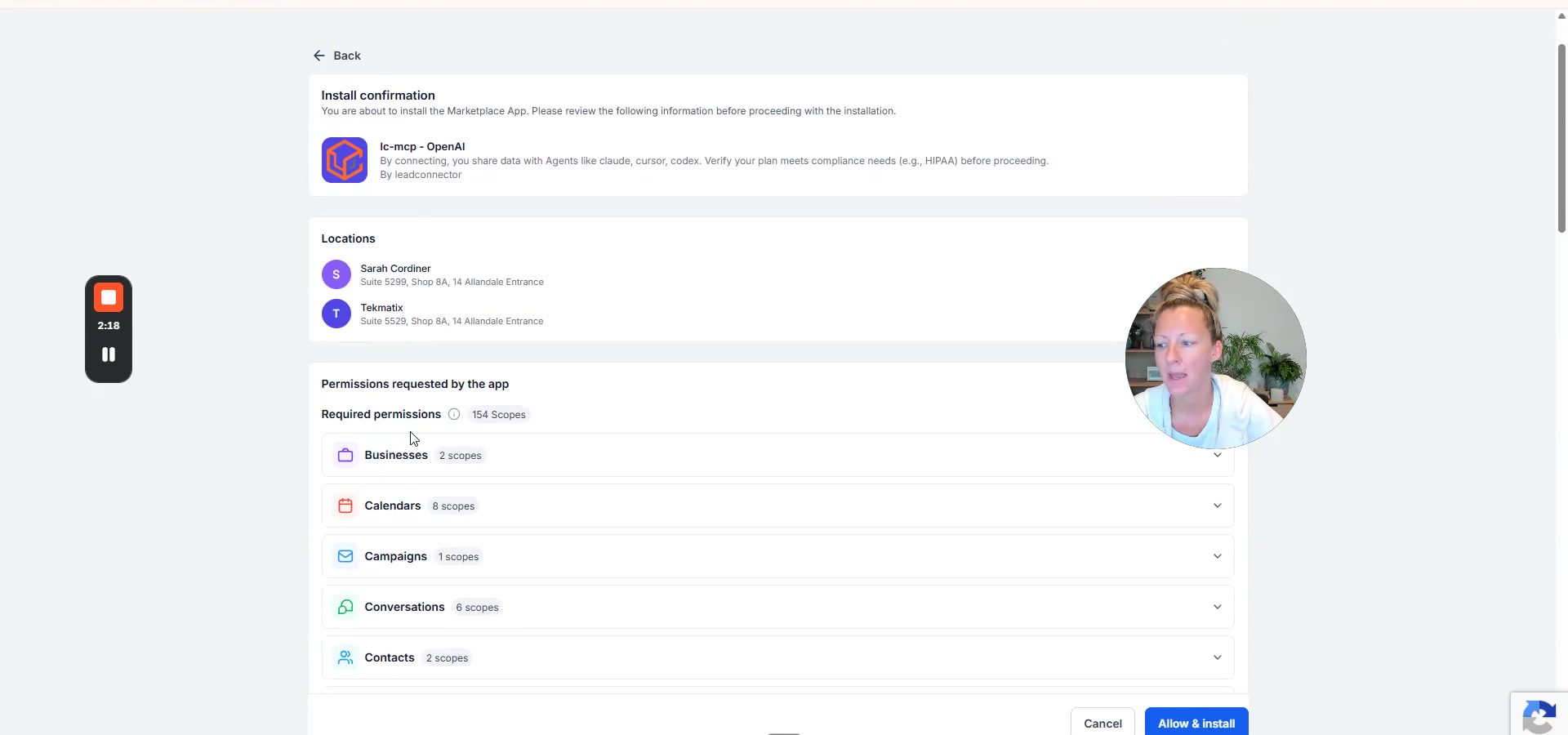
Step 6: Review the requested permissions
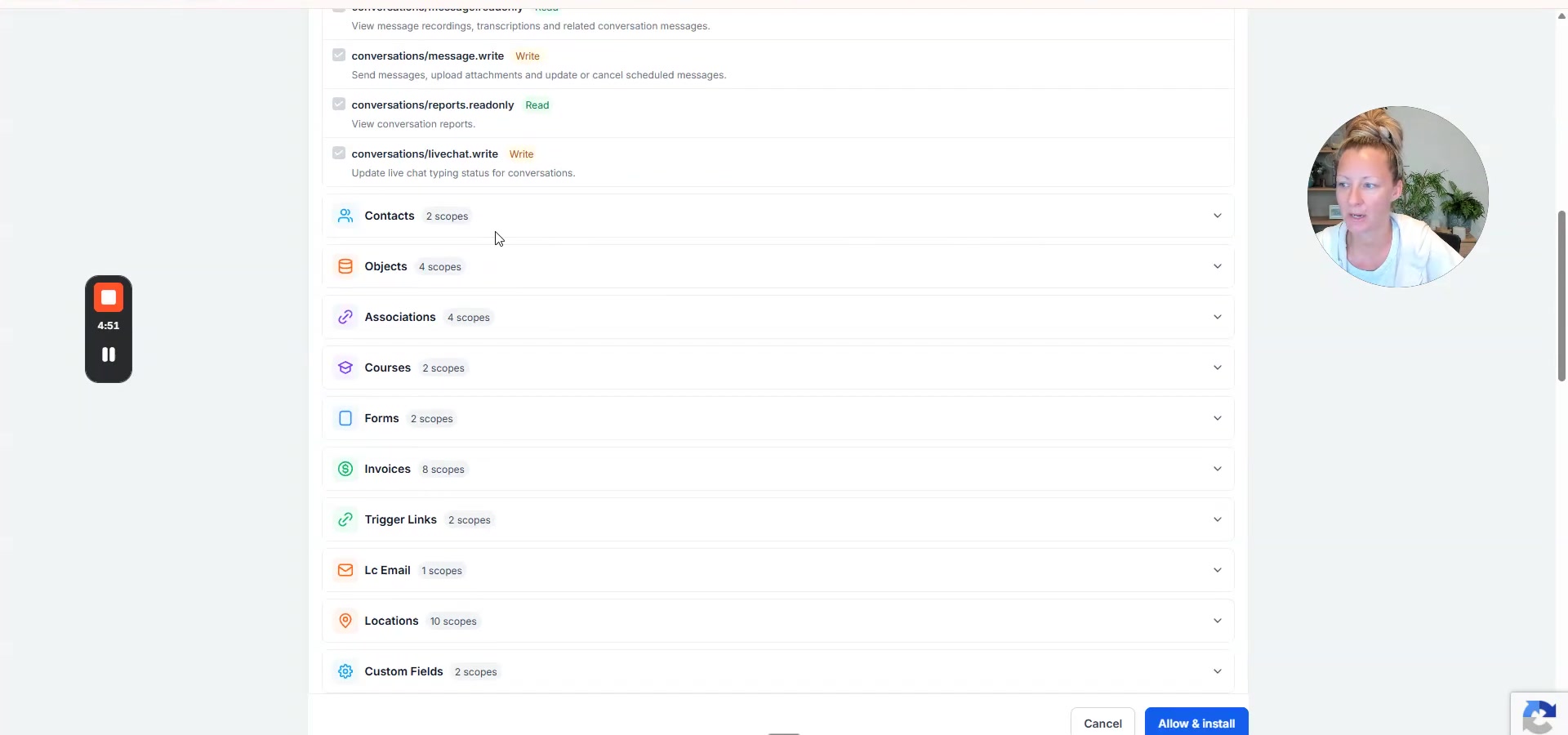
Video reference: 2:23–4:52. Expand each permission category and read what the integration is requesting.
| Permission | What it means | Example |
|---|---|---|
| Read | Retrieve information using permitted operations. | Summarise open sales opportunities. |
| Write | Perform the particular create, update, send or delete operations allowed by that scope. | Add a contact tag or create an appointment, where supported. |
Important: Sarah’s ChatGPT demonstration shows permission controls that differ from the Claude installation. Do not assume every checkbox is editable. Review the actual requested grant in your own account. If you cannot reduce permissions to a level you are comfortable with, stop and ask support before installing.
The useful principle from our Claude guide still applies: grant only the access required for the work you want done, where the installation allows that choice. Reporting usually needs read access. Changing records needs the relevant write access.
Pay particular attention to permissions covering users, payment settings, deletion, messaging and usage-based features. Read the specific scope description rather than assuming every permission in a category has the same effect.
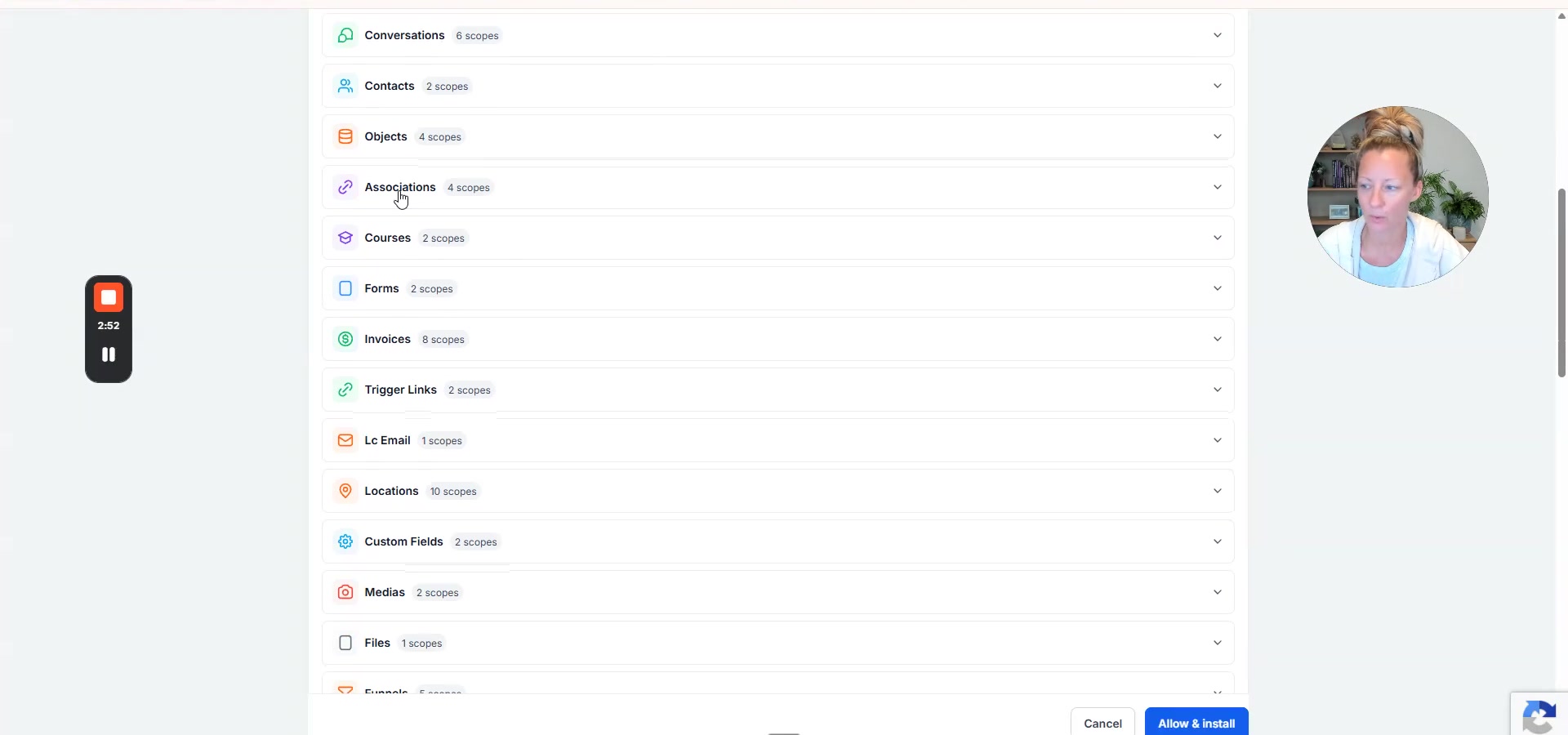
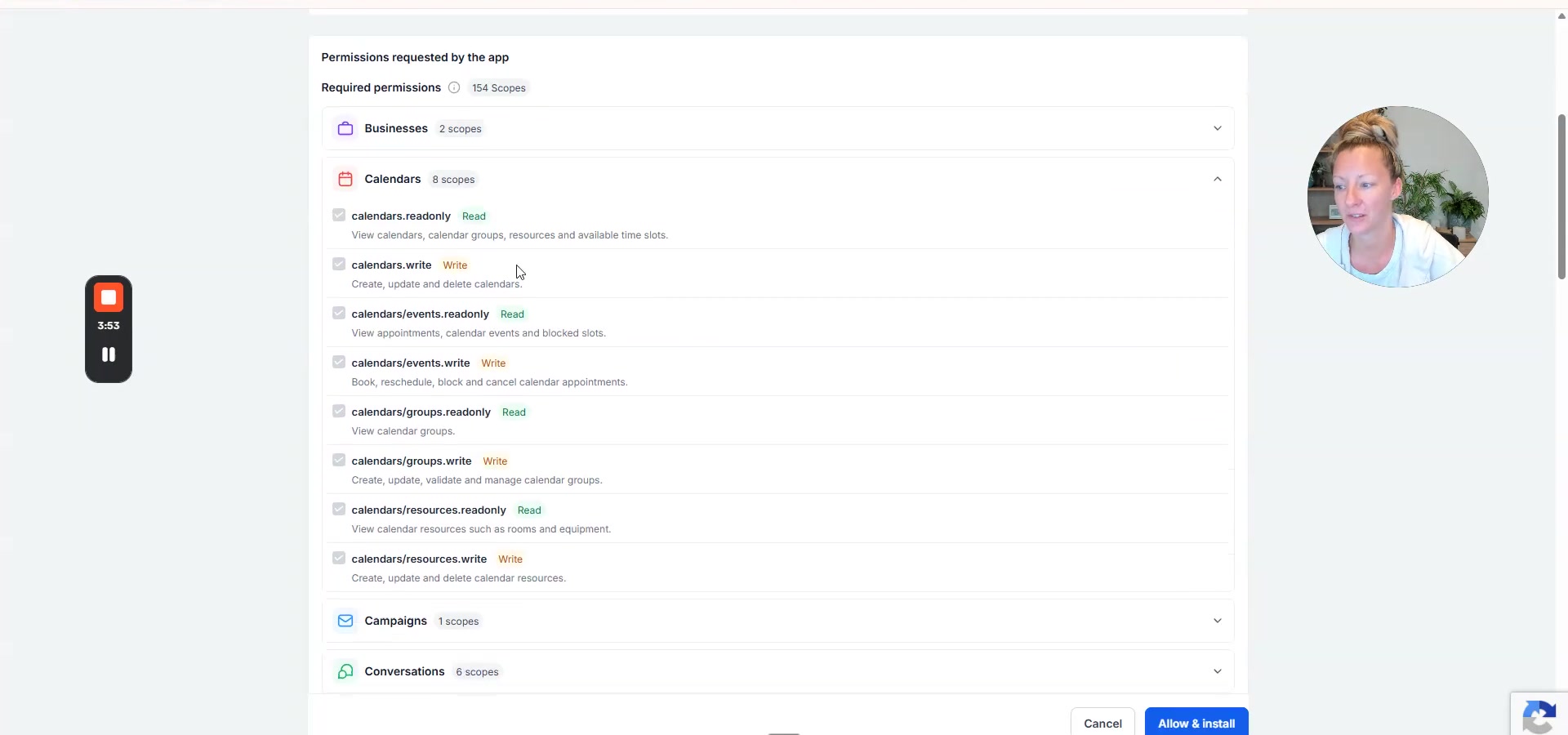
Step 7: Allow and install the connection
Video reference: 4:52–5:17. Once you have checked the account and permissions and are happy to proceed, select Allow & Install. Complete any remaining sign-in prompts.
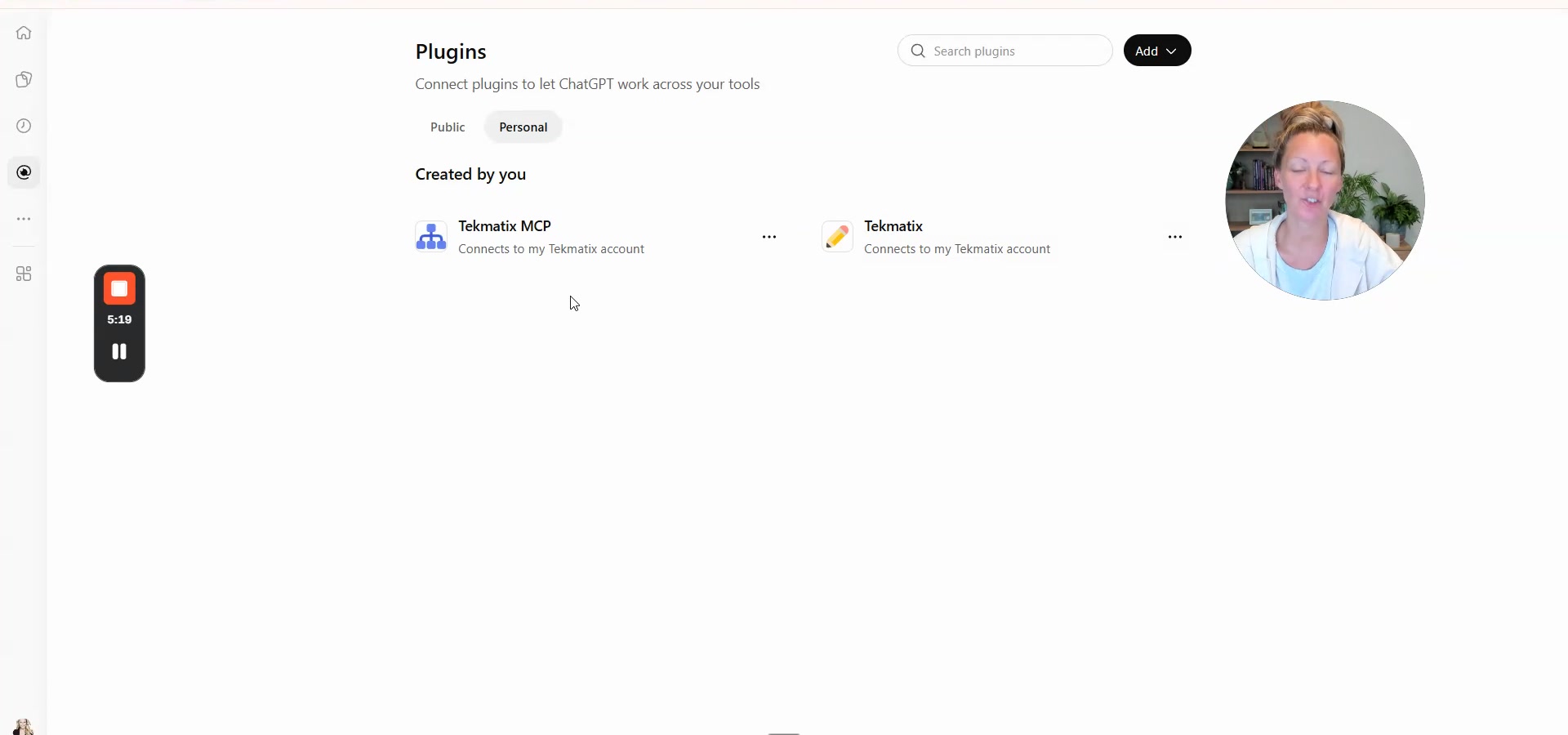
Return to ChatGPT’s Plugins area and open your personal connections. Your Tekmatix connection should now appear as connected.
Step 8: Enable Tekmatix in a new chat
Start a new conversation and select the Tekmatix connection from the available tools or plugin menu. The current OpenAI instructions describe opening the composer’s plus button and selecting the plugin from More.
Installing a connection and making it available to the current conversation are separate steps. If ChatGPT says it cannot access Tekmatix, check that you have enabled the plugin in that conversation.
Step 9: Test with a read-only request
“Using my Tekmatix connection, tell me which sub-account you can access. Then show the five most recently added contacts using the supported tools. Do not change any records.”
Check that the business name and returned records match the intended account. Ask ChatGPT to disclose any unavailable tool or missing permission rather than guessing.
You can also ask:
“Check the operations available through my Tekmatix connection. Tell me which supported tasks you can perform for contacts, calendars, conversations and pipelines. Do not make any changes.”
This capability check is more useful than assuming a task will work because you saw it in someone else’s account. The MCP operation catalogue and your authorised access can change.
What can you ask ChatGPT to do in Tekmatix?
Start with the task that is costing you time in your business. These examples are requests to try using the relevant supported operations and permissions. Replace the bracketed details with your own account information.
| Business task | Example prompt | Access needed |
|---|---|---|
| Prepare for a client call | “Find [client email] in [business name]. Summarise their recent conversations and contact notes, and list outstanding questions. Do not edit or send anything.” | Contacts, notes and conversations read access. |
| Organise leads | “Find contacts in Brisbane in [business name]. Show the proposed matches first. After I approve them, add the tag Brisbane to those contacts.” | Contact search and tag write access. |
| Review the sales pipeline | “Summarise open opportunities in [pipeline name]. Group by stage and show counts and recorded values by currency. List records missing a value.” | Pipeline and opportunity read access. |
| Create a sales opportunity | “Find [client email]. Prepare an opportunity in [pipeline] at [stage] worth [amount and currency]. Show me the details for approval before creating it.” | Contact lookup and opportunity write access. |
| Manage bookings | “Check [calendar name] for available 30-minute appointments next Tuesday in Australia/Brisbane time. Show me the options before booking.” | Calendar and availability read access; appointment write access to book. |
| Improve customer follow-up | “Review unanswered enquiries from the last seven days and draft a helpful reply for each. Show the recipient and channel. Do not send the replies.” | Conversation read access. Sending is a separate write action. |
| Set follow-up tasks | “For [client email], prepare a follow-up task due Friday at 10am Australia/Brisbane time, assigned to [team member]. Confirm the contact, assignee and due date before saving.” | Contact and user lookup plus task write access. |
| Use an existing workflow | “Find the published [workflow name] workflow. Explain what information is available about it and prepare to enrol [client email]. Show me the details before enrolling.” | Workflow lookup and supported contact enrolment access. |
| Draft social content | “Check whether you can create a Social Planner draft. If supported, prepare a draft for [connected social account] promoting [offer]. Do not publish or schedule it.” | Social account read access and supported Social Planner write access. |
| Review campaign results | “Retrieve available statistics for [campaign name] and explain the results, the reporting period and any missing metrics. Do not change or send the campaign.” | Email campaign statistics read access. |
| Prepare an invoice | “Check whether invoice creation is available. Prepare a draft invoice for [client email] for [service], [amount and currency], due [date]. Show all details before saving or sending.” | Supported invoice operations and relevant permissions. |
| Prepare a blog draft | “Find [blog site name]. Check whether blog draft creation is supported. Prepare [article topic] as a draft with relevant categories and tags. Do not publish it.” | Blog list and relevant blog write access. |
You can combine tasks, but make the sequence clear. For example: find the right contact, review their history, draft a follow-up, then wait for your approval before sending.
A chat connection does not automatically create a recurring autonomous agent. Repeated background work needs a separate scheduling or automation setup that supports the required connection and actions.
A better prompt gives you a better result
“In [Tekmatix sub-account], use the supported tools to [task] for [specific contact, calendar or pipeline] during [date range and timezone]. First show me the matching records and proposed changes. Do not send messages, delete records, publish content or change payment settings without my approval. Report what you completed and anything blocked by missing permissions.”
Always specify dates, timezones and currencies when they matter. Use a contact email or another unique identifier when possible. If two people have the same name, ask ChatGPT to resolve the correct record before taking action.
Verify and manage the installation in Tekmatix
Our Claude guide also shows the Tekmatix-side check: open App Marketplace → Installed Apps and locate the relevant MCP integration. For ChatGPT, look for the OpenAI integration rather than the Anthropic app used by Claude.
Use the installed app controls to review or revoke access. To disconnect, remove the ChatGPT connection and revoke or uninstall the corresponding integration from the authorised account. Check that you have selected the intended app and business.
Troubleshooting the ChatGPT MCP connection
| Problem | What to check |
|---|---|
| No custom MCP option | Check Developer mode, your account’s feature availability and any workspace administrator restrictions. |
| The URL will not connect | Paste https://services.leadconnectorhq.com/mcp/openai/v2/ without spaces or additional transcript text. |
| The authorisation window disappears | Check open windows and pop-up blocking. Return to the connection flow if needed. |
| The wrong account appears | Check the selected sub-account and the signed-in Tekmatix user. Reauthorise the intended account if necessary. |
| ChatGPT cannot use Tekmatix | Enable the plugin in a new conversation and test a read-only request. |
| Reading works but updates fail | Ask which operation and scope are missing. Read access does not grant permission to write. |
| A requested action is unavailable | Ask ChatGPT to inspect the available operations. Do not assume an action exists because a related Tekmatix feature exists. |
| Permission boxes cannot be changed | The OpenAI consent screen may differ from Claude’s. Review the grant actually offered and ask support if you need a narrower setup. |
Frequently asked questions
Can ChatGPT update my Tekmatix contacts?
Yes, where the connected MCP tools support the required contact operation and you have granted the relevant permission. Ask it to find the correct record and show proposed changes first.
Can ChatGPT book appointments in Tekmatix?
Supported calendar and appointment operations can allow this with the required access. Give the calendar, contact, date, duration and timezone, and check availability before booking.
Can ChatGPT send emails or messages?
The current catalogue includes supported messaging and email operations, but your connection may not expose all of them. Check the exact operation and permission. Drafting a message and sending a message are separate actions.
Do I need an API key?
No API key is required for the OAuth connection described here. Complete the sign-in and permission flow opened by ChatGPT.
Do ChatGPT and Claude use the same MCP URL?
No. ChatGPT and compatible OpenAI clients use the OpenAI endpoint; Claude uses the Anthropic endpoint. Choose the address that matches your AI client.
Can I connect more than one Tekmatix sub-account?
Single-account connections are supported. Some agency installations also offer multiple sub-accounts. Availability depends on the installation options offered to you. Name the business in each prompt when more than one is connected.
Is this the same as Ask AI inside Tekmatix?
No. This guide connects your external ChatGPT assistant through MCP. Ask AI is accessed inside Tekmatix. They provide different ways of working with your business account.
How do I disconnect ChatGPT?
Remove the connection in ChatGPT and revoke or uninstall the corresponding integration from the account’s installed apps. Check the correct business and integration before removing access.
MCP addresses for ChatGPT, Claude and Muse
| Client | MCP server URL |
|---|---|
| ChatGPT, Codex and compatible OpenAI clients | https://services.leadconnectorhq.com/mcp/openai/v2/ |
| Anthropic Claude | https://services.leadconnectorhq.com/mcp/anthropic/v2 |
| Muse official app | https://services.leadconnectorhq.com/mcp/muse/v2/ |
Using Claude instead? Follow our step-by-step guide to connecting Claude to Tekmatix.
Get help connecting ChatGPT to Tekmatix
Open the live chat in the bottom-right corner of your Tekmatix account for help. You can also bring your questions to our free live training calls. Check the current session links at tekmatix.com/help.
New to Tekmatix? Book a free demo and tell us which parts of your business you would love your tech to take off your hands.
Happy teching!
Setup references
- Sarah’s ChatGPT-to-Tekmatix video walkthrough
- Tekmatix’s Claude MCP integration guide
- Official MCP connector documentation
- OpenAI’s custom MCP plugin setup instructions
#Tekmatix #ChatGPT #MCP #AIForBusiness #BusinessAutomation #CRM #AIIntegration #SmallBusinessTools