
TekMatix Blog & Help Articles
Use the search bar below to look for help articles you need.
How to Automate Client Portal File Uploads with Workflows in Tekmatix
Managing client documents often involves more manual follow-up than it should.
When a client uploads an important file, your team may need to check the Client Portal, notify the appropriate person, update internal records, begin a review process or send the client their next instructions.
The new Client Portal File Uploaded workflow trigger in Tekmatix makes it easier to automate these steps.
You can now automatically initiate a workflow whenever a contact uploads one or more documents through the Shared Documents area of the Client Portal.
This helps your business respond to uploaded files faster, reduce manual monitoring and create smoother document-based customer journeys.
What’s New?
Tekmatix now includes a new workflow trigger:
Client Portal File Uploaded
When a contact uploads a document through the Shared Documents area of the Client Portal, the trigger can automatically add that contact to a workflow and begin your selected automation actions.
Depending on your workflow, you could automatically:
• Notify a team member that a new document has been received
• Send the client a confirmation message
• Create an internal task to review the document
• Update the contact record
• Add or remove tags
• Move an opportunity to the next pipeline stage
• Begin an onboarding or approval process
• Send the next instructions to the client
This means your team no longer needs to manually check for new uploads before taking the next step.
How the Client Portal File Uploaded Trigger Works
The trigger monitors file uploads completed by contacts through the Client Portal Shared Documents experience.
When a client uploads and submits a file, Tekmatix can automatically initiate the connected workflow.
The workflow then continues using the actions and conditions you have configured.
For example, imagine you run a coaching or consulting business and require clients to upload a completed intake document before their first session.
When the client uploads the document, Tekmatix could automatically:
Send the client an email confirming that the document has been received.
Notify the assigned coach or consultant.
Create a task for the team to review the document.
Apply a “Documents Received” tag to the contact.
Move the client to the next stage of the onboarding pipeline.
Instead of relying on someone to repeatedly check the Client Portal, the process can continue automatically.
How to Set Up the Client Portal File Uploaded Workflow Trigger
To create an automated workflow for Client Portal uploads:
Navigate to Automation.
Select Workflows.
Create a new workflow or open an existing workflow.
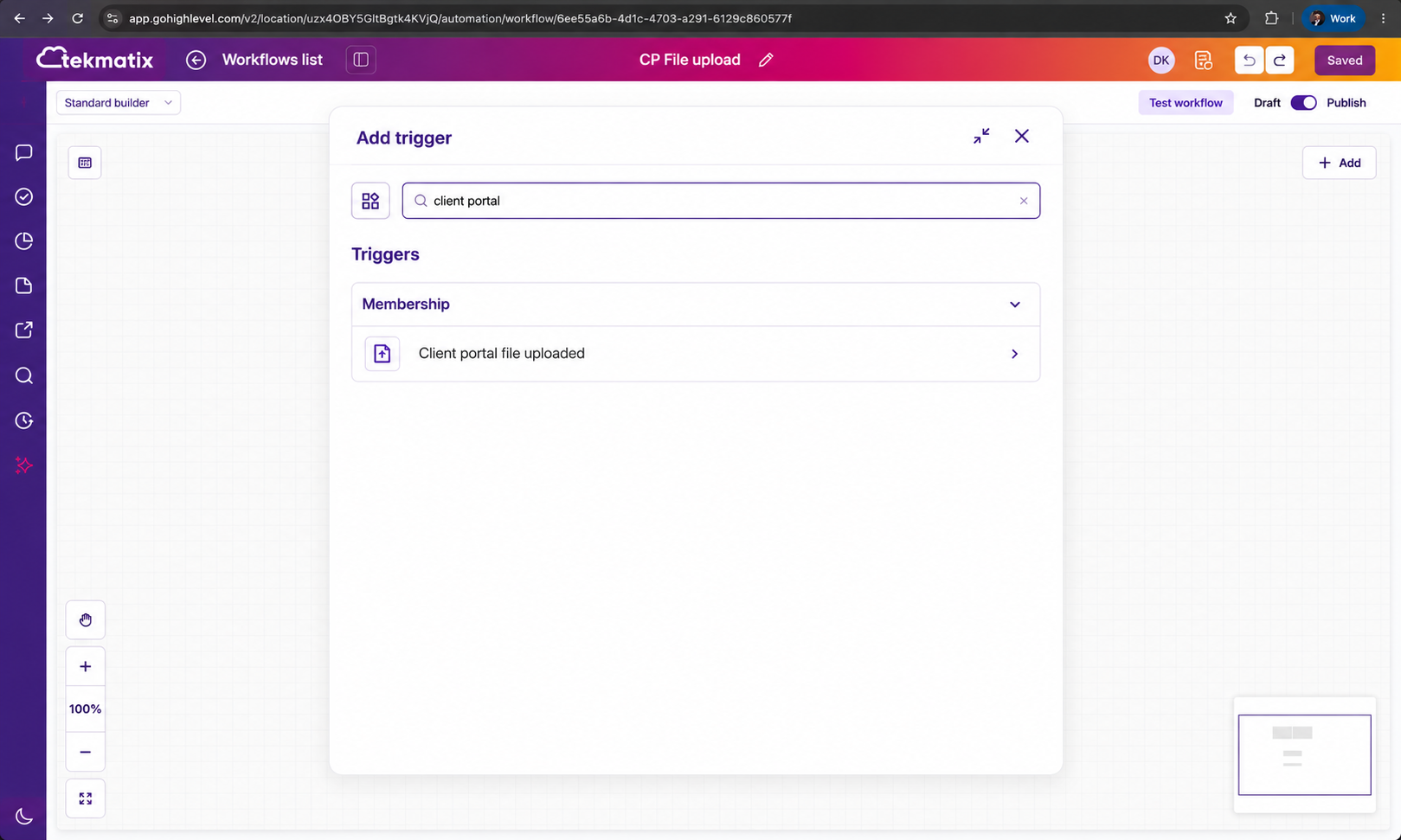
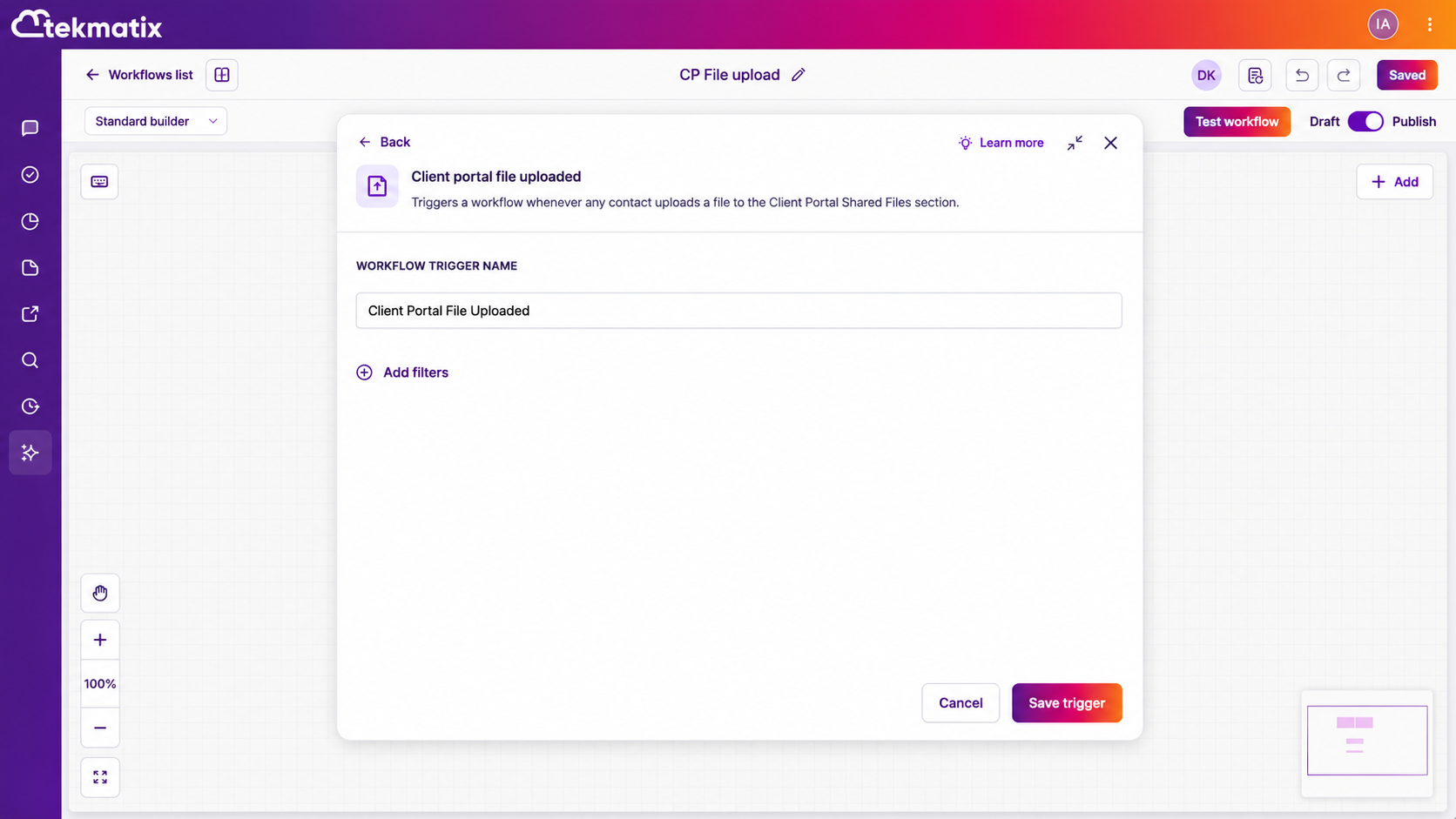
Add a new workflow trigger.
Select Client Portal File Uploaded.
Add and configure the workflow actions required for your process.
Review and test the workflow.
Publish the workflow.
Once the workflow is active, eligible file uploads through the Client Portal can automatically trigger your automation.
How to Share a File with a Client Through the Client Portal
You can also upload documents from a contact record and make them available inside the client’s portal.
To share a document:
Navigate to Contacts.
Open the relevant contact record.
Select the Files icon from the right-side navigation panel.
Upload the required file.
Select the Upload to Client Portal checkbox.
Save the file.
The document will then become available to the contact within their Client Portal.
This can be useful when sharing:
• Agreements
• Welcome documents
• Project resources
• Reports
• Templates
• Assessments
• Learning materials
• Client deliverables
• Supporting documentation
How Clients Can Upload Files Through the Client Portal
Clients can upload documents directly through the Shared Documents section of their Client Portal.
To upload a file, the client can:
Log in to the Client Portal.
Navigate to Shared Documents.
Select Share File.
Choose the file or files they would like to upload.
Submit the files.
Clients can upload a single document or multiple documents, with support for up to 10 files in one upload.
Multiple file types are supported.
Once the files have been successfully uploaded, the Client Portal File Uploaded workflow trigger can automatically initiate the connected workflow.
Why This Update Matters
Document collection is often a critical part of onboarding, approvals, service delivery and ongoing client management.
However, when file uploads rely on manual monitoring, important documents can be overlooked or remain unprocessed for longer than necessary.
This update helps businesses create a more responsive and reliable process.
Reduce Manual Monitoring
Your team no longer needs to repeatedly check the Client Portal to see whether a client has uploaded a requested document.
The workflow can automatically begin as soon as the upload is completed.
Reduce Operational Delays
A newly uploaded file can immediately trigger the next step in your process.
This may include notifying a team member, creating a review task or moving the contact through a pipeline.
Improve Document Review Processes
Automatically create tasks or internal notifications when documents are received so the appropriate team member knows that action is required.
Support Compliance Processes
Businesses that require specific documentation can create structured workflows around file submission, review and follow-up.
This can help create a more consistent process while reducing reliance on manual checks.
Prevent Important Uploads from Being Missed
Automated notifications and tasks can help ensure uploaded files are brought to the attention of the appropriate team members.
Create Smoother Client Journeys
Clients can receive immediate confirmation that their documents have been received, along with instructions explaining what will happen next.
This creates a more professional and reassuring customer experience.
Accelerate Onboarding and Approvals
When document submission is connected to your workflows, onboarding and approval processes can progress without waiting for someone to manually identify the upload.
Practical Ways to Use the New Workflow Trigger
The Client Portal File Uploaded trigger can support many different business processes.
Coaching and Consulting
Automatically notify a coach when a client uploads:
• Intake questionnaires
• Completed worksheets
• Business plans
• Strategy documents
• Assessment files
Course Creators and Education Providers
Use uploaded documents to initiate:
• Assignment reviews
• Assessment processes
• Student feedback workflows
• Certification checks
• Portfolio reviews
Professional Services
Automatically begin internal processes when clients upload:
• Application documents
• Identification files
• Agreements
• Project briefs
• Supporting evidence
Agencies
Trigger project actions when clients submit:
• Brand assets
• Content files
• Creative briefs
• Images
• Campaign materials
Recruitment and Human Resources
Create automated processes for:
• Résumés
• Employee onboarding documents
• Certifications
• Signed forms
• Supporting documentation
Create More Connected Document Workflows with Tekmatix
The new Client Portal File Uploaded trigger connects client document submissions directly with your business automations.
Instead of manually checking for uploads, notifying team members and beginning each process by hand, Tekmatix can automatically initiate the next stage of the customer journey.
Whether you are managing onboarding documents, assessments, approvals, project files or client deliverables, this update can help your business reduce administration, respond faster and create a more organised client experience.
The Client Portal File Uploaded workflow trigger is now available in Tekmatix.

Copyright © 2026 TekMatix. All rights reserved | [email protected]