
TekMatix Blog & Help Articles
Use the search bar below to look for help articles you need.

How to Choose a Dedicated Email Sender Domain for Each Tekmatix Workflow
Tekmatix has added more control over how emails are sent from your automated workflows.
You can now select a specific verified Sender Domain for each individual workflow, helping you separate different types of email communication and better manage your email sending reputation.
This means your appointment reminders, payment confirmations, nurture sequences and promotional campaigns no longer need to rely on exactly the same sending domain.
What’s New?
Inside your Workflow Settings, you’ll now find a Sender Domain dropdown under Sender Details.
From here, you can choose any verified dedicated sending domain connected to your Tekmatix account.
Once selected, email actions inside that workflow can inherit the chosen sender domain automatically.
This works similarly to selecting sending domains when creating Email Campaigns.
If you do not currently have any dedicated sending domains configured and verified, the Sender Domain dropdown will not appear.
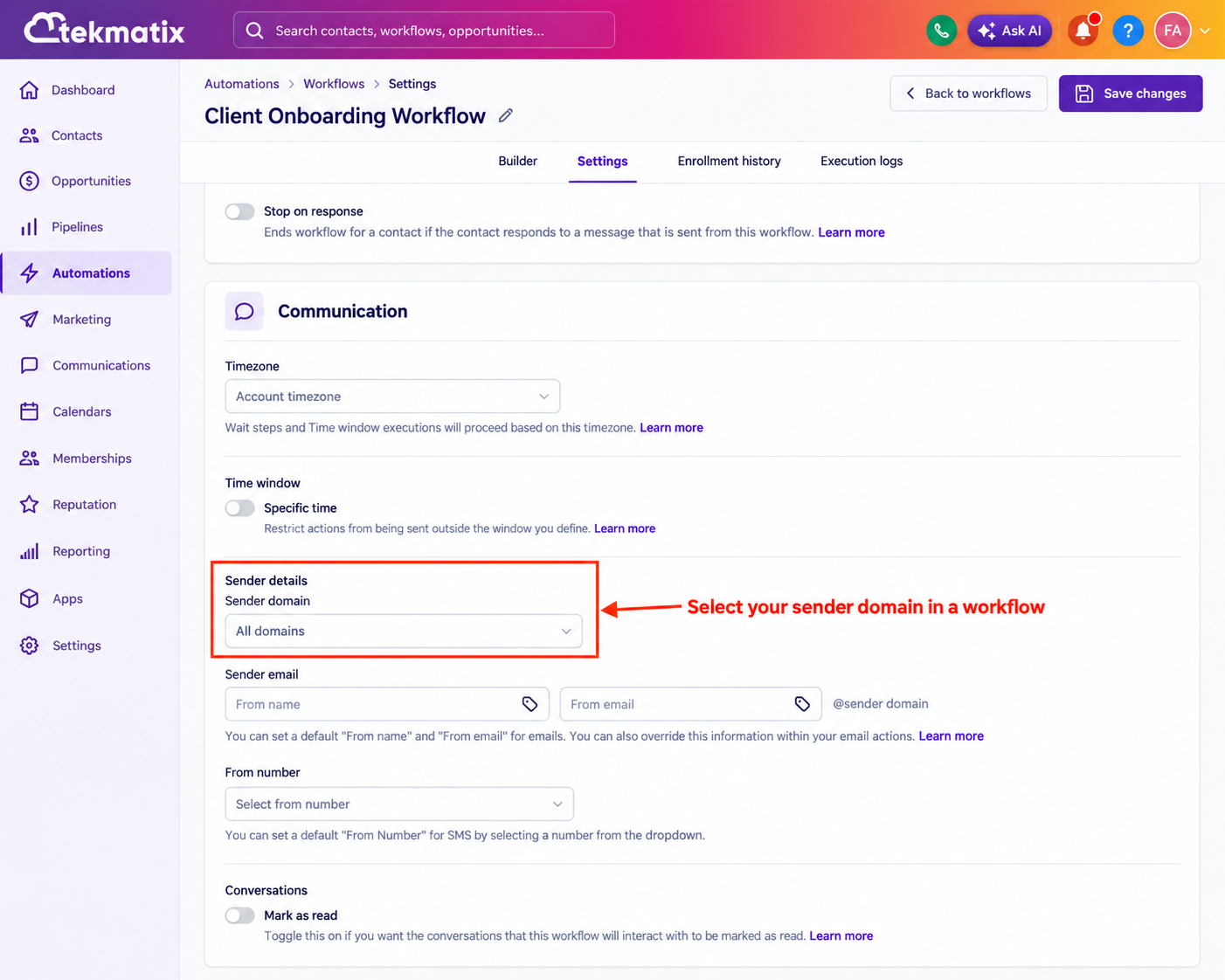
How the Sender Domain Setting Works
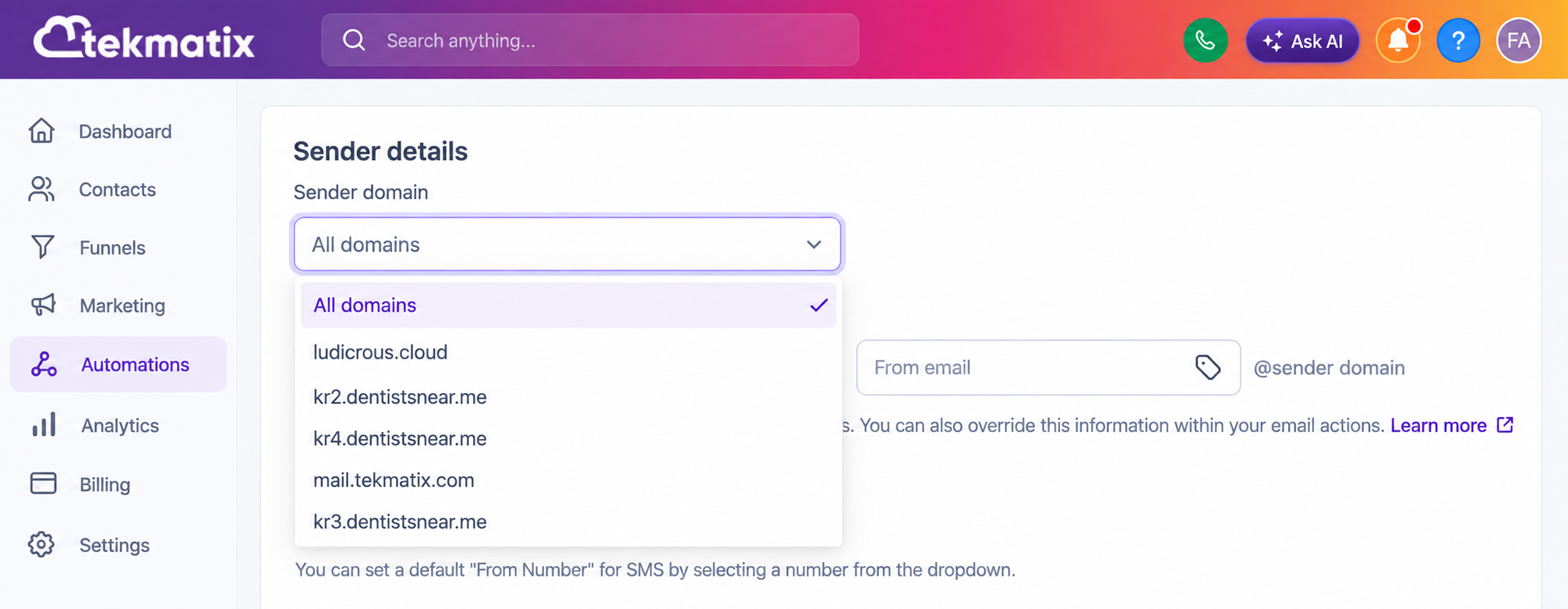
The Sender Domain dropdown displays your available verified dedicated domains, along with an All Domains option.
You can choose between two main configurations.
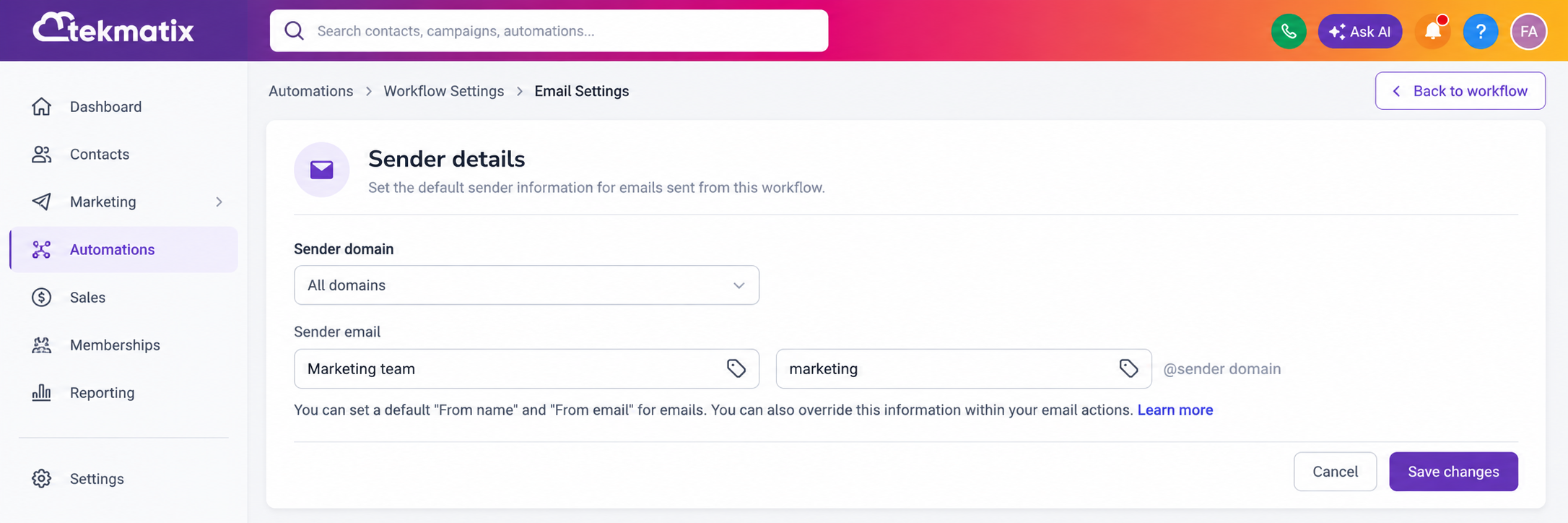
Option 1: Use All Domains
Select All Domains and enter your preferred sender name and email prefix.
For example:
From name: Acme Clinic
Email prefix: marketing
Your emails can continue sending across the dedicated domains configured within your account according to your existing sending configuration and distribution settings.
This can be useful if you already have multiple sending domains and want Tekmatix to distribute email across them.
Option 2: Choose a Specific Domain
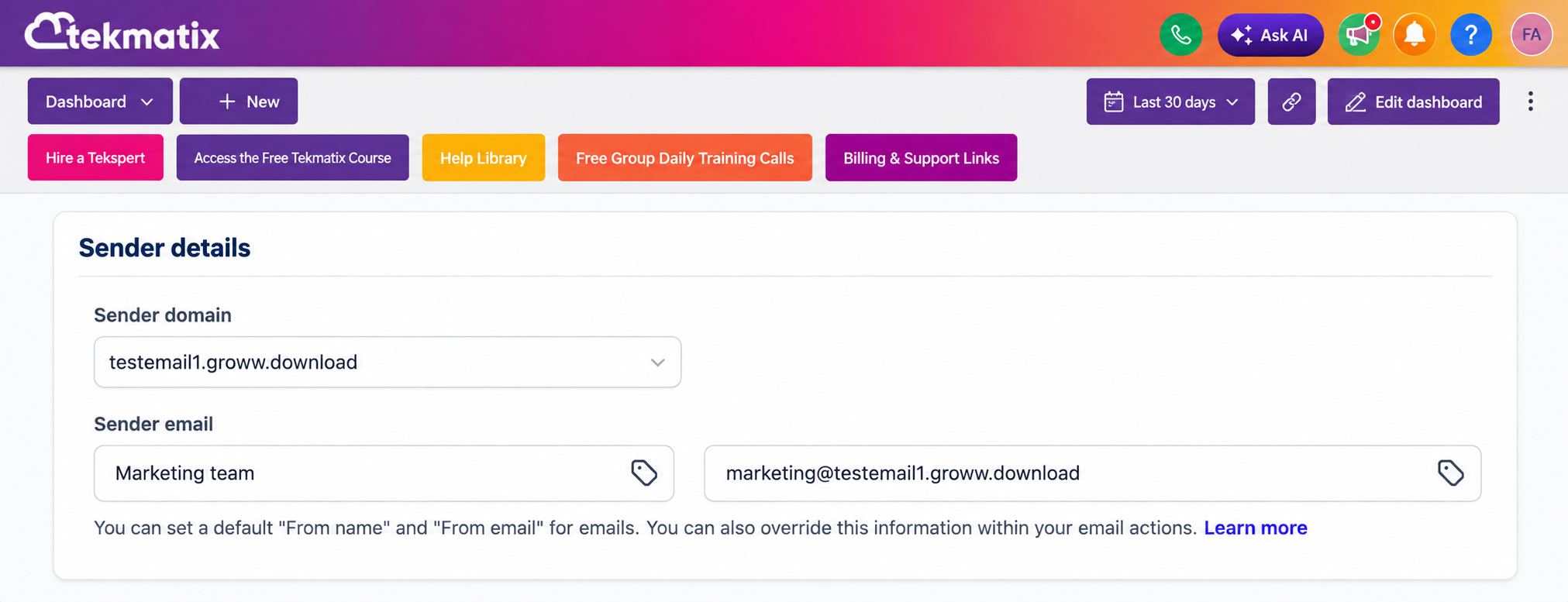
You can instead assign one dedicated domain to the workflow.
For example, if you select:
Domain: example.com
Email prefix: marketing
Your emails could be sent from:
This gives you much greater control over which domain is associated with different types of email automation.
What Happens If the Sender Email Uses a Different Domain?
If you manually enter a full sender email address using a different domain from the domain selected in your Workflow Settings, the manually entered sender email will override the selected workflow domain.
Tekmatix will also display a Sender Domain Mismatch warning.
This is important because mismatched sending domains can potentially affect email authentication and deliverability.
There is also a hierarchy to keep in mind when configuring your sender details.
Sender settings configured directly inside an individual email action take priority over the workflow-level sender settings.
So if you need one email within a workflow to behave differently, you can still configure that action individually.
How to Set a Sender Domain for a Tekmatix Workflow
To configure your workflow sender domain:
Go to Email Services inside your Tekmatix account.
Open Dedicated Domains.
Add and verify the domain you want to use.
Open the workflow you want to configure.
Go to Workflow Settings.
Find Sender Details.
Select your preferred Sender Domain.
Enter your From Name and From Email or email prefix.
Save your workflow settings.
Email actions using the workflow-level sender settings will then inherit those details.
Why This Matters for Email Deliverability
This update gives businesses the ability to separate email traffic based on its purpose.
Previously, different workflow emails could share the same underlying sending domain configuration.
That meant promotional emails, transactional emails and automated reminders could all contribute to the reputation of the same sending domain.
For example, imagine you send:
appointment reminders
payment receipts
course access emails
lead nurture sequences
promotional campaigns
re-engagement campaigns
Those emails do not all have the same sending behaviour or engagement rates.
A customer waiting for an appointment reminder is likely to interact with an email very differently from someone receiving a promotional campaign.
Separating these email types across different domains can help you manage their reputations independently.
Protect Your Important Transactional Emails
One of the biggest advantages of this update is the ability to protect important transactional communications.
You might choose to send:
Appointment reminders and receipts from:
While sending promotional nurture campaigns from:
Your promotional email volume then develops its own sending reputation separately from your important customer communications.
If promotional engagement drops or a campaign generates more complaints than expected, your appointment reminders and transactional emails are not necessarily relying on that exact same sending domain.
For businesses sending significant email volume, this gives you another way to structure your email infrastructure strategically.
Test New Sending Domains More Safely
You can also use workflow-level sender domains when introducing a new sending domain.
Instead of immediately moving large volumes of email onto a newly configured domain, you could assign it to one workflow first.
You can then monitor things such as:
delivery rates
bounce rates
spam complaints
open rates
click rates
engagement
overall email performance
Once you are comfortable with how the domain is performing, you can gradually move additional workflows across if appropriate.
A Simple Example
Imagine a clinic using Tekmatix for its customer communications.
The clinic sends appointment reminders and payment receipts from:
Its monthly promotions and marketing nurture emails are sent from:
The promotional emails can now build their own sending reputation separately from the clinic's important operational emails.
This gives the business greater control over how different categories of email are managed.
Important Things to Know
There are a few important details to remember when using workflow sender domains:
Only verified domains configured under Email Services will appear in the Sender Domain dropdown.
If no dedicated domains are configured, the Sender Domain option will not appear.
Sender details configured inside an individual email action override the workflow-level sender settings.
A manually entered sender email using a different domain can override the selected workflow domain.
Tekmatix will display a domain mismatch warning when relevant.
Email headers configured within your dedicated email settings take priority over email headers configured at workflow level.
More Control Over Your Tekmatix Email Infrastructure
For businesses that rely heavily on email automation, protecting sender reputation is incredibly important.
Being able to assign domains at the workflow level gives you another layer of control over how your email infrastructure is organised.
You can separate transactional emails from promotions, isolate higher-risk campaigns, test new sending domains gradually and create a more deliberate email sending strategy.
It is a relatively small workflow setting that can make a significant difference as your email volume grows.

Copyright © 2026 TekMatix. All rights reserved | [email protected]